Introduction
Imagine this: you’re working on your Dell Laptop, maybe an Inspiron, XPS, Latitude, or G-series model, and the touchpad suddenly stops responding. Your finger moves across the surface, but the cursor stays frozen, clicks do nothing, and scrolling is impossible. It’s frustrating, especially when you do not have an external mouse nearby. The good news is that most Dell touchpad issues are caused by software, settings, or driver problems rather than hardware failure.
This 2026 guide explains how to fix a Dell touchpad not working on Windows 11 and Windows 10 using simple, practical steps. It covers quick checks, advanced repairs, model-specific solutions, and long-term prevention tips for Dell Inspiron, Latitude, XPS, and G-series laptops. The instructions are written in plain language, allowing you to follow along without confusion.
Quick Diagnostic: Software or Hardware?
Before you start changing settings, determine whether the issue is software-related or hardware-related. In many cases, a Dell touchpad stops working because it was disabled, the driver has become corrupted, or Windows has updated something in the background. Dell’s own troubleshooting guidance recommends checking that the touchpad is enabled, cleaning the touchpad surface, and running diagnostics before assuming the device is damaged.
Test with an External Mouse
Connect a USB mouse or pair a Bluetooth mouse if you have one available. If the mouse works normally while the touchpad does not, the issue is likely tied to the touchpad settings, drivers, or Windows configuration. If neither device responds, your system may be frozen, and a hard restart is usually the next best step.
Match Symptoms to the Likely Cause
Use the symptom patterns below to narrow down the problem quickly.
| Symptom | Likely Cause | Best First Fix |
| Clean the pad and adjust the sensitivity | Disabled setting or driver issue | Check Touchpad settings, then Device Manager |
| The touchpad is dead, but the mouse works | Power management conflict | Adjust power settings and update drivers |
| Touchpad fails after a Windows update | Incompatible or outdated driver | Reinstall the Dell touchpad driver |
| Cursor jumps, freezes, or behaves erratically | Sensitivity or surface contamination | The touchpad does not work even in BIOS |
| The touchpad does not work even in the BIOS | Possible hardware problem | Run Dell Diagnostics |
Confirm Your Dell Model
Different Dell families can behave differently, so identifying your exact model helps a lot. You can find it in Settings > System > About, or by using the service tag on the bottom of the laptop. Once you know the model, you can download the correct driver and BIOS files from Dell’s support site.
Step-by-Step Fixes
Follow these fixes in order. Start with the easiest steps first, then move on to the more advanced ones if needed. Dell’s support materials and Microsoft guidance both recommend beginning with settings, then drivers, and finally diagnostics or restore actions if the issue continues.
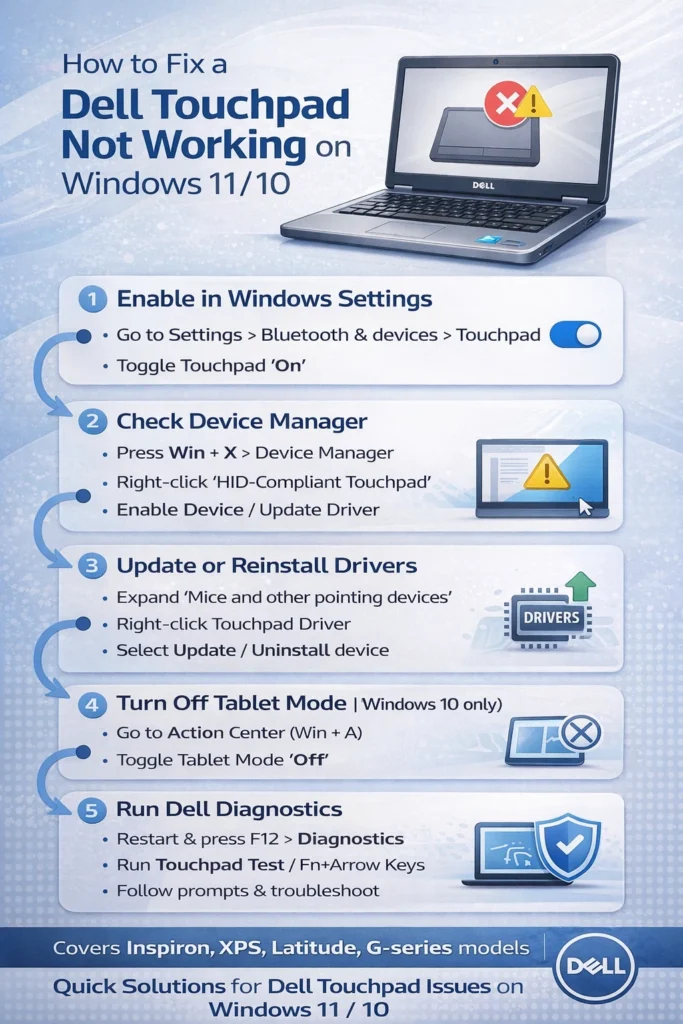
Turn the Touchpad On in Windows Settings
Windows sometimes disables the touchpad accidentally, especially after updates or when an external mouse is connected. Open Settings with Windows + I, then go to Bluetooth & devices > Touchpad on Windows 11 or Devices > Touchpad on Windows 10. Make sure the touchpad toggle is switched on, and also enable the option that keeps the touchpad active when a mouse is connected.
Check Dell Touchpad Settings
Many Dell laptops include Dell-specific pointing device settings. Search for “Touchpad Settings,” “Dell Touchpad,” or “Precision Touchpad” from the Start menu and open the utility if it appears.
From there, verify that touchpad use is enabled and reduce any overly aggressive palm rejection or typing suppression options if the cursor feels unresponsive.
Disable Tablet Mode on 2-in-1 Models
If you have a convertible Dell laptop, such as an Inspiron Flex, Windows may switch into a tablet-oriented mode that changes how the touchpad behaves. Go to Settings > System > Tablet and turn off tablet-related behavior if it is enabled. Restart the laptop afterward to make sure the change fully applies.
Perform a Full Power Reset
A temporary firmware or power-state glitch can stop the touchpad from responding, Especially after sleep, hibernation, or a forced shutdown. Restart the laptop, unplug the charger, and hold the power button for 30 to 60 seconds to clear residual power.
If your model has a removable battery, disconnect it before doing this step, then reconnect and boot normally.
Update Windows, Drivers, and BIOS
Outdated software is one of the most common causes of Dell touchpad trouble. Open Windows Update and install all pending updates first, then go to Dell’s support site and download the latest chipset.
Touchpad and BIOS updates for your service tag. Dell’s guidance places the touchpad driver and BIOS update among the most important fixes when the touchpad stops working after a system change.
Reinstall the Touchpad Driver
If the driver is damaged, a reinstall often restores normal function. Open Device Manager, expand Human Interface Devices and Mice and other pointing devices, then right-click the touchpad entry and choose Update driver.
If that does not help, uninstall the device, restart the computer, and let Windows reinstall it automatically; then install the latest Dell-specific driver if the problem remains.
Run Dell SupportAssist and Diagnostics
Dell SupportAssist can scan for hardware and software issues and sometimes identify the exact fault. Run a hardware scan inside SupportAssist, or restart the system and press F12 to access Dell diagnostics if the touchpad still does not respond. If diagnostics report a failure, you are likely dealing with a hardware problem rather than a Windows issue.
Try a Clean Boot or System Repair
If the touchpad only fails intermittently, a third-party app or service may be interfering. Use a clean boot to start Windows with minimal services, then test the touchpad again.
If system files may be damaged, running system repair tools and then reinstalling the Dell touchpad driver can help restore normal behavior.
Model-Specific Fixes
Different Dell product lines can show different symptoms, so it helps to tailor the repair to the laptop family. Inspiron, Latitude, XPS, and G-series systems often fail for slightly different reasons, especially after sleep, updates, or firmware changes. Dell and Microsoft both note that some problems are tied to settings, power behavior, or driver compatibility.
Inspiron and Vostro
Inspiron and Vostro users often report touchpad failure after sleep or a restart. In those cases, check the device’s power management settings in Device Manager and disable any option that lets Windows turn off the touchpad to save power. Updating Dell’s power and chipset software can also reduce recurring failures.
Latitude
Latitude laptops often show click or tap behavior problems rather than a complete failure. Open the Dell touchpad utility and confirm that tap-to-click, scroll, and sensitivity settings are configured correctly. If the touchpad works but clicks feel inconsistent, the issue may be configuration-based rather than a broken device.
XPS and Precision
XPS and Precision systems are more likely to run into driver or post-update compatibility problems because they often receive newer Windows 11 features sooner. If the touchpad stops after an update, roll back the driver through Device Manager, then install the latest Dell-approved touchpad and BIOS updates. This approach is especially useful when the touchpad begins failing only after a major Windows change.
G-Series
Gaming laptops can develop cursor jumps or uneven tracking because of heat, performance tuning, or aggressive background processes. Clean the touchpad surface, update firmware and drivers, and reduce sensitivity if the pointer feels unstable. Keeping the laptop cool and well-ventilated can also help reduce erratic input behavior.
Hardware Checks
If the touchpad does not work even in BIOS or Dell Diagnostics, the problem may be physical. Loose cables, internal damage, spills, and wear can all prevent proper operation. At that point, software fixes are unlikely to solve the issue completely.
Start by inspecting the touchpad area for visible dirt or stickiness, then clean it gently with a microfiber cloth. If the laptop has experienced liquid exposure, has a swollen battery, or fails in diagnostics, professional service is usually the safest route. Dell support and authorized repair options are the most reliable choices when hardware replacement is needed.
Prevention Tips
Once the touchpad is working again, a few habits can reduce the chance of a repeat issue. Keep Dell Command Update or SupportAssist installed so firmware and drivers stay current. Create restore points before major updates, and avoid heavy pressure on the palm rest or touchpad area during transport.
Regular maintenance also helps. Clean the touchpad surface occasionally, keep the laptop cool, and check for Windows updates before problems build up. These small steps can prevent many of the common failures that Dell users run into after sleep, restart, or system updates.
FAQ
A: That usually means Windows recognizes the system, but the touchpad itself is disabled, misconfigured, or affected by a bad driver. Start with Touchpad settings, then check Device Manager, then reinstall the Dell touchpad driver if needed.
A: Update the BIOS, install the latest Dell touchpad driver, and remove any broken or generic driver versions from Device Manager. If the issue started immediately after an update, rolling back the driver can also help.
A: This is often caused by power management settings or a firmware conflict. Disable the option that allows Windows to turn off the touchpad, update drivers, and test the system after a full restart.
A: Replacement cost depends on the model and whether the laptop is under warranty. If the issue is hardware-related, Dell support or an authorized repair center is usually the best route.
A: Yes. The same process works for most Dell laptops, but XPS and Latitude systems often need a more careful driver and BIOS update sequence.
Conclusion
Start with the easiest fix: turn the Touchpad on in Windows settings and check the Dell touchpad utility. Then move to driver updates, BIOS updates, and diagnostics if the problem continues. In most cases, the touchpad starts working again long before you reach the hardware stage.
Would you like me to turn this into a fully SEO-optimized blog post with H1/H2 structure, FAQ schema, and a more natural human tone?











