Introduction
If you are searching “How do I factory reset my HP laptop?”, it usually indicates a critical system condition where your device is no longer performing optimally or behaving normally.
In real-world usage scenarios, HP laptop users commonly face:
- Significant performance degradation (lagging system response)
- Operating system instability (random freezing or crashing events)
- Malware or virus infiltration affecting system integrity
- Storage saturation leading to reduced processing efficiency
- Preparation for resale, transfer, or device handover
Explanation
A factory reset HP laptop process is a high-impact system restoration mechanism that reinstates the device to its original software state.
However, many users encounter challenges because:
- HP systems support multiple recovery pathways
- Incorrect execution may result in irreversible data loss
- Recovery errors are not always explained clearly in standard guides
This comprehensive 2026 guide is designed to provide:
System Preparation Protocol
Before initiating a factory reset HP laptop procedure, proper preparation is essential to avoid data loss and system complications.
Pre-Reset System Checklist
Ensure the following conditions are met:
Device connected to a stable power source
Full backup of critical files (Documents, Desktop, Media files)
Cloud storage synchronization (Google Drive / OneDrive)
External USB backup (recommended redundancy layer
Critical System Warning
A factory reset process may lead to irreversible data deletion depending on the configuration.
- Keep my files mode → partial retention
- Remove everything mode → full data wipe
Always validate backup integrity before execution.
How HP Factory Reset Works (System-Level Explanation)
A factory reset HP laptop operation reinstalls the operating system while restoring system configuration to the default OEM state.
System-Level Changes Include:
- Removal of installed third-party applications
- Deletion of user-generated files (optional selection)
- Reinstallation of Windows 10 or Windows 11
- Restoration of HP default drivers and utilities
- Elimination of software-level corruption
Conceptual Analogy:
A factory reset can be understood as:
“Reinitializing the operating system environment to its original manufacturer configuration.”
Primary Methods to Factory Reset an HP Laptop
HP systems provide multiple recovery pathways depending on system accessibility and failure condition.
We will analyze:
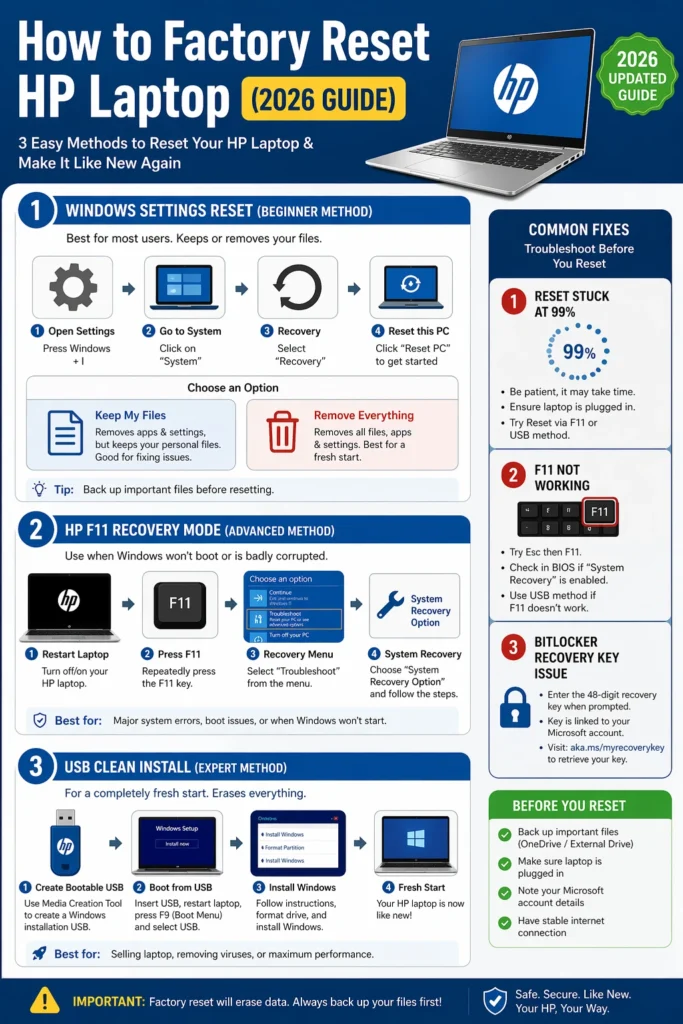
- Windows Settings Reset Method
- HP F11 Recovery Environment Method
- USB Boot Clean Installation Method
Factory Reset HP Laptop via Windows Settings (Beginner-Friendly)
This is the most accessible and user-friendly approach.
Step-by-Step Execution Flow
Follow this structured sequence:
- Open Start Menu Interface
- Navigate to Settings Panel
- Select System Configuration Menu
- Click on the Recovery Section
- Locate Reset this PC Module
- Click Resethe t PC Button
- Select Reset Mode:
- Keep my files (partial retention mode)
- Remove everything (full system wipe mode)
- Choose installation source:
- Cloud Download (recommended for stability)
- Local Reinstall (offline system files)
- Confirm reset initiation → Click Next → Reset
Reset Mode Interpretation Table Virus/resaledeal Usage Conditions
Use this method when:
- Windows OS is functional
- The device is slow but responsive
- No boot-level failure exists
Factory Reset HP Laptop Using F11 Recovery Mode
This method utilizes HP’s built-in recovery partition.
Step-by-Step Execution Flow
- Fully shut down the laptop
- Power on the device
- Immediately press F11 repeatedly
- Wait for HP Recovery Environment
- Select Troubleshoot Option
- Open Recovery Manager Utility
- Choose System Recovery Function
- Follow on-screen recovery instructions
When to Use This Method
This method is recommended if:
- Windows fails to bootThe systemy crashes
- Settings reset is inaccessible
- Boot loop is occurring
Failure Scenario Note
If F11 does not respond:
- The recovery may be missing or corrupted
- The alternate USB recovery method becomes necessary
Advanced USB Clean Installation (Full System Rebuild)
This is the most powerful and technically advanced reset method.
Create Bootable Windows USB
- Download Microsoft Media Creation Tool
- Generate a Windows 10 or Windows 11 bootable USB
Boot from External USB
- Insert USB drive
- Restart system
- Press Esc / F9 / F12 (boot menu key)
- Select USB device
Clean Windows Installation
- Click Install Now
- Select Custom Installation Mode
- Delete all existing partitions
- Install a fresh operating system
Critical Warning
This method:
- Completely erases all data
- Cannot be undone
- Requires prior backup
HP Laptop Factory Reset Not Working?
Reset Stuck at 1% or 99%
Resolution Strategy:
- Wait a minimum of 60–120 minutes
- Avoid forced shutdown
- If frozen → reboot and use F11 recovery
Missing Recovery Environment Error
Resolution Strategy:
- Enable recovery partition via BIOS
- Or use a USB clean installation
F11 Key Not Responding
Resolution Strategy:
- Try Esc + F11 combination sequence
- Press repeatedly during the boot phase
- If unsuccessful → recovery partition likely damaged
BitLocker Security Lock
Resolution Strategy:
- Enter recovery key
- Disable encryption before reset initiation
Post Reset System Behavior
After a successful factory reset, your HP laptop returns to a clean operational state.
System Outcome Includes:
- Fresh Windows installation environment
- Default HP driver configuration
- Improved system performance
- Removal of software clutter
Data Loss Implications:
- Installed software removed
- Local files deleted (depending on option)
- Browser history is erased unless cloud synced
Post Reset Optimization Framework
Windows Update Synchronization
Navigate:
Settings → Windows Update → Install All Updates
HP Driver Restoration
Use:
- HP Support Assistant Tool
- Official HP driver repository
System Debloating
Remove:
- Preinstalled trial applications
- Unused HP utilities
- Promotional software packages
Performance Optimization Layer
- Disable unnecessary startup applications
- Optimize power settings
- Enable SSD performance tuning
Post Reset Optimization Checklist
| Task | Priority |
| Windows Update | High |
| Driver Installation | High |
| Remove Bloatware | Medium |
| Security Setup | High |
| Performance Tuning | Medium |
Advantages and Disadvantages of Factory Reset HP Laptop
Advantages
- Restores system performance baseline
- Eliminates malware and viruses
- Fixes software-level errors
- Improves operational speed
- Prepares device for resale
Disadvantages
- Permanent data loss risk
- Time-consuming reconfiguration
- Reinstallation of applications is required
- Possible driver reconfiguration issues
When Should You Factory Reset Your HP Laptop?
A factory reset should be performed when:
- System performance is severely degraded
- Frequent application crashes occur
- Virus or malware infection persists
- Operating system errors cannot be resolved
- Device preparation for resale or transfer
Factory Reset vs Repair vs Clean Installation
| Method | Complexity | Effectiveness | Use Case |
| Factory Reset | Low | Medium | General issues |
| System Repair | Medium | Low | Minor errors |
| Clean Install | High | Very High | Critical corruption |
FAQs
A: No. Windows is automatically reinstalled during a reset.
A: Only if you created a backup before resetting.
A: Common causes include:
Missing recovery environment
BitLocker encryption lock
System file corruption
A: 30 minutes to 2 hours, depending on system performance
A: Yes, provided that the correct procedure and backup strategy are followed.
Conclusion
Now you have a complete understanding of How to factory reset my HP laptop using multiple validated recovery pathways:
Windows Settings Reset
F11 Recovery Mode
USB Clean Installation
A factory reset is a highly effective system restoration mechanism that resolves:
- Performance degradation
- System instability
- Malware infections
- Software corruption
However, it must always be executed with proper preparation, correct method selection, and structured post-reset optimization.











