Introduction
If you are searching for a HP laptop factory reset without a password, it usually means you are completely locked out of your system. This is one of the most frustrating situations for Windows users in 2026 because access to important files, work data, and personal settings suddenly becomes impossible.
Most users face this issue due to:
- Forgotten Windows login credentials
- Corrupted or broken user profiles
- Failed Windows updates
- Malware or virus infections
- Extremely slow or frozen login screens
- System boot errors or crashes
HP laptops include built-in recovery technology called Windows Recovery Environment (WinRE). This system operates independently from your Windows login and allows you to restore your device even when you cannot sign in.
Why You Can Factory Reset an HP Laptop Without a Password
A common misunderstanding among users is that a Windows password is required to reset the system. This is incorrect.
Core Reason
Windows includes a hidden recovery layer called:
Windows Recovery Environment (WinRE)
This system operates outside normal login authentication. That means it can function even when:
- You forgot your password
- Windows won’t load properly
- System files are corrupted
- User profiles are broken
Technical Explanation (Simple NLP View)
From a system design perspective, WinRE is a self-Contained recovery layer that bypasses user-level authentication. It operates at a deeper OS level, allowing system restoration without requiring credential validation.
When This Works
You are stuck on the login screen
The password is forgotten or incorrect. The system is freezing or lagging.
Windows does not boot properly
The laptop is infected or unstable
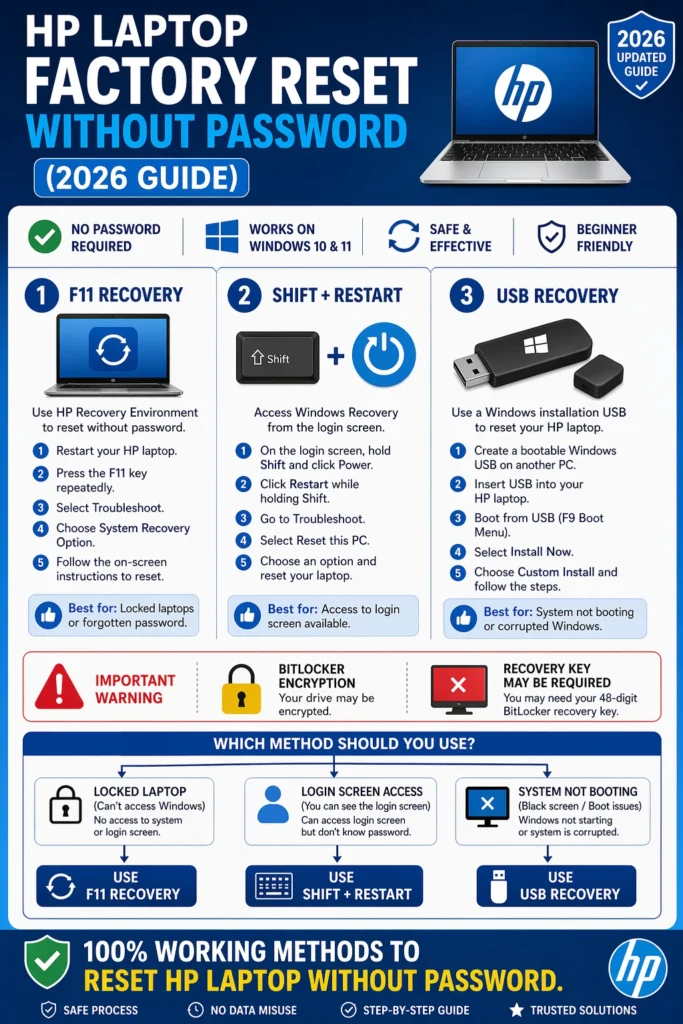
HP Laptop Factory Reset Using F11 Recovery (BEST METHOD)
The F11 recovery method is the official HP-approved solution and works on most HP laptops.It is the fastest and most reliable method for performing an HP laptop factory reset without a password.
Step-by-Step F11 Recovery Process
Shut Down the Laptop
Completely power off your device. Ensure it is not in sleep or hibernation mode.
Enter Recovery Mode
Turn on the laptop and immediately press F11 repeatedly (once every second).
Wait for Recovery Interface
You will see:
“Choose an option” screen
Navigate to Troubleshoot
Click:
- Troubleshoot
- Reset this PC
Choose Reset Option
You will see two choices:
- Keep my files
- Remove everything (Recommended)
Select Remove everything
Confirm Reset
Click reset and wait 20–60 minutes, depending on system speed.
F11 Recovery Summary
| Feature | Details |
| Password Required | No |
| Difficulty | Easy |
| Success Rate | Very High |
| Internet Needed | No |
| Best For | Locked HP laptops |
Pro Tip
If F11 doesn’t open:
Press ESC → Startup Menu → F11 Recovery
Shift + Restart Reset Method
This method works when you can still reach the login screen.
It is another safe and reliable way for HP laptop factory reset without a password.
Step-by-Step Guide
Step 1
On the login screen, hold the SHIFT key
Step 2
Click:
- Power button
- Restart
Step 3
Wait for the Advanced Startup Menu
Step 4
Select:
- Troubleshoot
- Reset this PC
Step 5
Choose:
Remove everything
Advantages
- No password required
- Works on broken user profiles
- Safe recovery method
Limitation
Doesn’t work if Windows is fully corrupted
HP Laptop Factory Reset When F11 Not Working
“F11 not working on HP laptop.”
Why F11 Stops Working
- Recovery partition deleted
- BIOS configuration changed
- SSD replaced or upgraded
- Windows corruption
- System update failure
Use ESC Startup Menu
Steps:
- Restart laptop
- Press ESC repeatedly
- Open Startup Menu
- Select F11 Recovery
Shift + Restart Retry
If ESC fails, repeat Method 2.
BIOS Check (Advanced)
Steps:
- Restart system
- Press F10 (BIOS Setup)
- Check recovery settings
- Enable recovery support
If Nothing Works
Move to USB Recovery Method
USB Recovery Method (Advanced Fix)
This method is used when the system is severely damaged or unbootable.
Step-by-Step USB Recovery
Downloathe d Windows installation media tool.
Insert the USB into the HP Laptop
Plug the USB into the locked system.
Open Boot Menu
Press:
ESC → Boot Menu
Select USB Drive
Choose USB as the boot device.
Install or Repair Windows
You can:
- Install fresh Windows
- Repair the existing system
USB Recovery Comparison
| Feature | USB Method |
| Works on Dead System | Yes |
| Needs Another PC | Yes |
| Difficulty | Medium |
| Success Rate | Very High |
Common Problems & Real Fixes
Reset Stuck at 1% or 99%
Fix:
- Wait 30–90 minutes
- Do not shut down the laptop
F11 Not Working
Fix:
- Use ESC menu
- Try USB recovery
BitLocker Recovery Key Required
Fix:
Go to:
Microsoft account recovery page
Find saved recovery key
Laptop Still Locked After Reset
Fix:
Always select:
Remove Everything
What Happens After Factory Reset?
After completing the HP laptop factory reset without a password, your system will:
Return to the original factory state
Remove all files and applications.
Reinstall Windows automatically
Reset system configuration
Post Reset Setup
You must:
- Set up Windows again
- Connect to Wi-Fi
- Sign in wita h Microsoft account
- Install drivers
- Update system
Pros and Cons
Advantages
- Fixes system errors
- Removes malware
- Improves speed
- Works without a password
- Restores a clean OS
Disadvantages
- Deletes all data
- Time-consuming process
- May require recovery key
- Requires reinstall setup
Smart Preparation Tips
Before resetting:
Charge battery above 50%
Backup important files (if possible)
Save login credentials
Check BitLocker status
Ensure a stable power supply
Quick Decision Guide
| Situation | Best Method |
| Locked laptop | F11 Recovery |
| Login access available | Shift + Restart |
| F11 not working | USB Recovery |
| System not booting | USB Recovery |
FAQs
A: Yes. You can use F11 recovery or Windows recovery tools.
A: Yes, if you select the “Remove everything” option.
A: Use Shift + Restart or the USB recovery method.
A: Not always. But updates may require the internet.
A: Yes. You will need the recovery key from your Microsoft account.
Conclusion
Performing an HP laptop factory reset without a password is completely possible using built-in Windows recovery tools.
In 2026, HP systems will provide multiple recovery layers:
- F11 Recovery (Fastest)
- Shift + Restart (Simple)
- USB Recovery (Advanced)
If you follow this structured guide step by step, you can restore your HP laptop even in a fully locked condition without needing login credentials.











