Introduction
Dealing with Horizontal lines on the screen can be frustrating, especially during gaming on an HP laptop while switching between games and an external monitor that is plugged in. The screen may suddenly display horizontal lines, black horizontal lines, and colored vertical lines, along with faint vertical lines, resulting in a random issue that appears unexpectedly. You may notice lines across the screen or even lines from top, causing a clear display glitch or screen glitch that worsens with every mouse click and mouse movement, making the glitching and screen flickering more noticeable.
After trying a driver update or installing an updated driver, many users perform a restart or repeatedly restart the laptop, but still see no improvement despite proper troubleshooting. From hands-on experience, this kind of display malfunction often signals a deeper technical issue or hidden internal issue, especially when there is no physical damage. In many past issue cases and previous glitches, this intermittent problem has been tied to display artifacts, a possible GPU issue, or a wider graphics issue affecting the overall laptop display problem.
Fun Fact
Many laptop display issues are not caused by the screen itself but by tiny internal connectors that loosen over time due to heat and movement. Interestingly, even professional gamers often face screen flickering problems during intense sessions, which are sometimes solved by simply updating drivers or adjusting refresh rates rather than replacing expensive hardware components.
Why Horizontal and Vertical Lines Appear on an HP Laptop Screen
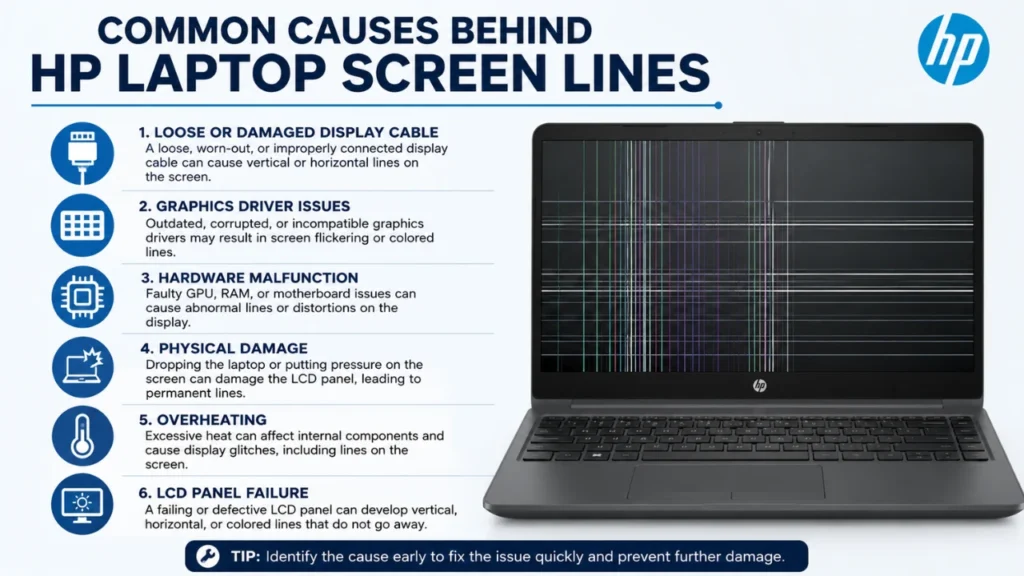
Seeing horizontal or vertical lines on your HP laptop screen can be confusing and stressful, especially when it happens suddenly. These lines may appear as flickering streaks, thin colored bars, or solid black strips across the display. In many cases, the problem shows up while gaming, browsing, or even during startup. This issue is usually related to either software glitches or Hardware faults. Common causes include outdated graphics drivers, loose display cables, GPU overheating, or a failing LCD panel. Even background system processes can sometimes trigger temporary display glitches.
From a practical standpoint, it’s important to observe when the issue occurs. If the lines appear only during heavy tasks like gaming, the GPU could be under stress. If they show up all the time, even on startup, it might be a hardware issue. Understanding this difference helps narrow down the cause quickly and saves time during troubleshooting.
| Name | Meaning | Origin |
| Aiden | Little fire | Irish |
| Sofia | Wisdom | Greek |
| Liam | Strong-willed warrior | Irish |
| Noor | Light | Arabic |
| Mateo | Gift of God | Spanish |
| Aria | Melody | Italian |
| Leo | Lion | Latin |
| Zara | Princess | Arabic |
| Ethan | Firm, strong | Hebrew |
| Mila | Gracious | Slavic |
Common Causes Behind HP Laptop Screen Lines
When dealing with HP laptop horizontal lines on the screen, identifying the root cause is essential. The issue can stem from either software or hardware problems. On the software side, outdated or corrupted drivers are one of the most common reasons. A simple driver update can sometimes fix the problem instantly. However, if the issue persists, it may point to deeper concerns such as GPU malfunction or operating system bugs.
Hardware-related causes are more serious. A damaged display panel, loose internal cables, or motherboard faults can all lead to screen lines. Even if there is no visible physical damage, internal wear and tear can still occur over time. Heat is another major factor—prolonged overheating can weaken internal components and lead to display issues.
In real-world scenarios, many users report that the problem starts intermittently and gradually becomes permanent. This progression is a strong indicator of hardware failure rather than software glitches.
| Name | Meaning | Origin |
| Lucas | Light-giving | Latin |
| Layla | Night | Arabic |
| Noah | Rest, comfort | Hebrew |
| Ella | Fairy maiden | German |
| James | Supplanter | Hebrew |
| Chloe | Blooming | Greek |
| Henry | Estate ruler | German |
| Aisha | Alive, living | Arabic |
| Daniel | God is my judge | Hebrew |
| Nora | Honor | Latin |
When to Repair or Replace Your HP Laptop Screen
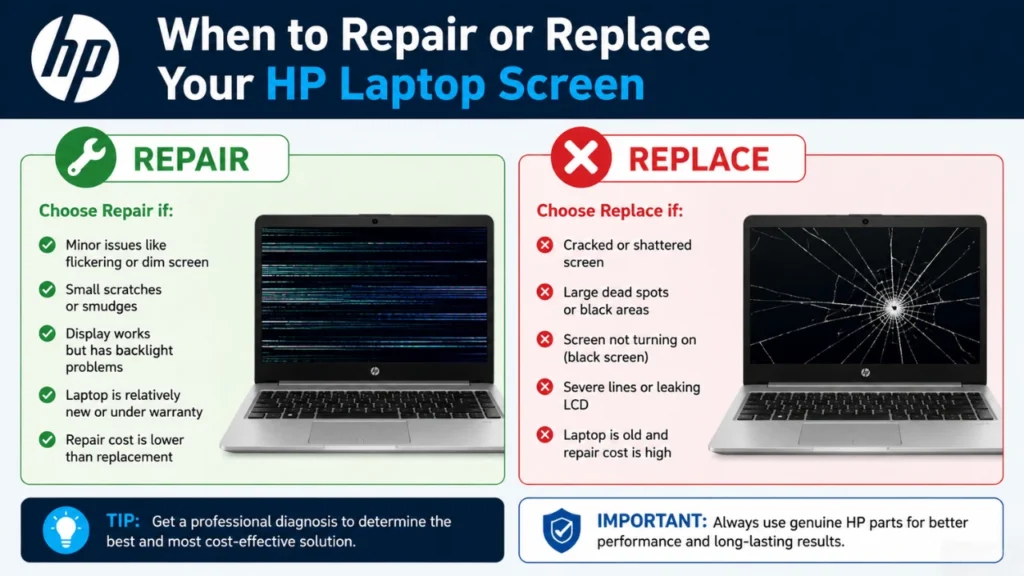
Knowing when to repair or replace your laptop screen is crucial. If the lines appear occasionally and disappear after a restart, it’s likely a minor software issue. But if the lines are permanent, increasing over time, or affecting usability, it indicates hardware damage. In such cases, replacing the screen is often the most Effective solution.
| Name | Meaning | Origin |
| Jack | God is gracious | English |
| Mia | Mine | Italian |
| Samuel | Heard by God | Hebrew |
| Grace | Elegance | Latin |
| David | Beloved | Hebrew |
| Zoe | Life | Greek |
| Owen | Young warrior | Welsh |
| Ruby | Red gemstone | Latin |
| Caleb | Devotion | Hebrew |
| Eva | Life | Hebrew |
Troubleshooting Steps to Fix Screen Lines
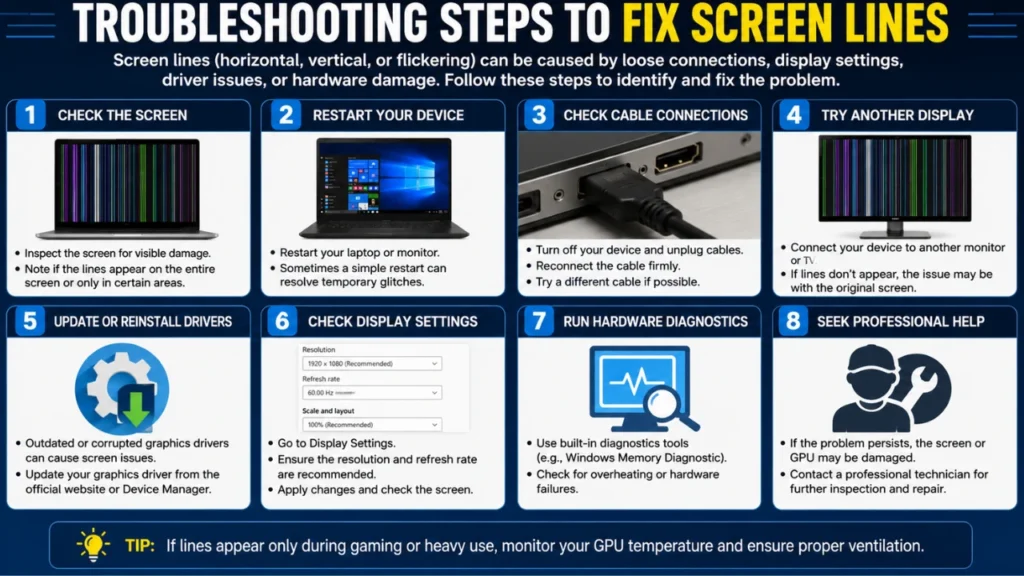
Fixing Horizontal lines on an HP laptop screen requires a step-by-step approach. Start with basic troubleshooting, such as restarting your laptop and updating your graphics drivers. These simple steps can often resolve temporary glitches. If the issue continues, try connecting your laptop to an external monitor. If the external display works fine, the problem is likely with the laptop screen itself.
Next, check for overheating issues. Ensure your laptop is well-ventilated and free from dust. You can also run hardware diagnostics tools provided by HP to detect internal faults. If you are comfortable, reseating internal display cables can sometimes fix loose connections.
However, if none of these solutions work, it may be time to consult a professional technician. Ignoring persistent screen lines can lead to complete display failure over time. Acting early can save both money and data.
| Name | Meaning | Origin |
| Oliver | Olive tree | Latin |
| Emma | Universal | German |
| Elijah | Yahweh is God | Hebrew |
| Ava | Life | Latin |
| Mason | Stone worker | English |
| Sofia | Wisdom | Greek |
| Logan | Small hollow | Scottish |
| Hana | Flower | Japanese |
| Isaac | Laughter | Hebrew |
| Lily | Purity | English |
Final Thoughts
HP laptop horizontal lines on screen issues can look serious, but they usually follow a pattern that helps identify the root cause. In many cases, the problem starts as small Flickering or thin lines that appear only during gaming or heavy usage, and gradually become more noticeable. This behavior often points to either a GPU strain, outdated graphics drivers, or a developing hardware fault inside the display panel. The key is to observe when the issue happens—if it appears only during specific tasks like gaming or video rendering, it is more likely software or graphics-related. If it is visible all the time, even on startup or BIOS screen, then the issue is almost always hardware-based.
Another important factor is connection stability. Internal display cables can loosen over time due to heat or repeated lid movement, leading to vertical or horizontal line distortions. External monitor testing is a simple but powerful way to confirm whether the issue is in the screen or the internal graphics system. Regular driver updates, proper cooling, and avoiding overheating can significantly reduce the chances of such display problems.
From a practical standpoint, early detection saves both time and repair costs. Ignoring these symptoms may lead to full display failure, which is more expensive to fix. In most real-world cases, users either need a screen replacement or a GPU-level diagnosis. Taking timely action ensures better performance, longer laptop life, and a smoother computing experience overall.
FAQs
What causes horizontal lines on the screen?
Horizontal lines on the screen are usually caused by graphics driver issues, GPU overload, loose display cables, or a failing screen panel. Sometimes, overheating or software glitches can also trigger temporary lines. If the problem appears only during gaming, it is likely GPU-related, but permanent lines usually indicate hardware damage needing professional repair.
Can driver updates fix the horizontal lines on the screen?
Yes, driver updates can sometimes fix horizontal lines on the screen if the issue is caused by outdated or corrupted graphics drivers. Updating or reinstalling GPU drivers refreshes system communication with the display. However, if the problem continues after updates and restarts, it is more likely a hardware issue rather than a software-related one.
How do I check if my screen or GPU is faulty?
To check, connect your HP laptop to an external monitor. If the lines appear only on the laptop screen but not on the external display, the issue is likely the screen or the internal cable. If both displays show lines, the GPU or motherboard may be faulty, requiring deeper hardware diagnosis.
Is hp laptop horizontal lines on the HP laptop’s screen dangerous?
It is not immediately dangerous, but it is a warning sign. Horizontal lines on the screen indicate that something is wrong with the display system. If ignored, the issue may worsen over time and lead to complete screen failure or loss of display output, making repair more expensive.
Should I replace my laptop if lines keep appearing?
Not always. If horizontal lines on the HP laptop screen are caused by software or drivers, replacement is unnecessary. However, if the screen panel or GPU is damaged, repair or screen replacement is needed. Only consider replacing the laptop if multiple hardware components are failing or the repair cost is too high.











