Introduction
If your Lenovo laptop screen is not working—whether it stays black, flickers, shows lines, or only works on an external monitor—you’re not alone. Millions of Lenovo users (ThinkPad, Yoga, Legion, IdeaPad, etc.) face some form of “Lenovo laptop screen not working” issue every year.
The good news? Most of these problems are not a guaranteed death sentence for your machine. Often, a misconfigured setting, a driver glitch, or a loose internal cable is all that stands between you and a fully working display.
Explanation
This guide walks you through every realistic cause and practical fix, from simple keyboard shortcuts to advanced hardware checks. By the end, you’ll know:
- How to diagnose if it’s a software, driver, or hardware problem.
- Exactly what to try if the screen is black but the laptop powers on.
- When you should open the laptop yourself vs. take it to a repair center or Lenovo service.
Perfect for students, office workers, gamers, and casual users in Europe, the U.S., Canada, and around the world who rely on their Lenovo daily.
What “Lenovo laptop screen not working” really means
When people type “Lenovo laptop screen not working” into Google, they usually mean one of these patterns:
- Black or blank screen, but the laptop is on – power lights, keyboard backlight, or fan noise are active, yet the screen stays dark.
- Flickering, lines, or artifacts – the screen turns on but dances, distorts, or shows strange colors.
- Screen works only on External Display – HDMI, VGA, or USB‑C output shows the desktop, but the LCD stays dead or blank.
- Screen freezes or goes black after Windows login – you see the Lenovo logo, then the screen fades or turns black once the desktop loads.
Each of these patterns points to a different root cause, so the first step is to correctly classify your issue before jumping into risky hardware steps.
Common causes of Lenovo display failure
Before you start clicking icons or opening the chassis, understand what usually breaks:
| Cause type | Typical symptoms |
| Power‑related glitch | Blank screen, laptop seems partially on (fans, lights), no display at all. |
| Software/driver bug | Black screen after login, artifacts, and flickering that appear only in Windows. |
| Display cable/hinge | Screen works only on the external monitor; it flickers when opening/closing the lid. |
| GPU or motherboard | Black screen in BIOS, black on external, no image at all. |
| Backlight or LCD | Dark screen with faint image, vertical/horizontal lines, cracked panel. |
By keeping this table in mind, you’ll avoid wasting time on “fix‑all” hacks that barely scratch the surface.
Quick checks before you start troubleshooting
Many “Lenovo laptop screen not working” articles skip the basics. Don’t. These simple checks can solve the problem in 2–3 minutes and save you from unnecessary driver reinstallations or hardware tinkering.
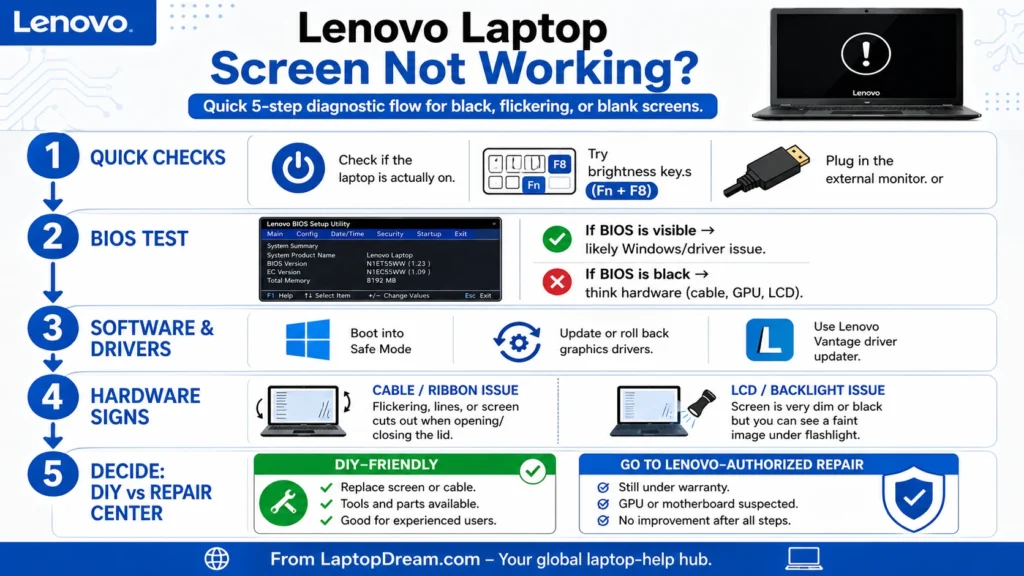
Confirm the laptop is actually on.
- Check the power LED, keyboard backlight, or fan noise.
- If the Laptop Makes no sound and the LEDs are off, the issue may be power‑related (battery, charger, or motherboard) rather than a pure screen issue.
Try brightness hotkeys
On most Lenovo laptops, the brightness keys are:
- Fn + F8 (or Fn + F6 / Fn + F7, depending on model) to increase brightness.
- If the screen is dimmed to 0%, it can look like a black screen even though the system is working normally.
Press the brightness‑up key several times and watch closely for any grayscale or faint image.
Test with an external monitor
Plug in an HDMI, VGA, or USB‑C/HDMI display and:
- Turn on the external monitor first.
- Turn on the Lenovo laptop.
- Press the display‑switch key (often Fn + F7 on Lenovo, sometimes Fn + F4 or Fn + F5).
If the external monitor shows the desktop but the laptop screen remains black, the problem is likely:
- Internal display cable, LCD panel, or backlight.
- Less likely: core Windows or GPU failure.
If both the laptop and the external stay black, the issue is more serious: GPU, motherboard, or firmware.
Perform a hard reset
A hard reset can clear transient power and graphics glitches:
- Shut down the laptop completely (hold the power button if needed).
- Unplug the charger and remove all USB devices.
- If the battery is removable, pull it out.
- Hold the power button for 20–30 seconds.
- Reconnect the charger and power on.
If the screen suddenly works after this, the cause was likely a temporary power or graphics glitch.
Software & driver‑based fixes (most common)
Around 60–70% of “Lenovo laptop screen not working after startup” issues turn out to be software‑related: Windows glitches, driver conflicts, or startup apps hijacking the display.
Here’s how to isolate and fix them.
Force safe boot / safe mode.
If the laptop powers on and makes sounds but the screen stays black, safe mode is your first diagnostic step.
On Windows 10/11:
- Power off the Lenovo laptop.
- Power on and repeatedly press F8 or Shift + F8 (or hold Shift while clicking “Restart” from the login screen).
- When the Advanced Boot Options menu appears, choose Safe Mode with Networking.
If the screen works in Safe Mode:
- The core display hardware is likely fine.
- The problem is usually a recent driver update, malware, or startup application.
If the screen is still black in Safe Mode, move toward hardware‑oriented checks.
Update or roll back graphics drivers.
From normal or Safe Mode:
- Press Win + X → Device Manager.
- Expand Display adapters.
- Right‑click your graphics card (Intel, NVIDIA, or AMD) and choose:
- Update driver (search automatically for updated driver software), or
- Roll back the driver (if the issue started after an update).
Many Lenovo users forget about Lenovo Vantage:
- Open Lenovo Vantage (pre‑installed on most modern Lenovo laptops).
- Go to Device / Drivers & Software → Check for Updates.
- Install any pending display, chipset, or graphics updates.
Updating through Lenovo Vantage is often safer than generic Windows Update for Lenovo‑specific hardware.
Reset the graphics driver shortcut.
Windows has a hidden shortcut that can revive a hung display driver:
- Press Win + Ctrl + Shift + B.
- The screen will briefly flash or go black, then should return to normal.
This refreshes the GPU driver and reconnects the display pipeline without restarting.
Check for malware and disk errors.
Malware or disk corruption can cause:
- Black screens after login.
- Screen flickering or freezing.
Do this in Safe Mode:
- Run Windows Defender / Microsoft Defender AV full scan.
- Open Command Prompt as admin and run:
- text
- chkdsk C: /f /r
- Restart and see if the screen behaves normally.
Disable Fast Startup
Fast Startup can sometimes cause display issues on Lenovo and other laptops:
- Go to Settings → System → Power & Sleep → Additional power settings.
- Click Choose what the power buttons do → Change settings that are currently unavailable.
- Uncheck Turn on fast startup and save.
Then reboot and test the screen.
System Restore (if the problem is recent)
If the Lenovo laptop screen was working fine a few days ago, use System Restore:
- Boot into Safe Mode with Networking.
- Search for “Create a restore point” → open it.
- Click System Restore and choose a restore point before the screen issue started.
After restoring, Windows will ask you to review and restart.
This step often resolves “Lenovo laptop screen not turning on after startup” problems caused by bad updates or app installs.
BIOS, display cables, and internal hardware checks
When the screen is black in BIOS, or the external display also shows nothing, the issue moves from software into BIOS, display cable, GPU, or LCD territory.
If you’re not comfortable opening the laptop, skip to the section on when to go to a repair center.
Test the BIOS display
The BIOS is the first real “screen test” you can run:
- Power off the Lenovo laptop.
- Power on and immediately press F2 or Fn + F2 (or F1 on some older models) to enter BIOS.
- If you see the BIOS menu, the problem is likely:
- Windows or driver-related.
- Not a dead LCD panel or GPU.
If the screen is still black in BIOS, the failure is more likely:
- Display ribbon cable.
- GPU or motherboard fault.
- Dead LCD panel.
Write down this result; it fundamentally changes your next steps.
Reseat the display flex/ribbon cable (for advanced users)
The display flex/ribbon cable connects the LCD panel to the motherboard and is notorious for wearing out on laptops that you open and close all day.
Important:
Only attempt this if you’re comfortable with small‑space screwdrivers and have the Hardware‑maintenance manual for your Lenovo model (widely available on Lenovo Support).
General steps (model‑specific details vary):
- Power off the laptop, unplug the charger, and remove the battery (if removable).
- Remove the back panel (screws plus clips; some models require removing the keyboard first).
- Locate the display ribbon cable near the motherboard/LCD connector.
- Gently unplug the cable, inspect for fraying or bent pins, then replug it firmly.
- Reassemble and test the screen.
If the screen flickers or shows lines only when opening or closing the lid, the ribbon cable or hinge area is the prime suspect.
Test for backlight or LCD damage
A dead backlight can look like a black screen, but the panel is still working.
Flashlight test:
- Turn on the Lenovo laptop until Windows normally loads.
- Shine a bright flashlight at an angle onto the screen.
- If you can faintly see:
- The Windows login screen.
- Desktop icons or the Lenovo logo.
… then the LCD panel is alive, but the backlight or inverter is dead.
Cost‑range insight (for planning):
- Display ribbon cable replacement: roughly $10–$25 USD (parts only; labor extra).
- Full LCD panel replacement: around $60–$130 USD, depending on size, resolution, and Lenovo model line.
These figures are useful for deciding whether a DIY repair or a Lenovo‑authorized service is worth it.
When to replace the Lenovo screen or take it to repair
By now you’ve:
- Ruled out simple causes (brightness, power, external display).
- Tried driver and software fixes.
- Tested BIOS and, possibly, internal cables.
If the screen is still not working, it’s time to decide:
Replace the Lenovo screen yourself if:
- The LCD panel is cracked, has permanent lines, or has dead pixels in a large block.
- The BIOS is black, and the external display is also blank, and you’ve confirmed a loose/failed cable or an LCD fault.
- You’re comfortable with small‑screw disassembly, have the correct screwdriver set, and can follow Lenovo’s hardware manual.
What to prepare before self‑replacement:
- Exact Lenovo model (e.g., IdeaPad 5 14ALC05, Legion 5 15IMH05, ThinkPad E14 Gen 3).
- Match the screen size, resolution, and connector type (e‑DP, LVDS) when buying a replacement.
- Follow a model‑specific teardown video or service manual for screw‑order and cable routing.
When to go to a repair center or Lenovo service
Even if you’re tech‑savvy, some cases are best left to professionals:
Go to a Lenovo‑authorized repair center if:
- The laptop is under warranty, and you don’t want to risk voiding it.
- You’re uncomfortable opening the laptop (e.g., glued‑shut consumer models).
- You’re seeing a black screen on both internal and external displays, which suggests GPU or motherboard failure—a job for proper diagnostics and soldering.
How to choose a trustworthy repair shop:
- Look for Lenovo‑certified service centers listed on Lenovo Support (region‑specific).
- Check if the shop:
- Offers Diagnostic reports (not just “screen is broken”).
- Uses genuine or OEM‑grade replacement parts.
- Provides a written warranty on the repair.
These criteria help you avoid “cheap” fixed‑screen‑only shops that may ignore deeper GPU or cable issues.
FAQs
A: If the Lenovo laptop powers on but the screen is black, follow this flow:
Try a hard reset (power off, unplug, remove battery, hold power 20–30s).
Check brightness keys (Fn + F8 or similar).
Plug in an external monitor and toggle display with Fn + F7.
If BIOS is also black, suspect a display cable, GPU, or LCD fault.
A: If the screen goes black after the Windows logo or login, it’s usually a driver or Windows-related issue:
Try Safe Mode with Networking.
If the screen works there, update or roll back display drivers (also via Lenovo Vantage).
If the Safe Mode screen is also black, investigate the BIOS or hardware.
A: If the internal screen flickers, flashes, or shows lines, but the external monitor is stable:
Likely candidates: display ribbon cable or LCD panel.
Check if flicker only happens when opening/closing the lid; that’s a tell‑tale sign of a damaged flex cable.
Options: replace cable (cheaper) or full LCD replacement (if panel is cracked or lines are permanent).
A: You can fix the Lenovo screen or cable yourself if:
You’re comfortable with small‑screw disassembly and have the correct tools.
You can find a clear replacement part matching your model.
→ Use a Lenovo‑authorized repair center instead of risking further damage or voiding the warranty.
Conclusion
If your Lenovo laptop screen is not working, don’t panic—most cases are fixable with a clear, step‑by‑step approach. Start with simple checks (power, brightness keys, external monitor), then move to software and driver fixes (Safe Mode, driver updates, Lenovo Vantage). If the screen stays black in BIOS or on external, suspect hardware like the display ribbon cable, backlight, or LCD panel itself.
Only attempt DIY disassembly if you’re comfortable and your laptop is out of warranty; otherwise, a Lenovo‑authorized repair center is the safest choice. By following this guide, you’ll quickly narrow down the true cause, save time, and avoid unnecessary “fix‑all” tricks that barely scratch the surface.











