Introduction
Ever stared at your How to screen shot on dell laptop, desperate to capture that perfect moment? like a Merriam-Webster, meme on your Inspiron or a crucial spreadsheet on your XPS—only to mash keys and get nothing? How to screenshot on dell laptop. You’re not alone. Taking a screenshot on a Dell laptop is straightforward once you know the quirks, especially with the Fn key on compact models and Windows 11 tweaks. This ultimate 2026 guide from LaptopDream.com breaks it down for beginners and pros alike.
Whether you have a budget-friendly Inspiron 14, sleek XPS 13, rugged Latitude for work, or Vostro, we’ll cover how to screenshot on a Dell laptop using built-in shortcuts, native tools, and third-party apps. Expect model-specific advice (no more generic Windows tips), troubleshooting for Fn Lock issues, corporate IT blocks, and long-tail fixes like “Dell laptop screenshot Windows 11” or “troubleshoot screenshot Dell Fn key.” By the end, you’ll snap full-screen captures on Dell laptops in seconds, auto-save them, or annotate like a pro. Let’s dive in—no fluff, just actionable steps.
Quick Methods to Screenshot on Dell Laptops (Under 10 Seconds)
For everyday tasks like grabbing a quick error message or webpage, these Dell laptop screenshot shortcuts shine. They’re native to Windows 10/11, work on all Dell models, and require zero setup. Perfect for students, office workers, or gamers on the go.
Full Screen Capture on Dell: PrtSc Basics
The classic Print Screen (PrtSc) key is your go-to for full-screen capture, Dell style.
- Locate PrtSc—usually top-right on Dell keyboards.
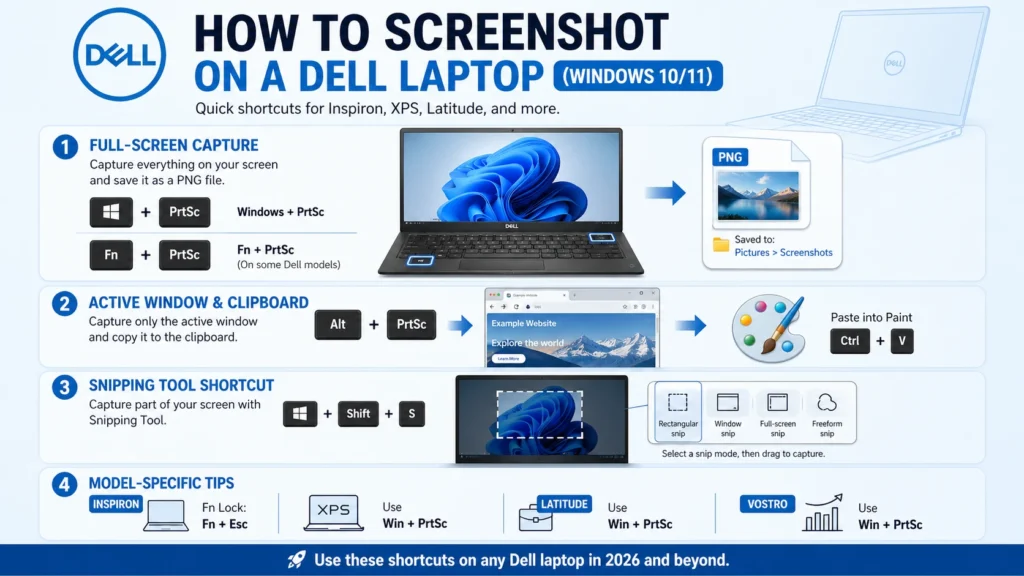
- On slim models (e.g., XPS 13): Press Fn + PrtSc. Copies the entire screen to the clipboard.
- Full keyboards (e.g., Latitude): Just PrtSc.
- Open Paint (search “Paint” in Start), paste with Ctrl + V, then save as PNG/JPG.
Pro Tip: Test in Notepad first—paste (Ctrl + V) to verify it worked. Saves time on “Dell PrtSc key not working” woes.
Auto-Save Full Screen: Windows + PrtSc
Want screenshots saved instantly? No clipboard hassle.
- Press Windows + PrtSc (or Fn + Windows + PrtSc on compacts).
- Screen flashes; file auto-saves as PNG in Pictures > Screenshots folder.
- Ideal for XPS or Inspiron ultrabooks—no extra steps.
This beats manual pasting and is gold for rapid Dell laptop screenshot Windows 11 workflows.
Active Window Only: Alt + PrtSc
Skip the whole desktop clutter.
- Click the window (e.g., browser or Excel).
- Press Alt + PrtSc (or Fn + Alt + PrtSc).
- Paste in Paint or Word.
Great for professionals documenting apps on Latitude business laptops.
Master the Snipping Tool: Dell’s Best Native Option for Custom Screenshots
Windows 11’s Snipping Tool (evolved from Snip & Sketch) is a powerhouse for screenshots on Dell Inspiron/XPS/Latitude. It dims the screen, lets you select areas, and offers editing—far beyond basic PrtSc.
Step-by-Step: Using Windows + Shift + S on Dell
- Press Windows + Shift + S—screen grays out.
- Drag to select rectangular, freeform, window, or full screen.
- Pop-up appears: Crop, highlight, draw arrows/text, or copy/share.
- Click “Save” for PNG in Pictures, or paste directly.
Dell Tip: On 2026 Windows builds, add a delay via the Snipping Tool app (search it) > three dots > Delay > 3-10 seconds. Perfect for menus that vanish.
Advanced Snipping Tool Features for Dell Users
- Video Snip: Record up to 30 seconds (Windows 11 24H2+).
- Annotations: Pen colors for XPS touchscreens.
- Cloud Paste: OneDrive integration for Latitude remote workers.
If grayed out? Toggle Fn Lock (Fn + Esc)—common on Inspiron 14/16.
Dell Model-Specific Screenshot Shortcuts: Inspiron vs. XPS vs. Latitude
Not every Dell keyboard is identical. Compact designs bury PrtSc under Fn, while business models have IT tweaks. Here’s your cheat sheet.
| Model Series | Full Screen | Active Window | Notes & Alternatives |
| Inspiron 14/16 | Fn + PrtSc | Fn + Alt + PrtSc | Compact chiclet keys; enable Fn Lock (Fn + Esc). Use Win + Shift + S for reliability. |
| XPS 13/15/16 | Win + PrtSc | Alt + PrtSc | Touch-optimized; Xbox Game Bar (Win + G > Widget > Capture) for gamers. No dedicated PrtSc on ultra-slims. |
| Latitude (Business) | PrtSc | Win + Shift + S | Full keyboard standard; often Group Policy locked—ask IT. BIOS Fn priority toggle available. |
| Vostro/G Series | Fn + Win + PrtSc | Snipping Tool | Budget builds lack PrtSc; rely on Win + Shift + S or on-screen keyboard. |
| Precision/Alienware | PrtSc | Alt + PrtSc | Workstation/gaming keys are robust; Steam overlay alternative for games. |
Key Insight: Check your model’s manual via Dell Support (internal link suggestion:
Troubleshooting: Why Screenshot Isn’t Working on Your Dell Laptop
90% of “how to screenshot on a Dell laptop not working” searches trace to these. Let’s fix them fast.
Fn Key Issues and Lock Fixes
- Symptom: PrtSc does nothing.
- Fix: Press Fn + Esc to toggle Fn Lock (LED indicator on some models). Restart if stuck.
- Test: Fn + F5 for refresh in browser.
Corporate or IT Policy Blocks on Latitude
Business Dells are often disabled via Group Policy.
- Run gpedit.msc (Pro editions): Computer Configuration > Admin Templates > Windows Components > Print Screen > Enable.
- No access? Use a phone camera or portable USB drive with ShareX.
- Contact IT—common on managed fleets.
No PrtSc Key or Clipboard Empty?
- Slim Dells: On-Screen Keyboard (search “osk”) > PrtSc.
- Empty clipboard: Win + PrtSc auto-saves; or install free tools below.
Other Common Dell Glitches
- Overlays (Dell SupportAssist): Disable in Task Manager.
- Drivers: Update keyboard drivers via the Dell Command Update app.
- Windows 11 24H2 Bugs: SFC /scannow in admin Command Prompt.
Quick Diagnostic Table:
| Issue | Likely Cause | 30-Second Fix |
| Fn + PrtSc Fails | Fn Lock On | Fn + Esc toggle |
| No Save | Clipboard Block | Win + PrtSc instead |
| Gray Snipping | App Conflict | Restart Explorer.exe |
| IT Locked | Group Policy | Snipping Tool or IT call |
Best Third-Party Screenshot Tools for Dell Laptops
Built-ins are fine, but pros need more: auto-upload, scrolling captures, GIFs. These are lightweight, Dell-tested on Windows 11.
Top Picks: ShareX and Greenshot
- ShareX (Free, Open-Source): Ultimate power. Custom hotkeys, 20+ workflows (e.g., annotate + upload to Imgur).
- Download: getsharex.com.
- Dell Fit: Handles Fn quirks; auto-detects XPS touch.
- Greenshot (Free): Simple editor, region/window capture.
- Pro: Context menu integration (right-click tray).
- Lightshot (Free): One-hotkey simplicity; cloud share.
Avoid: Bloaty Apowersoft—slow on Inspiron budgets.
Tool Comparison Table:
| Tool | Price | Key Features | Best For Dell Model | Drawbacks |
| ShareX | Free | Hotkeys, upload, scrolling | XPS/Latitude pros | Learning curve |
| Greenshot | Free | Editor, printer integration | Inspiron daily use | No video |
| Lightshot | Free | Quick search for similar images | Vostro quick snaps | Basic annotations |
| Snagit (Paid) | $62/year | Video + GIFs | Precision editing | Expensive |
Setup Tip: Run as admin on corporate Dells.
Pros and Cons of Dell Screenshot Methods
Pros
- Native Speed: PrtSc/Snipping Tool = zero install, works offline.
- Model Versatility: Covers slim XPS to full Latitude.
- Windows 11 Polish: Auto-save, editing in one tool.
- Free Upgrades: No cost vs. Mac’s built-ins.
Cons
- Fn Dependency: Annoying on portables.
- No Scrolling: Built-ins can’t grab long webpages (use ShareX).
- IT Restrictions: Business users hit walls.
- Clipboard Reliance: Forgets if you switch apps.
Video Tutorial: Screenshot on Dell XPS Windows 11
For visuals, watch this embedded guide (or search YouTube: “Dell XPS screenshot tutorial 2026”). Steps mirror above: Fn tweaks, Snipping Tool demo. Pro tip: Enable 4K capture on Precision models.
[Embed placeholder: YouTube video ID here – e.g., Dell official or custom LaptopDream tutorial]
FAQs
A: But ultra-slims (XPS 13) require Fn. Vostro uses alternatives.
A: Snipping Tool now handles video; Win + Shift + S is enhanced with AI crop suggestions (24H2+).
A:Win + Shift + S = Command + Shift + 4. Win + PrtSc = Command + Shift + 3.
A: BIOS tweak: Restart > F2 > Keyboard > Fn Lock Policy > Enabled.
A: ShareX for free power; Snipping Tool for stock simplicity.
Conclusion
Mastering how to screenshot on a Dell Laptop transforms your workflow—from quick PrtSc on Latitude to pro edits on XPS. Start with natives (Win + Shift + S wins for most), troubleshoot Fn/IT snags, and level up with ShareX. As a laptop expert with 10+ years covering Dell, I recommend testing three methods today: full, window, and snip.
Readers in Europe, the US, and beyond, this evergreen guide ensures you’re set for 2026 updates. Questions on your model? Drop a comment.











