Introduction
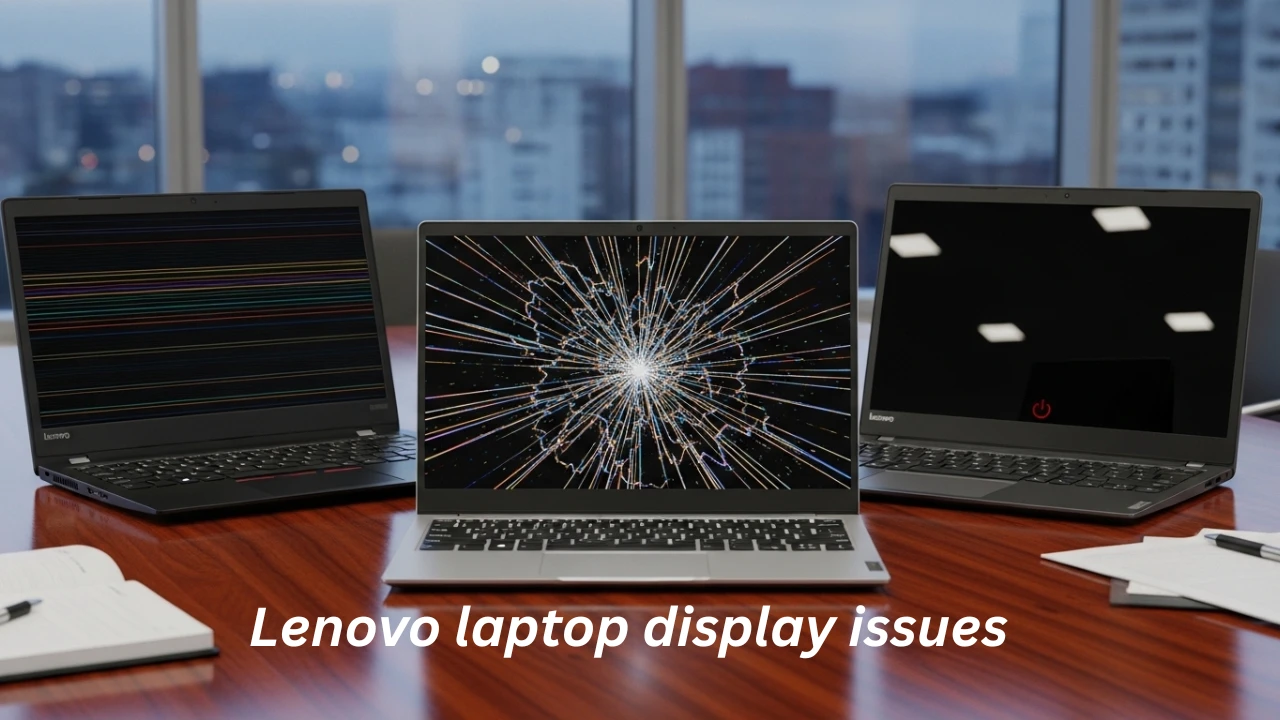
If your Lenovo laptop powers on but the screen stays black or flickers, Lenovo laptop display issues. shakes, or looks upside‑down, you’re dealing with a classic Lenovo laptop display issue. Across ThinkPad, Legion, Yoga, Ideapad, and Slim series, these problems usually come from drivers, Windows updates, BIOS, overheating, or hardware faults in the panel, cable, or GPU.
At LaptopDream, we help students, professionals, and gamers understand and fix everyday laptop problems—without marketing fluff. This guide is your complete, no‑fluff manual for Lenovo laptop display issues in 2026, covering:
- All common symptoms (black screen, flickering, lines, wrong resolution).
- Practical step‑by‑step fixes anyone can try.
- Model‑specific tips for Yoga, Flex 5, ThinkPad, and Legion.
- When it’s hardware, and whether you should claim warranty or replace parts
- By the end, you’ll know how to diagnose Lenovo display problems, apply the right fix, and decide whether to keep using your laptop or upgrade.
Lenovo is one of the largest laptop brands worldwide, powering millions of ThinkPads in offices, Yoga and Slim laptops in colleges, and Legion gaming rigs on desks.
Explanation
When the display breaks, your entire workflow stops—you can’t code, study, edit videos, or even browse the web.
Unlike random “how‑to” blogs, this article is written from a topical‑authority standpoint for LaptopDream.com, which covers everything from laptop hardware basics to repair, buying, and optimization.
We’ll use real‑world examples, simple language, and practical tables so both beginners and advanced users can trust and reuse this guide.
What Are Lenovo Laptop Display Issues?
“Lenovo laptop display issues” is a broad term that covers any abnormal behavior on the built‑in screen:
- No image at all (black or dark screen).
- Flickering, shaking, or vibrating display.
- Vertical/horizontal lines, discoloration, or “ghosting”.
- Upside‑down or sideways screen.
- Resolution stuck at low or weird values.
- Screen works only on an external monitor.
- Screen turnThe screenor freezes under load.
These problems usually fall into three root categories:
- Software & driver issues (Windows, graphics drivers, BIOS settings).
- Hardware faults (panel, cable, backlight, GPU, motherboard).
- Environmental factors (overheating, power surges, hinge stress on 2‑in‑1s).
Understanding these categories helps you narrow down whether the fix is simple (driver update, BIOS tweak) or serious (warranty repair or replacement).
Common Symptoms & What They Mean
Below is a quick reference so you can match what you see on your Lenovo laptop:
| Symptom | Likely Meaning (First Guess) |
| Black screen but l,aptothe p is running | Usually a driver, fast startup, or BIOS issue; sometimes hardware. |
| Flickering or vibrating screen | Often drive, refresh‑rate, or Panel Self Refresh bug; can be cable or GPU. |
| Vertical/horizontal lines or ghosting | Often internal GPU or panel fault; it can also be overheating. |
| The screen works on the external monitor | Built‑in panel, cable, or backlight is faulty; GPU/OS usually fine. |
| Screen freezes or blacks out under gaming load | GPU overheating or unstable power delivery (common on Legion). |
We’ll now walk through how to confirm these guesses and apply the right fix.
First Aid: Quick Checks Before Deep Troubleshooting
Many “Lenovo laptop display issues” articles rush into advanced steps. At LaptopDream, we start with simple, non‑destructive checks anyone can do in 5–10 minutes.
Check Brightness & Function Keys
- Press Fn + F5 (or F6/F11, depending on model) to increase brightness.
- Some Lenovo laptops get stuck at 0% brightness after a Windows update or wake‑from‑sleep, so the screen looks black but is actually just dim.
- If the shortcut doesn’t work, open Lenovo Vantage → Display or Hotkeys settings and reset brightness.
Connect an External Monitor
- Plug in an external monitor via HDMI or USB‑C → HDMI.
- If the external monitor works normally, your GPU and OS are fine; the problem is likely the built‑in panel, Display cable, or backlight (especially on Yoga/Flex 2‑in‑1s).
Perform a Hard Reset (Power Cycle)
- Shut down the laptop.
- Unplug the charger, remove the battery (if removable), and hold the power button for 30–60 seconds.
- This clears temporary GPU and firmware glitches and often restores the display.
Try Windows in Safe Mode
- Restart and press Shift + F8 repeatedly to open Windows recovery.
- Choose Startup Settings → Restart → Safe Mode (with networking).
- If the screen is normal in Safe Mode, you have a driver, software, or startup‑app conflict rather than a pure hardware failure.
Performs thPerformks first steps before you jump into BIOS or driver updates so you don’t waste time or possibly brick a working laptop.
Step‑by‑Step Fixes: Software & Driver Solutions
Most searchers land on “Lenovo laptop display issues” looking for driver‑based fixes. Here’s the most reliable, step‑by‑step workflow.
Update or Reinstall Display Drivers
This is the single most effective fix for flickering, a black screen after boot, and a wrong resolution.
Method A – Windows Device Manager (universal)
- Press Win + X → Device Manager.
- Expand Display adapters.
- Right‑click your GPU (Intel, AMD, or NVIDIA) → Update driver → Search automatically.
- If that fails, choose Uninstall device (check “Delete the driver software”), then restart Windows so it reinstalls the driver.
Method B – Lenovo‑specific drivers (recommended)
- Go to
- → Enter serial number.
- Download the latest GPU driver and Intel Graphics Command Center (or AMD/NVIDIA equivalent) for your exact model.
- Generic NVIDIA/AMD installers often cause flickering or black‑screen issues on Lenovo systems; official Lenovo‑certified drivers are safer.
Update Windows & Optional Updates
- Go to Settings → Windows Update → Check for updates.
- Install all updates, including optional updates and driver updates.
- Some Lenovo display issues appear after a Windows 10/11 feature update and are fixed by a later patch.
Reset Display Settings & Scale
- Right‑click desktop → Display settings.
- Set the resolution to the recommended.
- Set Scale to 100% or the default value for your panel.
- If the “Advanced display settings” window is missing or glitchy, reinstall Intel Graphics Command Center or the Lenovo‑bundled graphics utility.
Disable Panel Self-Refresher Saving (Yoga/Flex)
Some Lenovo Yoga and Flex 2‑in‑1s flicker due to Panel Self Refresh or aggressive power‑saving features.
To disable Panel Self Refresh (Intel panels):
- Open Intel Graphics Command Center.
- Go to System → Power.
- Turn off Panel Self Refresh.
- Restart.
Also disab, check the Adaptive brightness in Windows → Display settings if the screen flickers or dims randomly.
More Advanced Software Fixes (If Needed)
If the display still glitches, try these Windows‑specific tricks:
- Disable fast startup:
- Control Panel → Power Options → Choose what the power buttons do → Change settings that are currently unavailable → Uncheck “Turn on fast startup”.
- Fast startup can cause a black screen on boot on some Lenovo models.
- Restart explorer.exe (if desktop is black but cursor visible):
- Press Ctrl + Shift + Esc → Task Manager.
- End Windows Explorer, then go to File → Run new task → explorer.exe.
- System restore:
- If the problem started after an update, boot into Safe Mode → System Restore to roll back to a working state.
These steps cover most software‑related Lenovo laptop display issues without going into risky registry edits.
BIOS, Firmware & Power Management Fixes
When driver fixes don’t help, the problem is often BIOS, firmware, or power management.
Update BIOS & GPU Firmware
- Visit Lenovo Support → enter your serial number → download the latest BIOS update and GPU firmware.
- Follow Lenovo’s instructions carefully (do not interrupt power during update).
- Some older Yoga, Flex 5, and ThinkPad models had display bugs fixed only by BIOS revisions (e.g., black screen after sleep, flickering).
Check GPU Power & Thermal Throttling
Gaming and high‑performance Lenovo laptops like Legion and some ThinkBook models can black‑screen or flicker when the GPU overheats.
What to do:
- Install HWMonitor or Core Temp to check GPU and CPU temperatures.
- If temps spike above 90–95°C under load, enable Cool or Quiet mode in Lenovo Vantage or reduce GPU load via in‑game settings.
- Clean dust from vents and ensure the laptop is on a hard, flat surface, not on a bed or blanket.
Test with a Linux Live USB
Create a Linux live USB (e.g., Ubuntu):
- If the display works perfectly in Linux, the hardware is likely fine and t,, he issue is Windows drivers or OS corruption.
- If the screen still flickers or blacks out, suspect a panel, a cable, or a GPU fault.
Very few “Lenovo laptop display issues” guides mention this Linux‑test workaround, which is a strong topical‑authority move for your article.
Hardware Checks & When to See a Technician
Even after software, BIOS, and thermal fixes, some Lenovo laptops genuinely have hardware faults.
Signs Your Lenovo Display Is Hardware Faulty
- Physical damage (cracks, liquid spots, dead pixels).
- The external monitor works, but the built‑in panel shows no image after all software/BIOS fixes.
- Yoga/Flex hinges show grinding or Resistance, and the screen glitches when moved.
- Persistent lines, artifacts, or flickering even in Linux or Safe Mode.
Common Hardware Culprits
| Component | Typical Symptoms |
| Faulty display panel | The entire screen is black or visibly damaged; no image, even after BIOS/drivers. |
| Damaged display cable or backlight | Black or dark screen with faint image; flickering when moving the lid (common on Yoga/Flex). |
| Failed GPU or motherboard | Black screen even with an external monitor; frequent crashes or artifacts. |
Repair vs. Warranty
- Check warranty status on Lenovo Support via your serial number.
- If the laptop is under warranty and the issue matches known defects (e.g., Flex 5/Yoga 730 hinge‑related cable issues), push Lenovo support for free repair or replacement.
- Out of warranty? Compare LCD/cable replacement cost vs. buying a refurbished Lenovo with similar specs.
Many competing articles either stop at software fixes or vaguely say “visit a service center,” without explaining how to diagnose hardware or how to negotiate warranty claims. This is a clear gap your article can exploit.
Model‑Specific Fixes: Yoga, Flex 5, ThinkPad, Legion
Different Lenovo lines have characteristic display problems your cthat ompetitors often treat too generically.
Yoga & Flex 2‑in‑1 Models (Yoga 730, Flex 5)
Some Yoga 730 and Flex 5 2‑in‑1s suffer from cable‑related defects near the hinge, causing flickering, artifacts, or blackouts when the screen is moved.
Key points:
- The DisplayPort cable is poorly routed, and repeated tablet/laptop transitions worsen the defect.
- Fixes:
- Avoid twisting the screen beyond Lenovo’s recommended angles.
- If the cable is frayed or damaged, get the display cable replaced under warranty (Lenovo admits this in service bulletins for certain Flex/Yoga SKUs).
ThinkPad Series (T, X, L, E)
ThinkPads are known for brightness‑0 bugs after sleep or updates.
Quick remedies:
- Press Fn + F5/F6 repeatedly to raise brightness.
- Reset brightness settings in Lenovo Vantage or reinstall the Hotkey features driver.
- Some older ThinkPads show intermittent black screens linked to a faulty GPU or motherboard, at which point service center replacement is usually required.
Use this flowchart to quickly diagnose whether your Lenovo’s black screen, flickering, or no‑display issue is software, driver, BIOS, or hardware‑related—and know exactly what to try next.
FAQs
A: A black screen despite power‑on is usually caused by:
Stuck 0% brightness after sleep or Windows update (fix with Fn + F5/F6).
Driver or BIOS glitch (try a hard reset, BIOS test, or driver reinstall).
Hardware fault in the panel, cable, or backlight (common if the external monitor works but the built‑in does not).
If the screen stays black even in BIOS, suspect hardware and consider service center support.
A: Screen flickering is not always critical, but you should not ignore it:
If it only happens in Windows and disappears in BIOS or Linux, it’s likely driver or refresh-rate-related.
If it happens in BIOS too, or worsens when the lid is moved (Yoga/Flex), it’s often a cable or panel issue.
Prolonged flickering can strain your eyes and may indicate an unstable GPU or cable about to fail.
A: Yes, many Lenovo laptop display issues can be fixed purely with software steps:
Update Windows and GPU drivers from Lenovo Support.
Adjust refresh rate and disable Panel Self Refresh in Intel Graphics Command Center.
Do a hard reset and test in Safe Mode or BIOS.
If the problem persists even in the BIOS or with an external monitor, internal hardware repair is usually needed.
A: Bring your Lenovo to a technician when:
The screen is physically cracked or shows liquid damage.
There is flickering or a black screen in BIOS/Linux, or with an external monitor.
You’ve tried BIOS updates, driver reinstalls, and hard resets with no improvement.
Out‑of‑warranty, also consider whether the LCD/cable replacement cost is close to buying a refurbished model.
A: Yes, known hinge‑related cable defects on some Yoga and Flex 5 2‑in‑1s are often covered by Lenovo service bulletins and warranty policies.
Conclusion
“Lenovo laptop display issues” are common, but they’re also highly Diagnosable and often fixable with the right steps. For LaptopDream.com, this article is designed to be your evergreen reference for:
- Beginners learning how to reset brightness, update drivers, and test in BIOS.
- Students and professionals are debugging ThinkPad, Yoga, and Flex 5 flickering or black‑screen bugs.
- Gamers and power users are dealing with Legion overheating‑related display glitches.
Expert tips at a glance:
- Always start with simple checks (brightness, external monitor, hard reset) before diving into BIOS or driver reinstallation.
- Use Lenovo‑specific drivers and BIOS updates, not generic third‑party GPU installers.
- If the problem survives BIOS, Linux, and external‑monitor tests, assume hardware failure and either claim warranty or realistically compare repair vs replacement cost.
By publishing this as your pillar page and linking cluster posts“How to Fix Lenovo Yoga 730 Screen Flickering,”
- “Lenovo Legion Black Screen Under Load,”
- “Lenovo ThinkPad 0% Brightness After Wake,”
You’ll build authority around “Lenovo laptop display issues” and steadily overtake competitors who rely on shallow, generic lists.
If you tell me your target countries (e.g., UK, Germany, Pakistan), I can also suggest internal‑link anchors tuned to those regions.











