Introduction
Seeing a Blue Screen of Death (BSOD) on your Dell laptop is enough to make any user panic. One moment you’re finishing a project on your XPS 13 or gaming on an Alienware, and the next, your screen is a sea of cobalt with a cryptic “Stop Code” and a QR code.
In 2026, the landscape of Dell crashes has shifted. While hardware failure used to be the primary culprit, recent Windows 11 architectural changes—specifically the KB5083769 update bug—have made software-induced boot loops more common than ever. Whether your laptop is stuck in a “Preparing Automatic Repair” loop or showing a “Critical Process Died” error, this guide is designed to be your triage medic.
At LaptopDream.com, we prioritize your data. Before we tell you to “format everything,” we will show you how to use Dell-exclusive tools like SupportAssist OS Recovery to save your files. Let’s get your Dell back to life.
Immediate Triage: What to Do When Your Dell Hits the Blue Screen
When the blue screen appears, your laptop is essentially hitting the emergency brake to prevent damage to your hardware or data. Do not keep holding the power button repeatedly; follow this “Panic Protocol” instead:
- Record the Stop Code: Before the laptop restarts, look at the bottom of the screen. Note down the text.
- Unplug Everything: Remove USB drives, printers, external monitors, and SD cards. A faulty USB-C hub is a frequent “silent killer” of Dell system stability.
- The “Cold Boot” Method: If the screen is frozen, hold the power button for 15 full seconds. This drains the flea power from the motherboard, which often clears temporary BIOS glitches.
- Check the Heat: Feel the underside of your laptop. Dell Latitudes and Inspiron models often trigger a BSOD if the internal fans are clogged and the CPU hits its thermal limit.
Top 5 Causes of Dell BSOD in 2026 (Including Recent Windows Updates)
| Cause | Description | Dell-Specific Context |
| Windows Update KB5083769 | A 2026 patch that conflicts with Dell Storage Controllers. | Causes the “Inaccessible Boot Device” loop. |
| SATA/NVMe Mode Flip | BIOS settings switch from AHCI to RAID automatically. | Common after a BIOS auto-update on XPS models. |
| SupportAssist Conflict | The very tool meant to help sometimes hangs during a kernel update. | Leads to “DPC Watchdog Violation.” |
| Thermal Throttling | Dried thermal paste on 2024-2025 models is causing shutdowns. | BSOD occurs during high-load tasks (Rendering/Gaming). |
| Driver Incompatibility | Intel Iris Xe or Nvidia mobile driver corruption. | Usually displays “VIDEO_TDR_FAILURE.” |
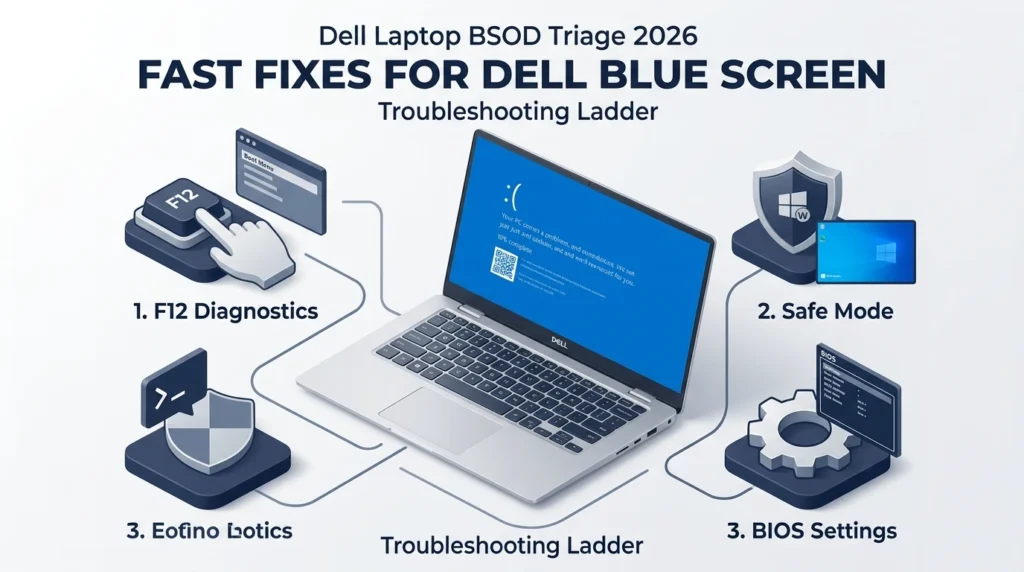
Step-by-Step Troubleshooting Ladder
We recommend following these steps in order. We start with the least invasive fixes and move toward “Last Resort” territory.
The Hard Reset & Peripheral Check
Sometimes, a static charge build-up in the capacitors causes the system to misread hardware states.
- Turn off the laptop.
- Disconnect the AC adapter.
- If your Dell has a removable battery (older Latitude models), remove it. If not, simply hold the power button for 20 seconds.
- Plug back into the wall power and try booting.
Using Dell SupportAssist Pre-Boot Diagnostics (F12 Menu)
This is the “Secret Weapon“ for Dell users. You can check if your hardware is actually broken before you spend hours reinstalling Windows.
- Turn on the laptop and immediately tap the F12 key repeatedly until the One-Time Boot Menu appears.
- Select Diagnostics and press Enter.
- The system will run a “Pre-boot System Assessment” (ePSA). It will test your RAM, SSD, and Fan.
- Pro Tip: If you see a “Validation Code,” your hardware is failing. If all tests pass, your problem is 100% software, which is good news for your wallet!
Fixing BIOS Misconfigurations (SATA & AHCI Modes)
The 2026 Windows 11 updates have a nasty habit of making the OS “forget” how to talk to your SSD.
- Restart and tap F2 to enter BIOS/System Setup.
- Navigate to Storage or System Configuration > SATA Operation.
- Check if it is set to RAID On. Many Dell laptops ship with this, but Windows updates often require AHCI.
- Switch to AHCI, save, and exit. (Note: If it was already on AHCI, try RAID. This often fixes the INACCESSIBLE_BOOT_DEVICE error instantly.
Safe Mode & Driver Rollbacks
If you can reach the “Choose an Option” blue menu after two failed boots:
- Select Troubleshoot > Advanced Options > Startup Settings > Restart.
- Press 4 or F4 for Safe Mode.
- Once in, right-click the Start button > Device Manager.
- Look for “Display Adapters.” Right-click your GPU and select Roll Back Driver.
Deciphering Common Dell Error Codes (2026 Edition)
Critical Process Died
This usually means a core Windows file has been corrupted or deleted.
- The Fix: Open Command Prompt as Administrator in Safe Mode and type sfc /scannow. This will “heal” the OS using Dell’s recovery partition.
INACCESSIBLE_BOOT_DEVICE
In 2026, this is almost always linked to the KB5083769 Update.
- The Fix: Use the BIOS AHCI switch mentioned in Level 3, or use “Uninstall Updates” in the Advanced Recovery menu to remove the latest Quality Update.
VIDEO_TDR_FAILURE (nvlddmkm.sys or igdkmd64.sys)
Your graphics card got stuck and couldn’t recover.
- The Fix: Update your drivers through the Dell SupportAssist app rather than Windows Update. Dell customizes its drivers for the specific thermal profiles of its laptops.
Advanced Recovery: SupportAssist OS Recovery vs. Clean Install
If the troubleshooting ladder didn’t work, you are at a crossroads. Most guides tell you to “Reset this PC,” but that often fails if the recovery image is corrupted.
The “Recovery First” Section: Saving Your Data
Before you wipe the drive, use Dell SupportAssist OS Recovery:
- Restart and tap F12.
- Select SupportAssist OS Recovery.
- Inside this environment, select Back Up Files.
- Plug in an external hard drive. The tool will scan your “Documents,” “Pictures,” and “Desktop” folders and copy them over, even if Windows won’t boot.
Clean Install: The Last Resort
If SupportAssist fails, you will need a 16GB USB drive and a working computer to create a “Windows Installation Media” from Microsoft’s website. When installing, ensure you download the “Intel Rapid Storage Technology (IRST)” driver from Dell’s support site onto the USB, or Windows might not “see” your SSD during the installation process.
Pros & Cons of Common Fixes
Dell SupportAssist
- Pros: Automated, checks hardware, easy to use for beginners.
- Cons: Can be slow; doesn’t always catch complex registry errors.
Manual BIOS Tweaking
- Pros: Instant fix for “Inaccessible Boot Device” errors.
- Cons: Can be intimidating; selecting the wrong setting may prevent booting entirely.
Windows System Restore
- Pros: Returns the laptop to a “Time Machine” state where it worked.
- Cons: Only works if you previously turned on “System Protection” (which is off by default in many 2026 builds).
How to Prevent Future Crashes on Dell XPS, Inspiron, and Latitude
- Disable Automatic BIOS Updates: Go into the BIOS (F2) and disable “UEFI Capsule Updates.” This prevents Windows from forcing a BIOS update in the middle of the night, which is a leading cause of BSODs.
- Use a Cooling Pad: For Dell XPS users, the thin chassis leads to high heat. Keeping the laptop cool prevents the hardware-level “Emergency Shutdown” BSOD.
- Monthly SupportAssist Scans: Run the “Clean Files” and “Tune Performance” scans once a month to clear out driver remnants.
FAQs
A: Not necessarily. If you hear the fans spinning or see light on the “Caps Lock” key, the motherboard is alive. Try the F12 Diagnostics to confirm.
A: A BSOD itself does not delete files. However, the cause (like a failing SSD) or the fix (like a factory reset) can. Always use the SupportAssist OS Recovery tool to back up files first.
A: This is a “Boot Loop.” It happens when Windows tries to fix itself, fails, and crashes again. You must break the loop by entering the F12 menu.
A: Yes, the KB5083769 patch has been documented to conflict with certain NVMe controller drivers used in Dell laptops manufactured between 2024 and 2026.
Conclusion
Repairing a Dell laptop stuck on a blue screen requires patience. 90% of the time, your hardware is perfectly fine, and the issue lies in a communication breakdown between Windows and your drivers. Start with the F12 Diagnostics—it is the quickest way to gain peace of mind. If the hardware passes, focus your energy on the SATA/AHCI settings and Driver Rollbacks.











