Introduction
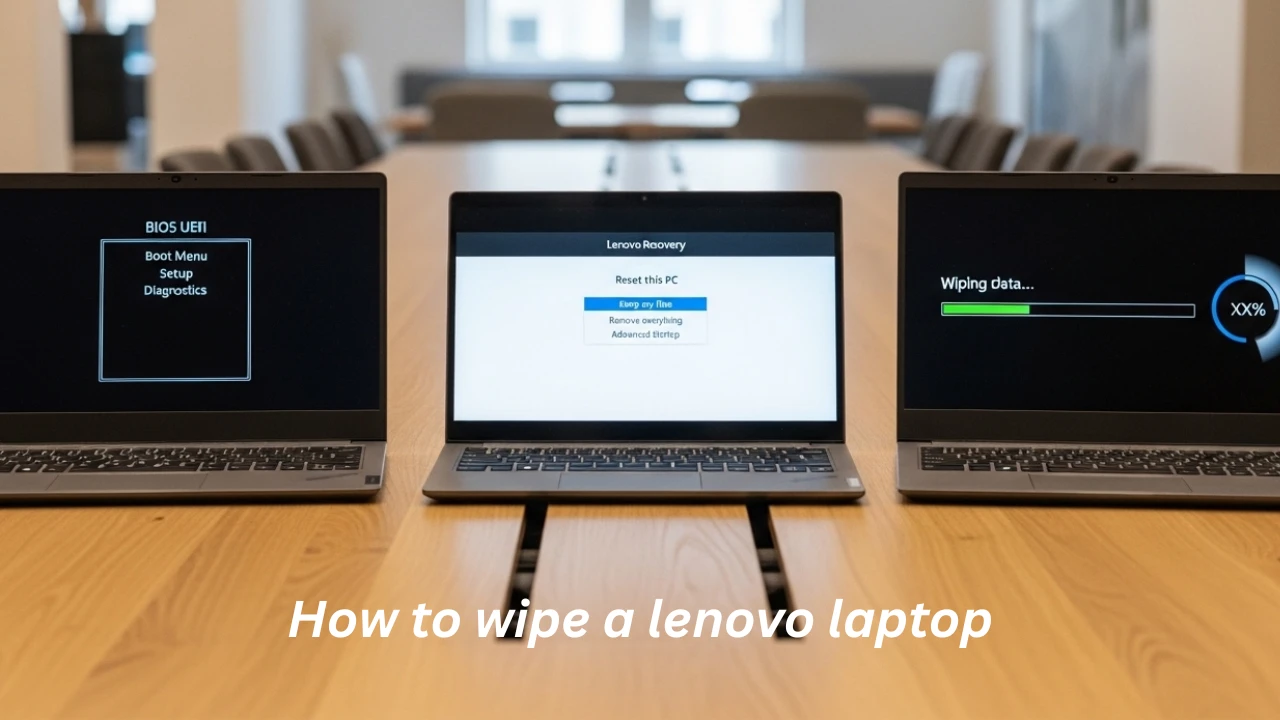
How to wipe a Lenovo Laptop: You’re selling your old Lenovo ThinkPad, but worry that your personal photos, emails, or banking apps could linger on the drive. Or maybe your Lenovo IdeaPad is sluggish, and a fresh start sounds ideal. Wiping a Lenovo laptop isn’t just deleting files—it’s ensuring your data vanishes for good while prepping the device for a new life.
At LaptopDream.com, we guide you through every scenario: quick resets for family hand-me-downs, secure erases for strangers buying your gear, or factory restores to fix performance woes. Whether you’re on Windows 10, 11, or dealing with a forgotten password, this 100% Lenovo-focused guide beats generic advice. We’ll cover Windows Reset, the Novo button magic unique to Lenovo, BIOS-level wipes, and pro tools like DBAN.
Why trust us? As laptop experts, we’ve tested these on models like Yoga, Legion, and ThinkBook. Expect step-by-step instructions, checklists, comparisons, and warnings to avoid bricking your machine. By the end, you’ll wipe confidently, protect your privacy, and maybe even boost resale value. Let’s dive in—your data’s security starts now.
Why You Should Wipe a Lenovo Laptop First
Deleting files or emptying the Recycle Bin? That’s a myth. Modern tools like Recuva or forensic software can recover “erased” data easily. A proper wipe overwrites your drive, making recovery near-impossible—crucial for privacy under laws like GDPR in Europe.
Real-world stakes: Selling without wiping risks identity theft. Factory Resetting Fixes bloatware slowdowns on Lenovo laptops, where pre-installed apps hog RAM. Donating? Ensure no corporate secrets leak.
Key reasons to wipe:
- Privacy protection: Erases personal data traces.
- Performance boost: Removes junk for smoother operation.
- Resale prep: Buyers want a clean slate, fetching 10-20% higher prices.
- Compliance: Meets data protection rules for businesses.
Skip this, and you’re gambling. Next, prep smartly.
Before You Wipe Your Lenovo Laptop: Critical Prep Steps
Rushing into a wipe? Big mistake. One overlooked backup, and poof—irreplaceable family photos gone. This checklist saves headaches.
Back Up Important Files (OneDrive, External Drive, Cloud)
Plug in an external HDD/SSD or use OneDrive/Google Drive. Copy Documents, Photos, and Desktop folders. Pro tip: Verify backups by spot-checking files post-copy. Tools like Macrium Reflect (free) image your entire drive.
Sign Out of Your Microsoft Account
Settings > Accounts > Email & accounts. This de-links OneDrive sync and stops remote access post-wipe.
Deauthorize Devices (OneDrive, Office, iTunes)
Open apps like Microsoft 365 > Account > Sign out from all devices. Prevents activation issues on your next laptop.
Note down the Lenovo Drivers You May Need
Visit Lenovo’s support site, enter your model (e.g., “IdeaPad 3”), and download Wi-Fi and graphics drivers. Post-wipe, these ensure full functionality.
Ensure Your Laptop Is Charged or Plugged In
Aim for 50%+ battery or AC power. Wipes can take hours; interruptions corrupt partitions.
| Prep Step | Time Needed | Tools Recommended |
| Backup files | 15-60 mins | OneDrive, external USB |
| Sign out of accounts | 5 mins | Settings app |
| Deauthorize apps | 5-10 mins | App menus |
| Download drivers | 10 mins | Lenovo Vantage/Support site |
| Charge device | Ongoing | AC adapter |
Follow this, and you’re wipe-ready.
How to Wipe a Lenovo Laptop Using Windows Reset
Most users start here—it’s built-in and simple. “Reset this PC” reinstalls Windows, nuking user data.
How to Wipe a Lenovo Laptop Using “Reset this PC”
- Search “Reset this PC” in Windows Search.
- Click “Get started” under Recovery.
- Choose “Remove everything.”
- Select “Local reinstall” (faster, uses your recovery partition) or “Cloud download” (freshest Windows).
- Confirm settings: Fully clean the drive for extra security.
- Hit Reset—your Lenovo restarts into the process (20-60 mins).
Lenovo twist: Some models (e.g., Yoga) prompt Lenovo Recovery first. Follow on-screen cues.
What This Method Actually Deletes
- All user files, apps, and settings.
- Third-party software.
- Keeps: Windows OS, Lenovo recovery partition (for future fixes).
When to Use Windows Reset on a Lenovo Laptop
Ideal for local sales, family gifts, or speed tweaks. Not for high-security needs.
Lenovo-Specific Factory Reset (Novo Button / Lenovo Recovery)
Lenovo shines here with the Novo button—a pinhole near power on most models (ThinkPad side, IdeaPad bottom). Bypasses Windows for OEM restore.
How to Reset a Lenovo Laptop Using the Novo Button
- Power off completely.
- Press the Novo button (use a paperclip if the pinhole is empty).
- Menu appears: Select “System Recovery.”
- Choose “Reset this PC” or “Troubleshoot” > “Reset.”
- Opt for “Remove everything”; follow prompts.
Restores Lenovo’s factory image—drivers included.
What Lenovo Factory Reset Keeps vs Deletes
- Deletes: User data, apps.
- Keeps: Recovery partition, bloatware-light OEM Windows.
- Bonus: Pre-tuned for your model (e.g., Legion gaming optimizations).
Common Novo Button Issues
- No menu? Hold power + Novo; try AC plugged.
- Stuck? Press F12 for the boot menu, select recovery.
- Model note: Legion 5i—Novo on right side.
Secure Wipe Using Lenovo UEFI BIOS / Hardware-Level Erase
For paranoia-level security, BIOS taps your SSD’s self-destruct. Fastest for modern NVMe drives.
How to Wipe a Lenovo Laptop Hard Drive Securely in BIOS
- Power off; press Novo > “BIOS Setup” or F1/F2 at boot.
- Navigate Security > Secure Boot > off (if needed).
- Storage > [Your drive] > Sanitize/ Secure Erase.
- Choose “Cryptographic Erase” (resets encryption keys) or “Secure Erase.”
- Confirm—takes 2-10 mins.
Post-wipe: Reinstall Windows via USB.
When You Should Use Hardware-Level Wipe
Selling online, enterprise handoffs, or privacy hawks. Overkill for the family.
Pros and Cons vs Software Reset
| Aspect | BIOS Secure Erase | Windows Reset |
| Speed | 2-10 mins | 20-60 mins |
| Security | ATA Secure Erase (NIST-approved) | Overwrite, recoverable with tools |
| OS After | Gone—manual reinstall | Preserved |
| Ease | Techy | Beginner-friendly |
Deep Wipe Using Third-Party Tools (DBAN, Parted Magic)
Geeks love this for multi-pass overwrites. DBAN (free) boots from USB, ignores OS.
How to Use DBAN to Wipe a Lenovo Laptop
- Download DBAN ISO from sourceforge.net.
- Rufus to burn a bootable USB.
- Boot: Novo/F12 > USB.
- DBAN loads: Tab to drives, type “autonuke” for quick (1-pass) or manual.
- Select drive (double-check!); start. Hours for HDDs.
Parted Magic adds a GUI and partitioning.
When to Choose DBAN or Parted Magic
Dual-boots, RAID setups, audit-proof wipes.
Precautions with Full-Disk Wipe
Destroys OS/recovery—have Windows USB ready. Test on the non-critical drive first.
How to Wipe a Lenovo Laptop Without a Password
Forgot PIN? No sweat—most methods bypass it.
Options If You Forgot Your Windows Password
- Novo button: Recovery mode ignores login.
- Windows Recovery USB: Shift+Restart > Troubleshoot > Reset.
- DBAN/BIOS: Drive-level, no OS needed.
When You Need a Password vs When You Don’t
OS resets require it; hardware wipes don’t.
Choosing the Right Wipe Method for Your Lenovo Laptop
Match the method to the need with this table:
| Method | Best For | Pros | Cons |
| Windows Reset | Cleanup, easy resale | No tools, keeps recovery | Less secure |
| Lenovo Novo | Factory restore | Model-optimized | Bloatware |
| UEFI BIOS | High-security | Ultra-fast, thorough | Reinstall OS |
| DBAN | Geek wipes | Customizable passes | Slow, technical |
Pick by risk: Family? Windows. Strangers? BIOS/DBAN.
Pros and Cons of Wiping a Lenovo Laptop
Pros:
- Ultimate privacy.
- Revives speed (e.g., 30% faster post-reset).
- Higher resale (clean devices sell quicker).
- Fixes malware/software glitches.
Cons:
- Data loss if unbacked.
- Time investment (1-4 hours).
- Potential driver hunts post-wipe.
- Irreversible—double-check.
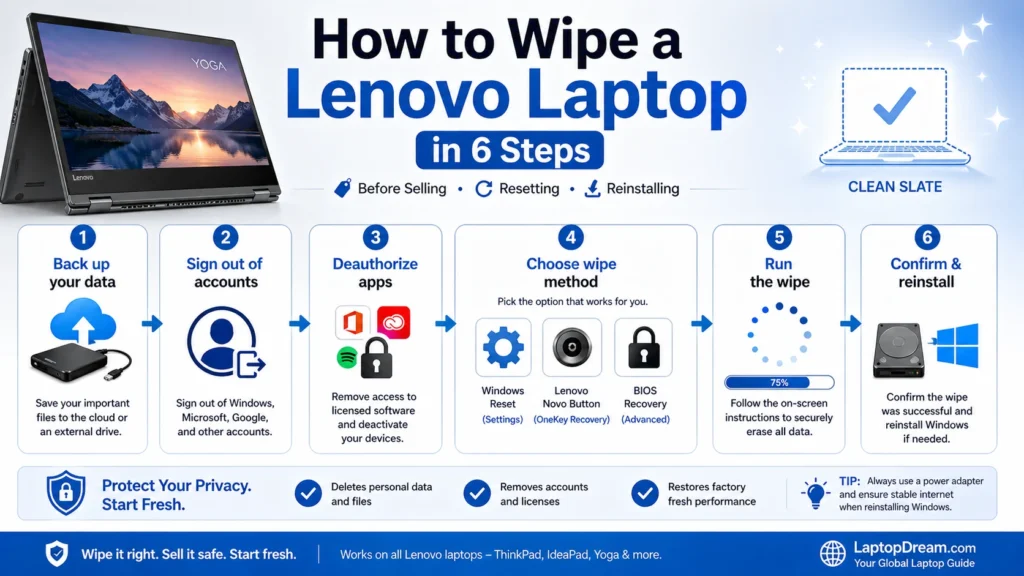
Step-by-Step Checklist: How to Wipe a Lenovo Laptop Before Selling
- Back up data: Scan for hidden folders; use TreeSize Free.
- Sign out accounts: Microsoft, Google, Adobe.
- Deauthorize apps: iTunes, Office.
- Choose method: Assess security needs.
- Run wipe: Monitor progress.
- Verify & reinstall: Boot to an empty desktop; install drivers/Windows.
Skimmable and shareable—print it!
FAQs
A: Yes—Windows “Keep my files” or Novo reset preserves OS but clears apps/settings.
A: Windows/Novo usually keep it; DBAN/BIOS may delete.
A: BIOS erase or Windows Reset, then Media Creation Tool USB.
A: Yes, on your device; back up first.
A: Windows: 20-60 mins; BIOS: <10 mins; DBAN: 1-4+ hours.
Concoluion
You’ve got the full toolkit: Windows ease, Lenovo Novo smarts, BIOS power, DBAN depth. No more generic guides—tailor to your ThinkBook or Yoga, sell securely, or reset for zippy performance. At LaptopDream.com, we prioritize your confidence.
Expert advice: Always back up, verify model (Settings > System > About), and test post-wipe. Data gone? You’re golden.











