Introduction
Imagine firing up your Dell laptop for a crucial work presentation, only to spot an ugly black dot staring back from your screen. Frustrating, right? A black spot on a Dell laptop screen isn’t just cosmetic—it’s often a sign of dead pixels, manufacturing flaws, or physical damage that can spread if ignored. Affecting models like Inspiron, XPS, Latitude, and Alienware, these persistent dark circles disrupt everything from video calls to gaming.
This comprehensive guide from LaptopDream.com delves into the causes, diagnostics, fixes, and prevention of common laptop issues. Drawing on Dell’s official tools, real-user reports, and 2026 updates on OLED panels, we’ll help beginners test safely and professionals weigh the ROI of repairs.
What Causes Black Spots on Dell Laptop Screens?
Black spots differ from full black screens (backlight or GPU failures). They’re small, persistent dark dots or circles, often 1-3mm, visible across all colors. Dell classifies most as LCD panel defects, but the causes vary by model and usage.
Common Culprits Behind the Spots
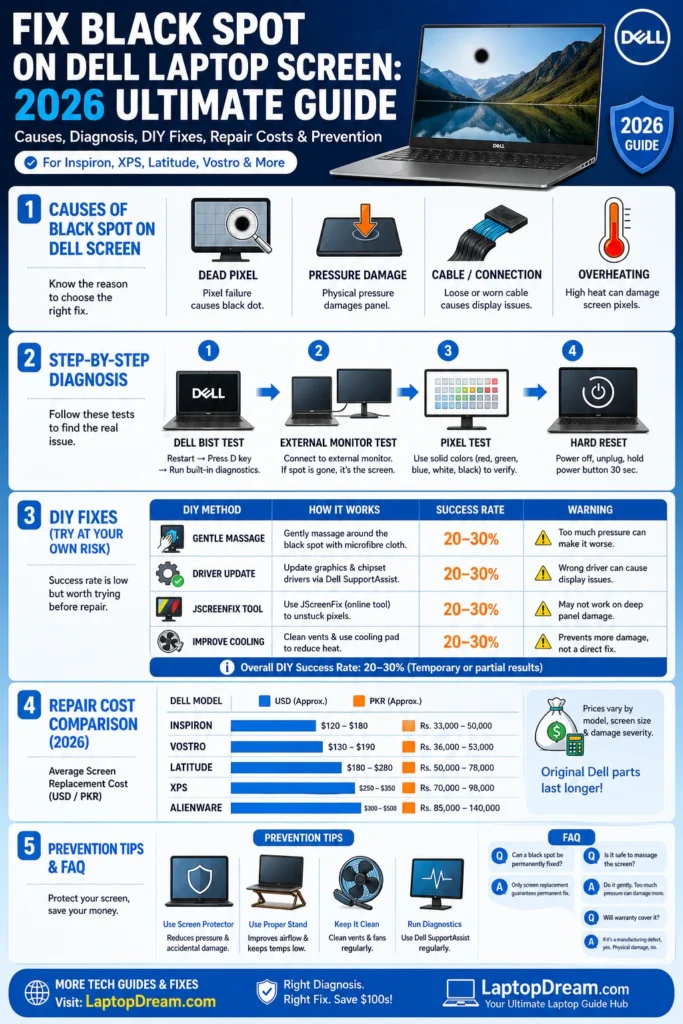
- Dead or Stuck Pixels: Manufacturing defects where sub-pixels fail. Common in high-res IPS panels on XPS 13/15 or Latitude 5000 series within 1-2 years. Dell tolerates 1-3 per the warranty policy.
- Physical Damage: Lid flex, drops, or shipping pressure crushes LCD layers. Frequent in convertible Inspirons or backpack-toting students.
- Cable and Connector Issues: Wear from repeated openings warps flex cables. Gaming beasts like Alienware m16 overheat, accelerating this.
- Overheating and Warping: Intense sessions (e.g., Adobe Premiere on XPS) warp panels. 2026 Alienware models mitigate with vapor chambers, but older ones suffer.
- Rare Software Mimics: Corrupted drivers create “ghost spots.” Less common, but hits G15 gamers post-Windows updates.
Real-world example: A Lahore user reported a black dot on their Dell Inspiron 15 after a bumpy commute—pressure damage confirmed via BIST test.
Pro Tip: Spots >2mm or spreading? Act fast—moisture can turn one dot into a streak.
Step-by-Step Diagnosis: Confirm It’s Hardware
Don’t rush to repairs. Use Dell’s free tools for pinpoint accuracy. These no-cost tests take 10-30 minutes and preserve the warranty.
Run Dell’s LCD BIST (Built-In Self-Test)
Power off your laptop. Hold Fn + Power (check model-specific keys on Dell Support). Release Fn post-Dell logo. Cycles white/black/red/green/blue screens.
- Persistent black spot? Hardware fault.
- Works on all Dells: Inspiron, XPS, Latitude.
External Monitor Test
Connect via HDMI/VGA to a TV. Mirror display.
- Spot absent externally? Laptop Screen Issue (not GPU).
- Ideal for Latitude/Vostro pros.
Online Pixel Tests
Visit deadpixeltest.com or EIZO Monitor Test. Run full-color cycles.
- Spot stays black? Dead pixel confirmed.
Hard Reset for Glitches
Unplug charger, remove battery (if removable), hold power 30-60 seconds. Reassemble and boot.
Diagnosis Quick Reference Table
| Test | What It Reveals | Best For Dell Models | Time |
| LCD BIST | Pixel/Panel Fault | Inspiron, XPS, All | 2 min |
| External Monitor | Screen vs. GPU | Latitude, Vostro | 5 min |
| Pixel Test Sites | Dead/Stuck Pixels | G15, Alienware | 10 min |
| Hard Reset | Software Glitch | Gaming Models | 1 min |
If tests confirm hardware, proceed to fixes. Still fuzzy? Chat Dell Support (dell.com/support).
Safe DIY Fixes for Black Spots (20-30% Success Rate)
Pros fix 80% of cases, but try these warranty-safe methods first. Skip if under Dell Premium Support—tampering voids it.
Gentle Massage for Stuck Pixels
- Power off, unplug.
- Use a microfiber cloth for soft, circular pressure (1-2 min) over the spot.
- Success: Revives stuck (not dead) pixels by freeing liquid crystals.
- Warning: Never on cracked screens—risks shattering.
Update Graphics Drivers
Outdated Intel/NVIDIA drivers mimic spots.
- Visit dell.com/support > Enter Service Tag.
- Download the “Detect PC” tool.
- Install the latest graphics (e.g., NVIDIA GeForce for Alienware).
JScreenFix Software Tool
Free app flashes colors for 8+ hours.
- 10% fix rate for minor glitches.
- Download from jscreenfix.com—safe for all Windows Dells.
Cooling Check
Overheating warps panels.
- Use compressed air on vents.
- Elevate on a stand for airflow.
Results Table: DIY Fix Success by Cause
| Cause | Best DIY Fix | Success Rate | Risk Level |
| Stuck Pixels | Massage | 25% | Low |
| Driver Corruption | Update | 30% | None |
| Minor Overheat | Cooling | 15% | Low |
| Dead Pixels | JScreenFix | 10% | None |
Stop if spot grows—escalate to pros.
When to Repair, Replace, or Claim Warranty
DIY fails? Weigh costs. Dell screens run $100-400 USD (PKR 28,000-112,000 in Islamabad/Europe).
Dell Warranty Check
- Log in to Support.Dell.Com with the Service Tag.
- 1-3 years standard; Premium covers accidents.
- Pakistan: Call 0800-11566. Europe: Local Dell Service Centers.
- Free swap if <10 dead pixels and in warranty.
2026 Model Repair Costs Table
| Model | Screen Cost (USD/PKR) | DIY Difficulty | Repair Time (Pro) |
| Inspiron 14/15 | $120-180 / 33k-50k | Medium | 1 day |
| XPS 13/15 | $250-350 / 70k-98k | Hard (glue) | 2 days |
| Latitude 5000 | $150-220 / 42k-62k | Easy (modular) | 1 day |
| Alienware m16 | $300-400 / 84k-112k | Pro Only | 2-3 days |
| Vostro 3000 | $100-150 / 28k-42k | Easy | 1 day |
Pro Repair Options:
- Islamabad F-7/Blue Area shops: PKR 15k-40k.
- Europe: Dell Authorized (e.g., UK Resellers) ~€150-450.
- DIY: iFixit guides + AliExpress panels (risk backlight mismatch).
Example: XPS 13 owner saved $300 via warranty swap vs. €350 pro fix.
Pros and Cons of Repair vs. Replacement
Repair Pros
- Cheaper than a full laptop swap (50-70% savings).
- Keeps data intact.
- Warranty-safe at authorized centers.
Repair Cons
- Temporary—underlying issues recur.
- Downtime (1-3 days).
- Not viable for multi-spot damage.
Full Panel Replacement Pros
- Like-new display.
- Addresses root cause.
- Upgrades possible (e.g., to 2026 OLED).
Replacement Cons
- Higher cost ($200+).
- DIY risks (static damage).
- Voids warranty if botched.
Who Should Repair? Budget users with single spots. Replace? Pros needing flawless visuals (e.g., designers).
Model-Specific Insights: Inspiron vs. XPS vs. Others
Dell lines differ in vulnerability.
Inspiron Series (Budget Kings)
- Prone to pressure spots from plastic flex.
- Fix: Easy Modular panels.
XPS Premium (OLED Upgrades in 2026)
- Dead pixels rare but pricey to fix.
- New panels resist 40% better per Dell specs.
Latitude/Latitude (Business Tanks)
- Rugged builds, but cable wear is common.
- Best for external tests.
Alienware/G15 (Gaming Beasts)
- Overheat spots—vapor cooling helps 2026 models.
Head-to-Head Comparison Table
| Feature | Inspiron | XPS | Latitude | Alienware |
| Spot Frequency | High (Pressure) | Medium (Pixels) | Low (Rugged) | High (Heat) |
| Repair Cost | Low | High | Medium | Very High |
| 2026 Improvements | Basic IPS | OLED Resist | Modular | Vapor Cool |
| Warranty Tolerance | 3 pixels | 2 pixels | 3 pixels | 1 pixel |
Prevention Tips: Avoid Black Spots Long-Term
Competitors skip these—extend panel life 2-3x.
- Screen Protector: Anti-glare film (PKR 1k/€10) from day one.
- Laptop Stand: Improves airflow, reduces flex (PKR 2k).
- Annual Diagnostics: Dell SupportAssist scans.
- Avoid Soft Surfaces: No beds—blocks vents.
- Insurance: Accidental coverage (PKR 5k/year).
- 2026 Trend: Opt for Mini-LED/OLED Dells—40% spot-resistant.
User story: Berlin designer added a protector to Vostro—zero spots after 3 years.
Advanced Topics: 2026 Dell Display Tech and ROI
Newer panels shine. Dell’s 2026 XPS features tandem OLED, cutting dead pixels via self-healing pixels. Gaming lines add 360Hz Mini-LED.
Repair ROI Calculator:
- Cost: $200.
- Lifespan Gain: 2 years.
- Break-even: If laptop >$800, yes.
For pros: Modular Latitude swaps beat full replacements.
FAQs
A: Dell tolerates 1-3 tiny dead pixels, but >1mm spots qualify for a warranty fix.
A: 1-3 years standard. Pakistan: 0800-11566. Europe: support.dell.com/[country].
A: indicates moisture/pressure. Backup data immediately.
A: Absolutely—IPS/OLED upgrades resist 40% more. Check the serial for recalls.
A: Sometimes (massage/software), but pros recommended for warranty.
Conclusion
Black spots on Dell screens are often fixable in most cases with the right diagnosis and quick action. Start by running built-in tests like the BIST display check, updating drivers, and inspecting for physical damage before assuming a full screen replacement is needed. Early detection usually saves both time and repair costs.
As your LaptopDream.com guide, we recommend acting fast—check warranty eligibility first, as many screen issues are covered by Dell support. For long-term protection, use a quality screen guard, avoid pressure on the lid, and keep your laptop on stable stands. If you have questions about your Service Tag or a specific model issue, drop a comment for expert help.











