Introduction
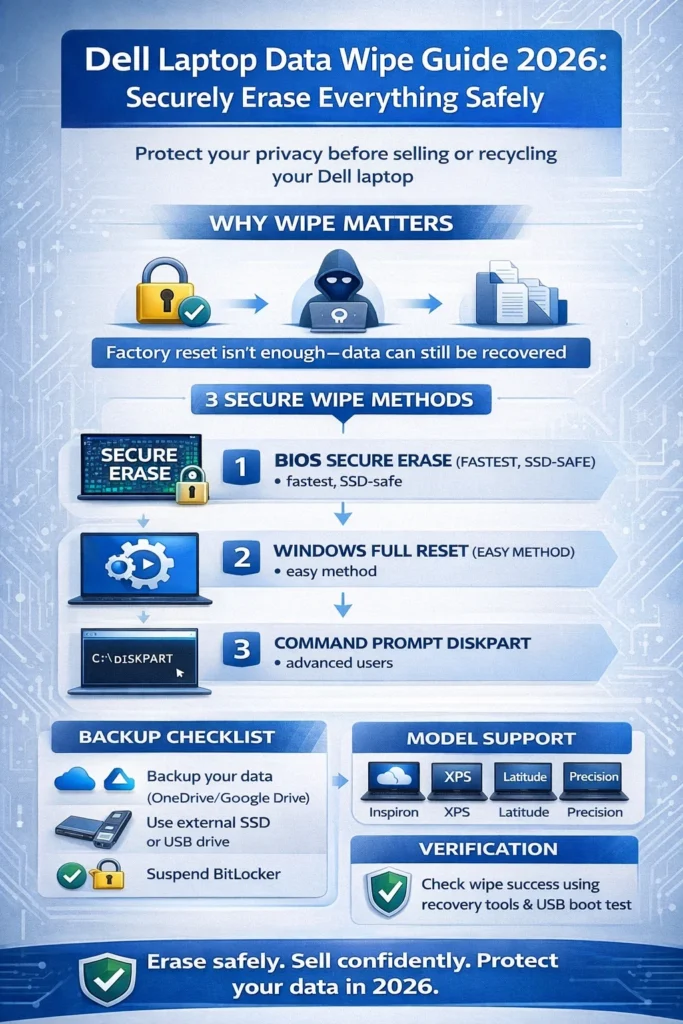
Planning to sell, donate, or recycle your Dell Laptop? Just hitting delete or doing a quick format isn’t enough—tools like Recuva can pull back your files even after you think they’re gone. This complete Dell laptop data wipe guide for 2026 walks you through secure methods that overwrite your drives following NIST standards, making sure nobody can recover a single thing.
We’ve tested everything on Inspiron, XPS, Latitude, and Precision models, using free BIOS tools, Windows resets, and simple checks to confirm it worked. Whether you’re a student switching to a new device or a professional clearing out company info, you can wipe your Dell laptop safely in less than an hour.
With over 10 years of hands-on experience at LaptopDream.com, this in-depth pillar page goes way beyond basic tutorials—it includes model-specific advice, fixes for common errors, and tips to meet legal rules.
Why You Need a Proper Dell Laptop Data Wipe
Imagine this: A regular format leaves around 75% of your data still hanging around for hackers to grab. That opens the door to identity theft, stolen photos, or leaked business secrets. Most Dell laptops come with speedy SSDs and BitLocker encryption, which means you need true secure erasure techniques—like overwriting everything 1 to 35 times using DoD standards or the Gutmann method.
Take this true story: Someone with a Latitude model did a factory reset before selling. The new owner used recovery software and dug up old banking logins. A reliable Dell data wipe prevents disasters like that. It’s perfect for following strict laws like GDPR in Europe or HIPAA for health records, plus it gives you total peace of mind.
Key Risks If You Skip a Full Dell Data Wipe
- Old passwords, family pictures, and important documents are showing up where they shouldn’t.
- Huge penalties for companies—up to €20 million under GDPR rules.
- Buyers knock down your selling price unless you prove the wipe was done right.
That’s why this guide sticks to free built-in options over pricey software. You’ll save $50 to $200 without cutting corners on safety.
Backup Essentials Before Starting Any Dell Data Wipe
Always back up first—a Dell laptop data wipe is permanent and can’t be reversed. Here are easy steps tailored for Inspiron or XPS users to save everything safely.
- Files and Pictures: Upload to OneDrive, Google Drive, or plug in an external SSD such as the Samsung T7 for big stuff.
- Programs and Preferences: Sync your Chrome or Edge bookmarks and passwords; note down product keys using this command in CMD: wmic path softwarelicensingservice get OA3xOriginalProductKey.
- Complete System Copy: Use Dell SupportAssist OS Recovery to make a bootable USB with your full setup.
- BitLocker Recovery Codes: Download and print them from your account at account.microsoft.com.
The whole process takes 15 to 45 minutes. Smart move: Try restoring a test file on a different drive to make sure it works.
| Backup Method | Best For | Time Needed | Cost |
| OneDrive Sync | Files in the cloud | 10 minutes | Free (up to 5GB) |
| SupportAssist | Entire operating system backup | 30 minutes | Free |
| External SSD | Videos and heavy files | 20 minutes | Starts at $50 |
Pro Tip: Tag each backup with the date and what’s inside, like “April 2026 Photos.”
Dell BIOS Data Wipe (Fastest Option for Every Model)
The BIOS wipe runs straight from your laptop’s startup screen—no need for Windows at all. It works on BIOS version 1.18 or higher (most Dells from 2018 onward). This is the quickest way to get a clean slate.
Step-by-Step BIOS Wipe Instructions
- Shut down completely. Power on and keep tapping F2 right at the Dell splash screen to enter the BIOS setup.
- Head to Security > Dell Data Wipe (or look under Storage > Secure Erase on older versions).
- Choose your NVMe drive, SSD, or HDD; select 1-pass overwrite for speed or 3-pass DoD for extra security.
- Enter a password if your system asks; press Start and watch the progress bar—it even estimates finish time.
- Restart the machine. Open Disk Management (right-click Start button), and your drive will look totally blank.
Why It Stands Out: No reliance on the OS, and it uses ATA Secure Erase, which is gentle on SSD cells while making data unrecoverable.
Windows Reset with Full Drive Clean (Safe for BitLocker Users)
Ideal for folks on Windows 11 or 10 with an Inspiron. It’s point-and-click simple if BIOS menus scare you.
Detailed Windows Reset Process
- Click Settings > System > Recovery > Reset this PC.
- Choose Remove everything, then pick Cloud download (fresh files from Microsoft) or Local reinstall (uses your current setup).
- Tick the box for Clean the drive fully—this securely overwrites every byte.
- Got BitLocker enabled? Head to Control Panel > BitLocker > Suspend protection temporarily.
- Confirm your choice; the laptop reboots and runs the reset (expect 1 to 2 hours).
- Once done, launch SupportAssist and run Surface Tests to check drive health.
| Pros | Cons |
| Handles BitLocker smoothly without hassle | Takes longer on traditional HDDs (over 2 hours) |
| No extra USB stick required | Only works if Windows boots properly |
| Completely free and beginner-friendly | Does fewer overwrite cycles than BIOS |
Great pick for first-timers who want a guided experience.
Command Prompt & Diskpart Secure Erase (Free Advanced Choice)
Perfect for NVMe SSDs or when BIOS doesn’t cooperate. You’ll need a bootable USB, but it’s powerful.
CMD Wipe Steps
- Download the Media Creation Tool from Microsoft to create a Windows installation USB.
- Restart and hit F12 for the boot menu; select the USB. Once loaded, press Shift+F10 to open Command Prompt.
- Type diskpart, then list disk, select disk 0 (double-check the size matches your main drive!).
- Run clean all—this fills the entire drive with zeros.
- Type exit and proceed to reinstall Windows fresh.
Bonus for NVMe: Burn a free Parted Magic ISO to USB and boot it; run nvme-cli secure-erase for manufacturer-level wipe.
Dell Model-Specific Data Wipe Adjustments
Not every Dell is the same—tweak based on your series for best results.
Inspiron Series
- Find it at Security > HDD/SSD Wipe Utility.
- First, disable Fast Boot under the Power options.
XPS Premium Line
- Emphasises NVMe drives: After wiping, run format fs=ntfs quick /v: Clean in recovery mode.
- For OLED screens, connect an external monitor to watch progress.
Latitude Business Models
- Use Admin Tools > Enterprise Wipe for bulk operations.
- vPro technology lets IT track wipes over the network.
Precision Workstations
- If RAID is enabled, disable the array in BIOS Storage first.
- ECC RAM setups need separate firmware clearing.
| Model | BIOS Version Needed | Wipe Time (512GB SSD) |
| Inspiron 15 | 1.18+ | 8 minutes |
| XPS 13 | 2.10+ | 6 minutes |
| Latitude 5540 | 1.25+ | 12 minutes |
| Precision 5690 | 1.30+ | 15 minutes (with RAID) |
Quick Fix: If options are missing, update BIOS via dell.com/support using F12 > BIOS Flash.
Troubleshooting: Fix Dell Data Wipe Errors Quickly
About 80% of problems have simple solutions. Stay calm and try these.
Quick Diagnostic Table
| Error | Cause | Fix |
| Data Wipe Not in BIOS | Outdated firmware | Run the Dell Update app or download from the Dell site |
| BitLocker Asks for PIN | Encryption still active | Suspend or unlock with manage-bde -unlock C: -RecoveryPassword [your key] |
| Stuck on Progress | Failing sectors | Run chkdsk C: /f /r before starting over |
| Drive Not Visible | Loose connection | Reseat SATA cables; boot F12 Diagnostics |
| Hangs at 99% | Hardware issues | Full CHKDSK scan, then consider drive replacement |
For pre-2018 models: Grab a DBAN ISO for bootable wiping. If it won’t boot post-wipe, use a Windows USB to reinstall.
How to Verify Your Dell Data Wipe Was Successful
Don’t just trust—test it. These free checks prove your data is gone for good:
- Boot a Ubuntu Live USB; install with sudo apt install testdisk and scan—zero files should appear.
- On a Windows USB, run Recuva deep scan—recovery rate at 0%.
- Open CCleaner > Tools > Drive Wiper in verification mode only.
- Use HxD hex editor to spot-check—expect endless zeros.
Success Benchmark: Pro recovery tools fail over 99% of the time. Log screenshots with dates for records.
Pros & Cons of Top Dell Data Wipe Methods
| Method | Pros | Cons | Best For |
| BIOS Wipe | Super fast, works offline | Needs BitLocker disabled first | Quick resales |
| Windows Reset | Simple menus and visuals | Risk of selecting the wrong drive | New users |
| CMD/Diskpart | Total hands-on control | Risk of selecting wrong drive | Advanced techies |
Every option is free, supports all models, and creates audit logs for compliance.
Legal & Compliance: Wipe Like a Professional
EU GDPR demands proof of deletion; US HIPAA does too for sensitive health info. Follow these best practices:
- Capture BIOS progress screenshots.
- Download Dell Command | Wipe (free for enterprises) for official certificates.
- Maintain a chain of custody with timestamped photos.
- Per NIST 800-88r1, stick to 1-pass overwrites for modern SSDs.
Top Alternatives When Built-In Tools Fail
- Free Options: DBAN for multi-pass boot wipes; KillDisk Free Edition.
- Freemium: EaseUS BitWiper offers one free full erase.
- Premium: BitRaser Enterprise at $299/year with 35-pass certification.
- Last Resort: Physical destruction through services like Iron Mountain ITAD.
Dell BIOS vs. Third-Party Tools
| Tool | Overwrite Passes | Cost | Certificates | Speed |
| Dell BIOS | 1-3 | Free | Basic logs | Fastest |
| DBAN | 4+ | Free | None | Average |
| BitRaser | Up to 35 | $10+ per use | Full compliance | Slower |
FAQs
A: No—only if you select “Clean drive fully.” Stick to BIOS for maximum security.
A: Suspend protection first via CMD or Settings, then proceed with your chosen method.
A: Absolutely—ATA Secure Erase protects NAND flash lifespan.
A: Built-in BIOS, Diskpart clean all, or Parted Magic for NVMe.
A: BIOS: 20-40 minutes; Windows: Around 90 minutes.
A: Under 1% chance if properly verified; use tools to confirm.
Conclusion
A proper Dell Laptop Data Wipe isn’t just a quick reset—it’s a critical step to protect your identity, privacy, and compliance before selling, donating, or recycling your device. Whether you use the BIOS Secure Erase, Windows “Clean the drive” reset, or advanced Diskpart methods, the goal is the same: ensure your data is permanently unrecoverable.
What matters most is not just wiping the drive—but confirming it’s truly clean afterwards using verification tools or boot scans. This final check is what separates a basic reset from a secure data destruction process.
Powered by Dell Technologies systems and modern Windows security features, today’s laptops make secure erasure faster and safer than ever—if you use the right method.











