Introduction
Seeing a blue screen appear on your Dell laptop often brings frustration, even panic– especiallyifyoudonotknowwhyithappened. Called the Blue Screen of Death (BSOD) by many, this warning points to a serious crash inside Windows, triggered sometimes by clashing programs, damaged system files, or failing hardware parts.
While most fixes online offer generic advice, here the attention shifts directly to problems unique to Dell devices, listing real error messages that show up, walking through clear checks step by step, then introducing deeper tools made to uncover and resolve what went wrong.
Explanation
By following this guide, you will learn:
- Common reasons for Dell blue screens
- How to interpret and understand BSOD stop codes
- Step-by-step beginner to expert-level remedies
- Dell diagnostic tools and BIOS maintenance
- Preventive measures to reduce future BSOD occurrences
Starting fresh means clarity without overload – here, simple steps meet every skill level. Whether new or skilled, fixing BSOD errors becomes straightforward through clear guidance. Experience doesn’t matter when explanations work for everyone equally well.
What Causes Blue Screen Dell Laptop Errors?
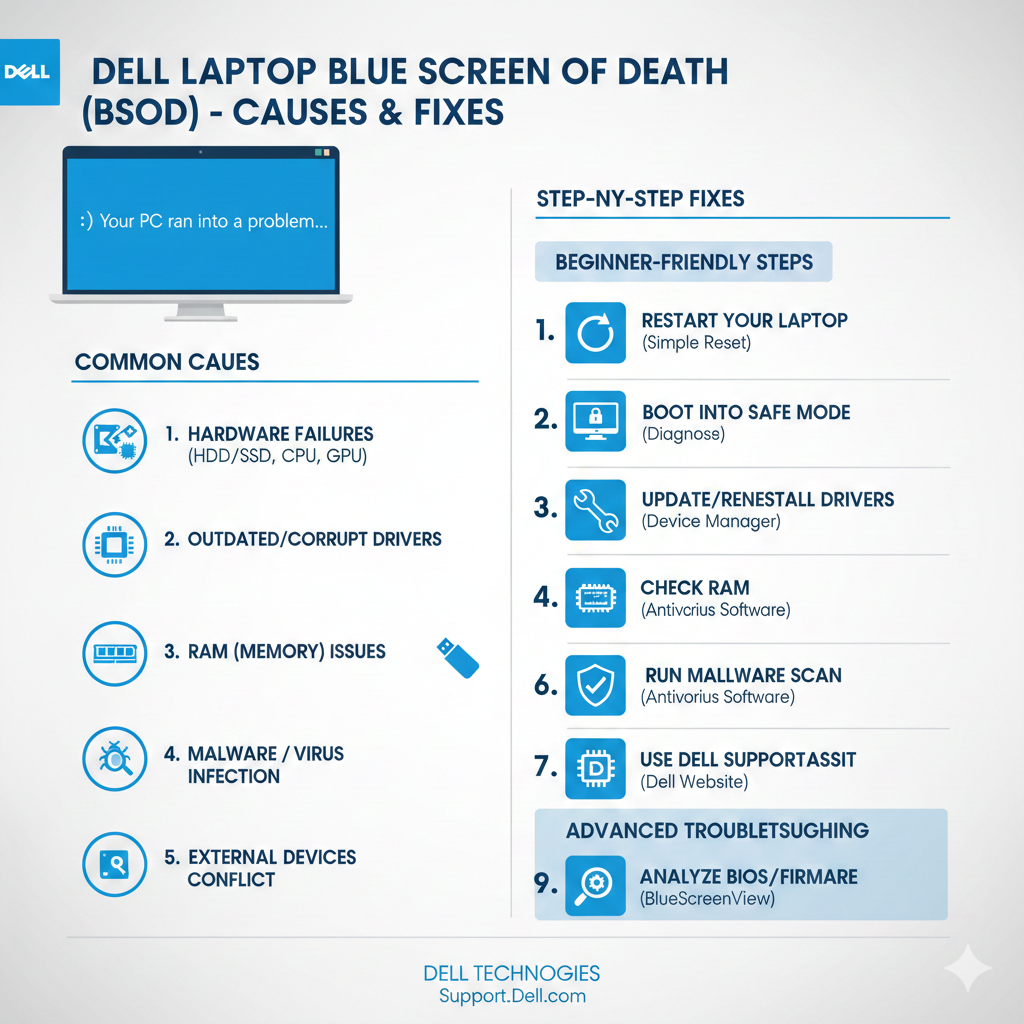
When something goes wrong inside Windows that it just can’t fix, you might see a blue screen flash up. On Dell laptops, these issues mix general operating system glitches with quirks tied to the hardware itself. What follows covers many usual suspects behind such crashes – each one drawn from real-world patterns
| Cause | Explanation |
| Driver Malfunctions | Outdated or corrupted graphics, chipset, or storage drivers often trigger BSODs. Dell devices may require official drivers from Dell Update or SupportAssist. |
| Damaged System Files | System files can become corrupted due to malware, abrupt shutdowns, or failed updates, resulting in blue screens. |
| Defective RAM or Storage Devices | Failing memory modules or SSD/HDD units can cause system stop code errors. |
| BIOS or Firmware Conflicts | Outdated BIOS versions or misconfigured BIOS settings can prevent proper hardware initialization. |
| Peripheral Device Conflicts | USB drives, external hard drives, printers, or other accessories can interfere with system startup. |
| Malware & Virus Infection | Harmful software may damage essential system files, causing BSOD events. |
| Hardware Failures | Critical failures in components such as the motherboard, GPU, or storage devices trigger system halts. |
Identifying these causes is crucial for targeted and efficient troubleshooting.
Understanding Dell BSOD Error Codes
Dell laptops provide stop codes to help isolate the cause of BSODs. Familiarity with these codes is essential for accurate troubleshooting.
| Stop Code | Meaning | Recommended Fix |
| VIDEO_TDR_FAILURE | Graphics or GPU driver-related crash | Update GPU drivers, test GPU hardware |
| CRITICAL_PROCESS_DIED | Essential system process failure | Run SFC & DISM, repair system files |
| INACCESSIBLE_BOOT_DEVICE | Storage or boot device failure | Repair the boot using Windows Recovery |
| 0x0000007B | Boot device inaccessible | Inspect SSD/HDD connections |
| 0x00000050 | Memory access violation | Execute Windows Memory Diagnostic |
Pro Tip: Always write down the stop code when a blue screen occurs, as it directs the troubleshooting process.
First-Level Quick Fixes (Beginner-Friendly)
Often, a straightforward solution resolves BSOD issues. Begin with these basic steps:
Restart & Hard Reset
- Power down the laptop.
- Unplug the charger and all external devices.
- Press and hold the power button for 15–20 seconds to discharge residual energy.
- Reconnect the power adapter and boot the device.
Disconnect External Devices
- Remove all USB drives, printers, or storage devices.
- Restart the system to check if the BSOD persists.
Boot Into Safe Mode
- Turn on the laptop and press F8 or Shift + Restart.
- Select Safe Mode with Networking.
- Observe system stability and uninstall any recent software or drivers if problems are resolved.
These beginner-friendly methods can resolve many minor BSOD incidents.
Dell Diagnostics Tools (Critical Dell Fixes)
Dell laptops include preinstalled diagnostic utilities to detect hardware and system anomalies. Utilizing these tools can pinpoint specific problems efficiently.
1. SupportAssist Preboot
- Restart the laptop and press F12 to access the boot menu.
- Choose Diagnostics.
- The system will check CPU, RAM, GPU, and storage components for errors.
- Analyze the diagnostic codes for component-specific problems.
2. Dell Online Diagnostics
- Access the Dell Diagnostics portal.
- Input your Service Tag and run online hardware assessments.
- Beneficial for devices that cannot boot into Windows.
These Dell-centric tools often provide more precise diagnostics than generic Windows utilities.
System File & Windows Repair Utilities
Corrupted system files are a frequent cause of BSODs. Windows provides native repair utilities:
| Tool | Command / Steps | Purpose |
| SFC (System File Checker) | sfc /scannow | Repairs missing or corrupted system files |
| DISM (Deployment Image Servicing & Management) | DISM /Online /Cleanup-Image /RestoreHealth | Fixes the Windows system image and component store |
Pro Tip: Restart the computer after running these scans to ensure fixes are applied.
Driver & BIOS Updates
Outdated drivers and BIOS are common causes of BSODs like VIDEO_TDR_FAILURE and CRITICAL_PROCESS_DIED.
Updating Drivers
- Use Dell Update or SupportAssist.
- Prioritize graphics, chipset, storage, and drivers.
- Roll back drivers if BSOD began after a recent update.
Updating BIOS
- Verify the latest BIOS version on Dell’s support website.
- Ensure the laptop is connected to power; do not interrupt the update.
- If errors persist, reset BIOS settings to default.
Keeping drivers and BIOS updated prevents many future system crashes.
Advanced Troubleshooting Techniques
Persistent BSODs require deeper intervention:
Windows Recovery Options
- Startup Repair: Corrects boot-related failures.
- System Restore: Restores Windows to a previous, stable state.
- Clean Windows Reinstallation: Consider if other methods fail.
Analyzing Minidump Files
- Navigate to C:\Windows\Minidump.
- Use WinDbg or BlueScreenView to inspect dump files.
- Identify faulty drivers or processes causing crashes.
Hardware Diagnostics & RAM Repairs
| Component | Diagnostic Method | Resolution |
| RAM | Windows Memory Diagnostic | Replace defective modules |
| SSD/HDD | CHKDSK /f /r | Backup and replace if errors persist |
| GPU | Dell Diagnostics | Repair or replace if hardware fault is detected |
Hardware faults are frequent contributors to recurring BSODs.
Preventive Strategies
Maintaining system stability is crucial to avoid future BSODs. Follow these practices:
- Regularly update drivers and BIOS.
- Monitor system temperature to prevent overheating.
- Perform frequent malware scans.
- Avoid installing beta or unstable software.
- Keep backup copies to minimize data loss during crashes.
- Run periodic system file checks and optimize storage.
These measures significantly reduce the likelihood of Dell BSOD occurrences.
Pros & Cons of DIY BSOD Fixes vs Dell Support
| Approach | Advantages | Disadvantages |
| DIY Fixes | Cost-free, rapid, educational | Risky for hardware, may not solve complex issues |
| Dell Support / Warranty | Professional, secure, warranty-covered | May require time; potential service fees if out of warranty |
For minor software or driver errors, DIY fixes work well, while Dell Support ensures professional resolution for major hardware or persistent BSOD issues.
FAQk
A: Typically caused by corrupted drivers, hardware malfunctions, or damaged system files.
A: Yes, Dell can repair both software and hardware problems causing BSOD if the device is covered under warranty.
A: Usually yes, but always back up data and verify drivers to prevent repeated errors.
A: Absolutely. Defective memory is a common reason for CRITICAL_PROCESS_DIED and memory-related stop codes.
A: Record the stop code displayed on the blue screen, then use Dell’s diagnostic utilities or minidump analysis for detailed troubleshooting.
Conclusion
Blue screens on Dell Laptops often come from damaged software, old drivers, or broken parts inside. Start with simple restarts, then move step by step toward deeper checks to fix these crashes fast. Tools like SupportAssist, made just for Dell, help spot problems early. Fresh drivers and updated BIOS versions matter more than most think. Small habits – regular scans, smart updates – add up to fewer surprises later. A steady routine keeps glitches quiet, systems stable. Fewer interruptions mean workflows without sudden stops.











