Introduction
Experiencing a black spot on your Lenovo laptop screen can be irritating and disruptive. Whether you’re working, attending online classes, gaming, or streaming media, these black blemishes can interrupt your workflow and visual experience. They can range from tiny pinpoints near the edges of the display to large blotches that dominate the center of the screen. Understanding the root cause of these dark spots is crucial to determining whether a simple DIY solution will suffice or if professional repair is the best approach.
This guide provides an in-depth exploration of the causes behind black spots on Lenovo laptops, detailed diagnostic procedures, step-by-step DIY fixes, Lenovo-specific tips, and strategies to prevent them from recurring. By the end of this article, you will know exactly how to tackle black spots efficiently and safeguard your display.
What Is a Black Spot on a Lenovo Laptop Screen?
A black spot is a localized dark area on your display that remains visible regardless of the content shown on the screen. Unlike shadows, application artifacts, or image overlays, black spots are permanent visual defects until addressed. They can appear in multiple forms:
- Single pixel dots: Minute dark specks caused by dead or stuck pixels.
- Larger blotches: Substantial dark areas usually arising from pressure damage, liquid crystal leakage, or backlight issues.
Understanding the difference between these types is crucial because it determines whether a straightforward fix, like software or gentle pressure, can resolve the issue or if a screen replacement is unavoidable
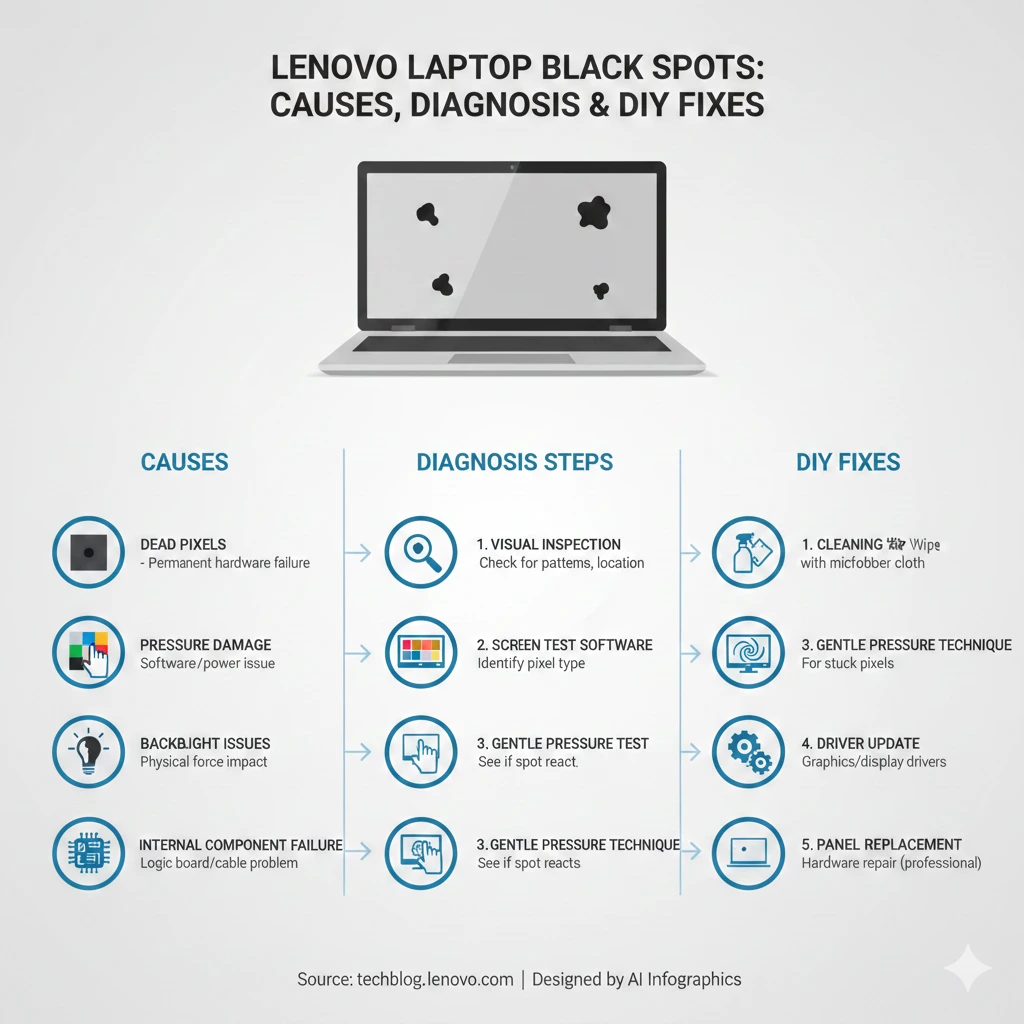
Common Causes of Black Spots on Lenovo Screens
Dead Pixels
Dead pixels are individual pixels that fail to illuminate. They often present as tiny, fixed black dots and are typically caused by:
- Manufacturing imperfections
- Wear and tear accumulated over time
Indicators of dead pixels:
- Persistent black dots that do not change with screen content
- Visible across all applications and colors
- Cannot be corrected using software
Dead pixels are generally irreversible and, in most cases, necessitate screen replacement.
Stuck Pixels
Unlike dead pixels, stuck pixels are pixels that remain fixed on one color. Occasionally, they may appear black.
Fix options for stuck pixels include:
- Pixel fixer software (such as JScreenFix, UDPixel, or PixelHealer)
- Gentle mechanical pressure techniques
Tip: Stuck pixels are often recoverable, unlike dead pixels, making them ideal candidates for DIY remedies.
Physical or Pressure Damage
Pressure or physical damage can affect LCD panels if your laptop is:
- Closed with objects inside
- Dropped accidentally
- Pressed too hard on the screen
Signs of physical damage include:
- Irregular blotches or smudges
- Lines or color distortions near the spot
- In most cases, not repairable through software
If the LCD panel is physically compromised, professional replacement is usually required.
Backlight or Display Cable Issues
A malfunctioning backlight or loose display cable can also cause intermittent dark patches.
Symptoms include:
- Dark spots that vary with screen angle
- Flickering or brightness inconsistency
- Changes are visible only under certain viewing conditions
These issues often require hardware inspection to determine if the display cable is loose or the backlight has failed.
Internal Component Failure
Although rare, internal hardware failures can cause black spots on Lenovo screens.
Examples include:
- T-Con board failure
- Motherboard or graphics chip faults
Action: Repairs usually require a professional technician and may involve replacing internal components.
Step-by-Step Diagnosis of a Black Spot
| Step | Action | What to Look For |
| 1 | Clean the screen | Ensure the dark spot is not a smudge, dust particle, or residue. |
| 2 | Pixel test | Use full-white images or online tools like JScreenFix or DeadPixel Test to check for stuck/dead pixels. |
| 3 | External monitor check | Connect via HDMI or DisplayPort. If the external display is clear, the issue is likely the laptop panel. |
| 4 | BIOS/boot screen test | Boot into BIOS. If the spot is visible before Windows loads, it’s most likely a hardware problem. |
Tip: Begin with simple diagnostics before attempting any repair or replacement. Early detection can prevent further damage and unnecessary costs.
DIY Fixes for Black Spots
Simple Cleaning
Sometimes what appears to be a black spot is merely dirt, fingerprints, or smudges.
Steps:
- Power off your laptop.
- Use a microfiber cloth and screen-safe cleaner.
- Gently wipe the affected area.
Note: Avoid excessive liquid, as it can damage the display.
Pixel Fixer Software
Pixel fixer software attempts to revive stuck pixels by rapidly cycling colors.
Tools: JScreenFix, UDPixel, PixelHealer
How it works:
- The software flashes pixels through a series of colors at high speed.
- Run the software for 10–30 minutes per session.
- Best suited for stuck pixels, but ineffective for dead pixels.
Gentle Pressure Technique
If software fails, mechanical pressure can sometimes bring a stuck pixel back to life.
Steps:
- Turn off your laptop.
- Cover a stylus or pen with a soft cloth.
- Apply gentle circular pressure on the affected pixel.
- Release and test the screen.
Warning: Avoid pressing too hard, as this may worsen LCD damage or create new dead pixels.
Update Graphics Drivers
Some display artifacts that resemble black spots may actually be software-related glitches.
Steps:
- Visit Lenovo Support and download the latest display drivers for your model.
- Update the Windows display adapter driver via Device Manager.
- Restart the laptop and observe changes.
This method is low risk and often resolves minor software-induced black spot issues.
Panel Replacement
For permanent black spots caused by dead pixels, pressure damage, or liquid crystal leakage, screen replacement is the only viable solution.
Cost range: $100–$250 for OEM Lenovo panels.
Recommendation: Professional installation to ensure compatibility and prevent further damage.
Lenovo-Specific Tips
Check Warranty Status
Lenovo frequently covers defective screens under warranty.
- If damage is due to manufacturing defects, replacement may be free.
- Physical damage (drops, pressure) may void the warranty.
Lenovo Vantage Diagnostics
Laptops come with Lenovo Vantage, a built-in diagnostic tool.
- Can detect stuck/dead pixels
- Checks display hardware for internal faults
Authorized Service Centers
For permanent fixes, Lenovo authorized centers ensure:
- OEM panel compatibility
- Warranty preservation
- Professional installation
Pros & Cons of DIY Fixes vs Professional Repair
| Approach | Pros | Cons |
| DIY Cleaning & Software | Quick, free, safe for minor issues | Limited success for dead pixels or pressure damage |
| Gentle Pressure | Sometimes revives stuck pixels | Risk of worsening LCD damage |
| Driver Updates | Easy, resolves software-related spots | Ineffective for hardware defects |
| Professional Repair | Permanent fix, warranty protection | Expensive, requires downtime |
FAQs
A: Small stuck pixels may be recoverable with software or gentle pressure, but larger spots caused by dead pixels or physical damage usually require panel replacement.
A: If the device is under warranty and there is no sign of physical abuse, Lenovo often covers defective screens. Check your warranty status before seeking repair.
A: Not necessarily. Dead pixels are tiny individual points, whereas black spots can be larger and arise from LCD pressure damage or internal faults.
A: Use padded sleeves, avoid placing heavy objects near the screen, and never close the lid with items inside.
A: No. Pixel fixer programs can attempt to restore stuck pixels, but dead pixels or LCD damage cannot be repaired via software.
Conclusion
A black spot on a Lenovo laptop screen is often indicative of hardware issues, though some cases may be reversible with DIY solutions. By performing step-by-step diagnostics, attempting safe DIY remedies, and recognizing when to seek professional service, you can save time, money, and prevent additional damage.
- Minor stuck pixels may respond well to software or gentle pressure.
- Dead pixels or pressure-induced blotches usually require Lenovo support or authorized repair.
Taking preventive measures and maintaining your screen can extend your laptop’s lifespan, ensuring a clear and uninterrupted viewing experience for years to come.











