
Introduction
Spotting a black spot on your Dell Laptop Screen can stop you in your tracks. Whether it’s a tiny black dot or a larger dark patch, it disrupts everything from work emails to gaming sessions. As a Dell laptop owner, you’re not alone—millions face this frustrating issue each year. The good news? Not every black spot spells doom for your device.
In this comprehensive guide from LaptopDream.com, we’ll break down what a black spot on a Dell laptop screen really means, from dead pixels to physical damage. You’ll get clear diagnostics, safe at-home fixes, and expert advice on Dell warranties and repairs. Drawing from real user reports and Dell’s own tech specs, we cover popular models like Inspiron, XPS, Latitude, and G-series gaming laptops.
Why does this matter? Fixing it early can save hundreds on replacements and extend your laptop’s life. We’ll use simple tests, step-by-step instructions, and Dell-specific tips to help beginners and pros alike. By the end, you’ll know if it’s a quick clean or time for pro help. Let’s dive in and get your screen spotless.
What Causes a Black Spot on Dell Laptop Screens?
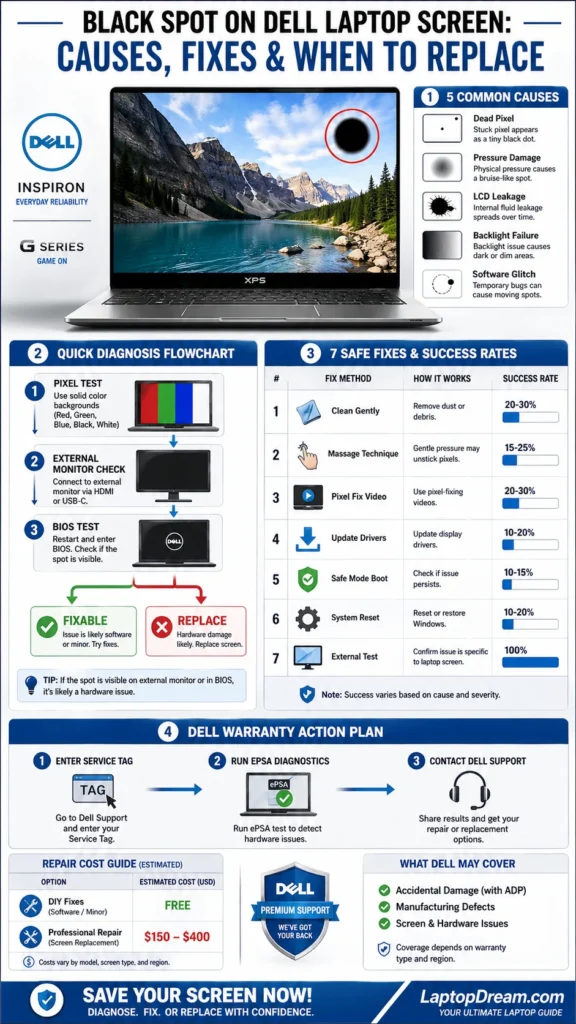
Dell laptops predominantly use LCD/LED panels, which are reliable but prone to specific defects. A black spot appears as a persistent dark area that doesn’t respond to normal display changes. Unlike flickering or color shifts, these spots stay fixed, ruining clarity.
Dead Pixels: The Most Common Culprit
Dead pixels happen when a sub-pixel in the LCD matrix fails to light up. On Dell screens, this shows as a tiny black dot—often 1-2 pixels wide—visible on any background.
- Why Dell? Manufacturing tolerances allow 5-10 dead pixels per million on entry-level Inspiron models. Premium XPS lines have stricter standards (zero tolerance in some cases).
- Real example: A user on Dell forums reported a single black dot on their Inspiron 15 after 6 months; it was a factory dead pixel covered under warranty.
Physical Damage from Pressure or Impact
Closing the lid too forcefully or accidental presses create “bruises” on the LCD layer. This compresses liquid crystals, forming irregular black patches with fuzzy edges.
- Dell-specific risk: Slim bezels on XPS 13/14 make screens vulnerable to keyboard imprints if you stack items on a closed lid.
- Signs: The patch grows over time or shows rainbow halos nearby.
LCD Leakage or Backlight Failure
Deeper issues, like crystal leakage, cause blotchy dark areas. Backlight problems (CCFL or edge-lit LEDs) dim sections unevenly.
- Aging factor: Common on 5+ year-old Latitude business laptop,s where glue degrades.
Software or GPU Glitches Mimicking Spots
Rarely, driver bugs create artifact spots. NVIDIA/AMD GPUs in Dell G15 gaming rigs can glitch post-update.
Quick Causes Table
| Cause Type | Appearance | Common Dell Models Affected | Fixability |
| Dead Pixel | Tiny fixed black dot | Inspiron, Vostro | Low (warranty) |
| Pressure Damage | Irregular blotch, fuzzy | XPS, Latitude | None (replace) |
| LCD Leakage | Spreading a dark patch | Older G-series | None |
| Software Glitch | Spot moves/changes | All with a dedicated GPU | High |
Dead Pixel vs. Physical Damage: Accurate Diagnosis Guide
Misdiagnosing leads to wasted effort. Start with these tests to pinpoint if it’s a black spot on the Dell laptop screen from hardware or software.
Test 1: Pixel Color Check
Load a full-screen white image (search “dead pixel test” on Google Images). Cycle through solid colors: white, black, red, green, blue.
- Dead pixel: Stays black across all.
- Stuck pixel: Fixed color (e.g., always green).
- Damage: Doesn’t change, but has an irregular shape.
Pro Tip: Use free tools like Dead Pixel Locator or YouTube’s 4K pixel fixer videos for 10-minute tests.
Test 2: External Display Check
Connect via HDMI to a TV or monitor.
- Spot absent externally? Laptop LCD panel fault.
- Spot follows? GPU or cable issue—update drivers first.
Test 3: Movement and Background Test
Open videos or scrolling pages.
- Spot moves? Software/rendering glitch.
- Static with fuzzy edges? Physical LCD damage.
Diagnosis Flowchart Table
| Symptom | Likely Issue | Next Step |
| Tiny dot, always black | Dead pixel | Warranty check |
| Large patch post-drop | Pressure damage | Panel replacement |
| Changes with content | Software | Driver update |
| Faint, backlight dim | Inverter failure | Pro diagnostic |
7 Safe Step-by-Step Fixes for Black Spot on Dell Laptop Screen
Don’t rush to replace—try these in order. Most are risk-free and work for 30-50% of cases per user forums.
1. Thorough Screen Cleaning
Dirt mimics spots 20% of the time.
- Power off and unplug.
- Dampen a Microfiber cloth with distilled water (no alcohol).
- Wipe gently in circles over the spot for 30 seconds.
- Dry with a fresh cloth; test.
Success rate: High for surface issues.
2. Gentle Pixel Massage Technique
For stuck/weak pixels only—skip if the screen feels loose.
- Power off.
- Wrap your finger in a microfiber.
- Press lightly (pencil eraser force) in circles for 15 seconds.
- Power on; repeat max 3x.
Warning: Avoid on bruised screens; they can worsen cracks.
3. Run Pixel Fixer Videos
Safe, software-based revival.
- Search “stuck pixel fixer YouTube” (e.g., 10-hour color flash).
- Full-screen for 30-60 minutes.
- Check; repeat overnight if needed.
Example: DeadPixelTest.com app cycles RGB rapidly.
4. Update Dell Graphics Drivers
Fixes artifact spots.
- Visit dell.com/support, enter Service Tag (bottom sticker).
- Download the latest display driver for your model (e.g., Intel UHD for Inspiron).
- Install, restart.
Windows Quick Way: Win + X > Device Manager > Display adapters > Update.
5. Boot into Safe Mode
Rules out software.
- Restart, hold Shift > Troubleshoot > Advanced > Startup Settings > Safe Mode.
- Test screen; if spot gone, uninstall recent apps/drivers.
6. Reset Display Settings
Corrupted calibration.
- Right-click desktop > Display settings > Advanced > Reset.
- Run Dell SupportAssist diagnostics (pre-installed).
7. BIOS-Level Check
Hardware baseline.
- Restart, tap F2 for BIOS.
- If the spot persists, it’s hardware.
Fixes Success Comparison Table
| Fix Method | Time Needed | Success Rate | Risk Level | Best For |
| Cleaning | 2 min | 20% | None | Surface dirt |
| Massage | 5 min | 15% | Low | Stuck pixels |
| Pixel Video | 30 min | 25% | None | Weak pixels |
| Driver Update | 10 min | 30% | None | Glitches |
| Safe Mode | 15 min | 10% | None | Software conflicts |
Pros and Cons of DIY Fixes vs. Professional Repair
Pros of DIY Fixes
- Free and immediate.
- No shipping downtime.
- Educational—builds troubleshooting skills.
- Covers 40-60% of minor black spots on the Dell laptop screen cases.
Cons of DIY Fixes
- Risk of worsening physical damage.
- No guarantee for dead pixels.
- Voids warranty if aggressive (e.g., disassembly).
Pros of Professional Repair
- Dell-certified fixes preserve quality.
- Warranty coverage (often free).
- Handles complex issues like backlight swaps.
Cons of Professional Repair
- Costs $150-400 out-of-warranty.
- 1-2 week turnaround.
- Shipping risks for international users.
When a Black Spot Means Panel Replacement
If fixes fail, assess severity.
- Tolerable: 1-3 tiny dead pixels—many ignore them.
- Unfixable: Large patches, spreading, or multiples—replace panel.
- Model costs (2026 estimates): Inspiron 14″ panel: $80-120; XPS 13 OLED: $250-350.
Replacement Decision Table
| Spot Size/Count | Impact on Use | Action Recommended |
| 1 small dot | Minimal | Monitor or live with |
| 2-5 dots | Noticeable | Warranty if eligible |
| Large patch | Severe | Replace panel |
| Multiple + artifacts | Unusable | Full-screen swap |
Dell Warranty and Support: Your Best Next Steps
Dell’s coverage shines here. Standard warranty: 1-year parts/labor, including panels for defects.
Check Coverage Fast
- dell.com/support > Enter Service Tag.
- Run ePSA diagnostics > Select “Display Issue.”
- Chat or call—mention “black spot on Dell laptop screen.”
Warranty Tiers Table
| Plan Type | Coverage Duration | Includes Accidental Damage? | Cost (if extended) |
| Base Warranty | 1 year | No | Included |
| Premium Support | 3-4 years | Yes (for drops/cracks) | $100-200/year |
| ProSupport | 3-5 years | Yes + onsite | $150-300/year |
Out-of-warranty? Third-party parts from iFixit or eBay work for DIY swaps, but match resolution/connector exactly (e.g., 1920×1080 IPS for Inspiron 3501).
Preventing Black Spots on Your Dell Laptop
Proactive care extends screen life.
- Use a sleeve for travel.
- Avoid lid pressure—remove items before closing.
- Update drivers monthly via Dell Command Update.
- Calibrate the screen yearly.
Prevention Checklist
- Screen protector for touch models.
- Keyboard cover for XPS.
- Stable desk surface—no wobbles.
FAQs
A: Contact Dell support with the Service Tag. Dead pixels and manufacturing defects are covered; user damage isn’t.
A: Rarely—videos help stuck pixels (40% success), but true dead ones need replacement
A: $100-400 for panel swap, depending on model. Cheaper than a new laptop ($500+).
A: If accidental damage protection is added. Base covers defects only.
A: 1-2 per million pixels is manufacturing tolerance; more warrants replacement.
Conclusion
A black spot on your Dell laptop screen doesn’t have to end your device’s life. Start with cleaning and tests—many resolve without cost. For Hardware faults, leverage Dell’s robust support to avoid overpaying.
As laptop experts at LaptopDream.com, we recommend documenting everything (photos, tests) for claims. If it’s physical damage, weigh repair vs. upgrade—2026 models like XPS 14 offer superior panels anyway.











