Introduction
Is your HP laptop running slower than a snail on a bad day? How to restore hp laptop to factory settings.Maybe it’s cluttered with bloatware, hit by malware, or just refusing to cooperate after a botched update. Restoring your HP laptop to factory settings is like hitting the ultimate refresh button—it wipes everything clean and returns it to that fresh-out-of-the-box glory from HP. This comprehensive guide covers every method for Windows 11 and 10 on models like Pavilion, Envy, Spectre, and Omen, including password-free options, USB recovery, and cloud downloads.
We’ll walk you through preparation checklists, step-by-step instructions, troubleshooting errors like “recovery partition missing,” and post-reset tweaks for peak performance. Whether you’re prepping to sell, gift, or revive a sluggish machine, expect 1-4 hours per method—but always back up first to avoid tears. By the end, you’ll have a like-new HP laptop that’s faster and safer. Let’s dive in and fix that frustration.
Why Restore Your HP Laptop to Factory Settings?
Factory resetting an HP laptop erases all personal files, apps, and settings, reinstalling the original Windows version and HP software stack. It’s a nuclear option for fixing deep-rooted issues like persistent crashes, viruses that antivirus software can’t touch, or performance dips from years of accumulated junk.
Users often report 70% speed improvements post-reset, based on forum anecdotes—your Pavilion might boot in under 30 seconds again. Common triggers include preparing for resale (to protect privacy), recovering from failed Windows updates, or simply decluttering before a new semester. However, it’s not reversible, so proceed only after backups.
This process shines on HP’s ecosystem: recovery partitions, F11 keys, and cloud tools make it smoother than generic Windows resets. Skip it for minor glitches—try Safe Mode first—but for total rejuvenation, nothing beats factory settings.
Preparation: Must-Do Steps Before Reset
Rushing into a reset without prep is like skydiving without a parachute—90% of failures come from lost data or power hiccups. Start here to ensure a smooth ride.
Backup Everything Religiously.
Copy files to OneDrive, Google Drive, or an external HDD/SSD. Use built-in Windows Backup (Settings > Update & Security > Backup) or free tools like EaseUS Todo Backup. Prioritize documents, photos, and desktops—apps can be reinstalled later. Aim for at least two copies.
Sign Out of All Accounts.
Unlink Microsoft, Google, HP, and any linked services to dodge activation locks post-reset. Check Settings > Accounts for Microsoft; log out of browsers too. Note your BitLocker recovery key if encrypted (account.microsoft.com/devices).
Other Essentials:
- Check Warranty and Serial: Settings > System > About—reset won’t void it, but document for support.
- Unplug Peripherals: Ditch USB drives, printers, and docks to prevent glitches.
- Charge to 50%+: Plug in and let it juice up—interruptions corrupt everything.
- Stable Wi-Fi: For cloud methods, test your connection (10Mbps minimum).
- List Apps and Passwords: Jot down must-haves like Chrome or Office; reset forgotten passwords now.
Pre-Reset Checklist Table
| Step | Action | Why It Matters |
| Backup Files | Cloud/USB copy | Permanent data wipe ahead |
| List Apps | Note essentials | Bloatware returns; reinstall selectively |
| Sign Out Accounts | Microsoft/Google/HP | Avoids post-reset locks |
| Charge Battery | 50%+ plugged in | Prevents mid-process failure |
| Unplug Devices | No USB/printers | Avoids boot conflicts |
| Note Serial | Settings > About | Warranty/support reference |
| Wi-Fi Check | Stable 10Mbps+ | Cloud recovery needs it |
Follow this, and you’re golden.
Pros and Cons of Factory Resetting HP Laptops
Pros:
- Lightning Performance: Clears junk for snappier boots and multitasking.
- Virus-Free Slate: Wipes malware that scans miss.
- Privacy Boost: Ideal before selling— no traces left.
- Fixes Deep Issues: Resolves update failures or corrupted OS.
- HP-Optimized: Restores exact drivers and bloat (fixable later).
Cons:
- Data Loss Risk: Total wipe unless you choose “Keep files.”
- Time Sink: 1-4 hours + driver reinstalls.
- App Reinstall Hassle: Start from scratch.
- No Undo Button: Backups are your only lifeline.
- Potential Errors: Partition issues on older models.
Weigh these against lighter fixes like disk cleanup.
Reset via Windows Settings (Easiest for Bootable Laptops)
If your HP boots into Windows, this built-in tool is foolproof—no key-mashing required. Works seamlessly on Windows 11/10 Pavilion, Envy, etc.
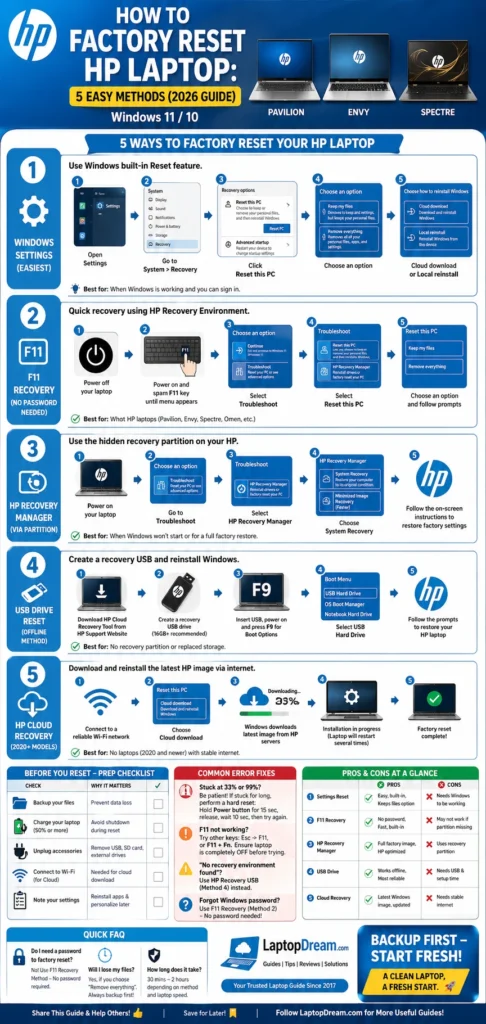
- Search and Launch: Hit Start, type “Reset this PC,” and select it. Or go Settings > System > Recovery > Reset PC > Get Started.
- Choose Scope: “Keep my files” (resets apps/settings only) or “Remove everything” (full factory wipe). Pick the latter for the true factory state.
- Download Option: “Cloud download” grabs fresh Windows/HP files (best for corruption); “Local reinstall” uses your recovery partition (faster).
- Confirm and Wait: Review warnings, hit Reset. Laptop restarts multiple times—hands off for 1-4 hours.
Pro Tip: Cloud download shines for Windows 11 updates in 2026, fixing bloat or glitches better. Post-reset, sign in and update via HP Support Assistant.
Factory Reset Without Password Using F11 Recovery
Locked out? No sweat—HP’s F11 boots straight to recovery, bypassing login screens. Perfect for forgotten admins.
- Power Cycle: Shut down fully (hold power 10s if frozen).
- Boot to Recovery: Power on, hammer F11 repeatedly (or Esc then F11). HP Recovery Manager loads.
- Navigate: Troubleshoot > Recovery Manager > System Recovery > Factory Reset.
- Wipe Options: “Remove everything” for full erase; confirm drives if selling. No password needed here.
- Complete: Follow prompts—restarts automatically.
Model Variations:
- Pre-2018: F10 for BIOS recovery.
- UEFI/Secure Boot Snags: F10 to BIOS > disable Secure Boot temporarily > save/exit.
Full HP Recovery Manager Guide
Deeper dive into HP’s partition-based tool—great if F11 lands you there.
- Boot F11 > Recovery Manager.
- Back up if prompted (rare).
- Select Factory Reset > confirm data erase.
- Post-process: OOBE setup, then HP Support Assistant for drivers.
If the partition’s gone (common after resizing), jump to USB/cloud.
Create Bootable HP USB Recovery Drive
No partition? DIY a USB savior—works on any HP.
Requirements: 16GB+ USB, another working PC.
- Download Tool: HP site > your model > Recovery Media Creation Tool.
- Run Creator: Insert USB > launch > follow wizard (1-2 hours).
- Boot It: Restart HP > F9 boot menu > USB.
- Restore: Factory reset prompts appear.
USB vs. Partition Comparison Table
| Feature | Recovery Partition (F11) | USB Drive |
| Speed | Fastest (no copy) | Slower initial setup |
| Space Needed | None | 16GB USB |
| Reliability | Fails if deleted/resized | Always available |
| Best For | Quick in-place fixes | Corrupted partitions |
| Portability | Laptop-tied | Use on multiples |
USB wins for backups.
Method 5: HP Cloud Recovery (2026 Internet Magic)
For 2020+ models: No USB/partition hassle—downloads fresh OS online.
- Boot F11 or Windows Reset > “Download from cloud.”
- Connect Wi-Fi (10Mbps+).
- Downloads 4GB+ Windows + HP goodies (30-60 mins).
- Auto-installs. Ideal for BitLocker locks.
Caveat: Broadband only; spotty Wi-Fi? Use USB.
Troubleshooting Common HP Reset Errors
Resets glitch—here’s your fix kit.
“No Recovery Partition”: Partition deleted? USB/cloud stat.
Stuck at 33%: Hard reset (power 30s), retry charged.
BIOS Loop/Black Screen: F10 > defaults; try Win+B + power for BIOS flash.
Activation Fail: Microsoft account linked.
Post-Reset Drivers Missing: HP support site > serial scan.
Error Fix Table
| Error | Cause | Solution |
| Recovery Not Found | Partition gone | USB/Cloud |
| Reset Stuck | Power/heat issue | Full charge, unplug |
| BitLocker Prompt | Encryption | MS account key |
| Black Screen | Display/BIOS | F2 diagnostics, external monitor |
| Driver Errors | Missing post-reset | HP Support Assistant download |
Post-Reset Optimization for Peak HP Performance
Fresh start? Don’t stop—tune it up.
- Updates First: Windows Update + HP Support Assistant (pre-installed).
- Drivers: support.hp.com > serial > download chipset/GPU.
- Apps Wisely: Essentials only—CCleaner for bloat.
- Security: Enable BitLocker and Windows Defender scan.
- Tweaks: Task Manager > disable startup junk; defrag SSD lightly.
Performance Tips: SSD trim weekly; undervolt if gaming Omen.
Alternatives to Full Factory Reset
Not ready for a wipe? Lighter options:
- Refresh (Keep Files): Windows Reset > Keep my files.
- Safe Mode: F8/F11 > troubleshoot.
- System Restore: Pre-set points via Recovery.
- Clean Install: Media Creation Tool for pure Windows.
FAQs
A: F11 recovery bypasses it.
A: Fully, with “Remove everything.”
A: 1-4 hours + downloads.
A: Same steps; cloud download preferred for 2026 updates.
A: But backup optimizes wear.
Concolusion
Factory resetting your HP laptop can genuinely give it a fresh start, improving speed, removing bugs, and clearing unwanted files that slow it down over time. However, the process only works smoothly if you prepare properly—especially by backing up your important data and understanding which reset option suits your needs. Skipping preparation can lead to data loss or unnecessary frustration.
After the reset, the real benefit comes from smart setup and maintenance. Reinstall essential drivers, update Windows, and avoid reinstalling unnecessary software that can slow your system again. With the right care, your HP Pavilion or Envy can feel almost new again, delivering smoother and more reliable performance for daily use.











