Introduction
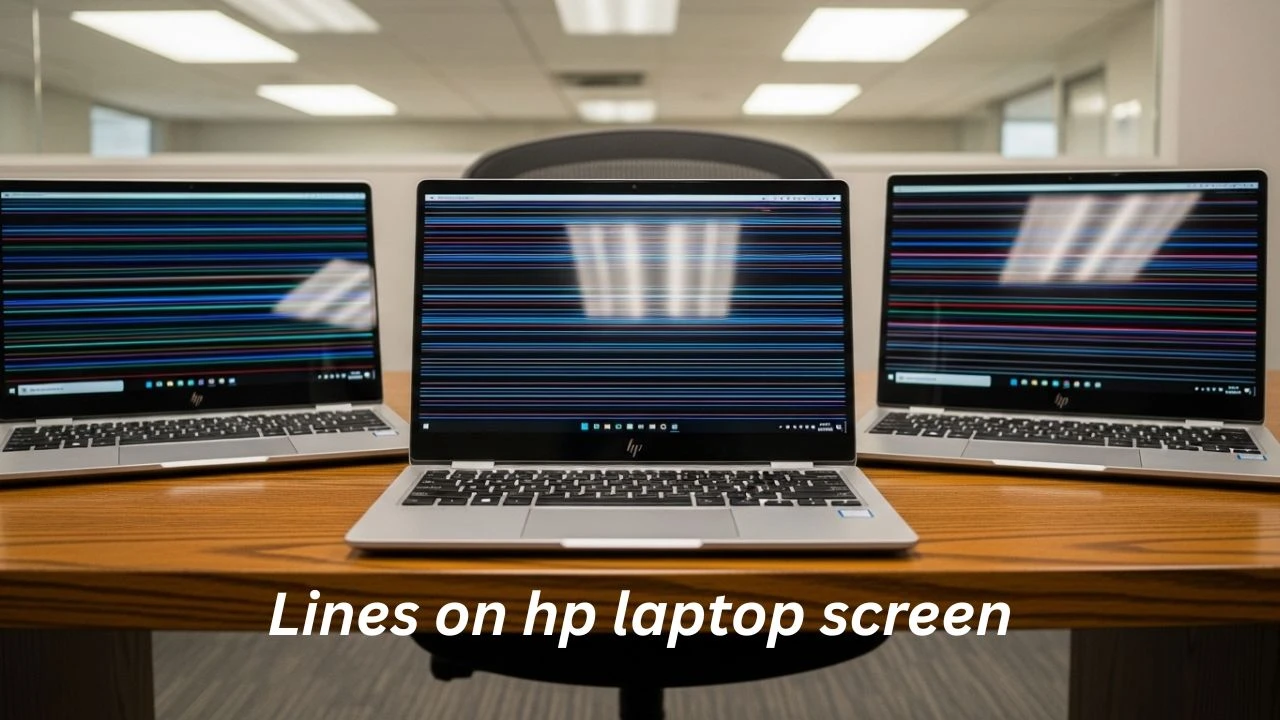
If you are experiencing lines on the HP Laptop screen, it can feel alarming at first glance. Your display might show vertical streaks, horizontal bands, flickering patterns, or even multicolored distortions. Many users immediately assume their device is permanently damaged, but that assumption is not always accurate.
Explanation
From a technical perspective, this issue can originate from multiple system layers, including software-level display conflicts, graphics driver corruption, GPU instability, LCD panel degradation, or internal display cable faults. Each root cause behaves differently and requires a unique diagnostic and repair approach.
This 2026 advanced SEO pillar guide is designed to give you a complete understanding of:
- What screen line issues actually are in NLP-friendly technical terms
- Why do HP laptops commonly face this problem
- How to systematically diagnose the issue step-by-step
- Which fixes are temporary vs permanent
- Real repair cost breakdowns
- Model-specific vulnerabilities (Pavilion, Envy, Omen)
- Long-term prevention strategies
By the end of this guide, you will be able to confidently determine whether your HP laptop requires a software fix, hardware repair, or full display replacement.
What Are Lines on the HP Laptop Screen?
In computational display terms, lines on an HP laptop screen refer to pixel-level rendering anomalies where the display output becomes distorted in linear or patterned formations.
These anomalies typically occur when there is a disruption in the data transmission pipeline between the GPU (Graphics Processing Unit) and the LCD/OLED panel, resulting in incorrect pixel mapping or incomplete frame rendering.
Common visual manifestations include:
- Vertical pixel columns running from top to bottom
- Horizontal banding across the display width
- Random flickering or flashing line artifacts
- RGB color separation or distorted gradients
- Solid black or white linear failures
Simplified technical interpretation:
Your system is generating correct graphical data, but the display output layer is failing to interpret or render it properly.
This mismatch can occur at multiple system levels:
- Software rendering layer (drivers/OS)
- Hardware processing layer (GPU)
- Transmission layer (display cable)
- Output layer (LCD panel)
Types of Lines on HP Laptop Screen
Understanding the classification of screen lines is essential for accurate troubleshooting. Each type indicates a different failure domain.
Vertical Lines on HP Laptop Screen
Vertical line artifacts are often the most structurally concerning.
Common root causes:
- LCD panel matrix failure
- GPU memory corruption (VRAM instability)
- Internal pixel column malfunction
- Long-term physical stress damage
Behavioral characteristics:
- Persist after restart
- Visible during BIOS boot
- Independent of the software environment
Technical severity:
High probability of hardware failure
Repair complexity:
Low (usually requires screen replacement)
Horizontal Lines on HP Laptop Screen
Horizontal distortion patterns are more dynamic and sometimes reversible.
Causes:
- Loose or damaged display ribbon cable
- Driver inconsistency or corruption
- Temporary GPU rendering glitches
Behavioral signals:
- Changes when the lid angle is adjusted
- May disappear intermittently
- Affected by physical movement
Technical severity:
Medium
Repair probability:
High (often cable-related fix)
Flickering Lines on HP Laptop Screen
Flickering artifacts indicate unstable signal transmission.
Underlying causes:
- Loose hinge flex cable (very common HP structural issue)
- Thermal instability in the GPU
- Refresh rate synchronization issues
Behavioral pattern:
- Appears intermittently
- Intensifies during motion or heat
- May disappear temporarily
Severity:
Medium
Repair likelihood:
Medium to High
Colored Lines on HP Laptop Screen
Colored distortion lines represent deeper graphical or panel-level failure.
Causes:
- GPU rendering pipeline failure
- LCD pixel voltage instability
- Overheating-induced circuit degradation
Behavioral characteristics:
- RGB shifting patterns
- Static or moving colored stripes
- Often progressive worsening
Severity:
High
Repair feasibility:
Low to Medium, depending on root cause
Summary Table – Screen Line Classification
| Type of Line | Root Cause Category | Severity Level | Fix Probability |
| Vertical lines | LCD / GPU failure | High | Low |
| Horizontal lines | Cable/software | Medium | High |
| Flickering lines | Cable / thermal | Medium | Medium |
| Colored lines | GPU / panel damage | High | Low |
Main Causes of Lines on HP Laptop Screen (Deep Technical Breakdown)
Graphics Driver Corruption (Software Layer Issue)
At the software stack level, GPU drivers act as interpreters between operating system commands and graphical output rendering.
Causes:
- Incomplete Windows updates
- Outdated display drivers
- Registry conflicts
- Corrupted system files
Result:
- Temporary graphical distortion
- Intermittent line artifacts
- Screen refresh anomalies
Key insight:
This is the most reversible category of the problem.
Display Cable Degradation (Hardware Transmission Failure)
HP laptops frequently route display signals through hinge-based flex cables.
Failure mechanism:
- Repeated lid movement causes micro-fractures
- Internal wiring fatigue develops over time
- Signal transmission becomes unstable
Symptoms:
- Lines change with screen angle
- Flickering during movement
- Partial display distortion
Technical conclusion:
One of the most common real-world causes in HP systems.
LCD Panel Degradation (Output Layer Failure)
The LCD panel is responsible for final pixel rendering.
Causes:
- Physical pressure damage
- Aging pixel matrix
- Manufacturing defects
- Impact shock
Symptoms:
- Permanent vertical or horizontal lines
- No change after reboot
- Visible in BIOS mode
Diagnosis:
Almost always, hardware replacement is required
GPU Failure (Processing Layer Breakdown)
The GPU processes all visual rendering logic.
Causes:
- Overheating cycles
- Heavy gaming workloads
- VRAM instability
- Electrical degradation
Diagnostic clue:
The external monitor also shows the same lines
Heat & Physical Stress Damage
Thermal and mechanical stress is a silent but powerful degradation factor.
Causes:
- Poor ventilation
- Long gaming sessions
- Blocked airflow
- Pressure on the lid or screen
Step-by-Step Diagnosis Guide (Systematic Troubleshooting Model)
Screenshot Validation Test
Method:
Capture a screenshot and open it on another device.
Interpretation:
- Lines visible → GPU/software issue
- Lines not visible → hardware/display issue
External Monitor Test
Connect the HDMI output to an external screen.
Results:
- External OK → display or cable fault
- External also affected → GPU failure
BIOS Environment Check
Restart the system and enter BIOS mode.
Logic:
BIOS bypasses Windows completely.
- Lines present → hardware-level fault
- No lines → software-level issue
HP Diagnostic Tools
HP built-in tools evaluate:
- GPU stability
- Display panel integrity
- System hardware health
Diagnostic Flow Summary
| Test | Result Interpretation |
| Screenshot test | Software vs hardware |
| External monitor | GPU vs display |
| BIOS check | Deep hardware validation |
| Lid movement test | Cable instability |
How to Fix Lines on an HP Laptop Screen
Software-Level Fixes (Low Complexity)
- Update GPU drivers
- Roll back Windows updates
- Adjust resolution scaling
- Reset display configurations
- Run system diagnostics
Hardware-Level Fixes (Advanced Repair)
- Replacing the display flex cable
- LCD panel replacement
- GPU reflow or repair (professional only)
- Hinge assembly servicing
Permanent vs Temporary Fix Comparison
| Fix Type | Outcome |
| Driver update | Temporary relief |
| Cable replacement | Semi-permanent |
| LCD replacement | Permanent |
| GPU repair | Conditional |
Repair Cost Guide (2026 Estimate Overview)
| Repair Type | Cost Range | Recommendation |
| Cable repair | Low | Highly recommended |
| LCD replacement | Medium–High | Depends on the laptop’s age |
| GPU repair | High | Often not economical |
Financial rule:
If the repair exceeds 50–60% of the laptop’s value, replacement is more logical.
HP Laptop Model-Specific Issues
Pavilion Series
- Cost-optimized hinge design
- Cable fatigue common
- Horizontal line issues are frequent
Envy Series
- Thin design increases heat sensitivity
- Flickering under thermal load
- Premium but delicate display assembly
HP Omen Series
- High-performance GPU stress
- Heat-induced artifacting
- Gaming load-related instability
How to Prevent Lines on an HP Laptop Screen
- Always open the lid from the center
- Avoid pressure on the display surface
- Maintain proper cooling airflow
- Clean internal fans regularly
- Avoid extended overheating sessions
- Keep GPU drivers updated
Pros & Cons of Fix Methods
Software Fixes
Pros:
- Free
- Fast
- Safe
Cons:
- Not permanent
- Limited effectiveness
Hardware Fixes
Pros:
- Permanent solution
- Resolves root cause
Cons:
- Expensive
- Requires technician
FAQs
A: Usually due to cable damage, GPU failure, or LCD panel issues.
A: If the issue is software or display cable related.
A: If caused by LCD damage, yes—replacement is required.
A: Overheating can damage the GPU and display circuits.
A: Only if the repair cost is below 50% of the laptop’s value.
Conclusion
The issue of Lines On The HP laptop Screen is not a single-point failure but a multi-layer system anomaly involving software, GPU processing, transmission cables, or LCD panel structure.
The correct approach is always diagnostic-first:
- Never assume immediate screen replacement
- Always isolate the GPU vs display vs cable issue
- Choose repair based on cost-effectiveness
In most HP laptops, the real culprit is often display cable fatigue or LCD panel degradation, not software corruption.











