Introduction
A tiny white spot on your Lenovo Laptop Screen might seem harmless at first—but when it refuses to go away, it quickly becomes frustrating. Whether you’re working, gaming, or watching content, that persistent bright patch draws your attention every time.
In 2026, modern Lenovo displays—whether on ThinkPad, Yoga, IdeaPad, or Legion—utilise advanced panel technologies; however, they are still susceptible to specific issues, such as pressure damage, backlight irregularities, or pixel failures. The tricky part? Not all white spots are the same, and applying the wrong fix can make things worse.
This guide cuts through the confusion. Instead of generic advice, you’ll learn exactly what causes white spots, how to diagnose them accurately, and which fixes actually work—based on real-world usage patterns and updated repair insights.
By the end, you’ll be able to confidently decide whether to fix, repair, or replace your screen—without wasting time or money.
What Is a White Spot on a Lenovo Screen?
A small, bright patch appears on some Lenovo laptop screens, remaining in one place even as the displayed content changes. This glow stays put when tweaking screen controls, turning down light levels, or restarting the machine. Rather than being caused by shiny surfaces or outside light bounce, it becomes part of the picture you see. The difference lies in how it lives within the panel’s output, not floating above it.
Common appearances include:
- A pinpoint bright dot near the centre or edge of the display
- A larger, irregular white patch in a corner or side
- Uneven illumination during dark scenes in movies or games
- Clusters of small bright specks in a localised area
White spots on screens often seem like bugs in the system at first glance. Yet they usually come from physical damage inside the display or related parts. A few can be fixed easily, though some demand expert help or a new screen altogether. Spotting the real cause matters more than jumping into fixes right away. Before doing anything, knowing what went wrong makes all the difference.
Top 9 Causes of White Spots on Lenovo Screens
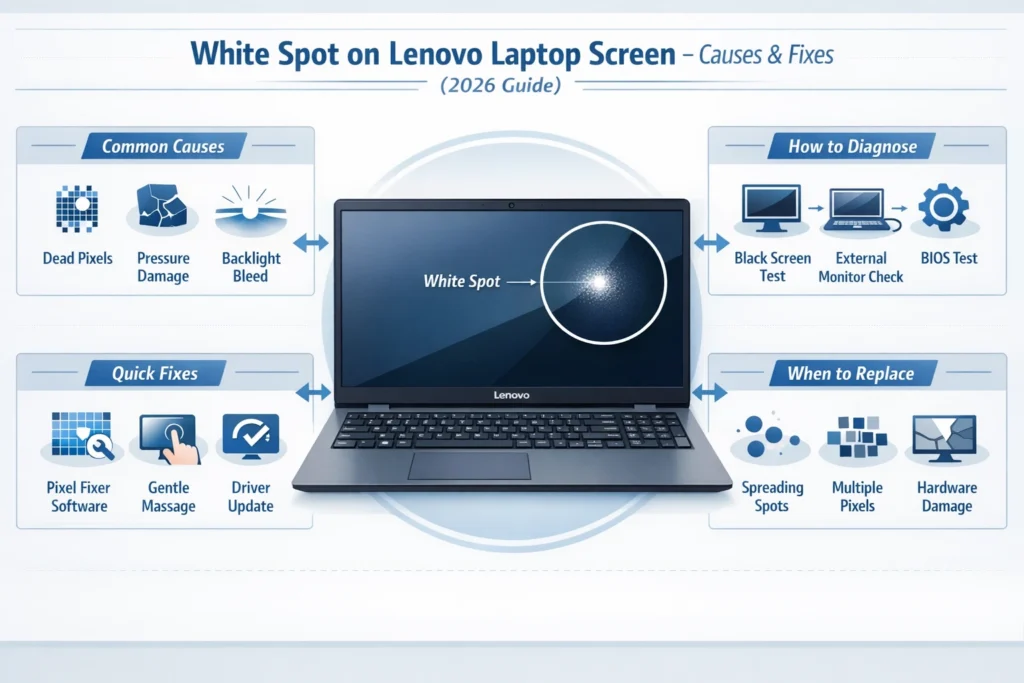
Start by figuring out where the white spot comes from – that leads straight to fixing it. Most often, these light marks on Lenovo displays appear because of pressure damage, which is now showing up in 2026. Another cause could be tiny backlight leaks behind the screen layer. Sometimes, dead pixels group together and mimic a bright patch.
Faulty video cables might send the wrong signals, too. Manufacturing flaws during assembly also play a role early on. Temperature swings over time tend to weaken display materials. Moisture getting inside affects pixel performance as well. Each case points back to physical or electronic stress
Dead or Stuck Pixels
A single screen holds countless miniature dots. If just one fails, it might stay lit, showing a spot that glows too much.
Indicators:
Pixel remains white permanently
- Visible on dark backgrounds
- Can occur singly or in small clusters
Worn screens often come from years of daily work. Ageing machines tend to show dimming after long shifts. Slow decline happens when displays run nonstop for months. Frequent use chips away at brightness over seasons.
Pressure Marks & Physical Impact
A sudden bump against the screen might scramble the tiny liquid elements inside an LCD. Hitting it could leave pale splotches – odd glowing forms where the display isn’t responding right.
Typical causes:
- Carrying laptops in tight backpacks
- Piled high, the weight above the machine brings trouble. Resting dense items overhead causes problems. Stuff stacked up there creates risk. Pressure from above leads to damage. Too much bulk sitting atop it ends badly
Symptoms:
- Bright areas that shift slowly
- Irregular shapes rather than perfect dots
Backlight Bleeding & LED Inconsistencies
LCDs rely on backlights to illuminate the screen. Uneven backlight distribution, particularly along edges or corners, can appear as white spots or glowing patches.
Signs:
- Soft glow instead of sharply defined dots
- More visible during dark scenes
- Often described as “spotlight bleeding.”
Affected panels: Most common in IPS LCDs but can occur in other LCD types.
Manufacturing Defects
Fresh out of production, some items show white marks right away. Factory glitches – not how they’re handled – bring these along.
Potential defects include:
- Uneven anti-glare coating
- Misaligned pixels
- Inconsistent panel layers
Factory defects are generally covered under the Lenovo warranty.
Liquid or Moisture Exposure
Even small amounts of liquid can seep into panel layers, damaging pixel structures or circuits.
Indicators:
- Spot size may change over time
- Hazy surrounding area
- Tiny moisture droplets under direct light
Loose Cables or Connector Problems
Internal ribbon cables connect the screen to the motherboard. If these connectors loosen, they can produce white blotches or lines.
Signs:
- Bright streaks or blotches
- Flickering or moving spots
- Can sometimes be fixed without replacing the panel
Pixel Burn‑In & Mura Effect
Burn-in, typical in OLEDs, and “mura” in LCDs, occur when static images leave persistent traces.
Symptoms:
- Shadowy outlines of previous images
- Spot appearance varies with content
- More noticeable with static patterns
Software or Graphics Driver Issues
Rarely, software or GPU anomalies can mimic white spots.
Diagnostic step: Connect to an external monitor.
- Spot visible on both → possible GPU/software problem
- Spot only on Lenovo display → hardware issue
Thermal Stress
High Temperatures, especially in gaming laptops like Lenovo Legion, can warp display layers over time.
Signs:
- Larger bright areas
- Spots appear after long sessions
- Uneven brightness after heat exposure
Why White Spots Are Increasing in Modern Thin Laptops
Modern Lenovo laptops are thinner, lighter, and more powerful than ever—but this design shift comes with trade-offs.
Ultra-thin displays (especially in Yoga and IdeaPad models) use tighter panel layering and reduced internal spacing, making them more sensitive to:
- Minor pressure (even from keyboard contact when closed)
- Heat buildup due to compact cooling systems
- Panel flex during daily transport
As a result, white spots are being reported more frequently—not because Lenovo quality dropped, but because hardware tolerances are tighter in modern designs. Users need to handle devices more carefully than older, bulkier models.
How to Diagnose the Type of White Spot
Proper diagnosis ensures you apply the correct fix. Here’s a beginner-friendly step-by-step process:
Pixel vs. Backlight vs. Panel Stress
| Test Type | Purpose |
| Solid black | Detect stuck/dead pixels |
| Bright white | Identify backlight bleeding |
| Gray gradient | Reveal uneven backlight (mura) |
| Dark patterns | Show pressure or thermal stress |
Tools like this can help.
External Monitor Test
Connect your Lenovo laptop to another monitor (HDMI/USB-C) and mirror the display:
- Spot appears on both → GPU/software issue
- Spot only on the Lenovo screen → Panel hardware problem
BIOS Check
Restart and enter BIOS (F1/F2/DEL). No drivers are loaded here:
- Spot visible → Hardware issue
- Spot disappears → Software problem
Pixel-Test Tools
Run online tools that cycle through colors to detect stuck/dead pixels. Test with red, green, blue, black, and white patterns for accuracy.
Proven Fixes for White Spots
Pixel-Fixing Software
Tools like JScreenFix or PixelHealer can unstick pixels by rapidly flashing colors.
Steps:
- Open the tool full-screen
- Run for 10–30 minutes
- Monitor results
Best for: Single white dots
Gentle Screen Massage
Only for minor stuck pixels or light pressure marks.
Steps:
- Turn off the laptop
- Place a microfiber cloth over the spot
- Rub gently in small circles
Warning: Excessive pressure can worsen damage.
Update or Replace Display Drivers
Driver conflicts can cause display anomalies.
Steps:
- Open Device Manager → Display adapters
- Update driver
- Use Lenovo Vantage for system-specific updates
Adjust Display Settings
Temporary workaround:
- Turn on Dark Mode
- Reduce brightness
- Adjust gamma settings
This won’t fix hardware, but it reduces visibility of spots.
Use an External Monitor
Connect to an external display for continued productivity while repairing the Lenovo panel.
Professional Calibration Tools
Devices like Spyder or ColorMunki can improve uniformity in backlight issues.
Lenovo Warranty Claim
If your spot is due to a factory defect:
- Take clear photos of the screen
- Provide serial number and timestamped evidence
- Contact Lenovo Support
Authorized Screen Replacement
Most reliable solution for panel damage:
- Pros: OEM parts, warranty on repair
- Cons: Higher cost
Local Repair Shops
Certified local technicians can be cheaper alternatives. Verify:
- Brand of replacement parts
- Warranty on repair work
Avoid DIY Risks
Common mistakes to avoid:
- Prying bezels improperly
- Applying excessive pressure
- Opening a laptop without proper skills
Replacement as Last Resort
Necessary when:
- Spot expands over time
- Multiple pixels fail
- Combined backlight and pixel issues
Lenovo Screen Replacement Cost
| Screen Type | Estimated Cost (USD) |
| Standard FHD | $80 – $180 |
| High-Resolution / Touchscreen | $200 – $380 |
| OLED Panels | $350 – $600 |
Preventing White Spots
- Use padded bags
- Avoid stacking heavy items
- Keep liquids away
- Prevent heat or sunlight exposure
- Clean with soft cloths
- Conduct regular hardware inspections
Lenovo Warranty & Support
Covered:
- Manufacturing defects
- Panel uniformity issues
Not Covered:
- Accidental damage
- Liquid damage (unless under ADP)
Check your warranty plan for precise details.
Common Lenovo Models & White Spot Tendencies
- ThinkPad: Pressure from hinge stress
- Yoga & IdeaPad: Thin design increases sensitivity
- Legion Series: Heat stress affects backlight layers
Smartphone Camera Detection Trick
A simple but effective trick used by technicians in 2026:
Use your phone camera and zoom into the white spot area.
- Sharp dot → pixel issue
- Soft glow → backlight problem
- Uneven pattern → pressure damage
Smartphone sensors often reveal subtle differences the naked eye misses, helping you diagnose faster without tools.
FAQs
A: Stuck pixels sometimes, hardware issues usually require professional help.
A: Only factory defects, if the laptop is under warranty.
A: Only gentle, light pressure — overdoing can worsen the issue.
A: Less prone to backlight spots, but burn-in and uniformity issues exist.
A: Rarely — only if caused by driver/software anomalies
Conclusion
White spots on Lenovo laptop screens aren’t just cosmetic—they’re signals pointing to underlying hardware or display issues. The key is understanding what type of problem you’re dealing with before attempting any fix.
In this guide, you’ve learned:
- The real causes behind white spots
- How to accurately Diagnose the issue
- Which fixes actually work—and which to avoid
- When it’s smarter to repair vs replace
- How to prevent the issue in the future
If the spot is minor, you may fix it at home. But if it grows, spreads, or affects usability, professional repair is the safest route. Pro Tip: If your laptop is still under warranty, act quickly—early claims are more likely to be approved.











