Introduction
The laptop’s HP screen is black. You press the power button on your HP Laptop, and something feels off.
- The keyboard lights up.
- The fan starts spinning.
You might even hear Windows loading in the background.
But the screen? Completely black.
In 2026, this issue is more common than ever—not because laptops are failing more, but because systems have become more complex. With frequent Windows updates, GPU driver changes, and firmware-level optimisations, even a small glitch can break the display process.
Modern Laptop Design Trend: Why Black Screen Issues Are Harder to Diagnose
New HP laptops (thin & lightweight designs) come with:
- Soldered RAM
- Integrated GPUs
- Compact display connectors
This means:
- Hardware fixes are harder
- Cable reseating may not be DIY-friendly
- Diagnosis relies more on software testing
Result: Software troubleshooting is now more important than ever before opening the laptop.
Common Black Screen Situations
Users experiencing display issues often describe the problem using slightly different symptoms.
Some of the most frequently reported situations include:
- The laptop screen is black, but the power is on
- HP laptop black screen after login
- HP laptop black screen with cursor
- HP laptop black screen on startup
- HP laptop screen goes black after Windows update
- The screen suddenly turns dark while working
These situations may appear similar, but technically, they are different failures within the laptop’s display pipeline.
For example
- If the cursor appears, Windows is running, but the desktop failed to load.
- If the screen stays black during boot, the problem may be BIOS or hardware-related.
- If the screen turns black after login, software conflicts are often responsible.
Because beginners often do not know where to begin troubleshooting, the issue can feel overwhelming.
What You Will Learn in This Guide
This detailed troubleshooting guide will help you diagnose and fix HP laptop black screen issues step-by-step.
Inside this guide, you will learn:
- Why does your HP laptop screen turn black
- The most common software and hardware causes
- A Quick diagnostic checklist to identify the problem
- Simple fixes anyone can perform
- Scenario-specific troubleshooting solutions
- Preventive maintenance tips
- When professional repair becomes necessary
Whether your issue comes from a temporary graphics glitch, Windows malfunction, or hardware failure, this guide will help you identify the root cause and restore your display.
Why Is My Laptop’s HP Screen Black?
When a Laptop HP screen black issue occurs, it generally means that the computer is powered on, but the video output is not reaching the display panel.
In simple terms:
Your laptop is functioning internally, but the screen cannot display the operating system.
The problem typically occurs somewhere within the display communication chain, which includes:
- BIOS initialization
- Graphics processor
- Display driver
- LCD cable
- Screen panel
Common Signs of the Problem
Users encountering this issue often notice several symptoms that indicate the laptop is running but not displaying video.
Typical indicators include:
- Power LED illuminated
- Keyboard backlight functioning
- Cooling fan rotating
- Lock light is responding
- Hard drive activity light blinking
These signals confirm that the system has electrical power and is processing tasks, but the screen cannot show the output.
Two Main Categories of Black Screen Problems
In most cases, black screen issues fall into two broad categories:
- Software-related problems
- Hardware-related problems
Examples of Software Issues
Common software-related causes include:
- Graphics driver crashes
- Windows update conflicts
- System file corruption
- Startup application errors
- Display configuration problems
- Operating system glitches
- Malware interference
- Registry corruption
Hardware Problems
Hardware failures are less common but still possible.
These occur when a physical component responsible for display output stops functioning correctly.
Examples of Hardware Problems
Some hardware faults that can cause black screens include:
- Defective RAM modules
- Loose internal display cables
- Broken LCD panels
- GPU malfunction
- Motherboard circuitry damage
- Power supply irregularities
Hardware problems sometimes require:
- Component reseating
- Part replacement
- Professional diagnostic tools
However, even some hardware issues, such as loose RAM, can be fixed at home.
Most Common Causes of HP Laptop Black Screen
| Cause | Symptoms | Difficulty |
| Graphics driver crash | Black screen with cursor | Easy |
| Windows update conflict | Screen black after login | Easy |
| RAM failure | The screen stays black permanently | Medium |
| BIOS corruption | Black screen during startup | Medium |
| LCD cable damage | The screen stays black permanently | Hard |
| GPU failure | Screen stays black permanently | Hard |
Important Insight
Computer repair specialists frequently report that most black screen cases are caused by driver crashes or update conflicts.
Quick Fix Checklist
Before performing advanced troubleshooting, it is always a good idea to conduct some quick preliminary checks.
Quick Fix Checklist
- Restart the laptop
- Disconnect external devices
- Adjust screen brightness
- Plug in the charger
- Test using an external monitor
- Close the laptop lid and reopen it
- Disconnect docking stations
How to Fix an HP Laptop Screen Black
A hard reset clears temporary electrical states stored in the motherboard and power circuitry.
Steps
- Turn off the laptop completely
- Disconnect the power adapter
- Remove the battery (if removable)
- Press and hold the power button for 15 seconds
- Reconnect the charger
- Turn the laptop back on
Why This Works
Hard resetting clears:
- Power cache
- Hardware initialisation states
- Display configuration memory
Many users report that this simple step restores their display instantly.
Reset the Graphics Driver
A graphics driver crash can instantly cause the screen to turn black.
Fortunately, Windows provides a built-in keyboard shortcut to restart the graphics driver.
Keyboard Shortcut
Press:
Win + Ctrl + Shift + B
What Happens Next
- The screen briefly flashes
- A short beep may play
- The graphics driver reloads
If a driver crash caused the issue, the display should return immediately.
Boot Into Safe Mode
Safe Mode loads Windows with only essential drivers and system processes.
This makes it easier to determine whether third-party software is causing the issue.
Steps
- Turn on the laptop
- Interrupt the startup three times
- The environment will appear
- Select Troubleshoot
- Choose Advanced Options
- Click Startup Settings
- Press 4 for Safe Mode
What Safe Mode Indicates
If the screen works normally in Safe Mode, the issue is probably caused by:
- Startup programs
- Faulty drivers
- Windows updates
Update or Roll Back Graphics Drivers
Graphics drivers control how your laptop communicates with the display hardware.
Steps
- Open Device Manager
- Expand Display Adapters
- Right-click your graphics card
- Select Update Driver
If the problem started after a driver update:
Disable Fast Startup
Windows Fast Startup accelerates boot time by saving system states. However, it sometimes interferes with hardware initialisation.
Steps
- Open Control Panel
- Click Power Options
- Select: Choose what the power buttons do
- Disable Turn on Fast Startup
- Restart the laptop
Many users report that this solution fixes intermittent black screens.
HP BIOS Recovery
If the BIOS firmware becomes corrupted, the laptop may fail to display anything during startup.
HP laptops include a built-in BIOS recovery tool.
Steps
- Turn off the laptop
- Press Windows + B
- Press the Power button
- Release the power button, but keep holding Windows + B
- BIOS Recovery Utility should appear
Follow the instructions to restore the firmware.
Check RAM Modules
Faulty RAM can prevent the system from displaying video during startup.
Symptoms
- Laptop powers on
- The screen remains black
- Caps Lock light blinking pattern
Fix
- Turn off the laptop
- Remove the bottom cover
- Remove RAM modules
- Reinsert them firmly
- Test each RAM stick individually
This helps identify defective memory.
Check the LCD Display Cable
Inside every laptop, a ribbon cable connects the motherboard to the display panel.
Signs of LCD Cable Problems
- The laptop screen remains black
- The screen flickers when moving the lid
Solution
The repair usually involves:
- Opening the laptop
- Reseating the display cable
- Replacing the cable
Professional repair is recommended for beginners.
HP Laptop Black Screen But Power On
This is one of the most common black screen scenarios.
Symptoms
- Fan spinning
- Keyboard lights active
- Power LED illuminated
- Screen remains dark
Possible Causes
- Graphics driver crash
- RAM malfunction
- BIOS corruption
- LCD panel failure
Recommended Fix Order
- Hard reset
- Reset graphics driver
- Test the external monitor
- Boot Safe Mode
- BIOS recovery
HP Laptop Black Screen After Login
Sometimes the display works normally during startup, but becomes black after entering the password.
Common Causes
- Explorer process crash
- Windows update errors
- Graphics driver conflict
Fix
Press Ctrl + Alt + Delete.
Open Task Manager.
Click File → Run New Task.
Type:
explorer.exe
Press Enter.
This reloads the Windows desktop interface.
HP Laptop Black Screen With Cursor
In this situation:
- The screen is black
- A mouse pointer is visible
This indicates Windows loaded successfully, but the desktop environment failed to start.
Fix
- Press Ctrl + Shift + Esc
- Open Task Manager
- Find Windows Explorer
- Click Restart
The desktop should appear immediately.
HP Laptop Black Screen On Startup
If the display stays black immediately after pressing the power button, the issue may be hardware-related.
Possible Causes
- BIOS corruption
- RAM failure
- Motherboard damage
- GPU malfunction
First Things to Try
- Hard reset
- BIOS recovery
- RAM reseating
If these solutions fail, professional repair may be required.
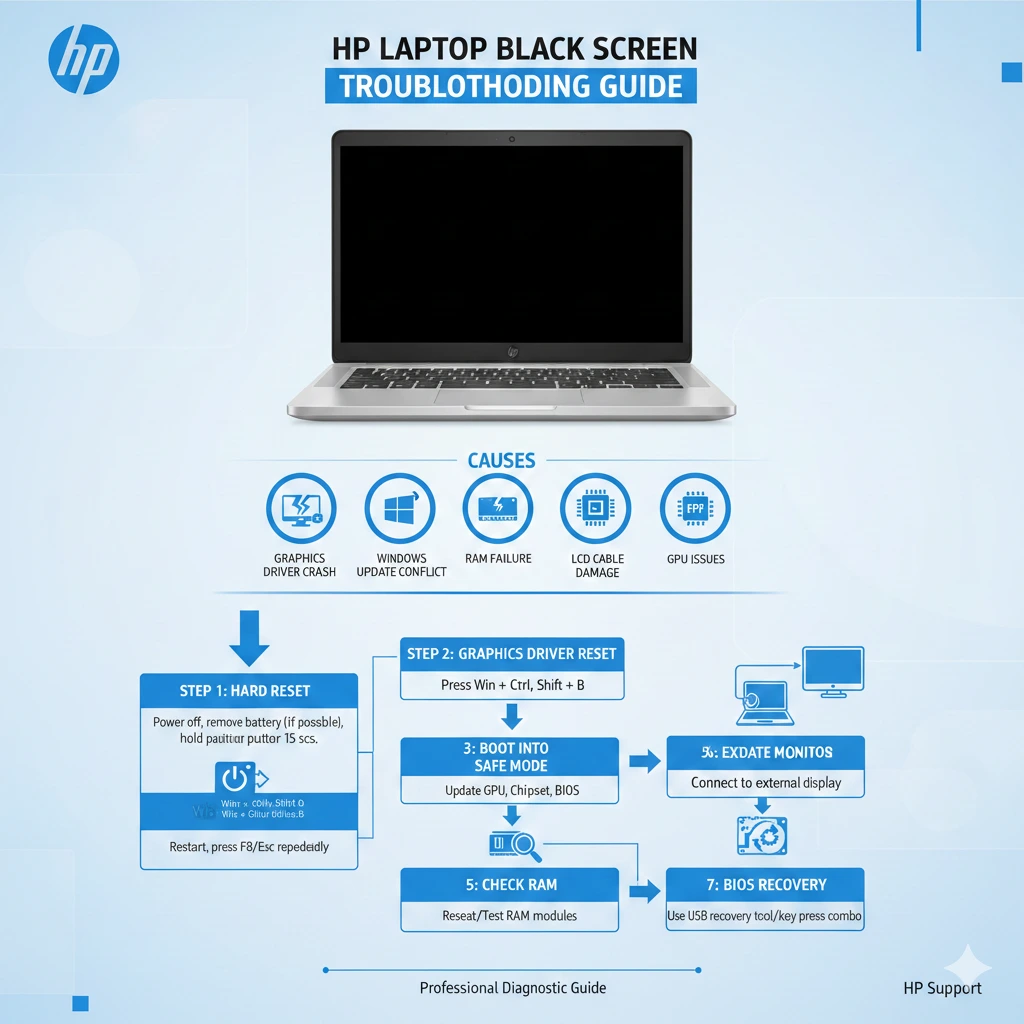
HP Laptop Black Screen Troubleshooting Chart
| Symptom | Possible Cause | Recommended Fix |
| Cursor visible, but desktop missing | GPU driver crash | Reset graphics driver |
| Black screen after login | Explorer crash | Restart Explorer |
| Cursor visible but desktop missing | Windows interface error | Task Manager fix |
| Black screen on startup | BIOS corruption | BIOS recovery |
| External monitor works | LCD cable issue | Screen repair |
Pros & Cons of DIY Laptop Troubleshooting
Attempting to repair your laptop yourself can offer benefits, but it also involves risks.
Pros
- Saves money on repair services
- Immediate troubleshooting possible
- Helps you understand your device
- Avoids long repair wait times
Cons
- Hardware repairs require technical skill
- Risk of damaging components
- Warranty coverage may be affected
- Some problems need specialised tools
When to Repair Your HP Laptop
Sometimes, troubleshooting cannot solve the problem.
Professional repair may be necessary if you notice:
- Screen flickering before turning black
- The external monitor works, but the laptop screen does not
- Laptop overheating frequently
- Visible display cracks
- System shutting down randomly
Windows Updates & GPU Driver Conflicts Are Rising
Automatic GPU driver updates via Windows Update are causing black screen issues more frequently.
Many HP users report:
- Black screen after update restart
- Display driver conflicts (Intel + NVIDIA switching)
- System boots, but the display fails
Practical Tip:
- Pause updates temporarily
- Use manufacturer drivers (HP official site)
- Avoid beta GPU drivers
FAQ
A: This usually indicates a display output issue caused by graphics driver crashes, RAM problems, or BIOS errors.
A: Yes. Faulty or improperly installed RAM can prevent the laptop from displaying video during startup.
A: Yes. Some Windows updates install incompatible graphics drivers, which can cause A: display problems.
A: If the external display works but the laptop screen does not, the screen or LCD cable may be damaged.
Conclusion
The HP Laptop Black Screen issue may look serious—but in most cases, it’s completely fixable with the right approach.
The key is not guessing—but diagnosing correctly.
Follow this order:
- Power reset
- External display test
- Safe Mode
- Driver repair
- BIOS recovery
- Hardware inspection
This structured approach:
- Prevents data loss
- Saves repair costs
- Avoids unnecessary risks
If you follow this guide step-by-step, you’ll solve the issue faster than most repair shops can diagnose it.
If you’re still unsure, don’t take risks—professional help is always the smarter option for hardware-level failures.











