Introduction
Starting over on aLenovo Laptop might look simple, yet it involves more than just hitting one reset option. How to wipe a Lenovo laptop. If you plan to give it away, fix ongoing issues, pass it along, or clear everything out, knowing how to erase data properly matters. Though the process appears basic, doing it wrong can leave information behind. Each reason for wiping- beitrepair, resale, or cleanup- needs careful steps. Instead of rushing through settings, taking time ensures your personal details stay private.
Most folks think wiping a device clears it entirely, though that belief doesn’t hold up every time. While certain techniques delete what you see – apps, documents – they still leave traces behind, recoverable by someone with tools. A different route goes deeper: rewriting each tiny part of the drive until nothing remains intact, not even fragments. That kind of thorough cleaning matters when private details once lived on the machine.
You’ll know which approach fits your needs once you finish – maybe it’s a fast reset, wiping files securely, or starting fresh with Windows. With visuals on display, real-world guidance close at hand, strengths and drawbacks laid out, plus insights from experience, your Lenovo gets cleared without risk.
What “Wiping” Really Means
Just because something looks clean doesn’t mean it is. One wipe might delete apps and obvious files, yet miss sneaky bits of private details hiding underneath. Another goes deeper – swapping every tiny piece of stored code so nothing can dig your info back up.
Here’s a side-by-side comparison:
| Type of Wipe | What It Does | Best For |
| Soft Wipe (Factory Reset) | Deletes personal files and apps, keeps Windows OS | Quick refresh or handing laptop to the family |
| Full Erase (Secure Wipe) | Overwrites all data beyond recovery | Selling a laptop or protecting sensitive data |
| Disk Format / OS Reinstall | Removes OS and all files, installs fresh Windows | Fresh start or resolving persistent errors |
Wipes feel handy when speeding things up – yet they leave traces behind. Software such as DBAN or Parted Magic goes deeper, wiping clean with precision.
Wiping isn’t just one thing – different kinds do different jobs. Most tutorials talk about factory resets alone. Knowing each type helps match the right clean-up to your actual need.
Prepare Your Lenovo Laptop Before Wiping
Ahead of time, getting ready right means less chance of losing files or messing things up later. Mistakes often start when steps are skipped early on. Clearing everything out becomes smoother if each detail is handled before the wipe even begins.
Backup Important Files
Last thing first – keep copies of every file prior to clearing anything. Try this method instead: a backup plan that works without fuss.
External storage: SSDs or USB flash drives
Cloud backup: OneDrive, Google Drive, or Dropbox
Backup software: Windows built-in backup or third-party solutions
Sign Out of Accounts
Start by removing every connected account before erasing anything. That way, signing in later won’t run into problems. Each link needs breaking first – otherwise, access hiccups pop up. Clear those ties ahead of time so nothing blocks a fresh start.
Microsoft Account
Email accounts (Outlook, Gmail)
OneDrive
Any apps tied to your Lenovo device
Record Software Keys
Later on, when setting up programs again, hang onto activation codes for tools such as:
Microsoft Office
Creative Cloud or Photoshop
Antivirus and security programs
Ensure Sufficient Power
Fifty percent battery or more keeps things safe when wiping – stay connected to power until it finishes. Sudden stops might break something deep inside if the juice runs out too soon.
Prepare for Wipe Without Password
If accessing your laptop proves impossible, wiping it could become necessary.
Remember to write down your BIOS password, just in case you have one
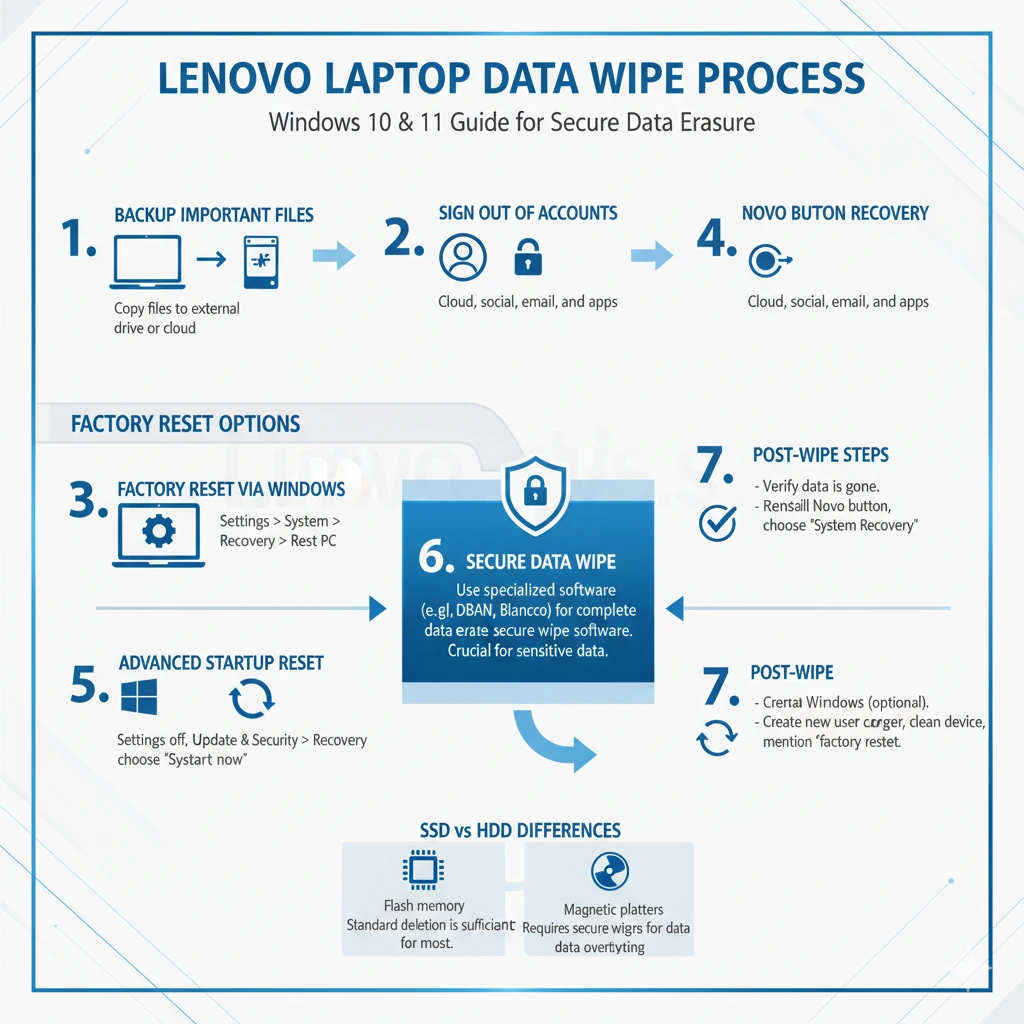
Factory Reset via Windows
Finding success here depends on a working Windows startup. Speed and ease come through clearly – yet protection for private files stays limited. Security gaps remain when risks are high.
Steps to Factory Reset
- Open Settings
- Navigate to System → Recovery
- Click Reset this PC
- Select Remove everything
- Pickeitherdownloadingthroughthecloud or settingitupagainonyourdevice. One option pulls everything fresh from online storage instead of reloading locally.
- Follow the on-screen instructions.
Best For: Performance boost or passing laptop to family/friends
A fresh start on Windows 11? Turn off the option that brings back old apps. Skip restoring settings to keep things light. Ditch the clutter by disabling app recovery at startup. Leave that checkbox empty if you want a sharper boot experience. Starting clean works better when prior sessions stay gone. Let go of saved states for smoother sign-ins.
Lenovo OneKey Recovery (Novo Button)
When Windows fails to start, several Lenovo laptops come ready with OneKey Recovery. It steps in just then.
Steps Using the Novo Button
- Shut down your laptop
- Find the tiny hole close to where you press to turn it on. That is the Novo Button
- Poke it gently using a small pointed tool
- Select System Recovery
- Pick the option to restore using the first saved version
- Wait until the process completes
Advanced Startup Reset
Should the system fail to start, try this alternative path instead. A different route opens when normal entry fails.
Steps
- Press and keep holding the Shift key while you restart the machine
- Start at Troubleshoot, then pick Reset this PC
- Choose Remove everything
- Follow the prompts
Best For: Broken Windows, login problems, or pre-sale wipe
Secure Data Wipe (True Erase)
Even after a factory reset, bits of data stick around. When you need total cleanup, pick a trusted wipe tool instead.
Top Secure Tools for Wiping
| Tool | OS Support | Notes |
| DBAN | Windows, Bootable | Free, full HDD/SSD wipe |
| Parted Magic | Bootable Linux | SSD-aware secure erase |
| Manufacturer SSD Utilities | Windows | Uses SSD firmware erase |
How Secure Wiping Works
Wiping securely means filling each storage area with scrambled information – after that, pulling files back cannot happen. One flip through, and everything vanishes completely.
Watch out. Solidstatedrivesneeduniquewipesteps- like ATA Secure Erase – to truly clear info. Just filling space again won’t do the job completely.
How to Wipe Without a Password
If login is impossible:
Method A: Advanced Startup (Shift + Restart)
- Follow the steps from section 5
Method B: Boot From Windows USB
- Create a Windows 10/11 installation USB
- Boot from USB
- Start by tapping Install no,w then choose Custom Install before wiping the drive. ve
- Reinstall Windows. This approach deletes everything, including login credentials.
SSD vs HDD — Key Differences
Knowing your storage type is critical to selecting the correct wipe approach.
| Feature | HDD | SSD |
| Storage Type | Magnetic platters | Flash memory |
| Overwriting | Sector-by-sector | Requires secure erase commands |
| Recovery Risk | High | Lower if erased correctly |
| Best Tools | DBAN, Parted Magic | Parted Magic, SSD utilities |
Troubleshooting Common Issues
| Issue | Solution |
| Reset fails | Use Windows USB recovery |
| Stuck in boot loop | Reinstall Windows via USB |
| Novo button missing | Try BIOS keys (F2 / Del / Enter) |
| SSD wipe incomplete | Use firmware-based secure erase |
Pros & Cons of Each Wiping Method
| Method | Pros | Cons |
| Factory Reset | Fast & easy | Not fully secure |
| OneKey Recovery | Works without OS | Lenovo-only feature |
| Advanced Startup | Works without login | Slightly technical |
| Secure Data Wipe | Completely unrecoverable | Requires extra tools |
FAQ
A: No, it removes files and apps, but data remnants may remain and could be recovered with specialized tools.
A: Use ATA Secure Erase, Parted Magic, or manufacturer-provided utilities.
A: Secure erase combined with a fresh Windows installation. A factory reset alone is insufficient.
A: Yes — use Advanced Startup or bootable USB installation.
Conclusion
Start by turning off the device completely. A clean cloth helps remove dust before anything else happens. After that, disconnect all cables attached to the sides. Press the power button once more just to clear any leftover charge. Open the lid fully so access becomes easier later on. Inside the settings menu, look for recovery options hidden under system tabs. Choose the removal of everything when prompted during setup. Confirm twice because mistakes cannot be undone quickly. Tools like USB drives work well if formatted ahead of time. Follow each message shown without skipping forward blindly. Mistakes slow progress more than patience ever does
Beyond just hitting restart, wiping your Lenovo fully means choosing one path – factory reset, boot-up repair mode, or locked erase. Each route clears clutter while locking down privacy ahead of handoff or reuse.
Your laptop sits clean after those steps. It runs free of old data once you finish. Ready to hand off or keep, it waits without traces. Each method clears the way completely. Nothing lingers where files used to live.











