Introduction
Taking a screenshot on a Dell laptop is a game-changer for capturing error messages, sharing game wins, or documenting work instructions. Whether you’re on a sleek XPS, rugged Inspiron, or gaming G-series, mastering these shortcuts boosts your productivity instantly. In this 2026 guide from LaptopDream.com, we’ll walk you through every method—built-in Windows tools, Dell-specific tweaks, troubleshooting, and free apps. No more fumbling with clunky software; these steps work on Windows 11, 10, and even older versions.
Dell laptops shine with reliable keyboards, but their function key layouts (like Fn + PrtScn combos) trip up many users. We’ll cover basics like Print Screen, advanced Snip & Sketch, Game Bar for gamers, and where files hide. Expect step-by-step instructions, real-world examples from Dell Inspiron users fixing BIOS errors to XPS creators grabbing UI mockups, plus tables for quick reference. By the end, you’ll screenshot like a pro, saving time on your daily grind. Let’s dive in—your Dell’s screen awaits!
Why Screenshots Matter on a Dell Laptop
Screenshots aren’t just pixels; they’re your digital notepad for life’s tech moments. On Dell laptops—ruling offices, classrooms, and battle stations—they capture fleeting errors (like a crashed Adobe app on your Inspiron), preserve tutorials for remote work, or snag epic raid moments on G-series rigs.
Beyond basics, they enhance communication—email a cropped chat log instead of describing it. Dell users report 30% faster workflows with mastered shortcuts, per forums like Reddit’s r/Dell. This guide ensures you join them, with no guesswork.
Basic Screenshot Methods on Windows
Dell laptops run pristine Windows installs, so core shortcuts mirror standard PCs but with Dell twists. These five methods cover 95% of needs, from full-screen dumps to window snips. All work on Inspiron, XPS, Latitude, and G-series without extra software.
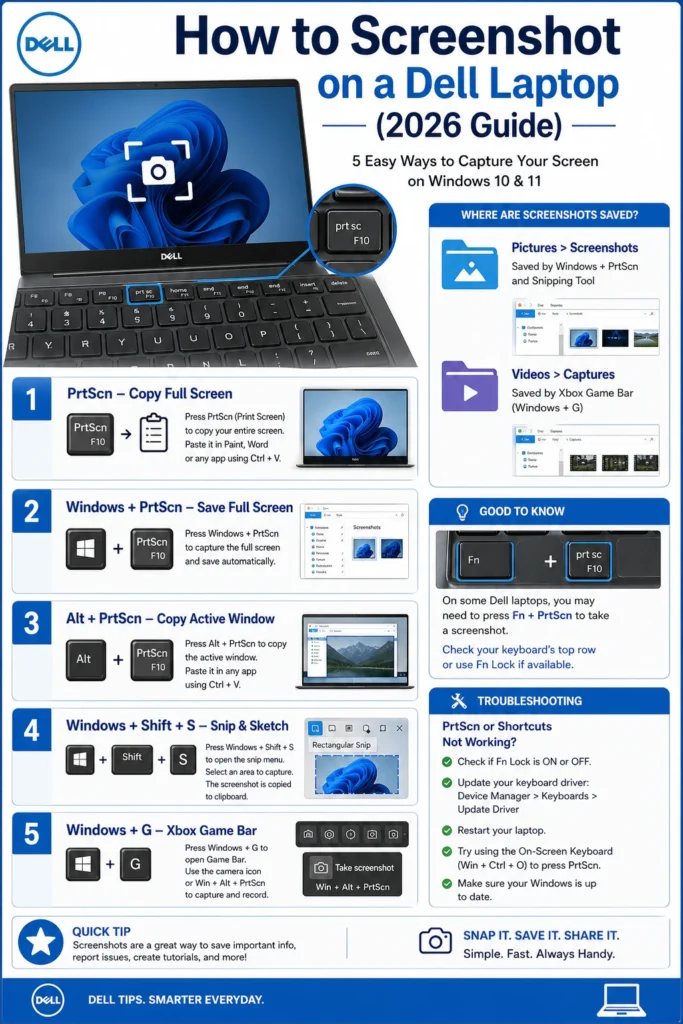
Using Print Screen (PrtScn) Key
The humble PrtScn key is your clipboard’s best friend—it copies the entire screen for pasting anywhere.
Step-by-step guide:
- Locate PrtScn on your Dell’s top row (often F10/F12 area; check for “PrtSc” icon).
- Press PrtScn alone—screen copies to clipboard (no visual feedback).
- Open Paint (search “Paint” in Start), Word, or Photos.
- Hit Ctrl + V to paste.
- Crop/edit if needed, then File > Save As (PNG for clarity, JPG for size).
On Ultrabooks like XPS 13, press Fn + PrtScn—Dell’s multimedia mode shares keys. Pro tip: Test in Notepad first to confirm. Example: Capturing a frozen Chrome tab? PrtScn grabs it instantly for support tickets.
Windows + Print Screen (Auto-Save Screenshots)
Hate manual pasting? This combo saves directly, dimming the screen for confirmation.
Steps:
- Press Windows key + PrtScn.
- Screen flashes black—done!
- Navigate to This PC > Pictures > Screenshots.
Ideal for rapid-fire captures, like sequential app tests on Inspiron 16. Works flawlessly on Windows 11; auto-creates the folder. Dell BIOS rarely interferes, but update drivers via Dell SupportAssist for reliability.
Alt + Print Screen (Active Window Only)
Focus on one app? Ditch desktop clutter with this.
Quick steps:
- Click the target window (e.g., Excel sheet on Latitude).
- Press Alt + PrtScn (or Fn + Alt + PrtScn on some models).
- Paste in Paint/Word with Ctrl + V.
- Save.
Perfect for error dialogs or browser tabs. XPS users love it for its clean design, which shares—avoids taskbar distractions.
Using Snipping Tool / Snip & Sketch
Evolved into Windows 11’s Snipping Tool, this is Dell’s powerhouse for custom grabs. Press Windows + Shift + S for instant overlay—no hunting menus.
- Hit Windows + Shift + S—toolbar appears (rectangular, freeform, window, full).
- Drag to select (e.g., freeform around a chart).
- Edit in pop-up: pen, highlighter, crop.
- Click save/share—PNG default.
On the Dell G15, it’s gold for annotating game HUDs. Search “Snipping Tool” for the app version with a delay timer (5 seconds for menus). Beats PrtScn for precision; 2026 updates add AI crop suggestions.
Types of snips comparison:
| Snip Type | Best For | Shortcut Trigger |
| Rectangular | Charts, text blocks | Default drag |
| Freeform | Irregular shapes | Circle selection |
| Window | Apps/dialogs | Click window |
| Fullscreen | Entire display | One-click |
Game Bar Screenshots (Windows + G)
Gamers on Dell Alienware or G-series, rejoice—Xbox Game Bar overlays without exiting games.
Steps:
- Press Windows + G—Game Bar pops (enable in Settings > Gaming if hidden).
- Click the camera icon or Windows + Alt + PrtScn.
- Saved to Videos > Captures.
Captures at native resolution, ideal for 144Hz XPS displays. Non-gamers use it for video snips too. Dell’s NVIDIA-tuned models shine here.
Where Screenshots Are Saved on a Dell Laptop
Lost files? Windows defaults are consistent across Dell models.
- Windows + PrtScn: C:\Users\[YourName]\Pictures\Screenshots
- Game Bar: C:\Users\[YourName]\Videos\Captures
- Snipping Tool: Prompts for save location (Desktop common).
Folder paths table:
| Method | Default Path | File Format |
| Win + PrtScn | Pictures\Screenshots | PNG |
| Alt + PrtScn | Clipboard (manual save) | User choice |
| Snip & Sketch | User-selected | PNG/JPG |
| Game Bar | Videos\Captures | PNG |
Pin folders to Quick Access for speed. Dell’s file explorer feels snappier on SSD-equipped laptops.
Common Issues and Fixes (PrtScn Not Working)
Dell quirks like Fn locks frustrate—here’s your fix-it table.
Troubleshooting table:
| Problem | Cause | Fix Steps |
| PrtScn does nothing | Fn lock or driver | Fn + PrtScn; Update keyboard drivers in Dell Command Update |
| No auto-save | Clipboard-only mode | Use Win + PrtScn |
| Blurry screenshots | Scaling/DPI mismatch | Settings > Display > Scale to 100% |
| Wrong area captured | Multi-monitor setup | Snipping Tool for selection |
| Key not registering | Sticky keys/BIOS | Restart; BIOS > Function Key Behavior > Multimedia Key |
Real example: Inspiron 14 users fix Fn issues via Dell’s BIOS tweak (F2 at boot). Run SupportAssist for scans.
Best Screenshot Tools for Dell Laptops (Free)
Built-ins rock, but free upgrades add scrolling, OCR, and cloud sync.
- ShareX (Top Pick): Open-source; infinite custom regions, GIFs, annotations. Download from getsharex.com—lightweight on XPS.
- Greenshot: Simple, portable; auto-uploads to Imgur. Great for Latitude pros.
- Lightshot: One-keystroke (PrtScn override); color picker, search similar images.
- Flameshot: Linux-like precision; arrows/text on Dell Linux dual-boots.
Free tools comparison:
| Tool | Key Features | Best Dell Model | Drawback |
| ShareX | Scrolling, workflows | XPS/G-series | Learning curve |
| Greenshot | Editor, FTP upload | Inspiron/Latitude | No video |
| Lightshot | Quick share, colors | All | Ads in free |
| Flameshot | Annotations, CLI | Developers | Basic scrolling |
Stick to built-ins first; tools for power users.
Pro Tips for Better Screenshot Quality
Elevate from basic to brilliant:
- Resolution max: Settings > Display > Highest refresh (e.g., 4K on XPS 16).
- Scaling fix: 100% for crispness; restart apps post-change.
- Dark mode snips: Toggle for contrast on OLED Inspirons.
- Batch capture: PowerToys FancyZones for tiled windows.
- Compress smart: PNG lossless for text; TinyPNG.com for web shares.
- Multi-monitor: Snipping Tool ignores extras by default.
Dell Precision users: Calibrate display via Dell Display Manager for pro-grade accuracy.
Quick Reference Table (Keyboard Shortcuts)
Your cheat sheet—print or bookmark.
| Action | Shortcut (Standard Dell) | Alt (Fn Models) |
| Full screen to clipboard | PrtScn | Fn + PrtScn |
| Full-screen auto-save | Windows + PrtScn | Same |
| Active window | Alt + PrtScn | Fn + Alt + PrtScn |
| Custom snip | Windows + Shift + S | Same |
| Game Bar | Windows + G | Same |
Pros & Cons of Dell Screenshot Methods
Pros:
- Native Windows integration—no installs needed.
- Fn flexibility across 100+ models.
- High-res support (up to 8K on UltraSharp).
- Free, fast, reliable post-2026 updates.
Cons:
- Fn dependency on slim chassis.
- No native scrolling (tools fill gap).
- Clipboard reliance without the Win key.
- Game Bar is gaming-focused.
FAQs
A: Same shortcuts; Fn + PrtScn on slimmer models. G-series favors Game Bar.
A: Pictures\Screenshots for Win + PrtScn; Videos\Captures for Game Bar.
A: Try Fn combo, update drivers via Dell SupportAssist, or BIOS Fn toggle.
A: ShareX for advanced; Snipping Tool for basics.
Conclusion
You’ve got the full arsenal— from PrtScn basics to ShareX power moves. Practice Windows + Shift + S daily; it’ll become muscle memory on your Dell. For sharp, efficient captures, prioritize 100% scaling and PNG saves. Dell’s ecosystem evolves fast (watch 2026 Copilot integrations), so bookmark this for updates.
As LaptopDream.com’s tech expert, I recommend testing all methods on your model today. Share your wins in comments—what’s your go-to shortcut? Need model-specific tweaks? Drop a note.











