Introduction
Picture this. You lift the lid of your Dell notebook, set to get things done, only to see everything flipped upside down or tilted on its side. Dell laptop screen upside down. It happens more than you think – across Inspiron models, sleek XPS machines, even Latitude convertibles. Good news? The damage isn’t lasting. A stray key combo might have triggered it. Maybe the rotation sensor got confused. It could be a glitch hiding in drivers or apps. Whatever sparked it, fixes exist. Each one brings your screen back where it belongs.
A deep look at every fix kicks off here – speedy key combos lead into more in-depth fixes, such as Windows display tweaks. Graphiaredrivers get adjusted, sensors are retuned, and BIOS paths are explored. Solutions stack up, layer by layer, cutting the risk of random screen turns later on. Once through, alignment settles in, trust returns, and daily use feels smooth again.
Why Your Dell Laptop Screen Flips Upside Down
Figuring out why a screen flips helps fix it and prevents it from happening again. Dell Latitudes that flip into tablet mode, along with touch-screen Inspirons, often have sensors confused by how they’re held. Sometimes, Windows display options clash with driver updates, further complicated by built-in Dell tools that interfere with the updates. A small glitch here, an outdated setting there – suddenly everything looks sideways.
Key Causes of Screen Flips
- Accidental Hotkey Activation
- Fingers hitting Ctrl+Alt alongside an arrow key might cause the screen to flicker rapidly, sometimes before you even notice. The layout shifts on a dime, caught off guard by accidental taps. A quick flip happens whether wanted or not, triggered out of nowhere. Direction changes come alive through unseen keystrokes that combine at once.
- Windows Display Orientation Settings
- A tweak here, a mistaken tap there – screens sometimes flip back without warning. One moment it’s right side up, next it’s standing tall or upside down. Little errors creep in during routine updates, too. Even careful users might find their view suddenly changed, just like that.
- Auto-Rotation Sensor Misinterpretation
- A slight tilt may cause the display to move when it should remain still. Inside convertibles, sensors track how you hold the machine. If they glitch, rotation happens without warning. Sometimes a bump is enough to confuse them.
- Graphics Driver or Dell Software Conflicts
- Old graphics drivers from Intel, NVIDIA, or AMD can sometimes override Windows’ screen options or shortcut keys.
- Hardware or BIOS Interactions
- Occasionally, some hidden BIOS features may conflict with how Windows handles screen orientation. This mismatch causes the display to spin incorrectly, regardless of the settings. Settings meant to help end up working against each other behind the scenes.
Quickest Fix: Keyboard Shortcut
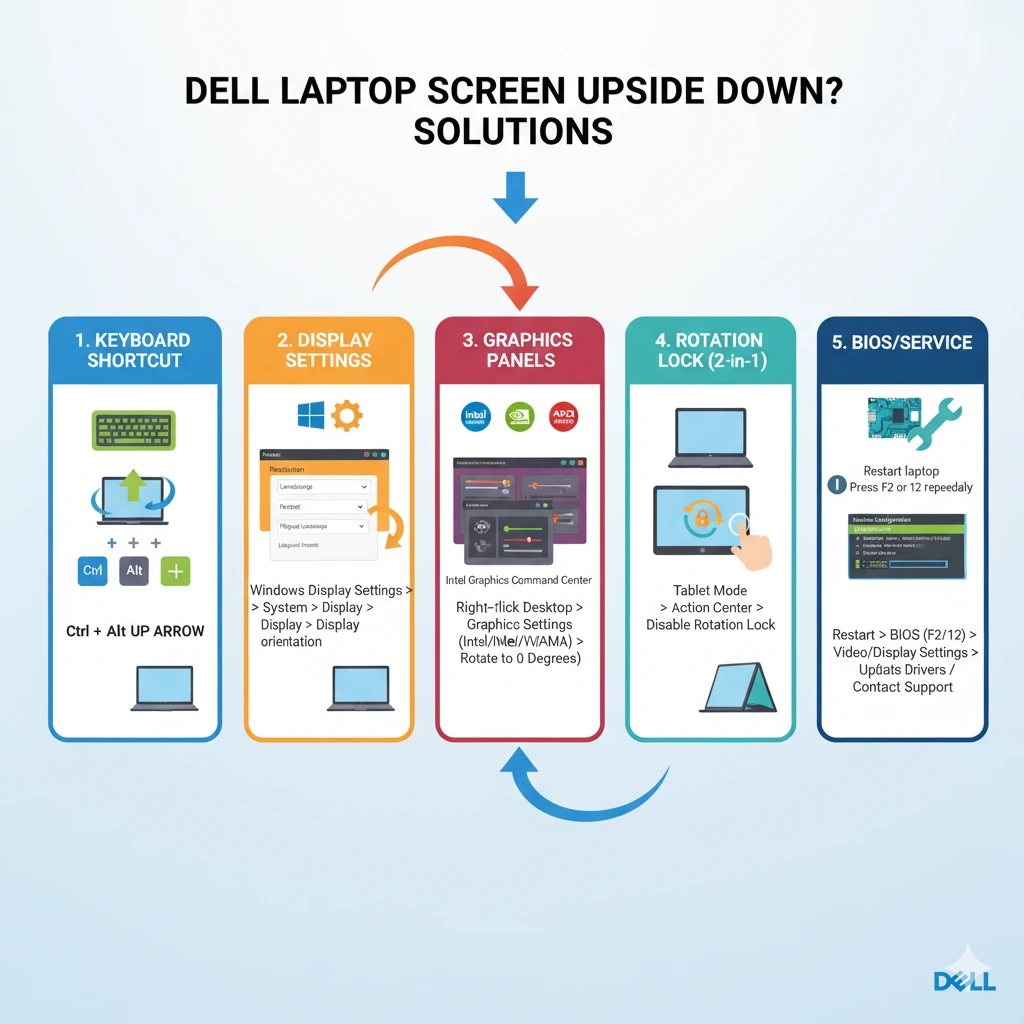
A quick fix for an upside-down Dell laptop display often lies in a simple key combination. Across various Dell versions, pressing those keys together tends to restore the picture right away.
Step-by-Step Shortcut Fix:
- Hit the keys: Ctrl, then Alt, followed by the upward arrow. One after another, start with control, shift to alternate, and finish lifting with up.
- Your screen returns to normal view right away.
Alternative Shortcut Options:
| Shortcut | Effect |
| Ctrl + Alt + ↓ | Rotate upside down (180°) |
| Ctrl + Alt + ← | Rotate screen left (90°) |
| Ctrl + Alt + → | Rotate screen right (90°) |
Got stuck. It’s possible that Intel Graphics disabled them. Or maybe Windows stepped in. Drivers from NVIDIA or AMD might have taken control instead.
Fix Using Windows Display Settings
When shortcuts do not work or get turned off, built-in options in Windows can fix how the screen appears.
Steps to Restore Orientation:
- Click the right mouse button on an empty part of your screen, then choose Display Settings from the menu that appears.
- Scroll down until you see ‘Display orientation’.
- Select “Landscape” once the menu appears.
- ‘Tap A’pply fthand then at, cho’ose Keep Cha’nges.
When drivers clash, stop responding, or block shortcuts entirely – this approach still runs without fail.
Fix Through Graphics Control Panels
Some Dell Laptops feature Intel chips, while others utilize NVIDIA or AMD hardware. Depending on the brand, you get a different tool for adjusting screen layout, including rotation. These tools allow you to adjust the display settings without requiring additional steps.
Intel Graphics
- Start by pressing the right mouse button on your screen background. Select the option labeled ‘Intel Graphics Settings’ from the menu that appears.
- Open the menu where screens adjust. Turn the settings until rotation appears.
- Select Landscape, then press Apply. After that step, the change takes effect right away.
NVIDIA / AMD Graphics
- Start by launching the NVIDIA Control Panel or head into AMD Radeon Settings.
- Head over to Display/Desktop Management.
- Turn the screen sideways to use it in a wider aspect ratio.
- Changes take effect immediately, and a system reboot is required when necessary.
When you turn the device off and on, it retains the screen’s state as you left it. That matters most if yours usually flips back each time it starts up.
Disable Auto-Rotation
Most of the time, screens flip by accident because sensors react too easily. When you carry a Dell Latitude or Inspiron tablet-style device, movement triggers the system to rotate. That sudden shift? It happens even when not needed. Stopping rotation entirely avoids the mess altogether. Sensors meant to help end up causing trouble instead.
Steps to Lock Rotation:
- Open the menu where you adjust device behavior. Move through the options labeled ‘System’ and then select ‘Display’. Follow these steps one after another without skipping ahead.
- Slide the switch to enable rotation lock.
Most of the time, leaving the rotation lock on works better. When you barely turn the screen, this prevents sudden shifts. Tilting your device won’t trigger a flip anymore. Even switching to the tent position stays stable. Unexpected spins just vanish.
Advanced Fixes: When Shortcuts Don’t Work
When basic tweaks, such as icons, screen options, or system menus, fall short, deeper steps usually help instead. Trying fresh drivers, changing BIOS setups, or restarting background services makes a difference then.
Update Graphics Driver
- Head over to Dell Support, then select “Drivers & Downloads.”
- Start by picking the version of your laptop.
- Download the latest graphics driver (Intel, NVIDIA, or AMD) and run the setup. Installation begins once the file has finished downloading from the web. Fresh drivers often fix visual glitches that others leave behind. Each brand updates on its own schedule, so check which chip lives inside your machine. A reboot usually follows when the process completes.
- After making adjustments, restart the machine to ensure updates are applied properly.
Check BIOS Display Settings
- Every time you start up the machine, hit F2 without waiting. That key opens the system settings before Windows loads.
- Open up the screen settings first. Head into rotation controls after that. Move through the display choices one by one.
- If things go sideways, revert to how they were initially. Sometimes that is enough to clear the snag.
Reset Windows Rotation Service
- Start by pressing the Windows key and R, then type ‘services’. MSc using the keyboard. Then confirm by tapping the Enter key.
- Look for something called Sensor Monitoring Service or Windows Orientation Service instead.
- Right-click → Restart.
Windows Updates
- Some Windows 11 builds may reset orientation.
- Start at Settings, then select Update & Security, and finally click Windows Update.
- Patches update first – reboot after. Then everything runs fresh when the system comes back up.
Prevent Accidental Screen Flips
Ahead of trouble, handling things early might stop your Dell laptop from spinning on its own later. Instead of waiting, a quick fix now could keep the screen steady in the long run. When you act before problems arise, odd rotations may never begin. Jumping in front helps avoid sudden twists weeks from now. Early attention often prevents unusual behavior before it starts.
Tips for Prevention:
- Turn off spin shortcuts inside Intel Video controls, rather than using NVIDIA or AMD menus. Spin stops when key combos get switched elsewhere across display options.
- When you seldom want the screen to turn off, leave Rotation Lock active.
- Fine-tune movement detectors using the Intel Driver & Support Assistant tool.
- Regularly update Windows, graphics, and drivers.
FAQ
A: Auto-rotation sensors or outdated drivers may reset the orientation. Update your drivers and enable rotation lock to prevent this issue.
A: Use Windows Display Settings, Graphics Control Panels, or update drivers/reset sensor services.
A: Some OOBE (Out-of-Box Experience) setup configurations temporarily disable orientation locks. Wait until Windows fully loads.
A: Yes, enable Rotation Lock under Settings → Display.
Fix Methods for Dell Screen Flip
| Fix Method | Ease | Effectiveness | Best Use Case |
| Keyboard Shortcut | ★★★★★ | ★★★★☆ | Quick instant restore |
| Windows Display Settings | ★★★★☆ | ★★★★★ | Hotkeys disabled or non-functional |
| Graphics Control Panel | ★★★★☆ | ★★★★★ | Persistent driver issues |
| Disable Auto-Rotation | ★★★☆☆ | ★★★★☆ | 2-in-1 Dell laptops |
| BIOS & Service Reset | ★★☆☆☆ | ★★★★☆ | Advanced or stubborn cases |
Dell Laptop Model Examples
Dell Latitude 2-in-1
- The screen sometimes turns sideways in the tent setup. The motion detector gets confused easily. When tilted a certain way, the display shifts without warning. Position sensing does not always adjust correctly. Flipping occurs even when the device remains still. Orientation logic struggles with angled stands. Unexpected rotation occurs during regular use. Sensor misreads alignment in folded positions.
- Start by turning on Rotation Lock. Then tweak the display settings in Windows. One thing after another gets it working right.
Dell Inspiron Touch
- Problem: Touch models may rotate randomly after updates.
- Fix: Update the Intel Graphics driver and disable hotkeys.
Dell XPS Laptops
- Problem: Rare upside-down flips caused by hotkeys or driver conflicts.
- Try pressing Ctrl, then Alt, followed by the up arrow key. After that, look into your NVIDIA Control Panel options.
Conclusion
If your Dell laptop screen is upside down:
- Facing issues. Hit those three keys together – Ctrl, then Alt, then the upward-facing arrow – to reset the Display right away.
- When shortcuts do not work, try adjusting through Windows display options instead.
- Enable the option in graphics settings to keep rotation after reboot.
- Spin the setting to lock rotation on convertible gadgets.
- When fixes won’t stick, try new drivers first. The BIOS might need to be checked if that fails. Sensor services sometimes work again after a reset.
Start with this step-by-step approach to stop sudden screen rotations. A steady display comes from solving ongoing tilt issues. Each time you open your Dell machine, expect reliability – no more shifting views when you least want them.











