Introduction
Darkscreenona Dell laptop? The Dell laptop screen is black. That moment when everything seems alive except the display. Power light glows, fan kicks in, keys might glow too, then suddenly that familiar chime plays into silence. Picture it: every sign says working, but eyes meet only blackness staring back.
A sudden wave of alarm hits when things go wrong, since it seems like everything has crashed – yet often the machine keeps running just fine.
A blank display shows up across almost every kind of Dell laptop – models like Inspiron, Latitude, even high–end Alienware units aren’t spared. This glitch pops up without warning: sometimes after booting, other times mid-use
- During startup
- Right after the Dell logo
- After logging into Windows
- Following a Windows update
- After sleep or hibernation
- Or suddenly, with no warning at all
Explanation
A dark display might still hide a working machine inside. When the monitor shows nothing, it does not always point to total failure – often, Windows keeps ticking behind the scenes while the image simply never arrives at the surface.
- Throw random fixes without explaining the logic
- Skip Dell-specific diagnostic tools
- Mix beginner steps with advanced procedures
- Ignore BIOS-level and firmware causes
- Never explain why the screen is black
The result?
Wasted hours, unnecessary repairs, and avoidable replacement costs.
This complete Dell laptop black screen troubleshooting guide is designed differently.
In this guide, you will learn:
- How to identify which type of black screen you’re dealing with
- The exact root causes behind each scenario
- A step-by-step fix path, from simplest to advanced
- Dell’s diagnostic tools most competitors completely ignore
- When DIY fixes work — and when professional repair is unavoidable
Let’s begin by clearly defining what a “Dell laptop screen black” problem actually means.
What Does “Dell Laptop Screen Black” Actually Mean?
A black screen is not a single failure — it’s a symptom.
And different black screen behaviors point to very different root causes.
Understanding when and how the screen turns black is the foundation of a successful fix.
Common Dell Black Screen Scenarios
| Scenario | What It Usually Indicates |
| Laptop powers on, but the display stays black | Backlight failure, loose display cable, GPU issue |
| Screen goes black after a Windows update | Driver conflict, Windows corruption, BIOS misconfiguration |
| Black screen with cursor only | Windows Explorer crash or graphics driver failure |
| The screen goes black after a Windows update | Corrupted or incompatible display driver |
| No Dell logo, no BIOS display | BIOS corruption, motherboard, GPU, or power issue |
| External monitor works, internal screen doesn’t | LCD panel or display cable failure |
Identifying the exact moment the screen goes black is the single most important step.
Once the scenario is clear, the correct fix becomes faster, cheaper, and far more accurate.
Most Common Causes of Dell Laptop Screen Black Problems
A problem with Dell screens turning black usually falls into one of four main buckets. While some stem from loose cables, others come from faulty hardware. Where display settings misfire, the image vanishes without warning. Though software glitches play a part, driver errors show up just as often.
Software & Operating System Issues (Most Common Cause)
Software-level failures account for the largest percentage of Dell laptop black screen problems — especially on Windows 10 and Windows 11 systems.
Common Software Triggers
- Corrupted Windows system files
- Broken or incompatible graphics drivers
- Failed or interrupted Windows updates
- explorer.exe not launching correctly
- Display output configuration errors
- Fast Startup or hybrid sleep conflicts
Why Software Causes a Black Screen
In many cases, Windows loads successfully, but the system cannot:
- Initialize the graphics driver
- Launch the desktop shell
- Assign the display output correctly
The result?
A running system with no visible interface.
This is why users often hear startup sounds or see a cursor on a black background.
Display & Hardware-Related Problems
If the screen stays black before Windows even starts, the hardware becomes a prime suspect.
Common Hardware Causes
- Failed LCD backlight
- Loose, pinched, or damaged display cable
- Cracked or dead LCD panel
- Faulty RAM module
- Dedicated GPU hardware failure
Key Diagnostic Clue
If your screen remains black inside BIOS or during pre-boot diagnostics, the issue is almost certainly hardware-related.
BIOS & Firmware-Level Issues
BIOS problems are frequently overlooked — yet they play a critical role in display initialization.
Common BIOS-Related Triggers
- Corrupted BIOS firmware
- Outdated BIOS version
- Incorrect primary display setting
- Secure Boot conflicts
- Firmware corruption after power loss
Why BIOS Matters
The BIOS initializes:
- The CPU
- RAM
- GPU
- Display output
If BIOS fails to configure the display, Windows never gets the chance to show anything.
Check Brightness & Display Toggle
It sounds basic — but it works more often than people expect.
Steps
- Press Fn + Brightness Up repeatedly
- Press Fn + F8 / F10 / F12 (varies by model)
- Disconnect all external monitors
- Restart the laptop
Fixes accidental dimming and display redirection.
Perform a Hard Reset (Power Drain)
A hard reset clears residual electrical charge that can block display initialization.
Steps
- Power off the laptop
- Unplug the charger and all peripherals
- Hold the Power button for 20–30 seconds
- Reconnect the charger and power on
Resolves power-state and display handshake issues.
How to Enter Safe Mode on Dell Laptops
- Power on the laptop
- Interrupt boot three times (force shutdown)
- Windows Recovery Environment opens
- Navigate to:
Troubleshoot → Advanced Options → Startup Settings → Restart - Press 4 to enter Safe Mode
Reinstall or Roll Back Graphics Drivers
Steps
- Open Device Manager
- Expand Display Adapters
- Right-click GPU → Uninstall device
- Restart the laptop
Windows automatically installs a stable default driver.
Fixes:
- Dell laptop black screen with cursor
- Black screen after Windows update
- Driver compatibility failures
Repair Corrupted System Files
Open Command Prompt (Admin) and run:
sfc /scannow
DISM /Online /Cleanup-Image /RestoreHealth
Repairs damaged Windows components that prevent display loading.
Dell LCD BIST (Built-In Self Test)
This test checks LCD hardware without Windows.
How to Run
- Power off the laptop
- Hold the D key + the Power button
- Screen cycles solid colors
Results
- Colors appear → LCD hardware is working
- No colors → LCD panel or cable failure
Dell Pre-Boot Diagnostics
Steps
- Power on
- Press F12
- Select Diagnostics
Tests Include
- RAM
- CPU
- GPU
- Display
- Motherboard
If diagnostics fail, software fixes will not help.
Advanced Fixes (Persistent Black Screens)
Reset or Update BIOS
Reset BIOS
- Press F2 at startup
- Load BIOS Defaults
- Save and exit
Update BIOS
- Download the latest BIOS from Dell Support
Never interrupt a BIOS update
When You Must Seek Professional Repair
Stop DIY troubleshooting if:
- The screen is black in the BIOS
- Dell diagnostics fail
- No display on any monitor
- Physical LCD damage is present
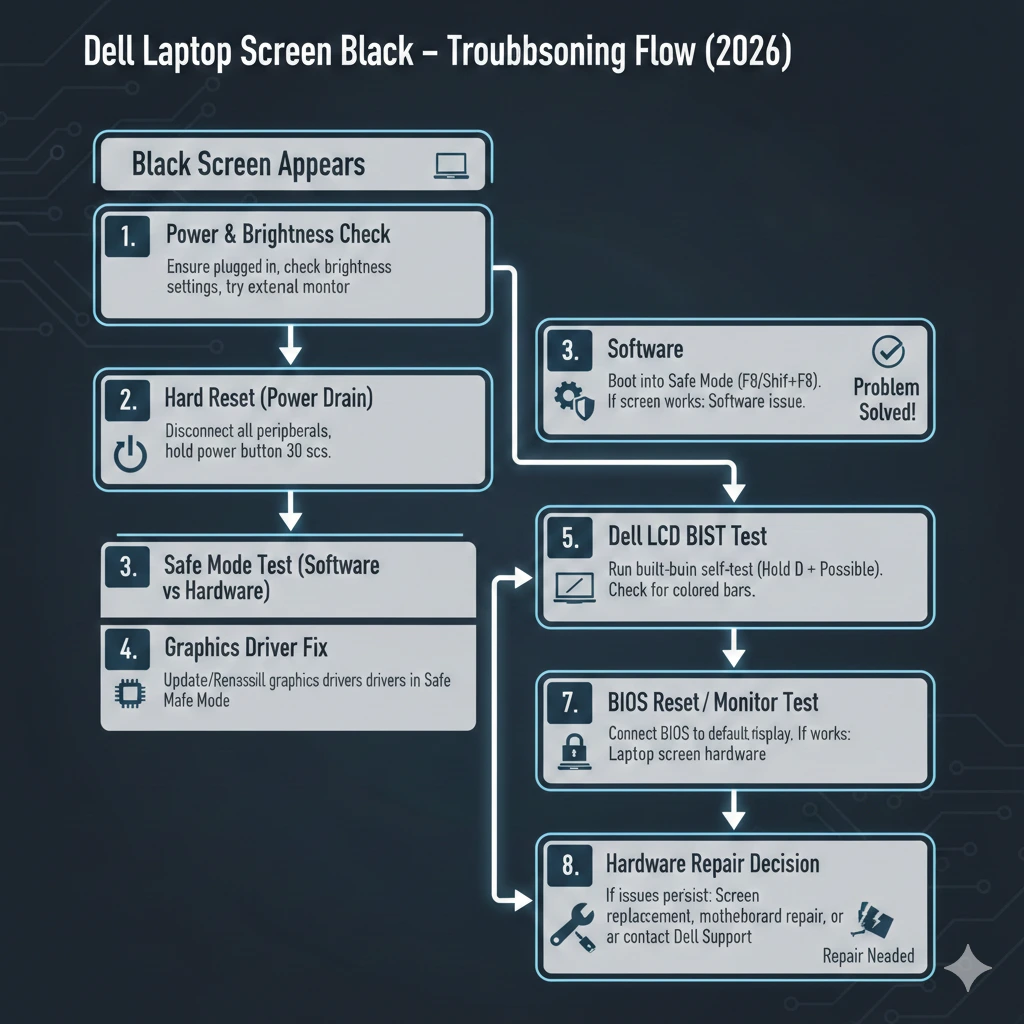
Black Screen Troubleshooting Flow (Quick Reference)
| Step | Action | Difficulty |
| 1 | Brightness & hard reset | Easy |
| 2 | Safe Mode boot | Easy |
| 3 | Driver reinstall | Medium |
| 4 | Dell LCD BIST | Medium |
| 5 | BIOS reset/update | Advanced |
| 6 | Hardware inspection | Expert |
FAQ
A: Usually caused by display driver failure, power-state issues, or LCD backlight problems.
A: That strongly suggests BIOS or hardware failure.
A: Yes. Faulty updates frequently break graphics drivers.
A: In most cases, yes — the LCD panel or display cable is failing.
Conclusion
A Dell laptop screen black issue is not random — it is diagnostic.
When you identify when the screen goes black and follow a structured troubleshooting path, most problems can be resolved without panic or wasted money.
Start simple.
Move step-by-step.
Use Dell diagnostics; others ignore. This guide is designed to be your final reference — whether you’re a beginner, student, IT technician, or power user.