Introduction
One thing stands out about the Dell Laptop XPS keyboard – it shows up everywhere in talks about high-end notebooks. Looks sharp, fits tight into slim builds, and also packs plenty of functions that grab attention. Still, not everyone sings praise; some point out flaws others overlook. Dive into this 2026 walkthrough and find what really happens when people type day after day. Real stories come first, then patterns in issues they face, followed by workable ideas to solve them. Experts weigh in, too, sharing ways to get more done without straining fingers or focus.
A student, an office worker, or someone who just uses computers now and then – each might find that knowing how this keyboard really works makes tasks smoother. Little details matter more than they first appear when typing gets frequent.
Understanding the Dell XPS Laptop Keyboard
What Makes the Dell XPS Keyboard Distinctive?
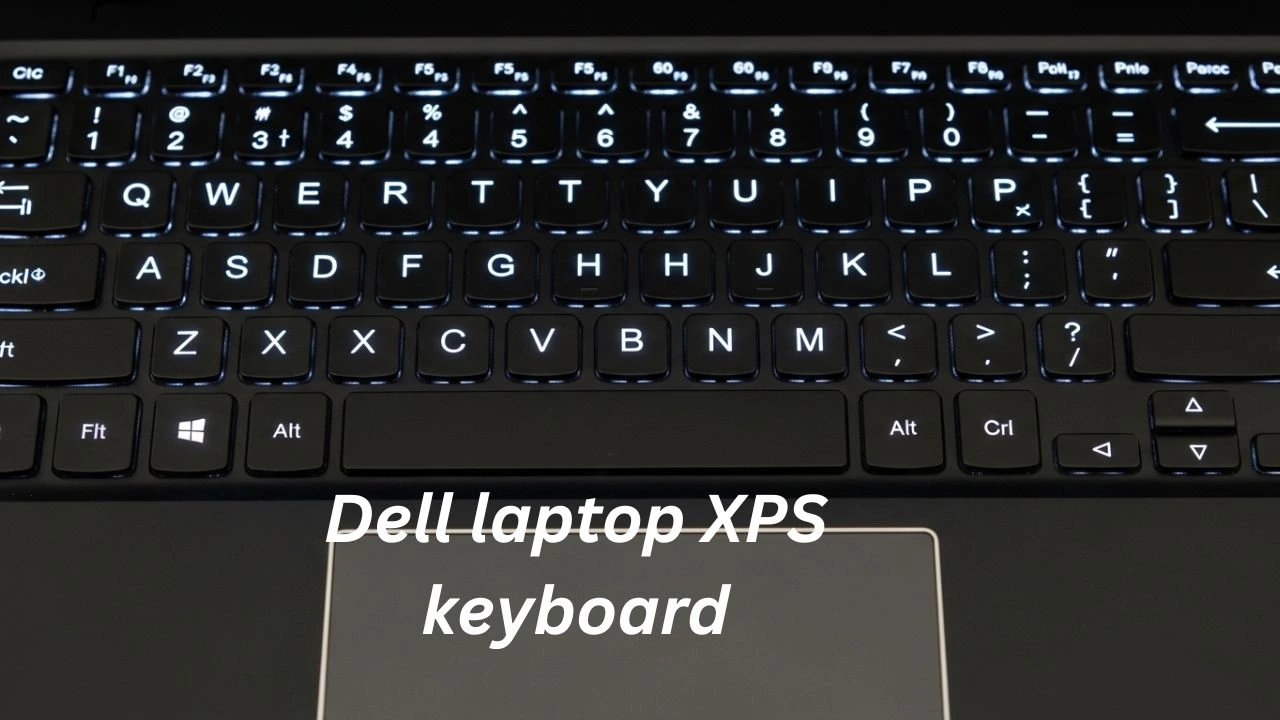
Famous for being slim and packing powerful parts, Dell’s XPS line carries that idea into its keyboard. Built with a clean, gridless layout, the keys sit close together, dipped just below the surface. A tight setup like this brings a sleek appearance – yet changes how it feels under fingers when typing, different from older styles. Though sharp to look at, the experience isn’t quite what you’d get on bulkier models.
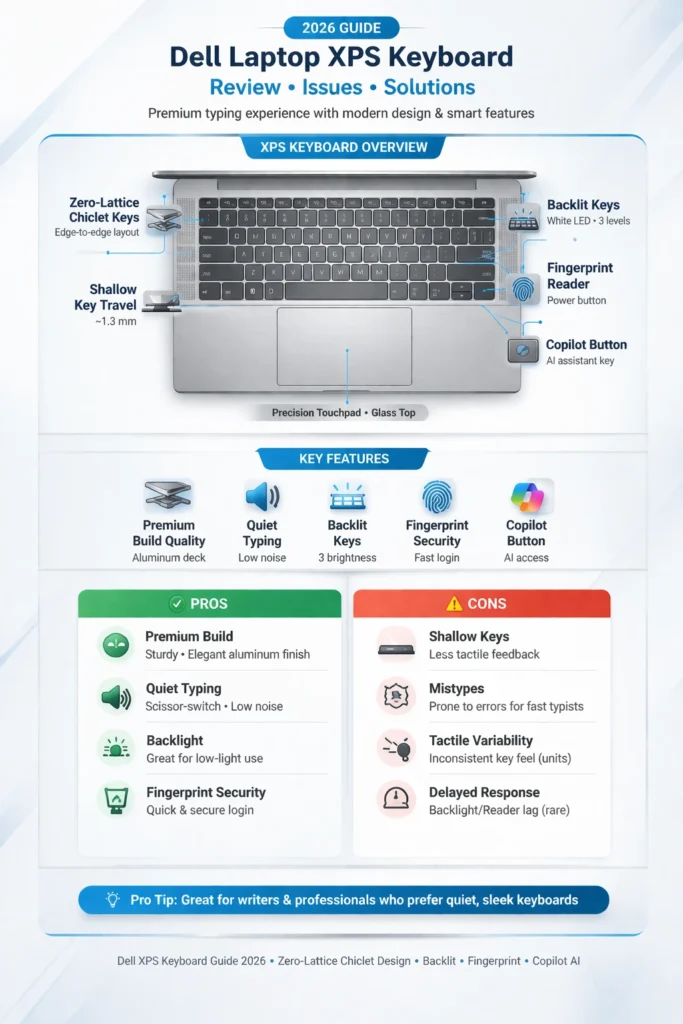
Keys feel crisp under fingers. Typing sound stays quiet. The layout keeps it simple. Backlight adjusts without fuss. Surface resists smudges
- Lit from behind, the keys glow softly when it’s dark. Brightness changes to match dim surroundings. Light spills evenly under each button you press. Eye comfort comes through gentle output levels. Working late feels easier with this subtle help.
- Small keyboard design fits function keys neatly. Some versions pack in a fingerprint sensor, too. Built-in security shows up where you least expect it. The function row stays handy without taking up space.
- Right there on fresh XPS versions sits a Copilot key – offers fast lanes into smart helpers. Sometimes it pops up near the function row, ready to spark responses without extra steps. Not every laptop carries this piece; only recent ones show it off. Pressing it wakes features that answer questions or draft messages. It lives quietly beside other keys but opens wide paths when called.
A sleek look takes center stage, yet it slips into pockets without fuss. A few people tap the keys and find them giving way too easily. What you gain in slimness, you might lose in that clicky, solid response others expect.
Dell XPS Keyboard Specifications
| Feature | Dell XPS Keyboard |
| Key Type | Chiclet / Zero-Lattice |
| Key Travel | ~1.2–1.3 mm (shallow) |
| Backlight | Adjustable LED |
| Layout | Compact with Fn keys |
| Special Buttons | Fingerprint reader, Copilot |
Here’s what stands out. Sleek looks define the Dell XPS keyboard, yet tight spacing between keys shows its downside. A minimalist design draws attention first. Still, fingers may feel cramped after a while. Shallow keystrokes don’t help either. Long stretches of typing turn tiring fast. Style wins at first glance – comfort loses over time.
The Dell XPS Keyboard Experience: Advantages & Limitations
Some people who type on the Dell XPS keyboard say it feels good. Yet others find it stiff or unresponsive at times. Real user comments show both sides clearly. A few mention how quiet the keys are under fingers. Meanwhile, complaints pop up about shallow key travel. One person likes its look but wishes it lit evenly. Another says it works fine after weeks of daily typing. Durability gets mixed remarks – some call it solid, while a couple note early wear near often-used buttons. Typing comfort shifts depending on hand size, too
Pros (Advantages)
- A step above in build quality shows through clean lines and careful assembly. What stands out is how form meets function without trying too hard.
- Whisper-soft running keeps things calm in places like study halls or workspaces. Noise stays low, so focus doesn’t break during tasks that need silence.
- When light is low, the glow behind each key makes typing easier. Some find it cuts down on errors when visibility fades after dark.
- Fingerprints make access safer and also quicker to log in. A small touch unlocks everything without passwords, slowing things down.
- Fine when tapping out brief messages, jotting down thoughts, or handling everyday tasks on the go. Starts easily, feels smooth at first, settles into a quiet rhythm after a few strokes.
Cons (Reported Issues)
- Typing here lacks depth; each press sinks just a little. That gentle give can slow fingers down. Not every keystroke lands sharply. A slight lag creeps in when feedback feels vague. Speed dips where resistance fades.
- Crowded layout? Fingers slip more often. Typing errors pop up when keys huddle too close.
- One person might press a key and find it stiffer than the one next to it. Another time, the same keyboard could respond smoothly without warning. Feel changes without pattern across different keys. Each tap may surprise you, for better or worse.
- Delayed response on Windows 11: Certain apps may ignore fast key presses.
The look of the Dell XPS keyboard catches attention right away. Yet its thin design sometimes feels off during long typing stretches. Folks who type a lot tend to lean toward bulkier options. ThinkPad models from Lenovo sit higher on their list. So do certain Microsoft Surface devices. Comfort matters when fingers fly across keys hour after hour.
Common Dell XPS Keyboard Problems and Their Causes
Fixing problems that keep happening might stop future headaches. Top complaints people mention include these
Typing Comfort & Mistyped Keys
Some people say the keys sink too easily, making strokes harder to control. Because they move such a short distance, errors pop up often – especially if you’re used to clickier boards.
That slim build? It trades key travel for sleekness. Thin means shallow presses. Feel suffers when the thickness shrinks. Less space inside leads to flatter keystrokes. Design choice leans on look, not click depth.
Delayed Response & Input Problems
Keys sometimes stutter, leaving keystrokes unrecorded. Inputs freeze without warning. Apps ignore fast typing, missing entries entirely.
Something’s clashing behind the scenes – usually drivers fighting each other, a Windows 11 update wiping custom key setups, or certain apps grabbing control of input in their own way.
Hardware & Build Quality Concerns
One thing you might notice is how some keys press down harder than others. Then there are spots near the sides that bend slightly when touched. Each key can seem out of step with its neighbors, like they’re not part of the same set.
Root cause: Manufacturing tolerances and quality control variations.
Backlight Visibility Problems
Flickering appears now and then when brightness drops too low. Uneven patches show up across the screen, especially along the edges. Sunlight makes everything harder to see, washing out details completely.
What’s behind it? Light from LEDs is too strong, screens reflecting extra glare – both mess with seeing keys clearly.
Why These Problems Occur (Root Cause Analysis)
Looking closer at why these problems happen makes it easier to pick solutions that actually work.
Driver Conflicts
Keyboard drivers can clash with Windows Human Interface Device (HID) drivers or Dell Command Update software, leading to:
- Lagging keystrokes
- Unresponsive typing
- Delayed input recognition in some applications
Design Trade-offs
To achieve ultra-thin and portable laptops, Dell made key compromises:
- Smaller key sizes
- Reduced key travel
- Fine details catch the eye more than how they feel. Looks matter first, texture second. Smooth edges might impress, yet visual appeal wins out every time. Shape draws attention before touch does anything at all
Heavy typists might feel let down by how these picks trade feedback for a clean design. A smooth appearance comes at the cost of comfort when typing long stretches.
Windows Updates & Software Errors
Now and then, a Windows update swaps out Dell’s custom drivers for standard ones. This switch can mess up how the keyboard works.
Dell XPS Keyboard Troubleshooting & Step-by-Step Fixes
Here is a structured approach to solving most keyboard issues.
Quick Fixes (First Steps)
Disable Sticky Keys and Filter Keys
Windows accessibility features may slow down typing.
- Navigate to Settings > Accessibility > Keyboard
- Turn Sticky Keys OFF
- Turn Filter Keys OFF
Fixing small delays often works right on this screen.
Hard Reset the Laptop
Clearing temporary glitches may restore normal functionality:
- Close the lid of the machine
- Disconnect power
- Wait 30 seconds
- Restart the laptop
Driver Fixes
Update or Reinstall Keyboard Drivers
When drivers are broken or too old, some keys might stop working. Fixing them means updating or reinstalling what’s wrong
- Open Device Manager
- Locate Keyboards
- Right-click > Update Driver
- Select Search automatically
- Restart
Dell Command Update
Dell Command Update ensures your drivers are current:
- Open Dell Command Update
- Click Check for updates
- Install all updates related to the input and chipset
Advanced Fixes
BIOS Settings Check
A faulty setup inside the BIOS can stop the system from seeing your keyboard properly
- Restart the computer
- F2 when booting up
- Verify Keyboard settings
- Fix the BIOS when needed – but only if you know what you are doing. Mistakes can cause problems later
Replace Keyboard (Hardware Fix)
Failing software might mean swapping out the hardware instead.
- Using unauthorized repair spots might void your coverage. Only Dell-approved locations keep the warranty intact. When in doubt, check first – mistakes here cost more later
Fix Timeline
| Step | Action | Expected Result |
| 1 | Disable Sticky/Filter Keys | Improved typing flow |
| 2 | Hard Reset | Clears temporary glitches |
| 3 | Update Drivers | Restores responsiveness |
| 4 | Dell Command Update | Resolves conflicts |
| 5 | BIOS Check | Detects hardware issues |
| 6 | Keyboard Replacement | Fixes persistent problems |
Dell XPS Keyboard vs Competitors
Comparison with other premium laptop keyboards helps buyers make informed decisions.
| Feature | Dell XPS | Surface Laptop | Lenovo ThinkPad |
| Key Travel | Shallow | Moderate | Deep |
| Backlight | Yes | Yes | Yes |
| Layout Comfort | Mixed | Preferred | Excellent |
| Typing Accuracy | Variable | High | High |
| Ideal Usage | Light typing | Typing & creative | Heavy typing |
Quick Insight:
- Typing here feels just right – smooth without being too soft, a solid match for anyone who writes often. Some keys respond quicker than others, yet the rhythm stays steady across long sessions.
- Keys that feel just right under fingers make coding a quiet joy on ThinkPads. Heavy work sessions? They handle those without breaking stride. Typing all day lands more easily here than in most places.
- A slim look sets the Dell XPS apart. Carrying it around feels effortless due to its lightweight build. Typing on it works well when done gently.
Expert Tips to Enhance Dell XPS Typing
A. Adjust Keyboard Settings
- Reduce keyboard sensitivity in Windows
- Turn OFF Filter & Sticky Keys
- Adjust backlight brightness
B. Key Remapping
- Swap Fn and Ctrl for easier access
- Reassign Caps Lock or other keys to reduce errors
C. External Keyboards
For extended typing sessions, consider:
- Mechanical keyboards
- Ergonomic split keyboards
- Wireless Bluetooth keyboards
D. Proper Positioning & Posture
- Keep wrists straight
- Adjust screen height
- Minimize glare on the backlight
Dell XPS Keyboard Backlight Recommendations
If you face uneven or dim backlight:
- Increase brightness in Windows settings
- Flick on Fn then tap the light control button
- Use Dell QuickSet on older models
When it is dark, a glowing keyboard helps you see keys clearly. Yet sunlight can wash out that same light, making letters harder to spot.
Final Verdict: Is the Dell XPS Keyboard Worth It?
Best For
- Sleek, premium Laptop enthusiasts
- Day-to-day productivity
- Students and office workers
- Users typing short documents
May Prefer Other Options
- Heavy writers
- Programmers
- Those needing deep tactile feedback
A solid pick for heavy typing? Try a ThinkPad or Surface Laptop – hook up an outside keyboard for better comfort. One thing leads to another when keys feel right under your fingers. Comfort shifts up a notch once you add that separate board. These machines handle long sessions well, especially with extra gear nearby. Type all day if needed, just pair it properly.
FAQs
A: The shallow key travel and compact layout create a softer typing experience.
A: Update drivers, use Dell Command Update, check BIOS settings, or perform a system reset.
A: Yes, but only via authorized Dell service centers to maintain warranty coverage.
A: Some units may have dim or uneven illumination; adjusting brightness usually resolves this.
A: No — ThinkPads prioritize typing comfort, while XPS emphasizes sleek design and portability.
Conclusion
One thing stands out about the Dell Laptop XPS keyboard – it fits thinness and function into one frame. A solid feel meets glowing keys, yet small flaws sneak in, like flat keystrokes or mistyped letters now and then. What works blends with what doesn’t, shaping how you type over time. Real talk? It responds unevenly at times, but knowing that changes how you adjust. Clarity on both sides keeps surprise at bay, while finding ways to stay comfortable makes a difference.
When it comes to light typing or just getting basic tasks done, especially for students who want something easy to carry, the XPS keyboard works well enough. That said, anyone doing serious writing, coding, or spending full days at the keys might find more comfort using a separate keyboard – or trying out devices such as the Lenovo ThinkPad or Microsoft Surface, which deliver better key response and physical ease during extended use.
Fixing issues step by step, along with smart tweaks and advice shared here, helps XPS owners handle frequent problems, boost speed, and truly appreciate what this keyboard brings. In the end, despite its sleek look and sharp performance, knowing how it really works makes all the difference.











