
Introduction
If you see a flashing light on your Dell laptop, it can be really scary. You might think your laptop is broken, especially if it will not turn on or charge properly. But this light is not just flashing for no reason. It is a warning system that Dell built into your laptop to tell you that something is wrong with the hardware, battery, or firmware. If you know what the flashes mean, you can save yourself a lot of time, money, and hassle.
Your Dell laptop uses these lights to tell you about problems like a battery, a charger that is not working, errors with the BIOS, or if your laptop is getting too hot. It can even tell you if there is something wrong with the RAM or the motherboard. Of just guessing what is wrong if you learn what the different blinking patterns mean, you can figure out the problem and fix it.
What the Orange Flashing Light Means on Dell Laptops
Dell laptops employ LED lights as status indicators. When the system detects a problem — particularly with power, battery, BIOS, or other components — it communicates the issue through distinct blinking patterns. Each sequence represents a different warning.
LED Signals Explained in Simple Terms
| LED Pattern | Likely Issue (Simplified) | Notes / Considerations |
| Flashing orange only | Could indicate a faulty battery, charger, or port | Could indicate faulty battery, charger, or port |
| Solid orange | Battery critically low | Needs immediate charging or replacement |
| Orange + white blinking | BIOS or hardware problem | Indicates a more serious internal component fault |
| Repeating amber code | Specific hardware failure | Might involve RAM, motherboard, or sensor |
Important:
LED meanings vary by model. Always verify your Dell Service Tag via Dell Support for exact codes.
Why Dell Laptops Flash an Orange Light — Main Causes
Orange light signals aren’t random; they occur due to specific underlying issues. Understanding these causes helps you tackle the problem efficiently.
Battery Charge or Battery Health Issues
Laptop batteries naturally degrade over time. When battery cells lose capacity, they can’t hold a charge properly, prompting the LED to warn you.
Examples:
- Battery fails after 2–3 years of use
- Cells deteriorate due to repeated charge cycles
- The laptop shows an orange light even when plugged in
Solution: Replace with a Dell-certified battery.
Faulty Charger or Adapter Problems
Sometimes the charger is the real culprit. Cheap or damaged chargers often supply unstable voltage, triggering LED alerts.
Signs of a failing charger:
- Orange blinking only when plugged in
- The charger gets unusually hot or emits a strange smell
- Charging takes longer than usual
Solution: Always use a Dell-certified or OEM charger. Inspect the cable and pins for damage.
Loose or Damaged Charging Port
The port where your charger plugs in can become loose, dirty, or bent over time.
Causes:
- Dust and debris accumulation
- Bent port from accidental force
- Loose connection due to drops
Solution: Carefully clean the port with compressed air or a soft brush. If damaged, consult a technician.
BIOS Errors or Corruption
BIOS, the laptop’s basic input/output system, initializes hardware before Windows starts. A corrupted BIOS can misinterpret battery or sensor data, causing flashing lights.
Signs:
- The Laptop won’t boot past the logo
- LED blinks orange + white
- Battery or CPU data shows errors in the BIOS
Solution: Update or reset BIOS following Dell’s instructions.
Hardware Failures (RAM, Motherboard, Sensors)
Serious internal problems like RAM faults, motherboard errors, or sensor failures often trigger orange LED warnings.
Example: A Dell XPS might flash orange + white when RAM is loose or failing.
Solution: Reseat RAM or consult a professional for motherboard inspection.
How Dell Diagnostic LED Patterns Work
Dell laptops run Power-On Self Test (POST) diagnostics at startup. POST checks essential components:
- CPU (Processor)
- RAM (Memory modules)
- Storage devices (SSD/HDD)
- Battery and charging system
- BIOS integrity
If any test fails, LED codes communicate which component is malfunctioning, helping you pinpoint the problem quickly.
Generic LED Code Table
| LED Pattern | Likely Fault | Recommended Action |
| Flashing orange only | Battery / Adapter | Test charger and battery |
| Orange + white | RAM / Motherboard | Run diagnostics / reseat RAM |
| 1 amber, 2 white | BIOS checksum error | Update or reset BIOS |
| Repeating amber | Specific hardware failure | Professional repair advised |
Note: These codes are generic; check your model-specific Dell blinking LED codes for precise diagnosis.
Complete Step-by-Step Fix Guide (Simple & Effective)
Follow this sequence from easy to advanced to restore your laptop efficiently.
Check the Power Adapter and Cable
Even if your charger looks fine, it may be faulty.
Actions:
- Use only Dell OEM or compatible chargers
- Inspect cables and connectors for wear or damage
- Wiggle the connection slightly — see if the LED changes
- Try a different known-working charger
Why it works: If the battery isn’t receiving stable power, the LED blinks orange.
Tip: Even minor charger damage can trigger warning lights before other symptoms appear.
Hard Reset (Power Drain Method)
Residual power in laptop components can cause glitches. A hard reset clears this energy.
Procedure:
- Shut down the laptop
- Unplug the charger
- Remove battery (if possible)
- Press and hold the power button for 30 seconds
- Reinsert the battery and plug in the charger
- Power on the laptop
This often resolves temporary charging or sensor issues, stopping the blinking light.
Run Dell ePSA Diagnostics
Dell laptops have Pre-Boot System Assessment (ePSA) to identify component failures.
Steps:
- Power on the laptop
- Press F12 repeatedly during startup
- Select Diagnostics from the boot menu
- Allow tests to run and record any error codes
Benefit: You’ll know exactly which part is malfunctioning.
Check Battery Health in BIOS
Dell BIOS often reports battery condition.
Steps:
- Restart the laptop and press F2 during boot
- Navigate to Battery Information or Adapter Type
- Look for unusual messages like Unknown Adapter or Poor Battery
Solution: If battery health is poor, replacement is necessary.
Remove and Reseat RAM Modules
Loose or dirty RAM modules can cause orange + white LED blinks.
Steps:
- Turn off and unplug the laptop
- Open the back panel (if user-accessible)
- Remove RAM sticks carefully
- Clean contacts gently
- Reinsert firmly
- Boot laptop
Outcome: Resolves memory-related diagnostic warnings.
Advanced Checks (Motherboard & Sensors)
If all else fails:
- Look for a burning smell or scorched components
- Check for bent or loose connectors
- Inspect the motherboard for visible damage
- Test with a known-good battery or charger
- Compare LED patterns with Dell’s official blink code documentation
Overheating Can Trigger Alerts
Heat can confuse sensors.
Signs:
- The laptop surface is hot
- Fans spin loudly
- Orange LED blinks during heavy use
Fix: Clean vents and fans regularly; use cooling pads if necessary.
RAM & Motherboard Faults
Less frequent but more serious.
Example: XPS laptop flashing orange + white indicated memory issues.
Fix: Reseat or replace RAM; motherboard issues require expert service.
Dell Laptop Model-Specific Notes
Different Dell series have unique LED behaviors:
| Dell Model Series | LED Behavior | Quick Tips |
| Inspiron | Single amber blink = battery | Replace battery first |
| XPS | Amber + white = RAM/MB error | Reseat RAM, check BIOS |
| Latitude | Blinking during POST | Run ePSA & check Dell Support |
Always check Service Tag-specific blink codes for precise information.
Pros & Cons of DIY Fixes
Pros
- Quick, low-cost troubleshooting
- Learn about laptop hardware
- Resolve simple issues fast
- Avoid service fees
Cons
- May void warranty
- Risk of accidental damage
- Hard to diagnose complex issues
- Time-consuming for serious faults
Expert Tips to Avoid Orange Flashing Light Issues
- Use Dell-approved chargers only
- Clean fans and vents every few months
- Monitor battery health via BIOS or Dell Power Manager
- Avoid extreme temperatures
- Keep BIOS and firmware updated
FAQ
A: Try a hard reset, check the battery and charger, and run F12 diagnostics.
A: Yes. Thermal protection can signal via an amber LED.
A: No. It could indicate battery, adapter, RAM, motherboard, or BIOS issues, depending on the blink pattern.
A: Use Dell ePSA diagnostics and compare blink codes to Dell support documentation.
Conclusion
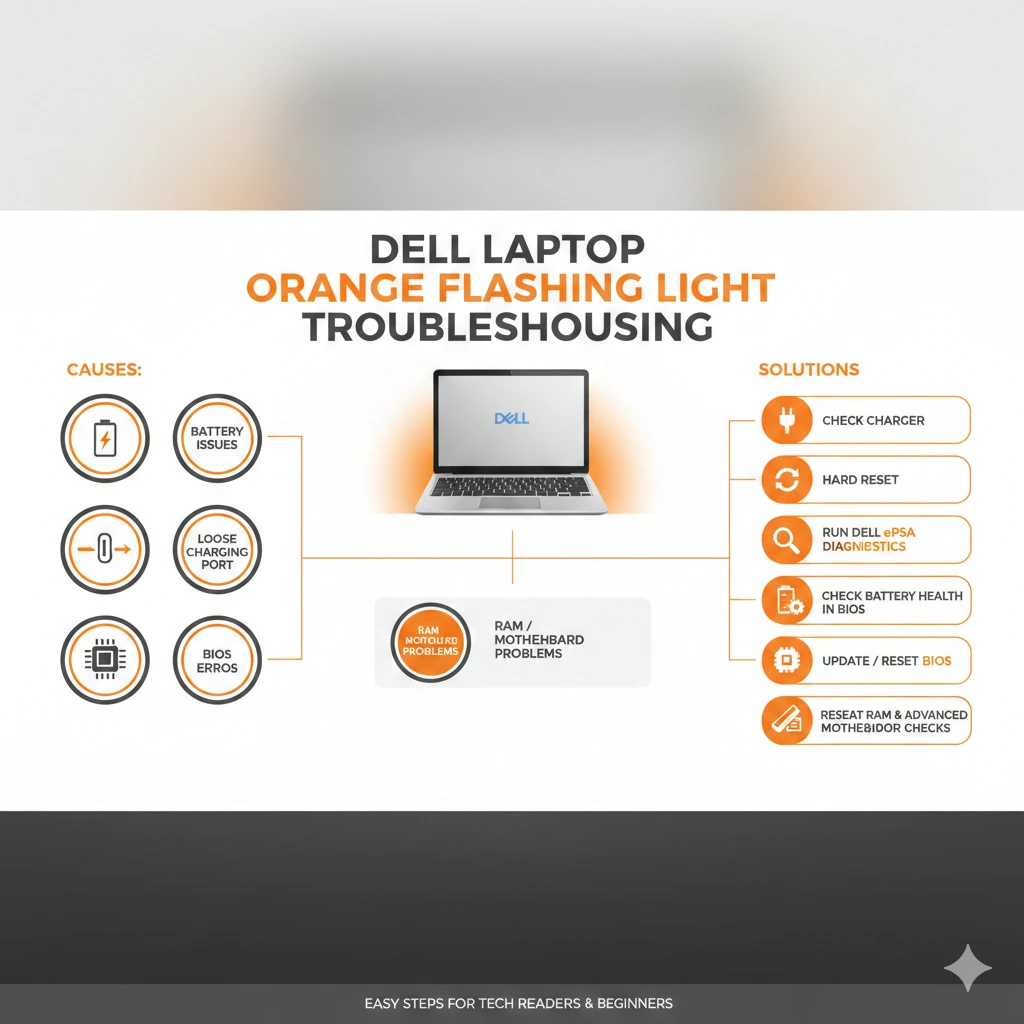
An orange flashing light is a clear warning from your Dell laptop. Common causes include:
Battery issues
Faulty or damaged charger
BIOS requiring update
Hardware failures
- You understand LED codes
- You can troubleshoot step-by-step
- You can prevent future issues
- You can fix many problems at home
If the LED persists after all steps, it’s time for professional assistance, especially for motherboard or sensor problems.
With this comprehensive guide, you can confidently diagnose and resolve orange flashing light issues on Dell laptops, saving time, money, and stress.











