
Introduction
The laptop turns on, the lights are on, the fan works, and you might even hear some sounds. The screen is black, really dim, or hardly visible. Many people immediately think: “My laptop is dead.”In most cases, that’s not true anymore. Modern HP laptops are powerful, really thin, and smart. They also rely a lot, on software and firmware, which can sometimes cause problems that seem serious but can be fixed.
- Constant Windows feature updates
- Rapid graphics driver changes
- AI-driven power-saving and sleep states
- Ultra-thin bezels with fragile display connectors
- Automatic BIOS and firmware updates
- Hybrid GPU switching (integrated + dedicated graphics)
Explanation
Unfortunately, most online “black screen fixes” are shallow lists of random tricks that don’t explain what’s actually happening.
As a result, users often:
- Waste hours applying the wrong solution
- Accidentally corrupt Windows
- Damage to hardware during unnecessary repairs
- Spend money on parts they don’t need
This guide is different.
What You’ll Learn in This Complete HP Laptop Dark Screen Guide
By the end of this in-depth article, you will fully understand:
- What a “Dark screen” really means—and how it differs from a dead display
- How to identify whether the problem is caused by:
- Software conflicts
- Windows system failures
- BIOS or firmware corruption
- Physical hardware faults
- A step-by-step diagnostic framework
- Safe fixes for beginners (zero risk)
- Advanced repair paths for experienced users
- When professional repair is necessary—and when it’s not
- How to prevent dark screen issues permanently
Whether you’re a student, office professional, gamer, content creator, or technician, this guide will help you fix the issue confidently, logically, and safely.
What Does “Dark Screen” Mean on an HP Laptop?
A dark screen does NOT automatically mean your screen is broken.
This is one of the most misunderstood laptop problems.
Many users incorrectly treat the following as the same issue:
- Black screen
- Dark or dim display
- Dead screen
- No signal display
These conditions look similar—but technically, they are very different failures.
Understanding this distinction alone can save you hundreds of dollars.
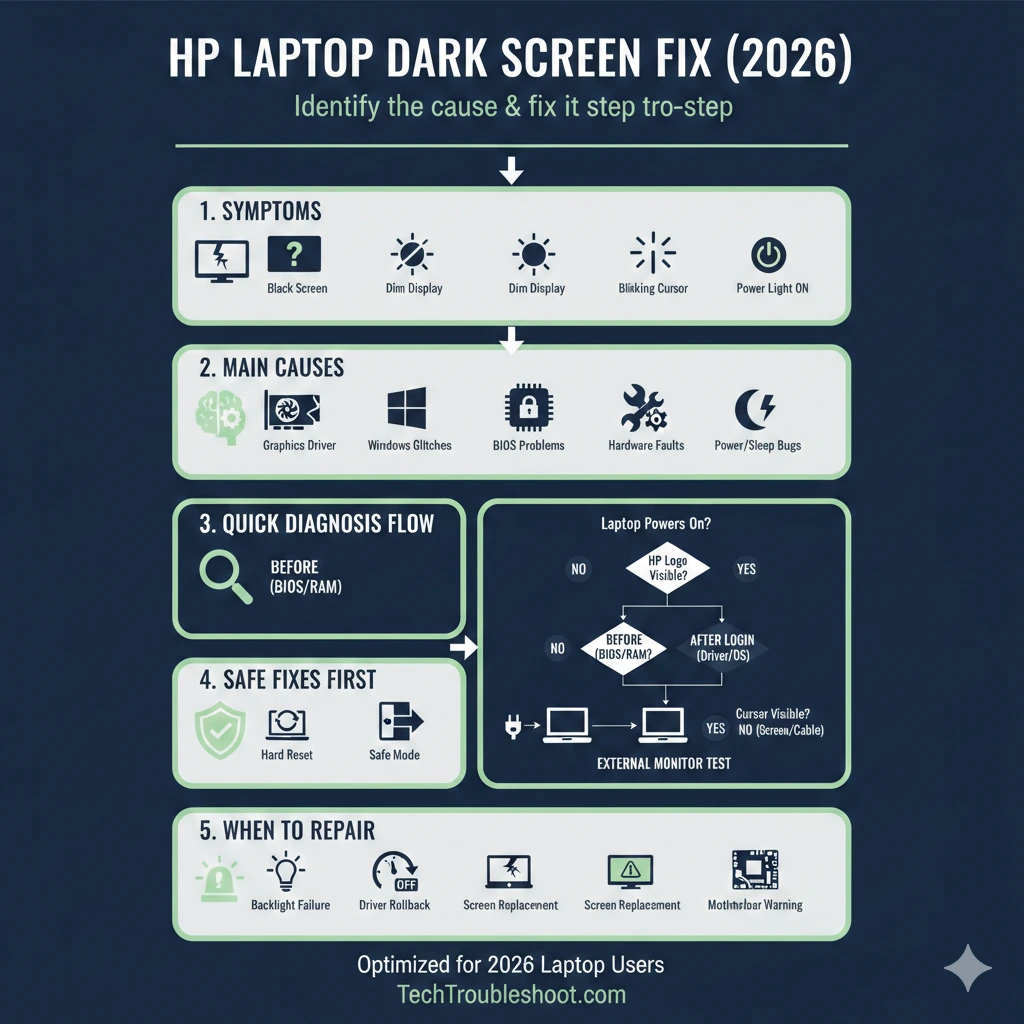
Common HP Laptop Dark Screen Symptoms
Your HP laptop may show one or more of these signs:
- The screen remains black, but the power light is on
- Display is extremely dim (visible only using a flashlight)
- The screen goes black after the HP logo
- The screen turns dark after Windows login
- Black screen with a blinking or movable cursor
- Display flickers, fades, or randomly goes dark
- Screen works sometimes, fails other times
Key insight:
A dark screen usually indicates that the laptop is running, but the display signal or backlight system is malfunctioning.
Dark Screen vs Dead Screen (Critical Difference)
| Situation | What It Really Means |
| Power light ON, fan spinning | Laptop is operational |
| External monitor works | Internal screen or cable issue |
| Display faintly visible | Backlight failure |
| No display anywhere | BIOS, GPU, or motherboard issue |
Recognising this difference prevents panic—and unnecessary repairs.
Why Your HP Laptop Screen Goes Dark (Root Causes Explained)
Correct repair always starts with correct diagnosis.
Below are the real reasons HP laptop screens go dark in 2026.
Software & Graphics Driver Conflicts (Most Common Cause)
This is the #1 reason for HP dark screen problems today.
What Happens
- Corrupted graphics driver
- Incompatible driver update
- Failed Windows cumulative update
- GPU initialisation conflict during startup
Why Does It Cause a Dark Screen
Graphics drivers control how Windows communicates with the display panel.
If the driver fails:
- The system boots
- Windows loads in the background
- The display never activates properly
Typical Warning Signs
- The screen goes dark after login
- External monitor works perfectly
- Safe Mode displays normally
Good news:
Driver-related dark screens are nearly always fixable.
Windows Operating System Glitches
Sometimes, Windows itself is the culprit.
Common Triggers
- : explorer.exe fails to start
- Fast Startup cache corruption
- Broken user profile
- Interrupted or incomplete Windows update
What You’ll See
- Black screen with working mouse cursor
- Keyboard shortcuts still respond
- System sounds play normally
This means Windows is running, but the desktop environment failed to load.
BIOS & Firmware Issues (Increasing in New HP Models)
The BIOS initialises hardware before Windows starts.
Causes
- Interrupted BIOS update
- Automatic firmware update failure
- Corrupted BIOS configuration
- Secure Boot misconfiguration
Result
- Black screen before the HP logo
- No display on internal or external monitor
- The laptop appears powered on, but shows nothing
Hardware Failures (Physical Causes)
Sometimes, the issue is physical.
Common Hardware Faults
- Display backlight failure
- Loose or damaged display ribbon cable
- Faulty RAM module
- GPU chip failure (rare but serious)
How to Identify Hardware Problems
- External monitor works → internal display issue
- Screen visible with flashlight → backlight failure
- Flickers when the lid moves → loose display cable
Power, Sleep & Battery-Related Problems
Power management issues are often ignored.
Common Causes
- Laptop fails to wake from sleep
- Battery voltage instability
- Faulty charger or power IC
- Over-aggressive power-saving profiles
Seen Most Often In
- Older HP laptops
- Devices are frequently used on a battery
- Systems running modern standby mode
Diagnose Your HP Laptop Dark Screen (Case-Based System)
Before fixing anything, identify your case.
Black Screen Before Windows Logo
Symptoms
- No HP logo
- Screen black immediately after powering on
Diagnosis Steps
- Check the power LED
- Listen for fan activity
- Perform a hard reset
- Attempt BIOS recovery (Win + B)
Likely cause: BIOS or hardware
Black Screen After Login
Symptoms
- Logo appears
- The screen goes dark after entering the password
Diagnosis
- Press Ctrl + Alt + Del
- Open Task Manager
- Restart explorer.exe
Likely cause: Windows or driver issue
Dark Screen with Cursor
Symptoms
- Black background
- The mouse cursor is visible and movable
Diagnosis
- Press Ctrl + Shift + Esc
- Run explorer.exe
- Boot into Safe Mode
Likely cause: Explorer crash or GPU driver
Flickering or Intermittent Dark Screen
Symptoms
- The screen works intermittently.
- Goes dark when moved or heated
Diagnosis
- Connect the external monitor
- Gently move the lid
- Monitor temperatures
Likely cause: Loose cable or failing display panel
Easy & Safe Fixes (Beginner-Friendly)
Hard Reset (Most Effective First Step)
Works for:
Power glitches, sleep failures, temporary firmware bugs
Steps
- Shut down the laptop
- Disconnect charger
- Remove battery (if removable)
- Hold the power button for 15 seconds
- Reconnect the power and start laptop
This resets internal power controllers.
Boot into Safe Mode
Safe Mode loads basic display drivers only.
Steps
- Power on → force shutdown 3 times
- Windows Recovery appears
- Startup Settings → Safe Mode
If the display works here, a driver issue is confirmed.
Update or Roll Back Graphics Drivers
Steps
- Press Win + X → Device Manager
- Expand Display adapters
- Update or roll back the driver
Always use official HP-approved drivers.
Disable Fast Startup
Fast Startup is a known cause of dark screen loops.
Path:
Control Panel → Power Options → Choose what power buttons do → Disable Fast Startup
Advanced Fixes (Intermediate Users)
BIOS Recovery (HP Laptops)
Key Combinations
- Win + B (most models)
- Win + V (older models)
Steps
- Turn off the laptop
- Hold key combo
- Press the power button
- Release after 5 seconds
Do not interrupt (5–10 minutes).
Reseat RAM & Display Cable
Attempt only if the warranty expired.
- Remove and reseat RAM
- Inspect the display ribbon cable
- Use anti-static protection
When to Seek Professional Repair
Seek expert repair if:
- No display on any screen
- Screen cracked or permanently black
- BIOS recovery fails
- GPU failure suspected
Estimated Repair Costs (2026)
| Repair Type | Cost Level |
| Backlight repair | Moderate |
| Screen replacement | Medium–High |
| Motherboard | High (often not worth it) |
Best Practices to Prevent HP Dark Screen Issues
- Keep Graphics drivers updated
- Use HP Support Assistant
- Create restore points
- Avoid forced shutdowns
- Never interrupt BIOS updates
Pros & Cons of DIY HP Dark Screen Fixes
Pros
- Saves money
- Immediate results
- Builds technical confidence
Cons
- BIOS update risks
- Hardware skill required
- Warranty may be void
FAQs
A: Windows updates may install incompatible drivers. Boot into Safe Mode and roll back the graphics driver.
A: Restart explorer.exe or use System Restore.
This usually indicates backlight failure, not a dead screen.
A: Hard reset, external monitor test, BIOS recovery.
Conclusion
An HP laptop’s dark screen does NOT mean your laptop is dead.
In 2026, the majority of cases are caused by:
- Software conflicts
- Graphics driver failures
- Power-state glitches
Diagnosis before action is the real solution.
Follow this guide logically, begin with safe steps, and escalate only when necessary.
This kind of structured, honest, expert-driven content is exactly what helps a site like LaptopDream.com earn trust—from users and from Google alike.











