Introduction
Many first-time users feel puzzled when:
- They cannot locate the power Button
- The screen remains black
- Nothing happens after pressing the button
- The device appears completely unresponsive
If you recently purchased a new laptop from Dell Technologies, or you are assisting a student, parent, colleague, or friend in setting up their device, this comprehensive guide will walk you through everything step by step.
Whether you own a Dell Inspiron, Dell XPS, Dell Latitude, Dell Vostro, or Alienware system, the startup method follows the same fundamental principle — although the button placement and configuration details may vary slightly.
Make laptops simple and stress-free for everyone.
In this detailed pillar guide (3500+ words), you will learn:
- Step-by-step instructions to switch on a Dell laptop
- How to identify the Dell power button location
- What occurs during the boot process
- What to do if your Dell laptop won’t turn on
- Frequent startup complications and practical solutions
- Professional tips to increase device longevity
- BIOS and power configuration explained in plain English
Let’s begin with the basics.
What Does “Switching On” a Dell Laptop Really Mean?
Before learning the operational steps, it helps to understand what occurs internally when you power on your system.
When you switch on a Dell laptop, several processes are triggered sequentially:
- Electrical current flows from the battery or AC adapter.
- The motherboard activates and distributes voltage.
- BIOS/UEFI firmware performs a hardware inspection (POST).
- The system detects storage (SSD or HDD).
- The operating system (usually Windows) loads into memory.
- The login interface appears.
How to Switch On a Dell Laptop
This is the primary instructional section. Follow these steps carefully and systematically. Even if your battery retains sufficient charge, connecting the charger is advisable — especially for new devices.
Why connecting power matters:
- Prevents boot interruption
- Ensures voltage stability
- Protects long-term battery health
- Essential for first-time setup
- Reduces startup failure risk
How to connect correctly:
- Insert the charger plug into a working wall outlet.
- Connect the adapter tip into your Dell laptop’s charging port.
- Observe the LED indicators.
Look for:
- Charger light illuminated
- The battery charging indicator is glowing
A stable power supply is the foundation of a successful startup.
Open the Laptop Lid Completely
Most Dell laptops require the display panel to be open before powering on. Certain newer models include a feature called “Lid Open Power On,” which automatically boots the system when the lid is raised. However, this depends on the BIOS configuration.
Find the Dell Power Button Location
| Dell Series | Power Button Location | Design Characteristics |
| Inspiron | Top-right above keyboard | Circular traditional button |
| XPS | Top-right keyboard key | Integrated fingerprint sensor |
| Latitude | Near hinge | Minimal corporate style |
| Vostro | Upper keyboard section | Rectangular and simple |
| Alienware | Center-top | Illuminated gaming emblem |
Where Is the Power Button on the Dell XPS?
- Positioned at the top-right corner
- Designed to resemble a standard key
- Functions as both a power switch and a fingerprint reader
What Happens After You Press the Power Button?
| Stage | What Happens | Typical Duration |
| Power Delivery | Motherboard activates | Instant |
| POST | RAM, CPU, storage check | 2–5 sec |
| BIOS/UEFI | Firmware initialization | 1–3 sec |
| OS Boot | Windows loads | 5–15 sec |
| Login Screen | System ready | — |
Solid-state drives (SSDs) enable rapid boot times.
Traditional hard drives (HDDs) may require additional seconds.
First-Time Startup – What to Expect
If your Dell laptop is brand new:
- Startup may take 1–2 minutes
- The setup wizard will appear
- You will configure language, region, Wi-Fi, and account
This initial configuration is normal and should not be interrupted.
What to Do If Your Dell Laptop Won’t Turn On
Certain models automatically start when the lid is opened.
This feature must be enabled in BIOS settings beforehand.
Stay calm. Begin with basic checks.
Quick Beginner Checklist
Verify the wall socket
Confirm charger LED
Ensure battery connection
Remove external USB devices
Adjust brightness
If the laptop remains inactive, proceed further.
Perform a Power Drain Reset
Residual electricity sometimes prevents startup.
Steps:
- Turn off the Laptop.
- Unplug the charger.
- Remove battery (if detachable).
- Hold the power button for 20 seconds.
- Reconnect the battery and charger.
- Attempt to power on.
This process discharges static electricity.
Common Startup Problems & Their Meaning
| Problem | Possible Cause | Solution |
| No lights | Faulty adapter | Replace charger |
| LED blinking | Memory issue | Reseat RAM |
| Logo freezes | OS corruption | Startup repair |
| Fan spins, black screen | Display malfunction | Test external monitor |
| Slow boot | HDD or updates | Upgrade to SSD |
Understanding BIOS & Boot Settings (Simple Explanation)
BIOS (Basic Input Output System) is firmware stored on the motherboard.
It:
- Verifies hardware
- Controls boot priority
- Manages power configuration
To enter BIOS:
- Turn on the laptop
- Press F2 repeatedly
Avoid modifying settings unless necessary
Beginner Tips for Switching On a Dell Laptop
Professional but simple recommendations:
Allow charging before startup
Avoid repeated pressing
Use on flat surfaces
Update BIOS only if required
Keep the ventilation clear
Pros & Cons of Dell Laptop Startup Design
Advantages
- Dependable circuitry
- Rapid SSD boot
- Fingerprint integration
- LED diagnostic feedback
- Enterprise-grade BIOS
Disadvantages
- Power symbol is sometimes subtle
- Non-removable batteries
- May appear technical
Dell Startup Compared to Other Brands
| Brand | Button Location | Ease | Auto Power-On |
| Dell | Keyboard upper area | Simple | Select models |
| HP | Side/top | Straightforward | Rare |
| Lenovo | Side/top | Easy | Certain models |
| Apple | Integrated Touch ID | Extremely easy | Yes |
Dell remains intuitive but occasionally inconsistent in placement.
FAQs
A: Usually 10–15 seconds with SSD.
A: Yes, via BIOS “Power on AC” or lid-open wake.
A: Yes. It can interrupt POST and damage system files.
A: Possible display issue. Try connecting the external monitor.
Final Expert Conclusion
Learning how to switch on a Dell laptop may appear elementary.
However, performing the process correctly:
- Prevents startup malfunction
- Safeguards the motherboard circuitry
- Preserves battery longevity
- Reduces hardware deterioration
Let’s summarise clearly:
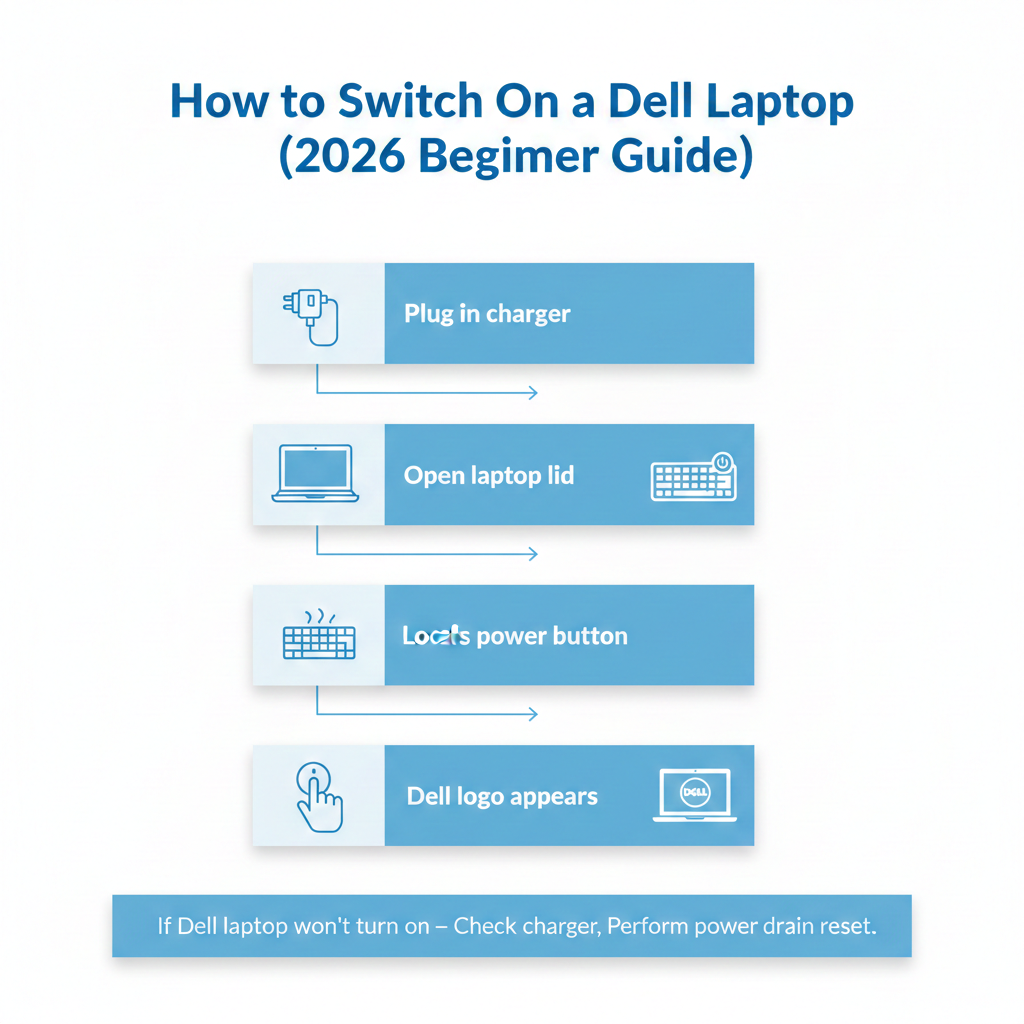
- Connect the charger.
- Open the lid fully.
- Locate the power button (usually top-right).
- Press once firmly.
- Wait for the Dell logo and Windows login.
If it does not power on:
- Check the power source
- Perform a power drain reset
- Stay patient
At LaptopDream.com, we believe mastering small technical fundamentals builds lasting confidence.











