Introduction
Airplane Mode on HP laptops sounds simple — one key, one toggle,Airplane Mode Button On Hp Laptop. Problem solved. But in reality, it’s one of those features that quietly causes a lot of frustration. The F12 key doesn’t respond, the toggle turns grey, or your laptop randomly disconnects from Wi-Fi without warning.
In 2026, with newer Windows updates, BIOS changes, and evolving wireless drivers, these issues are more common than ever. Yet most guides only scratch the surface.
Whether you’re trying to quickly disable wireless signals during travel, fix a stuck Airplane Mode toggle, or understand why your HP laptop behaves unpredictably, you’ll find practical, real-world solutions here. No fluff, no theory — just clear steps that actually work.
Where Is the Airplane Mode Button on HP Laptops
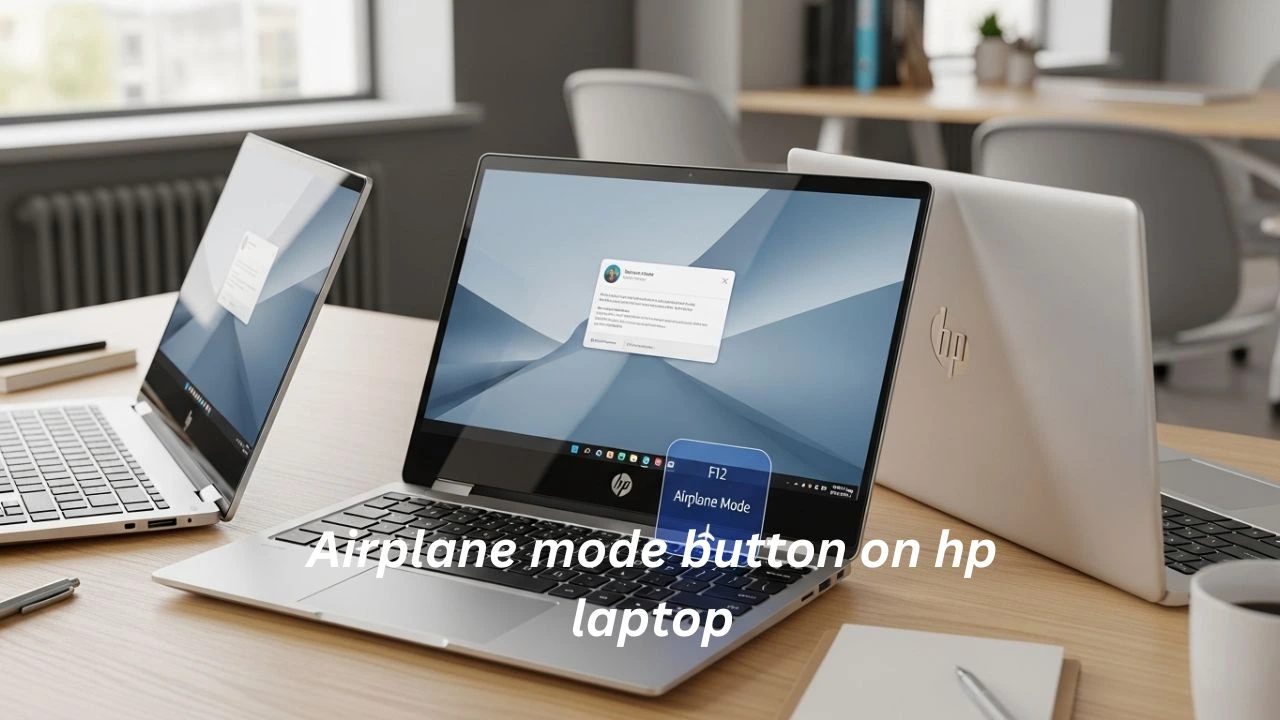
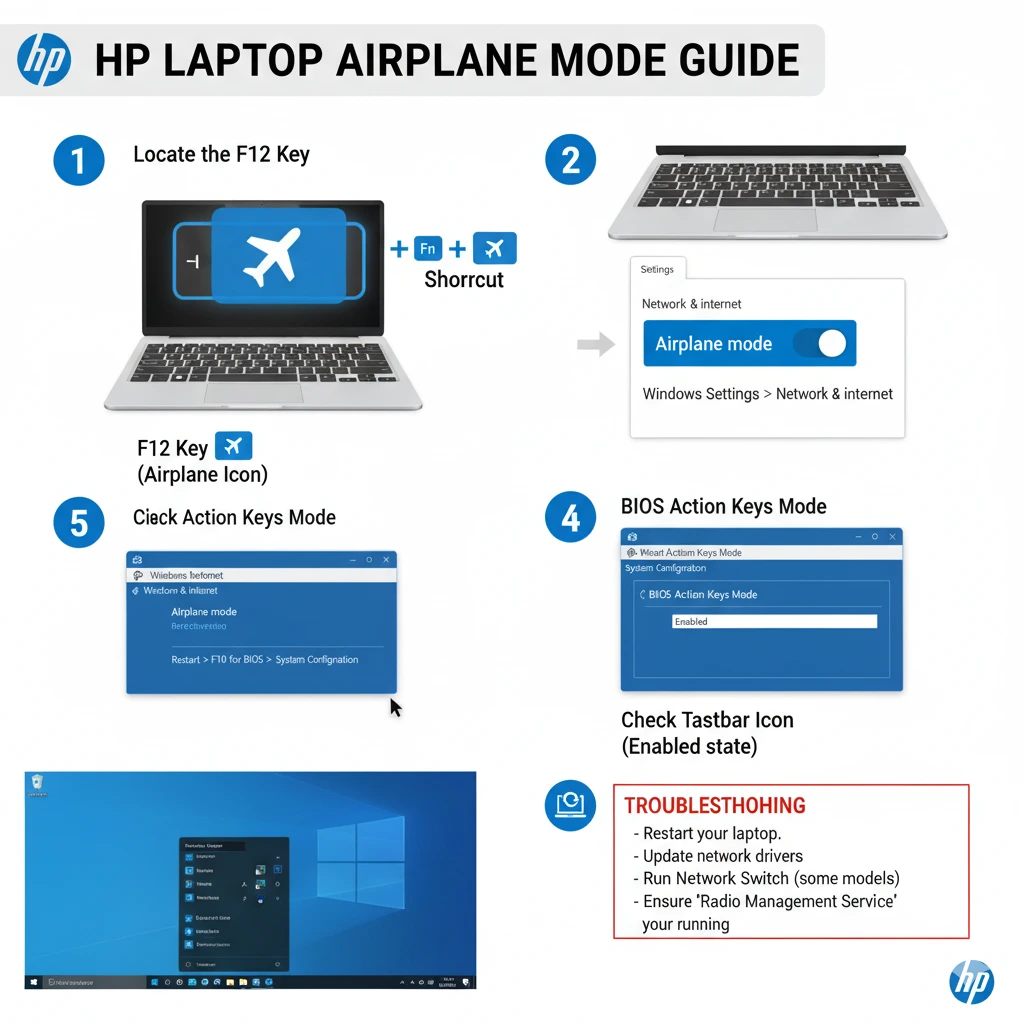
HP laptops typically place the Airplane Mode control on a function key rather than a physical switch. The key most commonly used is F12, marked with an airplane icon.
Here is how the button appears across various HP series:
| HP Model Series | Airplane Mode Key |
| HP Pavilion | F12 ( airplane icon) |
| HP Envy | F12 (airplane icon) |
| HP Spectre | F12 ( airplane icon) |
| HP OMEN | F12 ( airplane icon) |
| Older HP models | Physical slider or dedicated wireless button |
Pro Tip:
On older HP laptops, you may find a side toggle switch or a wireless button instead of the F12 key. On modern models, look for the airplane icon printed clearly on thThis way, Airplane Mode turns on regardless of whether the keyboard button works or not
How to Disable Airplane Mode on HP Laptops
Deactivating Airplane Mode is just as straightforward.
Using the Keyboard
- Press F12 or Fn + F12 until the airplane icon disappears from the taskbar.
Using Windows Settings
- Open Settings (Windows + I).
- Navigate to Network & Internet → Airplane Mode.
- Toggle Airplane Mode Off.
Important: If the toggle is greyed out, the system requires deeper troubleshooting — covered in the next sections.
Why Airplane Mode Issues Are More Common in
Modern HP laptops rely heavily on driver-based wireless controls instead of hardware switches. With frequent Windows updates, especially in Windows 11/12 environments, compatibility issues can arise between:
- BIOS firmware
- Wireless drivers
- System services
This shift means problems like greyed-out toggles or random activation are now more software-related than hardware-related. Keeping drivers updated and BIOS optimized is no longer optional — it’s essential for stable performance.
Why the HP Airplane Mode Button
Several factors can prevent the F12 key from functioning properly:
Function Lock Mode
Some Laptops have action keys locked, which changes F1–F12 keys to media controls (volume, brightness) instead of function keys.
Wireless Drivers Are Outdated or Corrupt
If Windows cannot communicate with the wireless hardware, it cannot toggle Airplane Mode.
Solution: Update Wi‑Fi and Bluetooth drivers via Device Manager or Windows Update.
Windows System Settings or Policies
Group Policies, system services, or radio settings can block Airplane Mode toggles.
Solution: Restart Radio Management services, reset network settings, and check policies.
Keyboard Hardware Issue
If the F12 key is worn, stuck, or physically damaged, Windows cannot detect the press.
Solution: Clean the key, try an external USB keyboard, or repair the keyboard.
Advanced Troubleshooting — Stuck or Random Activation
Sometimes Airplane Mode gets stuck, turns on randomly, or shows greyed-out toggles. Here’s a detailed step-by-step troubleshooting table:
| Issue | Recommended Fix |
| Airplane Mode stuck | Update drivers → Restart PC → Network Reset |
| Random toggling | Clean keyboard → Scan for malware |
| Greyed-out toggle | Restart Radio Management service |
| No wireless switch detected | Enable wireless in BIOS |
Restart Radio Services
- Press Windows + R, type services.msc, and press Enter.
- Locate Radio Management Service.
- Right-click → Restart.
Reinstall Wireless Drivers
- Open Device Manager.
- Expand Network adapters.
- Right-click your wireless adapter → Uninstall device.
- Restart the laptop — Windows will reinstall drivers automatically.
Reset Network
- Open Settings → Network & Internet.
- Click Network Reset.
- Restart the laptop and reconnect to Wi‑Fi.
HP BIOS Settings That Affect Airplane Mode
Some BIOS options might change how the F12 key works, along with Airplane Mode features.
When it comes to wireless tools inside the system, their status in the BIOS might affect what you see during startup. If those parts are turned off below, the switch in operating mode may appear inactive even if set correctly later. Turning them on down there makes sure everything lines up properly at first boot.
Fixes When Windows Doesn’t Recognize the Button
If pressing F12 does nothing, try these solutions:
Update Drivers
- Open Device Manager → Network adapters.
- Right-click your wireless adapter → Update driver.
- Optionally, check Windows Update for the latest drivers.
Ensure these Windows services are running:
Radio Management
WLAN AutoConfig
Windows Update
System File Check
- Open Command Prompt (Admin).
- Run: sfc /scannow.
- Restart the laptop to fix corrupt system files affecting wireless controls.
Pros & Cons of Using Airplane Mode
Pros
Saves battery by disabling radios
Quick method to stop all network activity
Handy during travel or work meetings
Useful for troubleshooting wireless issues
Cons
Disables Bluetooth unexpectedly
Random activation may disrupt connections
Greyed-out toggles can be confusing
Quick Troubleshooting Checklist
If you’re stuck, run through this quick checklist:
- Try Fn + F12
- Restart laptop
- Update wireless drivers
- Restart the Radio Management service
- Check BIOS → Action Keys Mode
- Perform Network Reset
This sequence resolves most real-world cases within minutes.
FAQ
A: Update wireless drivers, restart Radio Management, and reset network settings.
A: Could be a buggy driver, keyboard trigger, or Windows setting.
A: Yes — it turns off Wi‑Fi and Bluetooth simultaneously.
A: Check Action Keys Mode in BIOS, update drivers, and restart key services.
A: Yes — sfc /scannow can repair broken system files.
Conclusion
The Airplane Mode button on HP Laptops — usually the F12 key — is a small feature with a big role in managing connectivity. When it works, it’s effortless. When it doesn’t, it can disrupt everything from Wi-Fi access to Bluetooth devices. By understanding how the key works, checking BIOS settings, and keeping your drivers updated, you can fix nearly every Airplane Mode problem without needing professional repair.
If something feels off, start simple — try Fn + F12, restart services, and update drivers. These small steps solve most cases faster than expected. Stay updated, keep your system optimized, and you’ll always stay in control of your laptop’s wireless connections.











