Introduction
Ever snap a screenshot on your HP laptop only for it to vanish into digital thin air? You’re not alone. Whether it’s the PrtScn key ghosting you or confusion over where files hide, taking screenshots on HP laptops trips up millions. As a laptop tech expert with over a decade of experience reviewing HP models like the Pavilion, Envy, and Spectre series, I’ve seen it all—from compact keyboards hiding the Print Screen key to Windows 11 quirks.
This 2026-updated guide fixes that. We’ll cover the fastest HP laptop screenshot shortcuts (like Windows + PrtScn for instant saves), where screenshots really go (spoiler: Pictures > Screenshots folder), advanced editing with Snipping Tool’s new Text Actions (OCR magic), and troubleshooting why PrtScn fails on HP. No more jumping between ad-riddled pages or shallow tips. By the end, you’ll capture, annotate, and share pro-level screenshots effortlessly—saving time for work, school, or gaming on your HP.
Why Screenshots Matter on HP Laptops
HP laptops dominate with sleek designs and solid performance, but quick documentation is key. Need to report a bug? Capture a funny meme? Annotate a report for your boss? Screenshots bridge the gap.
Most users stick to basics, ignoring workflow boosters like cloud sync or OCR. Competitors skip this, leaving you stranded. Here, we dive deep: from HP-specific keyboard layouts (Fn + PrtScn combos) to Windows 11 exclusives.
Fastest HP Laptop Screenshot Methods
HP laptops run Windows 11 seamlessly, offering built-in tools superior to third-party apps. No downloads needed. Let’s break down the top shortcuts, starting with the HP laptop screenshot shortcut everyone searches for.
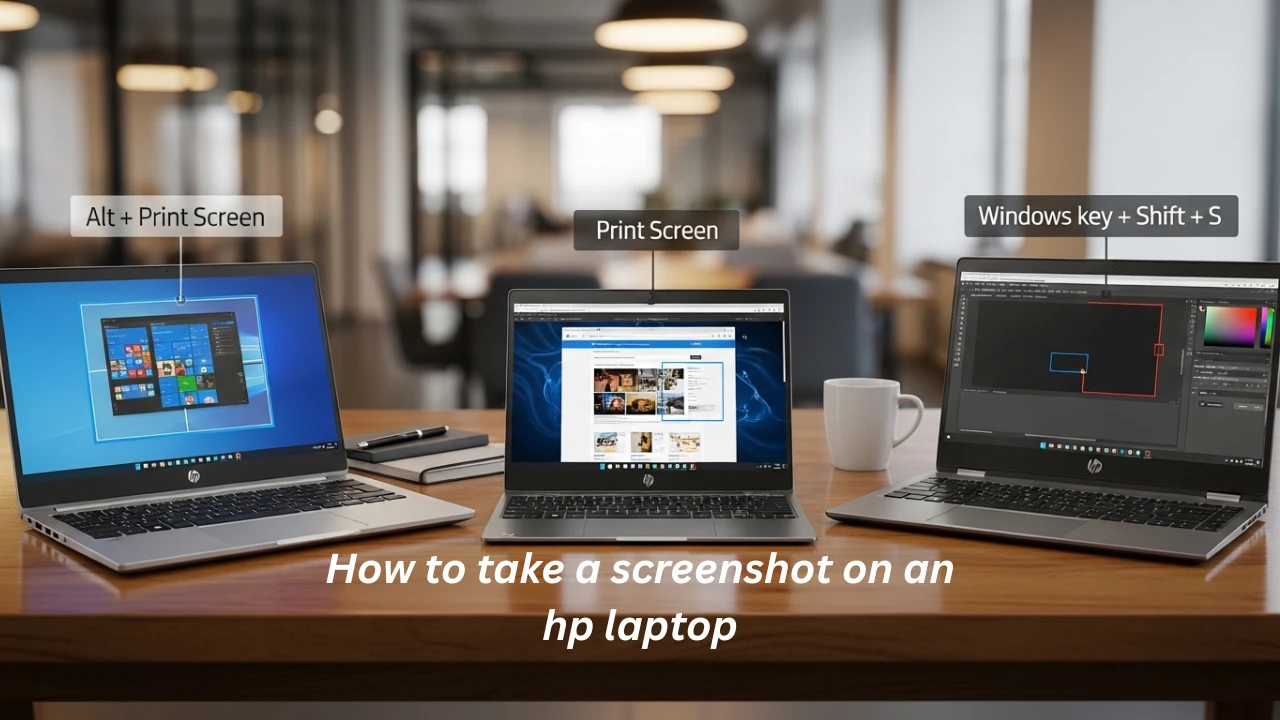
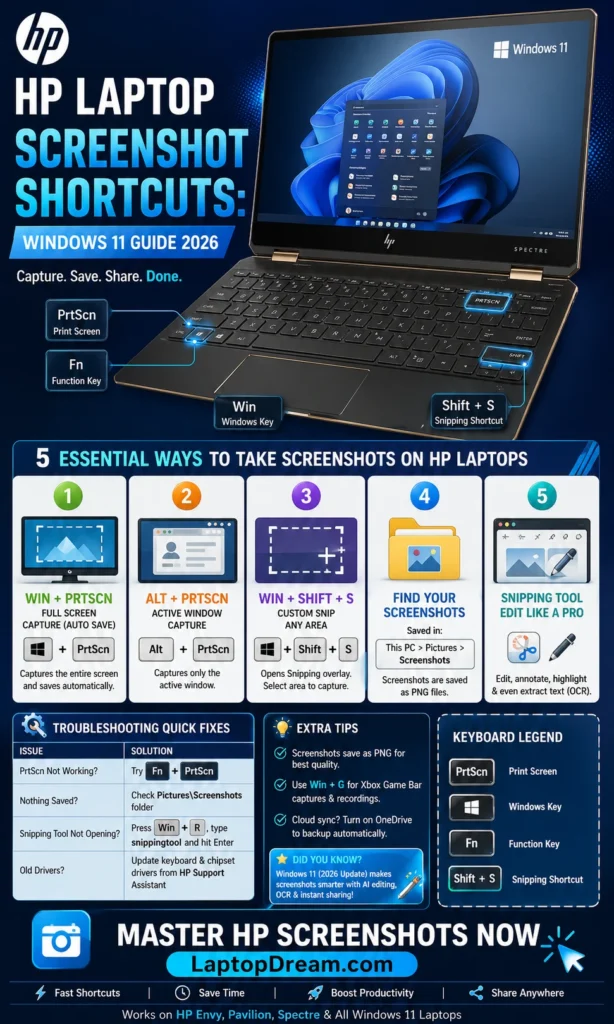
Method 1: Windows + PrtScn (Instant Full-Screen Save)
This is the go-to HP laptop screenshot shortcut for speed.
- Press Windows key + PrtScn simultaneously.
- Screen dims briefly—confirmation it’s captured.
- Find it auto-saved as PNG in This PC > Pictures > Screenshots.
Pro tip: On slim HP models like Pavilion Aero, PrtScn might need Fn + Windows + PrtScn due to dual-function keys.
Method 2: Alt + PrtScn (Active Window Only)
Capture just the focused app—no full desktop clutter.
- Click the window you want.
- Hit Alt + PrtScn.
- Paste into Paint (Ctrl + V) or Word, then save.
Ideal for emails or reports. Copies to clipboard—no auto-save.
Method 3: Win + Shift + S (Snipping Tool – Windows 11 Powerhouse)
The modern king for HP laptops. Launches overlay for custom snips.
- Press Win + Shift + S.
- Screen dims; choose rectangular, freeform, window, or full-screen.
- Drag to select—auto-copies to clipboard.
- Notification pops: Click to edit in Snipping Tool.
New in 2026 Windows 11 updates: Text Actions for instant OCR.
Other Quick HP Shortcuts
- PrtScn alone: Full screen to clipboard (paste with Ctrl + V).
- Win + Alt + PrtScn: Game Bar screenshot (saves to Videos > Captures).
| Shortcut | What It Does | Save Location | Best For |
| Win + PrtScn | Full screen, auto-save | Pictures > Screenshots | Quick docs |
| Alt + PrtScn | Active window, clipboard | Manual paste/save | Apps/windows |
| Win + Shift + S | Custom snip, clipboard | Manual or Snipping Tool | Precision edits |
| PrtScn | Full screen, clipboard | Manual paste/save | Basics |
| Win + Alt + PrtScn | Game clip | Videos > Captures | Gaming |
Where Do HP Screenshots Save? End the Missing File Mystery
The #1 frustration: “Where do HP screenshots save?” Default is C:\Users
Step-by-Step: Locate Your Screenshots
- Open File Explorer (Win + E).
- Navigate to Pictures > Screenshots.
- Sort by date for the latest.
If empty? Check clipboard tools or OneDrive sync (more below).
HP tip: On dual-boot or enterprise HP ProBooks, paths might vary—search “screenshot” in File Explorer.
Change Default Save Location
- Right-click the Pictures folder > Properties > Location tab.
- Move to D: drive or external for space.
Example: A student in Germany on HP Victus filled the drive, relocating freed 10GB.
Advanced Editing with Snipping Tool on HP Laptops
Snipping Tool evolved in Windows 11—now with annotations, cropping, and OCR.
Step-by-Step Annotation Guide
- Trigger with Win + Shift + S.
- Snip and click notification.
- Tools: Pen, highlighter, shapes, crop.
- Text Actions (2026 highlight): Right-click image > Copy text—extracts editable text via OCR.
| Editing Feature | How to Use | Use Case |
| Highlighter | Select > Yellow tool | Emphasize errors |
| Crop | Drag edges | Remove clutter |
| OCR (Text Actions) | Right-click > Copy text | Extract from charts |
| Delay Snip | Settings > 3-10 sec | Capture menus |
Save as PNG/JPG or share directly.
Troubleshooting: Why is Pis rtScn Not Working on HP Laptop?
“HP Print Screen not working” tops searches. Common culprits: Fn lock, drivers, conflicts.
Common Issues and Fixes
- Fn Key Required: On HP notebooks, press Fn + PrtScn.
- Fix: Check keyboard—toggle Fn Lock (Esc + Fn).
- Outdated Drivers: Windows 11 needs the latest.
- Update: Settings > Windows Update > Optional updates > Keyboard.
- Third-Party Conflicts: Discord/OneDrive overlays.
- Disable: Task Manager > Startup > End task.
- Sticky Keys: Accessibility glitch.
- Fix: Settings > Ease of Access > Keyboard > Off.
| Problem | Cause | Quick Fix |
| PrtScn does nothing | Fn needed | Fn + PrtScn |
| No save/dim | OneDrive sync | Check Pictures/Screenshots |
| Key stuck | Driver issue | HP Support Assistant update |
| Clipboard empty | App conflict | Restart Explorer.exe |
Run HP Support Assistant (pre-installed) for diagnostics.
Professional Tips: Cloud Sync and Workflow Hacks
Elevate from basic captures.
Auto-Backup to Cloud
- OneDrive: Enable auto-save in Settings > Sync > Pictures. Screenshots appear in the OneDrive.
- Google Drive: Use the backup and Sync app—folder watch.
HP example: Spectre x360 users love OneDrive for cross-device access.
Pro Workflows
- Annotate > OCR > Paste to Google Docs.
- Delay snips for Dropdowns (Snipping Tool settings).
- Third-party? Lightshot for uploads (free, but built-in suffices).
Pros and Cons of HP Laptop Screenshot Tools
Pros
- Native Windows 11 integration—no bloat.
- Free, fast, OCR-powered.
- Customizable for HP’s compact keyboards.
- Auto-save ends “where is it?” hunts.
Cons
- No native video capture (use Xbox Game Bar).
- Clipboard reliance for some methods.
- Learning curve for Snipping Tool newbies.
- Enterprise HP models may lock shortcuts.
Comparison: HP vs. Other Brands Screenshot Experience
HP shines in the Windows ecosystem, but stacks up?
| Feature | HP (Windows 11) | Dell | Lenovo | Apple MacBook |
| Main Shortcut | Win + PrtScn | Same | Fn + PrtScn | Cmd + Shift + 4 |
| OCR Native? | Yes (Text Actions) | No | Partial | Yes (Live Text) |
| Auto-Save Folder | Pictures/Screenshots | Same | Same | Desktop |
| Keyboard Ease | Compact, Fn-heavy | Standard | TrackPoint aids | Gesture-friendly |
| Troubleshooting | HP Assistant | Dell app | Vantage | System Report |
HP wins for Windows purists; Mac for gestures.
Snipping Tool vs. Older Methods: Head-to-Head
| Aspect | Snipping Tool (Win + Shift + S) | Classic PrtScn |
| Flexibility | Custom shapes, delay | Full/active only |
| Editing | Built-in tools/OCR | Paste to Paint |
| Speed | Overlay instant | Key press |
| File Handling | Clipboard + notify | Auto-save or clip |
FAQs
A: Often, the Fn key or drivers—try Fn + PrtScn or update via HP Support Assistant.
A: Pictures > Screenshots folder. Check OneDrive if synced.
A: Use Win + Shift + S for Snipping Tool—works on all HPs.
A: Snipping Tool’s Text Actions (right-click > Copy text).
A: Xbox Game Bar (Win + G) for clips; built-in for stills.
Conclusion
You’ve got the full toolkit: shortcuts, fixes, edits, and workflows. Next time PrtScn fails, or files vanish, you’re covered. For HP owners, Snipping Tool is your secret weapon—pair it with cloud sync for pro efficiency.
Expert advice: Bookmark this, test on your model (Pavilion? Envy?), and enable notifications in Snipping Tool. Questions? Drop a comment below.











