Introduction
Taking screenshots on an HP laptop is one of those skills that seems simple. How to screenshot on laptop hp. but often trips up users when they switch to Windows 11 or encounter Fn key issues on slim keyboards. Whether you’re an HP Envy, Pavilion, or Spectre owner, understanding screenshot methods empowers you to capture receipts, share error messages, create tutorials, or save precious moments from your screen.
In 2026, Windows 11 dominates with its sleek interface and gaming features, yet most HP laptop guides still focus on outdated Windows 10 methods. This comprehensive guide bridges that gap, offering clear, step-by-step instructions for every HP model and covering the latest Windows 11 shortcuts. You’ll also discover why those “simple” online guides fall short—vague steps without visuals, no troubleshooting for Fn key issues, and minimal coverage of mobile editing or advanced options.
For beginners, screenshots streamline online shopping confirmations, study notes, and social media sharing. Professionals benefit immensely—customer support agents capture bugs, marketers gather campaign data, and developers document issues. Gamers leverage Game Bar for instant screenshots without leaving their favorite titles. By mastering these methods, you save hours weekly and enhance your digital workflow.
5 Core Methods Every HP User Should Know
HP laptops running Windows (10/11) support standard Windows screenshot tools. Here’s a comparative overview of the five primary methods, ranked by ease and versatility:
Full Screen Basic (PrtSc Key)
Shortcut: Press PrtSc
Best For: Entire desktop capture
Steps:
- Press the PrtSc key once (top-right on compact HP keyboards).
- Open Paint by pressing Win+R, typing “paint”, then Enter.
- Press Ctrl+V to paste the screenshot.
- Save as PNG (File > Save As > PNG) for no quality loss.
Pros:
- Works on all HP models (Envy, Pavilion, Spectre, etc.)
- Captures everything visible on screen
- Quick for full-screen documentation
Cons:
- No Automatic saving; requires manual paste
- No cropping or selection options
- Can capture cluttered desktops
Auto-Save Full Screen (Win + PrtSc)
Shortcut: Press Win + PrtSc
Best For: Instant screen capture without editing
Steps:
- Press the combo once.
- The screen briefly dims, indicating a screenshot.
- Automatic save to Pictures > Screenshots folder.
Pros:
- One-press simplicity
- Ideal for quick captures (e.g., error messages)
- No additional software needed
- PNG format preserves quality
Cons:
- No immediate editing (crop/annotate)
- The folder can get cluttered over time
- Potential confusion if OneDrive syncs the Pictures folder
Active Window Capture (Alt + PrtSc)
Shortcut: Press Alt + PrtSc
Best For: Single application screenshots
Steps:
- Click the window you want to capture.
- Press the combo.
- Paste into Paint (Ctrl+V) and save as PNG.
Pros:
- Focuses on one app (no background distractions)
- Perfect for error dialogs or specific windows
- Works universally across HP models
Cons:
- No selection area (full window only)
- Manual paste required
- Can miss multiple windows
Note: Some HP ultrabooks require Fn + Alt + PrtSc due to compact keyboard layouts.
Custom Snip (Win + Shift + S)
Shortcut: Press Win + Shift + S
Best For: Partial or selective screenshots
Steps:
- Press the combo.
- Screen dims with a toolbar at the top.
- Choose capture type: rectangle, freeform, window, or fullscreen.
- Drag to select an area.
- Edit in Snipping Tool (arrows, text, highlight).
Pros:
- Pixel-perfect selection (ideal for tutorials)
- Built-in editing tools
- Works on all modern HP laptops
- No external software needed
Cons:
- Requires learning capture types
- Slightly slower than one-key methods
- Limited to basic edits
Xbox Game Bar (Win + G)
Shortcut: Press Win + G
Best For: Gaming and video captures
Steps:
- Open Game Bar overlay.
- Click the Screenshot button (camera icon).
- Ideal for capturing in-game moments or streaming overlays.
Pros:
- Non-intrusive; doesn’t exit the game
- High-quality captures (including overlays)
- Video recording option (Win + Alt + R)
Cons:
- Overkill for simple screenshots
- Limited desktop utility
- Potential performance impact on lower-end HP models
Troubleshooting Common HP Screenshot Issues
Even with these methods, HP users often encounter problems—especially on slim keyboards Requiring Fn key presses or when PrtSc keys are missing. Here’s a practical troubleshooting guide:
Fn Key Required Solutions
Many HP ultrabooks (Envy, Pavilion x360) pair PrtSc with another function. If your screenshot isn’t working:
- Press and hold Fn first before PrtSc.
- Disable Fn lock via BIOS:
- Restart the laptop and press F10 repeatedly.
- Navigate to System Configuration > Action Keys Mode.
- Toggle off “Fn Lock”.
- Update keyboard drivers through HP Support Assistant (Settings > Apps > Optional features > HP Support).
No PrtSc Key? Try These Alternatives
Compact HP keyboards sometimes omit PrtSc:
- Use Win + Shift + S for selective captures.
- Search “Snipping Tool” in the Start menu (Win key).
- Install third-party tools like ShareX for scrolling captures (Chrome tabs, long pages).
Low Quality or Corrupted Screenshots
Avoid JPEG saves:
- Always save as PNG in Paint or Snipping Tool.
- Update graphics drivers via HP Support Assistant (Settings > Apps > Optional features).
- Check display resolution: Right-click desktop > Display settings > Scale to 100%.
Screenshots Not Saving or Missing Files
Common on OneDrive-synced Pictures folders:
- Verify folder permissions: Right-click Pictures > Properties > Security > Full control.
- Check OneDrive sync: Open OneDrive app > Settings > Sync > Ensure Pictures is selected.
- Open File Explorer and navigate to Pictures > Screenshots to confirm presence.
Editing & Annotation Tips for Professional Results
Post-capture enhancements elevate screenshots from basic to professional:
Built-in Windows Tools
Snipping Tool (Win + Shift + S):
- Crop unwanted areas with a rectangle selection.
- Add arrows, text, and highlights (perfect for tutorials).
- Blur sensitive data with rectangle select + blur (File > Edit > Blur).
Paint 3D (Win + R > mspaint3d):
- Leverage 2026’s AI eraser tool for object removal.
- Rotate or flip images for different perspectives.
- Add 3D effects for creative projects.
Photos App:
- Right-click screenshot > Open with > Photos.
- Quick markup tools (crop, text, draw).
- Share directly to social media or email.
Pro Tips for Clean Screenshots
- Hide desktop icons before capture: Right-click desktop > View > Show icons [off].
- Use neutral backgrounds (plain wallpaper) to avoid distractions.
- Name files Descriptively: “projectname-date-method.png” (e.g., “website-error-04-27-2026.png”).
Advanced Options for Power Users
HP-Specific Features
Some Envy models feature the F12 camera key for quick snaps. Press Fn + F12 for instant camera capture (useful for quick document photos).
Third-Party Free Tool: ShareX
For advanced users:
- Scrolling captures: Perfect for long web pages or chat logs.
- Auto-upload to cloud storage (OneDrive, Google Drive).
- Region capture with customizable hotkeys.
- Safe alternative to paid software (no subscription).
Mobile Sync Workflow
- Capture on HP laptop using Win + Shift + S.
- Save to the OneDrive folder.
- Edit on phone via OneDrive app (iOS/Android).
- Share instantly across devices.
Video Recording for Demos
Use Game Bar for quick video clips:
- Open Game Bar (Win + G).
- Click the Record button (circle icon).
- Trim and save via the Photos app.
Best Practices for Organized Screenshots
Maintain efficiency with these expert tips:
Folder Organization
- Create the Screenshots subfolder in Documents.
- Use subfolders: Support, Marketing, and Personal.
- Regularly archive old captures to avoid clutter.
Quality Management
- Always capture at native resolution.
- Avoid multiple edits that reduce quality.
- Keep originals and create edited copies.
Naming Conventions
- Structure: YYYY-MM-DD-Project-Type.png.
- Example: 2026-04-27-website-error-fullscreen.png.
- Consistent naming aids searchability.
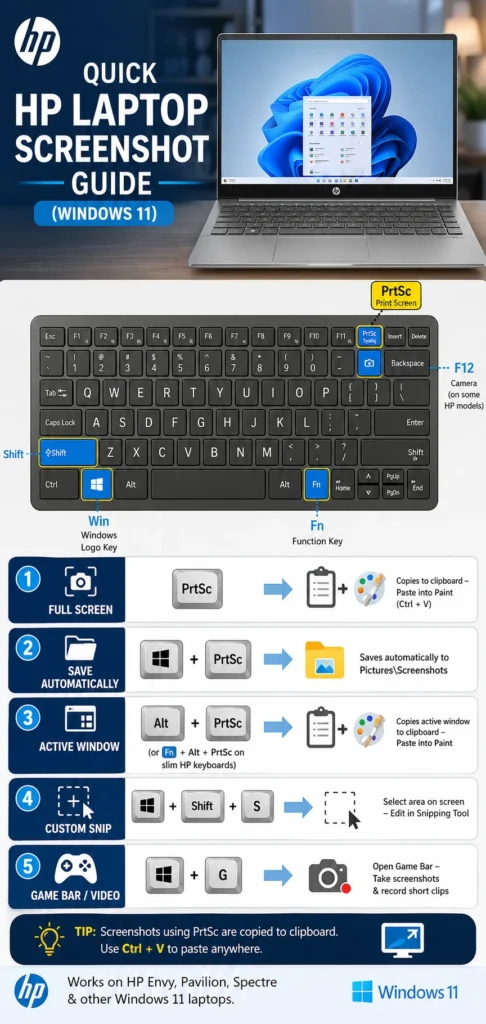
Use this quick guide to capture your screen instantly on HP Envy, Pavilion, and Spectre laptops via PrtSc, Win + PrtSc, Alt + PrtSc, and Win + Shift + S without third‑party tools.
FAQs
A: Ensure folder permissions and OneDrive sync are correct. Check Pictures > Screenshots location.
A: Use Win + Shift + S for custom snips or Snipping Tool for precise selection.
A: Try Fn + PrtSc or Win + Shift + S. Update keyboard drivers via HP Support Assistant.
A: Use Win + Shift + S for professional quality or Win + PrtSc for quick saves.
Conclusion
Mastering your HP screenshot workflow turns a simple task into a fast and efficient habit that supports study, work, and gaming. By using the right shortcuts, selecting PNG for better quality, and keeping your screenshots properly organized, you save time and maintain a more professional digital workspace.
As Windows 11 continues to evolve, these core techniques remain essential for smooth performance and productivity. Once you get used to built-in tools like Snipping Tool and editing options, capturing and managing screenshots on your HP laptop becomes effortless and highly effective.











