Introduction
Finding yourself stuck with a dead Lenovo laptop? You’re far from the only one. Every year, loads of people face the same headache – the screen is dark, no response when pressing the button. Power issues pop up without warning, leaving many puzzled.
Darkness greets you when some laptops refuse to wake up. A light might glow on others, though nothing shows on display. Brief flickers happen too – power flashes then dies without warning. Each time, tension builds while answers stay out of reach.
Frustration creeps in when the laptop stalls, especially if deadlines loom or school papers wait unfinished. Missing access to private documents only sharpens the annoyance when timing matters most.
Good signs show startup troubles often aren’t broken hardware. More than once, the reason turns out to be straightforward – like a loose cable or incorrect setting. Sometimes it’s just power supply confusion. Other times, software hiccups act like serious faults. A faulty connection might mimic deeper issues. Rarely does it point to permanent damage. Most fixes involve basic checks. Little things get overlooked easily. Mistakes happen even with careful users. Simple steps solve many cases
- A malfunctioning charger
- A fully drained or deteriorated battery
- Temporary electrical glitches
- Dislodged or improperly seated RAM
- BIOS configuration issues
Still, sometimes the issue comes down to bigger hardware flaws, like these:
- Motherboard malfunctions
- Corrupted BIOS firmware
- Failing SSD or storage drives
- Defective RAM modules
- Graphics hardware failures
Fix tips on the web usually say to restart your device or plug it in. Yet they skip what’s really wrong underneath. A clear way to trace the issue step by step? Rarely shown.
Explanation
A full walkthrough takes you through each part, one at a time, so spotting the problem – and sorting it – feels clear. Step by step unfolds ahead, making fixes easier when the cause shows itself plainly.
This guide shows what matters most. Learn these points carefully. Here is how it works. Pay attention to each part. This covers everything needed
The most prevalent reasons a Lenovo laptop won’t power on
Quick and practical solutions for most startup problems
Advanced troubleshooting techniques used by professional technicians
Methods to fix black screen issues on Lenovo laptops
Repair costs and scenarios where replacing the laptop might be more practical
If it’s a Lenovo IdeaPad, ThinkPad, Yoga, or even a Legion model sitting in front of you, this walkthrough steps in to clear up the problem without dragging things out. Though each series runs different tasks, the fix here fits just right when trouble strikes. Since glitches pop up no matter the line, matching your machine to these steps makes sense. Because every detail counts once something goes off track, following along closely helps get back on course.
How Lenovo Laptop Startup Works (Understanding the Boot Process)
Starting at the power button, electricity flows through circuits that wake up key parts inside. A signal travels to the motherboard once you press down. This triggers firmware routines stored on a small chip. Those initial checks verify memory, processor function, then screen readiness. Only after confirmation does control pass further. The boot loader takes over from there. It locates the system files needed next. Loading begins when those are found and accessed properly.
Powering on a laptop kicks off a set order of startup steps. If something breaks that flow, the machine might fail to come alive properly.
Lenovo Laptop Boot Process
| Step | Action | Potential Malfunction |
| 1 | Pressing the power button | Faulty power switch |
| 2 | BIOS initialises hardware | Power IC failure, loose connection |
| 3 | BIOS initializes hardware | BIOS corruption or misconfiguration |
| 4 | RAM and storage detection | Defective or improperly seated RAM |
| 5 | Operating system loading | Windows OS errors, corrupted files |
Disruptions in this sequence can manifest as different symptoms, ranging from no response to repeated restarts.
Common Startup Symptoms
Your Lenovo laptop may display one or more of the following:
- No response when the power button is pressed
- A black screen, even though the power light is on
- Sudden shutdown immediately after powering on
- Error messages during boot
- Continuous restarting without loading Windows
Spotting these clues might reveal whether it’s a piece of hardware or a software part acting up. Sometimes small glitches show exactly where things are breaking down.
Most Common Reasons Your Lenovo Laptop Won’t Turn On
Startup issues can arise from minor problems or significant hardware faults. Understanding the cause helps you choose the right fix.
Major Causes of Lenovo Laptop Startup Failure
| Cause | Difficulty Level | Typical Solution |
| Power adapter failure | Easy | Replace charger |
| Battery degradation | Easy | Replace battery |
| BIOS corruption | Medium | Reset or update BIOS |
| RAM malfunction | Medium | Reseat RAM or replace |
| SSD failure | Medium | Replace storage device |
| Motherboard damage | Hard | Professional repair |
Among these, power supply problems are the most common reason for a laptop failing to start.
Quick Checklist Before Advanced Troubleshooting
Start by checking the obvious things first. A quick look might catch what’s wrong before diving into complex fixes. Sometimes the issue isn’t hidden deep – just sitting on the surface. Try simpler steps instead of jumping straight to advanced methods. Save time by eliminating easy explanations early. Fixing small things first often clears up bigger confusion later
Basic Startup Checklist
Verify the wall outlet is functional
Ensure the charger is properly connected
Inspect charging cables for damage or fraying
Disconnect all USB drives and external devices
Check if the charging LED indicator turns on
Faulty connections often trace back to something small – say, a frayed wire or an unresponsive socket. Wobbly plugs can quietly derail new ventures just as easily.
Perform a Hard Reset (Most Effective Solution)
When a device won’t start right, hitting it with a full reboot can clear things up fast.
When a laptop holds onto leftover electricity inside its parts, it might refuse to turn on. Removing that built-up energy often allows power to flow again. This process clears hidden blockages without needing extra tools. Doing so resets the internal state quietly but fully.
Steps to Perform a Hard Reset
- Hard Reset Procedure
- Close the laptop by turning it off entirely
- Unplug the power adapter
- Taking out the battery comes first – only if you can actually detach it. Leave it be when fixed inside
- Last a full half minute while holding down the power key
- Power on the laptop
A fresh start often clears up stubborn power glitches when turning things on. Most techs give it a go right away instead of cracking the gadget open
Check the Power Adapter
A stuck laptop might point to a faulty charger instead.
Signs of a Malfunctioning Charger
- Charger Not Working Signs
- The charger becomes excessively hot
- Cable is frayed or feels loose
- The laptop only functions intermittently
How to Test the Charger
- Connect the charger to a different power outlet
- Use a compatible Lenovo charger
- Start by checking the cord for any nicks, bends, or broken ends
- See whether the small light near the charger turns on
A different charger get the laptop running? That means the old one is faulty. The problem lies there.
Inspect the Laptop Battery
Losing power slowly comes with age for laptop batteries, most showing weaker performance between two and four years. A gradual drop in charging capacity turns normal after a few seasons of use.
Symptoms of a Failing Battery
- The laptop only works when plugged in
- Battery remains at 0% charge
- Sudden shutdowns while unplugged
- Flashing charging indicator
Power from the wall works fine – yet when unplugged, nothing happens. That points straight to a worn-out battery needing a swap. Try running it without the charger. When it dies instantly, only one fix makes sense.
Lenovo Laptop Won’t Turn On, But Power Light Is On
Even if the power light turns on, a blank screen means the machine runs without showing anything. Though electricity reaches the system, visuals fail to appear where they should. Just because it powers up does not guarantee the image will land on screen. The signal moves through the circuits fine, yet nothing shows in the front. Running behind the scenes doesn’t mean the outside reflects activity. Power presence alone won’t fix what happens when pixels stay dark.
Possible Causes
- Display panel failure
- Loose or disconnected display cable
- RAM issue
- GPU or graphics hardware malfunction
Diagnostic Steps
- Connect the laptop to an external monitor
- If the external display works, the issue is likely the laptop screen, display cable, or graphics driver
- Reseating RAM can sometimes resolve the issue
A flickering image on an outside monitor points elsewhere. Most probably, it’s the built-in Display acting up. Could be a frayed wire inside, too. Sometimes the graphics software just stumbles. Each part needs to be checked one after another
Lenovo Laptop Black Screen After Startup
A flickering power light might still mean trouble lies deeper inside the system. Sometimes it boots up yet shows nothing because something went wrong behind the scenes. Glitches in programs or mismatched drivers can block the image from appearing. The machine runs, just not how you expect it to.
Potential Causes
- Corrupted graphics drivers
- Incomplete or problematic Windows updates
- GPU hardware failure
- Misconfigured BIOS settings
Possible Solutions
- Boot in Safe Mode
- Update graphics drivers
- Uninstall recent Windows updates
- Reset BIOS to default settings
Graphics driver conflicts are a common cause of black screen issues.
Reset or Update the BIOS
A computer cannot start without first setting up its parts through a small program called BIOS. This software runs right when you power on the machine, getting components ready before anything else loads.
Symptoms of BIOS Problems
- The laptop fails to boot
- Power LED lights up, but no display
- Error messages related to the boot sequence
How to Reset BIOS
- Power on the laptop
- Fiddling with setup options? Hit F2 or maybe F12. That’s how you slip into BIOS territory – no extra steps needed
- Choose to reset options back to factory preferences
- Press the save button, then close the window
A fresh BIOS update might smooth out how parts work together, fixing some boot problems along the way.
Common RAM Problems
- Loose modules
- Dirty contacts
- Faulty memory sticks
How to Reseat RAM
- Turn off the laptop
- Remove the back cover carefully
- Take out RAM sticks
- Clean contacts gently with a soft cloth
- Reinsert RAM securely
Technicians often resolve startup issues using this approach.
Disconnect External Devices
External peripherals can interfere with the boot process.
Devices to Remove
- USB flash drives
- Printers
- Docking stations
- External keyboards
Restart the laptop after removing all external devices.
Use the Lenovo Novo Button
Many Lenovo laptops have a Novo button, a small recessed button that provides access to recovery tools.
Novo Button Functions
- BIOS Setup
- Boot Menu
- System Recovery
- Diagnostic utilities
Using the Novo button is useful when the laptop fails to boot normally.
When Your Lenovo Laptop Is Completely Dead
Power light missing? That points to a hardware issue. Fan silent too? Hardware again. Screen dark on top of that? Think physical components first.
Symptoms of a Dead Laptop
- No LED lights
- No charging response
- Fans do not spin
- No display output
Possible Causes
- Motherboard failure
- Damaged DC power jack
- Power IC malfunction
- Severely degraded battery
These issues usually require professional repair.
Average Lenovo Laptop Repair Cost
| Repair Type | Average Cost |
| Battery replacement | $40 – $120 |
| Charger replacement | $20 – $80 |
| RAM replacement | $30 – $150 |
| SSD replacement | $50 – $200 |
| Motherboard repair | $200 – $600 |
For older laptops, motherboard repairs may not be cost-effective.
Pros & Cons of DIY Laptop Troubleshooting
Advantages
Fewer breakdowns mean less cash spent fixing things
Faster diagnosis
Learn valuable technical skills
Fixing small issues takes little time
Disadvantages
Risk of damaging internal components
Potentially voids warranty
Complex repairs require professional expertise
When the problem lies with the motherboard or circuits, getting help from someone trained makes sense. A specialist can handle what most people cannot safely fix alone
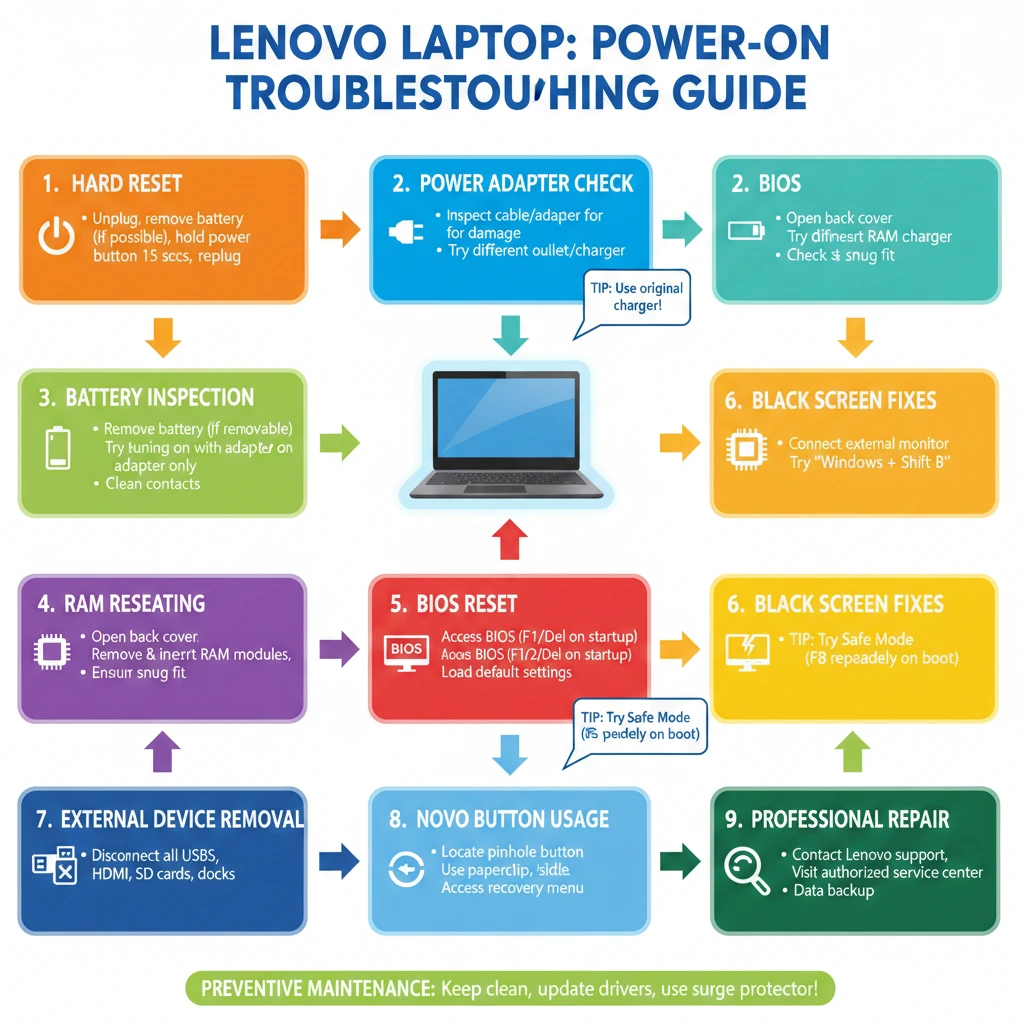
How to Prevent Lenovo Laptop Startup Problems
A well-kept routine cuts early problems and makes your laptop last longer. Fixing small things before they grow means fewer headaches down the road. Staying ahead keeps everything running smoother for way more years.
Essential Maintenance Tips
Use the original charger whenever possible
Avoid excessive heat and overheating
Clean cooling vents and fans regularly
Keep BIOS and device drivers updated
Avoid abrupt power shutdowns
A well-maintained Lenovo laptop often runs smoothly for seven years. Sometimes it keeps going even longer when treated right.
FAQs
A: Possible causes include a faulty charger, a degraded battery, a motherboard malfunction, or a corrupted BIOS.
A: Typically caused by graphics driver issues, RAM problems, or display hardware failure.
A: Press and hold the power button for 30 seconds to perform a hard reset.
A: Use the Novo recovery button or reset BIOS settings.
Final Verdict
When your Lenovo Laptop refuses to start, the reason might be something small, like a drained battery or something serious, like broken internal parts.
Folks usually stumble at the start because of basic slipups like:
- Power adapter malfunction
- Battery deterioration
- BIOS configuration errors
- Loose RAM or internal connections
Start by trying a hard reset, since power cycles clear many glitches. A different charger might make all the difference if power delivery is shaky. Sometimes resetting the BIOS helps when settings have gone off track. Look at the RAM sticks closely; one could be loose or failing. Work through these steps, and most problems tend to fade away.
Faulty motherboards or a total lack of power mean expert help makes the most sense. When nothing turns on, relying on someone trained beats guessing what went wrong.
A Lenovo laptop might last half a decade or more when treated well, kept clean inside and out. Five years pass quickly if updates run on time, and dust stays out of vents. Some models keep ticking past seven with gentle handling and steady charging habits. Long life shows up when care becomes habit, not effort.