Introduction
Maybe your Laptop stumbles now, glitching more each day. How do I restore my Lenovo laptop to factory settings? That search – “how do I restore my Lenovo laptop to factory If your Lenovo laptop has started freezing, slowing down, or behaving unpredictably in 2026, you’re not alone. Over time, even powerful devices like ThinkPad, IdeaPad, Legion, and Yoga models accumulate system clutter, background processes, corrupted updates, and software conflicts that gradually reduce performance.
When simple fixes like uninstalling apps or running antivirus scans don’t work, a factory reset becomes the most effective way to restore stability. It gives your laptop a completely fresh start by reinstalling Windows and removing deep system issues that are often impossible to fix manually.
Modern Lenovo laptops now come with multiple recovery options built into Windows 11 and newer systems, including cloud-based reset, Novo button recovery, and advanced startup tools. This means you can restore your device even if Windows fails to boot.
In this 2026 updated guide, you’ll learn step-by-step methods to safely reset your Lenovo laptop, understand when you should do it, and avoid common mistakes that could lead to data loss or recovery failure.
Whether you’re fixing performance issues or preparing your device for resale, this guide will walk you through everything in a simple, practical way.
Modern Lenovo Recovery Trend
Newer Lenovo models increasingly support “cloud reset” and AI-assisted troubleshooting inside Windows Recovery Environment. These tools can automatically detect corruption, download fresh system files from Microsoft servers, and reinstall drivers without manual intervention, reducing downtime significantly.
What Does Factory Reset Mean on a Lenovo Laptop?
Back at the start, a factory reset brings your laptop back to how it first worked after being made. It wipes everything clean like nothing ever happened there before. What you get is exactly what came out of the box long ago. Every change fades away until only the original setup remains standing.
During the process, Windows deletes:
- Installed applications
- Personal files
- User accounts
- Custom settings
- System errors
- Malware infections
Once the reset finishes, Windows loads again by itself, followed by Lenovo’s tools slipping into place behind it.
A fresh start shapes how the system runs. Smooth function comes from a clear setup. Without clutter, performance stays steady. Clean conditions support reliable work. Order within helps everything respond.
Picture turning on your computer again for the very first time, just after unboxing it. What happens then feels close to hitting reset completely.
When Should You Restore Your Lenovo Laptop to Factory Settings?
Now and then, someone might think a fresh start fixes everything. Yet only when nothing else works does wiping the system make sense.
Here are common reasons users reset their laptops.
Your Laptop Is Extremely Slow
Over time, laptops collect:
- unused programs
- temporary files
- startup applications
- background services
These reduce performance.
A fresh start clears up those glitches, bringing back quick performance again.
Your Laptop Has Malware or Viruses
A broken system file might be the first sign of hidden trouble. Security gaps often follow when harmful software slips through.
Starting fresh wipes out corrupted data while setting up the operating system again – a strong move against tough malware.
Windows Is Corrupted
Sometimes the operating system becomes corrupted due to:
- failed updates
- driver conflicts
- sudden shutdowns
This can cause:
- startup errors
- system crashes
- missing files
Starting fresh on the machine often brings back smooth performance.
You Plan to Sell or Give Away Your Laptop
Start by wiping every file tied to your identity before handing over the machine. A fresh start for the device means your photos and messages stay private. Think twice about what hides in folders – clear it out completely. Only once everything personal is gone should you consider the sale ready.
A factory reset deletes:
- passwords
- accounts
- files
- browsing history
Your Laptop Shows Frequent Blue Screen Errors
Falling apart mid-task? That’s usually what happens when programs clash or data gets damaged.
Starting fresh with the laptop might clear up those problems, bringing things back to smooth operation.
Important Things to Do Before Resetting Your Lenovo Laptop
Start by securing your data somewhere safe. A backup makes recovery easier later. Power up the device fully first. Unexpected shutdowns during reset cause problems. Disconnect any extra gadgets attached. This helps avoid interruptions. Think through what apps you rely on daily. Those will need to be reinstalled afterward.
Stopping problems before they start keeps your files safe. Mistakes during recovery often come from rushing too fast. Taking time now avoids bigger headaches later. Each move matters when things go wrong. Care today means less trouble tomorrow.
Backup Important Files
Everything saved on the laptop vanishes for good when a factory reset happens.
Always remember to save a copy. Just in case something goes wrong later
- documents
- photos
- videos
- work files
- installed software
- browser bookmarks
Backup Options
You can store your files using:
- External hard drive
- USB flash drive
- Cloud storage services
- Network storage
Keeping copies of your files means key information stays safe. A loss might happen, yet protection reduces the risk. Important details remain when stored properly. Unexpected events occur; still, having backups helps. Digital items vanish sometimes, but duplicates prevent total loss.
Disable BitLocker Encryption
Finding a Lenovo laptop might mean it locks files using BitLocker. Not every model does, just certain ones built that way.
When resetting, BitLocker staying on can lead to problems getting data back. Sometimes access gets blocked without warning if encryption lingers through the process.
Steps to Disable BitLocker
- Open Control Panel
- Select BitLocker Drive Encryption
- Click Turn Off BitLocker
When it is turned off, things movemore easilyr during the reset.
Connect Your Laptop Charger
Starting over on a laptop eats minutes, needs steady electricity flowing through it.
Always ensure:
- The charger is connected
- The battery is fully charged
Whenthepower cutsoutmid-reset, the operating system might get harmed.
Restore Lenovo Laptop Using Windows Settings (Easiest Method)
Starting fresh on a Lenovo often begins inside Windows itself. Resetting it can happen right within the system menu. A built-in tool handles returning everything to how it was when first turned on. This method skips discs or extra software completely. Going step by step through options brings up the reset choice naturally. Most find this path straightforward without complications. Following prompts leads directly to restoring the original condition.
Most times, it runs fine if the machine starts up without trouble.
Steps
- Click the Start Menu
- Open Settings
- Select System
- Click Recovery
- Starting at Reset This PC, choose Get Started
Reset Duration
A Windows reset usually takes:
30 minutes to 1 hour
The time depends on:
- system hardware
- storage speed
- amount of data
Factory Reset Lenovo Laptop Using the Novo Button
Pressed during startup, some Lenovo machines feature a small key labeled Novo. This triggers a built-in recovery menu without needing Windows to be running.
Pressing this takes you straight into the Lenovo recovery tools, especially when Windows won’t load on its own.
Steps
- Shut down the machine entirely
- Find the Novo button – it’satinyopeningclosetowhereyoupress toturnonyourdevice
- Use a bent piece of metal to push the switch
- Select System Recovery
- Pick the option to restore using the first backup available
Start by opening the recovery wizard to finish resetting. Then proceed step by step until done.
Advantages of Novo Button Recovery
- Works when Windows won’t boot
- Uses the original Lenovo recovery image
- Simple step-by-step interface
- Safe and reliable method
Reset Lenovo Laptop Without Password
Sometimes users forget their Windows login password.
Fortunately, you can still perform a factory reset without logging in.
Steps
- Turn on the laptop
- At the login screen, hold Shift
- Click Restart
- Select Troubleshoot
- Click Reset This PC
- Choose Remove Everything
This method resets the laptop without needing the password.
Reset the Lenovo Laptop from the BIOS
The BIOS (Basic Input Output System) controls hardware settings.
While BIOS cannot reinstall Windows directly, it can reset hardware configuration settings.
Steps
- Restart the laptop
- Press F2 or F12 during startup
- Enter BIOS Setup
- Select Restore Defaults
- Save changes and exit
This resets:
- boot order
- hardware configuration
- BIOS settings
Reset Lenovo Laptop Using Advanced Startup
The Advanced Startup menu provides powerful recovery tools.
It is useful when Windows cannot load normally.
Steps
- Open Settings
- Select System
- Click Recovery
- Choose Advanced Startup
- Click Restart Now
- Select Troubleshoot
- Choose Reset This PC
This launches the same recovery interface used by Windows Reset.
Factory Reset Lenovo Laptop Using USB Recovery
If the operating system is severely corrupted, you may need to reinstall Windows using a USB recovery drive.
Requirements
| Requirement | Description |
| USB Drive | Minimum 16GB |
| Internet | Needed to download recovery files |
| Lenovo Recovery Tool | Official recovery software |
Steps
- Create recovery media using the Lenovo Recovery Tool
- Insert the USB drive into the laptop
- Restart the laptop
- Press F12
- Select the USB drive as the boot device
- Follow the installation instructions
This reinstalls:
- Windows OS
- Lenovo drivers
- system utility
Reset Lenovo Laptop When Windows Won’t Boot
If Windows refuses to start, you can trigger Automatic Repair Mode.
Steps
- Turn on the laptop
- Force shutdown during startup
- Repeat the process three times
- Windows launches Automatic Repair
- Select Troubleshoot
- Click Reset This PC
This method works even if the laptop shows only a black screen or a boot error.
Factory Reset Lenovo ThinkPad
ThinkPad laptops often include enterprise recovery tools.
Steps
- Restart the laptop
- Press F11
- Launch Lenovo Recovery Environment
- Select Restore from Backup
Some ThinkPad models also include:
- corporate recovery systems
- enterprise restore tools
Factory Reset Lenovo IdeaPad
IdeaPad laptops usually rely on the Novo button recovery system.
Steps
- Power off the laptop
- Press the Novo button
- Select System Recovery
- Restore the factory image
This process restores:
- Windows
- Lenovo drivers
- preinstalled utilities
Factory Reset Lenovo Legion
Gaming laptops such as Lenovo Legion follow standard Windows reset methods.
The best options include:
- Windows Settings Reset
- USB recovery reinstall
After resetting a gaming laptop, reinstall:
- GPU drivers
- gaming utilities
- Lenovo Vantage software
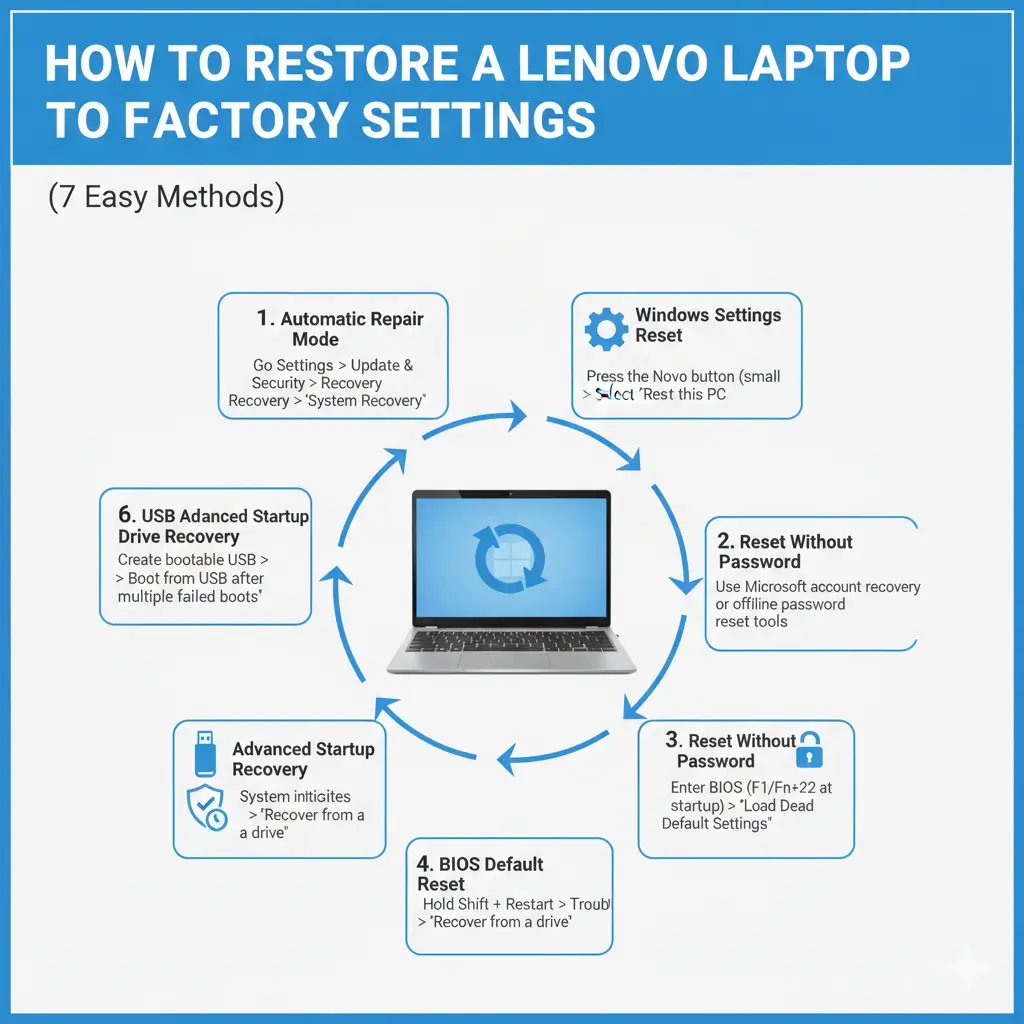
Lenovo Factory Reset Methods Comparison
| Method | Difficulty | Best Situation |
| Windows Settings | Easy | System working normally |
| Novo Button | Easy | Windows not booting |
| Advanced Startup | Medium | Login issues |
| USB Recovery | Advanced | Severe OS corruption |
| Automatic Repair | Medium | Boot failures |
| BIOS Reset | Easy | Hardware configuration issues |
Common Problems When Resetting a Lenovo Laptop
Sometimes, a reset process may fail.
Below are the most common issues and solutions.
Reset Stuck at 99%
This usually happens due to corrupted system files.
Possible Solutions
- Wait 30 minutes
- Restart laptop
- Usethe USB recovery tool
Laptop Stuck on Lenovo Logo
This problem usually indicates a boot failure.
Possible causes:
- damaged operating system
- Incorrect boot order
- hardware errors
Solution:
Enter BIOS and restore default boot settings.
Reset Option Missing
Sometimes Windows recovery options disappear.
Possible causes:
- deleted recovery partition
- corrupted Windows installation
Solution:
Use a USB recovery drive.
Difference Between Reset, Refresh, and Clean Install
These terms are often confusing.
Here is the difference.
| Feature | Reset | Refresh | Clean Install |
| Files Deleted | Yes | No | Yes |
| Apps Removed | Yes | Yes | Yes |
| Windows Reinstalled | Yes | Yes | Yes |
| Difficulty | Easy | Easy | Advanced |
A clean install provides the deepest system rebuild.
Pros and Cons of Factory Resetting a Lenovo Laptop
Pros
Improves system performance
Removes malware and viruses
Fixes operating system errors
Removes unwanted programs
Restores original configuration
Cons
Deletes personal files
Requires reinstalling applications
The reset process takes time.
Backup required before reset
Data Protection & Cloud Recovery Update
In 2026, Windows and Lenovo recovery systems are more cloud-integrated than ever. Many devices now automatically sync recovery keys, drivers, and system restore points through Microsoft accounts. This makes factory resets safer and faster, especially when combined with cloud reinstall options that reduce the need for USB recovery drives.
FAQs
A: Yes. A factory reset deletes infected files and reinstalls Windows, which removes most malware infections.
A: A typical factory reset takes 30 minutes to 2 hours, depending on the laptop’s hardware and storage speed.
A: No. The reset process automatically reinstalls Windows after removing data.
A: Yes. Factory reset is a built-in recovery feature designed to restore the system safely.
Conclusion
A factory reset is one of the most reliable ways to fix persistent issues on a Lenovo laptop in 2026. Whether your device is slow, infected with malware, or facing repeated SystemCrashes, resetting it can restore performance and stability by reinstalling Windows and clearing hidden system errors.
With multiple recovery methods available—Windows settings, Novo button, BIOS, Advanced Startup, and USB recovery—you can choose the option that best matches your situation. Modern Lenovo systems also make recovery easier with cloud backup and automated restoration features.
Before resetting, always back up your files, disable encryption if needed, and ensure stable power to avoid interruptions. These small precautions can save you from major data loss or recovery issues.
If your Lenovo laptop still feels sluggish or unstable after troubleshooting, a factory reset is often the cleanest and most effective solution. Follow the steps carefully, and your device will feel close to new again.











