Introduction
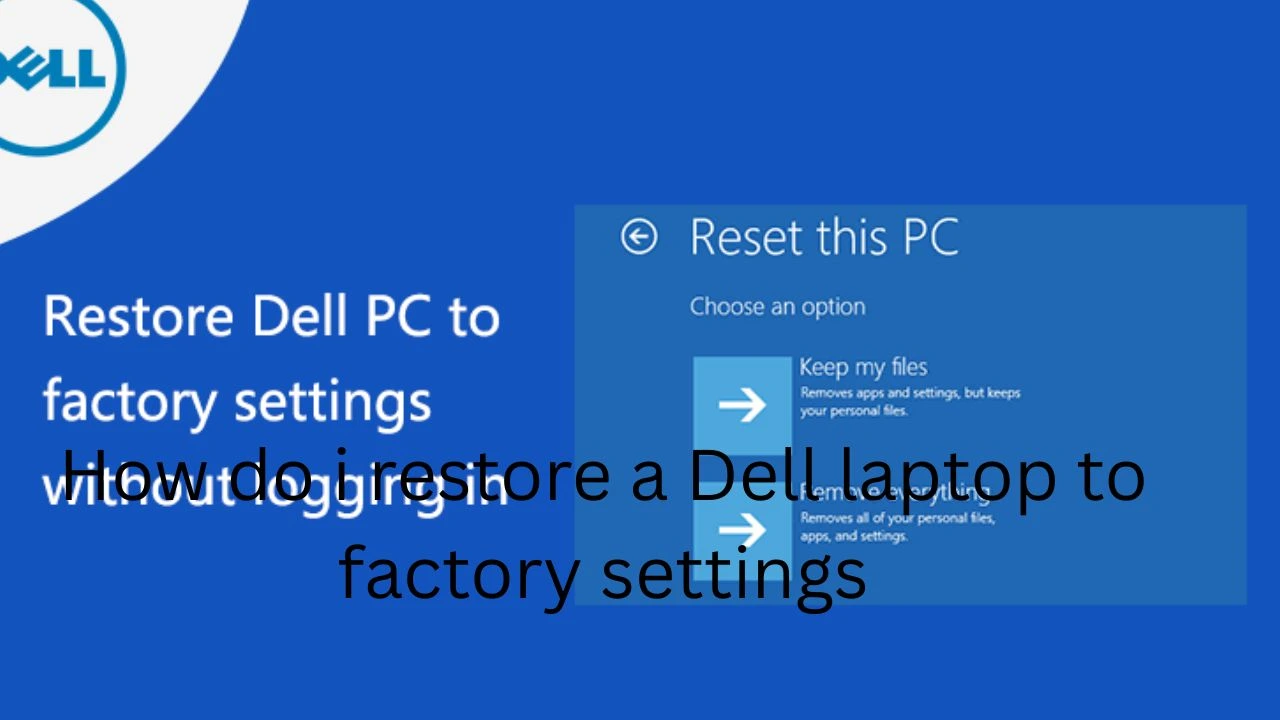
If every other option fails, wiping a Dell laptop clean often remains the only solid solution. Slowness that drags on, unexpected crashes, repeated errors, failure to start beyond the boot screen – these signs point to one clear outcome: wiping clean all data and settings. How do I restore a Dell laptop to factory settings? Even if malware sticks around, rebuilding from scratch usually clears the problem without drama.
Resetting a factory setting wipes out every personal file you have, tosses out apps, wipes out messy configuration bits, then drops in a fresh Windows setup – just like when it first came off the production line. Because of this, the process works well whether troubleshooting deep tech glitches or getting a Dell notebook ready for passing along, giving up, or storing away.
Explanation
Truth is, most web tutorials miss the mark. Outdated steps pop up again and again. Older keyboard keys that people once pressed now do nothing on newer Dell machines. Meanwhile, leaps are made assuming everything starts fine – but that hardly ever happens. Sometimes the main guides forget to mention key moves, especially when a reset breaks down, or there is no recovery area to rely on.
That is exactly why this complete 2026 guide exists.
In this in-depth pillar article, you will learn every working and up-to-date method to restore a Dell laptop to factory settings, including:
- Windows 10 and Windows 11 reset methods
- Advanced Startup recovery options
- SupportAssist OS Recovery
- Factory image restoration
- Resetting a Dell laptop that will not boot
- Resetting without an administrator password
- BIOS reset vs full factory reset
- Common errors, failures, and real fixes
Starting from scratch or going deeper – this helps both ways. Written plainly, it walks through each task one by one.
What Does Factory Reset Actually Do?
This process returns the device to how it looked when made and delivered.
A factory reset WILL:
- Completely remove all personal files (documents, photos, videos)
- Delete installed applications and programs
- Reset Windows system settings to the default
- Reinstall the Windows operating system
- Restore Dell-specific drivers, firmware, and utilities
A factory reset WILL NOT:
- Repair physical hardware damage
- Recover deleted files (unless backed up beforehand)
- Upgrade RAM, SSD, or other components
- Fix a dead motherboard, GPU, or broken screen
Backup & Preparation Checklist
Before you restore a Dell laptop to factory settings, proper preparation is essential. Skipping these steps can result in permanent data loss or reset failure.
Essential Preparation (Do Not Skip)
Back up files to an external hard drive or cloud storage
Save photos, documents, videos, and work files
Write down paid software license keys (Office, Adobe, etc.)
Connect your laptop to a reliable power source
Ensure a stable internet connection (for cloud reinstall)
Optional but Strongly Recommended
Create a Dell recovery USB drive
Sign out of your Microsoft account
Disable BitLocker encryption if enabled
Remove external devices (USBs, printers, SD cards)
Preparing correctly prevents BitLocker lockouts, activation issues, and failed resets.
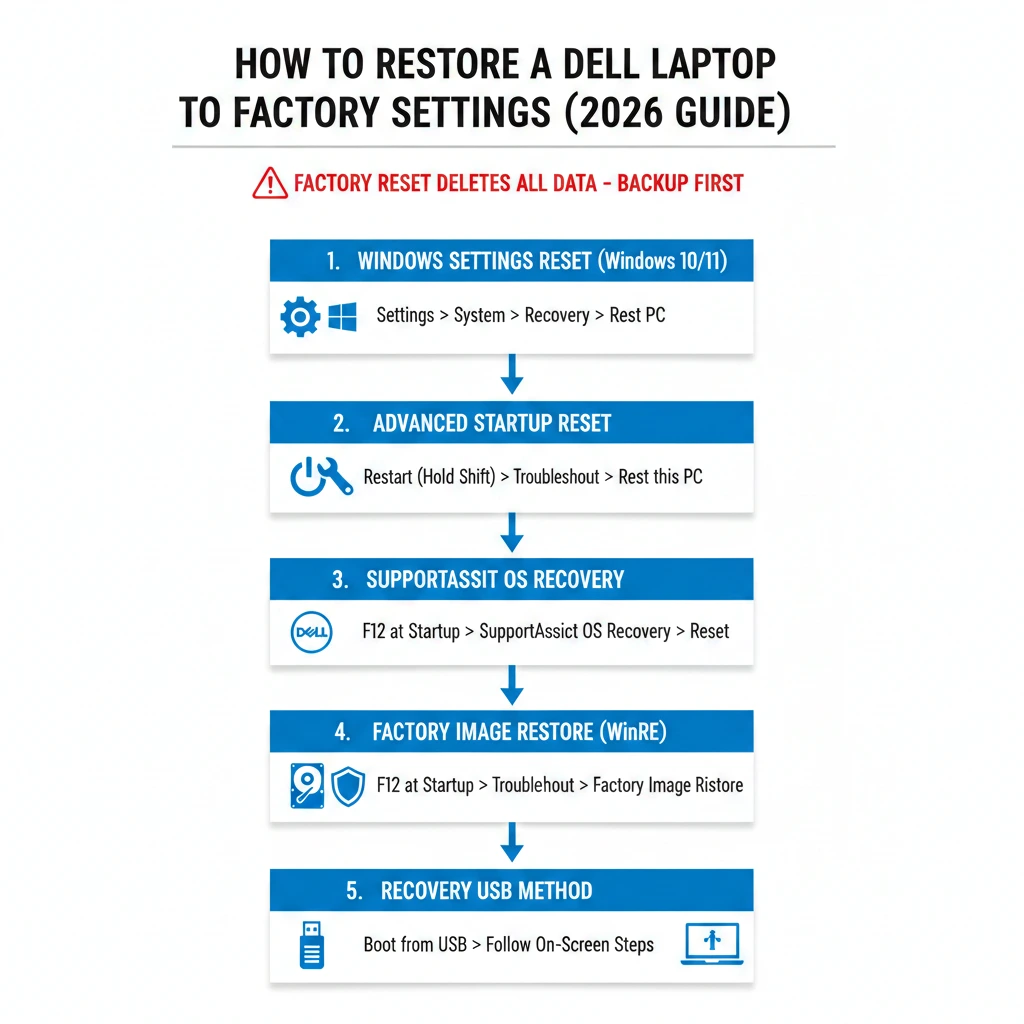
Best Ways to Restore a Dell Laptop to Factory Settings
| Method | Best For | Data Removed | Difficulty |
| Windows Settings Reset | Windows working normally | Optional | Easy |
| Advanced Startup Reset | Login or boot issues | Yes | Medium |
| SupportAssist OS Recovery | Dell factory restore | Yes | Easy |
| Factory Image Restore | Missing or damaged Windows | Yes | Medium |
| Recovery USB | Severe corruption | Yes | Advanced |
Reset Dell Laptop Using Windows Settings
Best for: Fully working Windows 10 or Windows 11 systems.
This is the safest and simplest method if Windows still loads normally.
Step-by-Step Instructions
- Open Settings
- Go to System → Recovery
- Click Reset this PC
- Choose:
- Keep my files (apps removed)
- Remove everything (full factory reset)
- Select:
- Cloud download (fresh Windows)
- Local reinstall
- Confirm and start the reset
Factory Reset Using Advanced Startup
Best for:
- Windows crashes
- Login problems
- Boot loops
- Forgotten passwords
Steps
- Restart https://laptopdream.com/black-spots-laptop-screen-hp-complete-guide/the laptop while holding Shift
- Select Troubleshoot
- Click Reset this PC
- Choose Remove everything
- Follow on-screen instructions
This method bypasses Windows login entirely.
Restore Using SupportAssist OS Recovery
Many Dell laptops include SupportAssist OS Recovery, a powerful built-in recovery environment.
Why This Method Is Powerful
- Restores the original Dell factory image
- Includes drivers and Dell utilities
- Works even if Windows is corrupted
How to Access SupportAssist OS Recovery
- Restart laptop
- When the Dell logo appears, press F12 repeatedly
- Select SupportAssist OS Recovery
- Choose Restore System
- Select Factory Reset
Recommended for most Dell users.
Factory Image Restore via Windows Recovery (WinRE)
If SupportAssist is unavailable, use the Windows Recovery Environment.
Steps
- Force shutdown during boot three times
- Enter Windows Recovery Environment
- Select Troubleshoot → Advanced Options
- Choose Factory Image Restore or Reset this PC
- Follow prompts
Works if recovery partitions still exist.
How to Factory Reset a Dell Laptop That Won’t Boot
If your Dell laptop refuses to boot, you still have options.
Working Solutions
F12 Boot Menu → SupportAssist OS Recovery
Windows installation USB
Dell recovery USB
Factory image restore via WinRE
This usually occurs after failed updates, system corruption, or malware damage.
Reset Dell Laptop Without Admin Password
Good news: You do NOT need the administrator password.
Steps
- Access Advanced Startup
- Choose Reset this PC
- Select Remove everything
- Continue reset
All accounts are removed automatically.
Dell BIOS Reset vs Windows Factory Reset
| Feature | BIOS Reset | Factory Reset |
| Reinstalls Windows | No | Yes |
| Fixes boot config | Yes | Yes |
| Removes user data | No | Yes |
| Fixes software issues | No | Yes |
Common Factory Reset Errors & Fixes
Reset Fails or Loops
Use Advanced Startup
Try SupportAssist OS Recovery
Switch to Cloud, reinstall
Recovery Partition Missing
Create a Dell recovery USB
Use Windows installation media
Reset Stuck at Percentage
Wait at least 2 hours
Restart and retry
Verify power connection
Pros & Cons of Factory Reset
Pros
Fixes serious software problems
Completely removes malware
Improves system performance
Ideal before selling a laptop
Cons
Data loss if not backed up
Time-consuming process
Requires reinstalling applications
FAQs
A: No. Most resets reinstall the latest version.
A: Only if backed up beforehand.
A: Yes, completely.
A: Use Windows recovery or USB media.
Final Thoughts
Restoring a Dell laptop to factory settings is the ultimate recovery solution when all other fixes fail. When performed correctly, it can dramatically extend your laptop’s lifespan, restore lost performance, and eliminate deep system-level issues.
This guide ensures you:
- Choose the correct reset method
- Avoid common mistakes
- Reset safely — even if Windows will not boot