Introduction
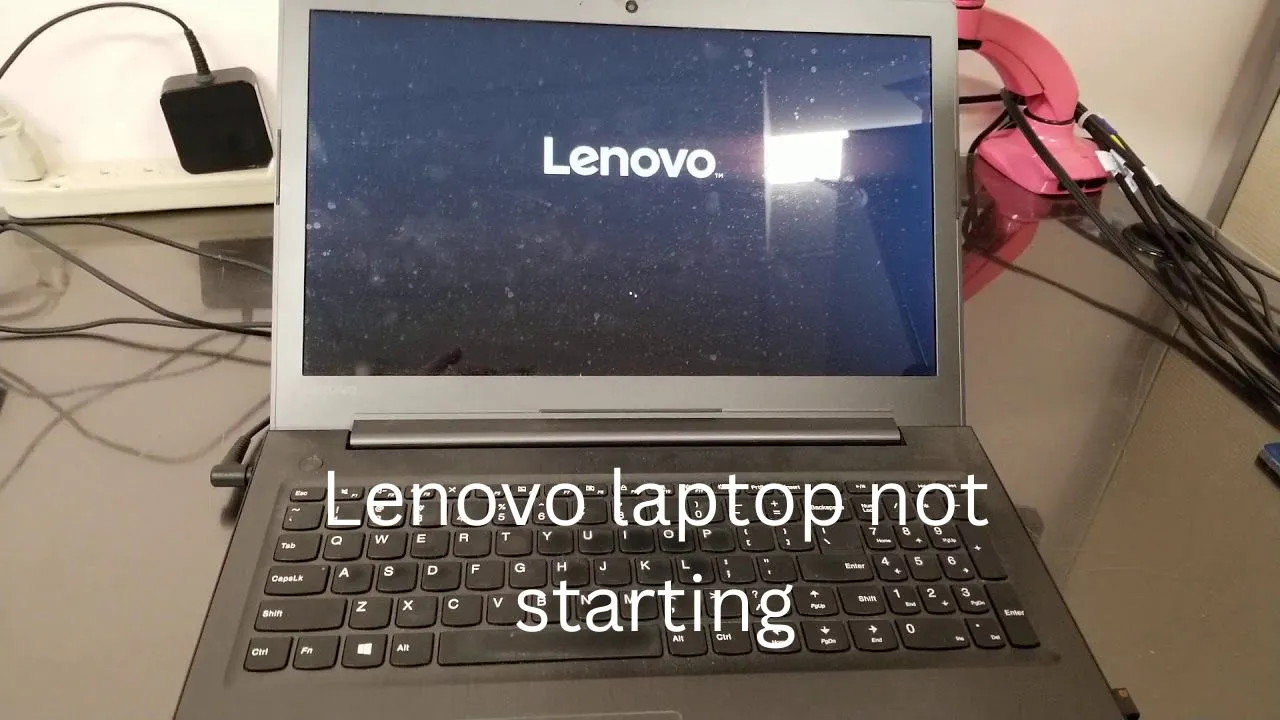
Nothing beats the frustration of a Lenovo Laptop that refuses to turn on. Lenovo laptop not starting Pushing the power button should bring it to life – silence follows. The screen might stay pitch black or hang frozen at the brand logo. Power light glows, yet no sign of the system waking up. Each attempt feels like rolling the dice, hoping for something different.
One wrong move and a Lenovo laptop won’t start – happens across most models. ThinkPad, IdeaPad, even Legion and Yoga users face boot troubles sooner or later. Truth? What looks like a disaster often comes down to something small, easy to spot once you look. Fixing it doesn’t take magic, just patience.
Laptop boot failures generally occur because of several common causes, including:
- Power adapter problems
- Weak or defective batteries
- Corrupted Windows system files
- Memory (RAM) issues
- Incorrect BIOS or firmware settings
- Conflicts caused by external devices
Good chances are you can fix a stubborn Lenovo laptop right at home. Most of these machines won’t power up due to issues anyone might handle alone.
Explanation
This full troubleshooting guide covers every detail you need. When you finish reading, clarity awaits on what comes next
- Why Lenovo laptops sometimes fail to power on
- Quick troubleshooting checks you should attempt first
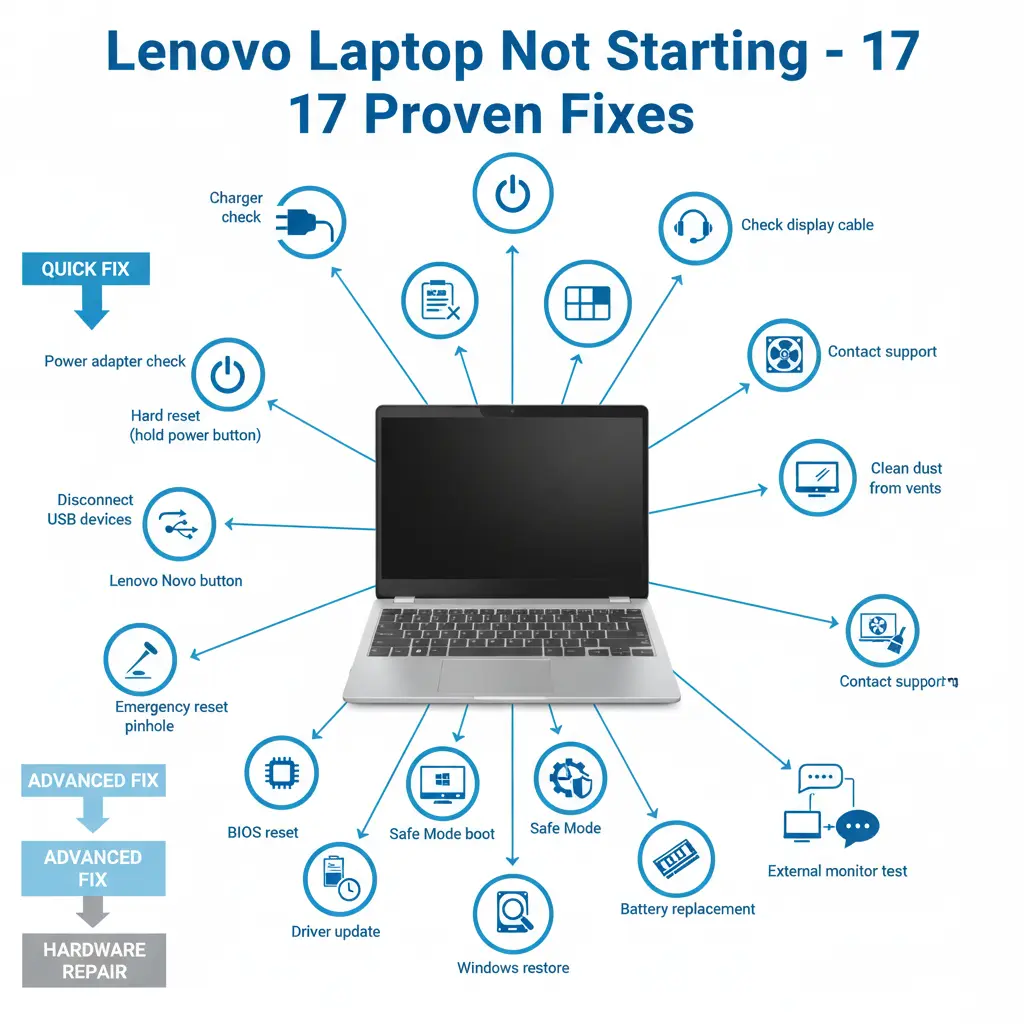
- 17 proven solutions that solve the majority of startup problems
- Advanced troubleshooting methods for deeper system errors
- When it is necessary to contact Lenovo technical support
If your gadget won’t turn on, displays nothing at all, just powers up with a charging indicator, or freezes right at the Lenovo splash screen, follow along here to figure out what’s wrong. Each move breaks down exactly how to bring it back piece by piece.
Quick Fix Checklist
Start small before tackling tough fixes. Often, basic things stop a laptop from turning on – yet take just moments to sort out.
Most times, trying these simple fixes clears things up right away.
Quick Troubleshooting Table
| Quick Fix | Why It Helps |
| Try another wall outlet | The current socket may not provide electricity |
| Check the charging LED | Confirms that the laptop is receiving power |
| Disconnect USB accessories | External hardware may interfere with boot |
| Hold power button for 30 seconds | Drains leftover electrical charge |
| Connect an external monitor | Helps determine if the screen is faulty |
Failing to power up? A few tiny steps often revive unresponsive Lenovo machines – no need for parts replacement. What looks like a dead laptop might just wake after these quick tests.
When the gadget refuses to power up despite those fast fixes, move on to the deeper checks listed here.
Why Your Lenovo Laptop Is Not Starting
When you know what’s really behind an issue, fixing it takes less time while skipping fixes that aren’t needed.
Faulty hardware often shows up when the machine won’t power on at all. A blank screen might mean the display isn’t receiving signals. Sometimes it boots partway, then stops, freezing during initialisation routines
- Power-related problems
- Software or operating system corruption
- Hardware component malfunction
Below are the most common reasons your Lenovo laptop may not start.
Common Causes of Startup Failure
| Cause | Explanation |
| Dead battery | The battery can no longer store a charge |
| Faulty charger | Adapter cable or connector damaged |
| Windows corruption | Boot files damaged after updates |
| RAM failure | Boot files are damaged after updates |
| BIOS misconfiguration | Incorrect firmware settings |
| Motherboard damage | Internal hardware malfunction |
Finding a laptop that won’t start often sparks panic, yet problems usually trace back to faulty power sources or damaged system files instead of hardware meltdown.
Check the Charger and Power Supply
A faultypoweradapteroftenstopsaLenovo laptop fromturningon. Sometimes it is simply worn out, sometimes damaged. The machine gets no electricity when the charger fails. Power cuts off mid-charge if the cord has issues. A broken connector shows similar signs, too. Charging problems mimic dead batteries at times. Replacement usually fixes these cases fast.
Frayed wires sneak up after too many bends near the plug. Heat builds up during long charging sessions, weakening parts inside. Power fades when tiny circuits within give out. Broken connections refuse to send energy through.
Steps to Check the Charger
- Inspect the charging cable for visible cuts or damage
- Check that the plug fits tightly into the socket on the wall
- Fiddle with the outlet – swap to another one just to check. See if that shifts anything. Maybe the wall port’s acting up. Jump across to a fresh spot and test it there. Could be that the juice isn’t flowing right where you are now
- Test the laptop using another compatible Lenovo charger
- Watch to see if the light near the charger turns on
A missing charge indicator could mean the power supply is faulty or has been damaged.
Example
Frayed cords at the plug end? That is what lots of Lenovo owners run into after repeated twists. A new power block usually brings things back without delay.
Perform a Hard Reset
Power left inside parts of the machine gets cleared by a hard reset – also known as draining the power. This type of restart wipes away leftover electrical charge hiding in built-in pieces. Energy that sticks around after shutdown is what this process targets. Built-up bits of current trapped in circuits Ddisappear when you do it. Though brief, the effect clears unseen tension stuck deep in electronics.
Frozen laptops often find their way back with this approach. It cuts through the stillness when nothing else works.
Stuck bits of electricity inside the board’s pathways might stop it from starting up right. Sometimes leftover current lingers where it shouldn’t, messing with first signals. Hidden pockets of power in the circuits could block normal startup steps. A faint trace of stored energy may interfere when things need to fire correctly. Bits of charge that don’t drain away fully tend to disrupt early operations.
Steps to Perform a Hard Reset
- Unplug the power cable from your laptop
- Remove the battery if it is detachable
- Start by holding down the power button. Wait a full half minute before letting go
- Plug the charger back in
- Turn on the laptop normally
Starting fresh here helps the laptop shake off odd hiccups inside its power setup. A full stop followed by a restart wipes out those brief electronic stumbles.
Folks often notice their Lenovo laptop turning on out of nowhere following that basic reset move.
Disconnect External Devices
Power cycling clears the system’s inner pathways, often solving startup issues tied to power hiccups on Lenovo machines. Sometimes, outside gadgets mess with the machine, waking it up properly.
A single USB stick with startup files might make the machine try to turn on using that instead of its usual source.
Devices to Disconnect
Remove all external hardware, including:
- USB flash drives
- External hard disks
- Printers or scanners
- USB keyboard and mouse
- HDMI monitors
- Docking stations
With all parts unplugged, power up the laptop again.
Should the system start up without problems later, attach each device one at a time to spot the one that triggered the trouble.
Use the Lenovo Emergency Reset Hole
A tiny hole hides near the base of newer Lenovo machines. This hidden spot serves as a backup restart option. Built into the underside, it waits quietly until needed. Some models tuck this feature beside the feet. It does one job when regular methods fail.
Pressing that concealed switch cuts power from the built-in battery, restarting the device if it freezes entirely. Hidden underneath, this small mechanism forces a reboot by shutting off internal power when nothing else works.
Finding a way to manage power becomes key when the battery stays locked inside. A laptop like that needs different thinking.
Steps
- Switch off the computer
- Locate the tiny reset hole underneath the laptop
- Insert a straightened paper clip
- Press down the button and keep it pressed for close to ten or fifteen seconds
- Try plugging the charger back in once more
- Open the laptop lid to start it up
Use the Lenovo Novo Button
A small button found on several Lenovo models can assist when issues arise. This key, known as the Novo Button, sits apart from the main keyboard. It opens a menu for system recovery or boot options. Access happens by pressing it after powering off. Not every device includes this piece. Its placement varies slightly across designs. Some users discover it by accident during startup.
A small click on the Novo Button brings up a hidden menu. This menu shows powerful start choices if Windows fails to boot. Instead of waiting for the system, it jumps straight into setup tools. When the screen stays black, this feature steps in quietly. It works without needing the operating system to run first.
Novo Button Menu Options
The menu usually provides:
- BIOS Setup
- Boot Menu
- System Recovery
- Normal Startup
Steps to Use the Novo Button
- Closed the laptop lid after turning it off. The power light went dark moments later. The screen disappeared into blackness. The machine fell silent entirely
- Press the Novo button using a pin or paperclip
- Select Normal Startup
When Windows won’t start, go for System Recovery to fix the OS.
Fix Lenovo Laptop Black Screen
Occasionally, the machine turns on yet shows nothing on the screen.
A lot of people call it the black screen trouble on Lenovo laptops.
Common Symptoms
You may notice:
- The power indicator light is on
- The cooling fan is running
- Flickering light spills across the keys when switched on
- The screen stays completely dark
A sign of trouble often shows up when the screen acts strangely. Problems might come from how images are shown. Sometimes it’s tied to the software that runs the visuals. Glitches can point toward outdated tools managing the hardware.
Possible Solutions
Try the following troubleshooting methods:
- Connect the laptop to an external monitor
- Press Win, then hold Ctrl and Shift while tapping B to refresh the graphics driver
- Reset BIOS settings
- Reseat RAM modules
When the outside monitor runs fine, maybe the inside one needs fixing.
Reset BIOS Settings
Faulty settings inside the BIOS might stop your laptop from powering up properly.
When things go wrong on startup, going back to the original BIOS setup can help. Most times, a fresh start like that clears up why the machine won’t turn on properly.
Steps
- Enter BIOS setup
- Choose to reset options instead of keeping changes. This restores original values automatically when confirmed
- Hit F10 when ready to store what you’ve changed
- Restart the laptop
Fiddling with the BIOS often clears up that frozen Lenovo startup screen. Some folks hit pay dirt just by giving settings a fresh start.
Run Windows Startup Repair
Finding issues when starting up? Windows can check them on its own. Fixing glitches happens quietly behind the scenes. Problems get sorted without asking every time.
Built to fix broken boot files, while also tackling messed-up registry entries. System corruption gets cleared out, too, since it handles deeper operating issues. Each problem type is addressed without needing extra steps.
Steps
- Turn on the laptop
- F11 might work if you tap it many times when starting up
- Enter the Windows Recovery Environment
- Select Startup Repair
Finding problems on its own, the tool checks inside the computer and then works to correct startup errors. Fixing begins right after detection without waiting.
Boot in Safe Mode
Safe Mode starts Windows using only essential drivers and services.
If the laptop works normally in Safe Mode, the problem is likely caused by a driver or software conflict.
Steps
- Start the laptop
- Press F8 repeatedly
- Select Safe Mode
Once inside Safe Mode, uninstall recently installed drivers or applications that may have caused the problem.
Fix Lenovo Laptop Stuck on Logo
Many users encounter a situation where their laptop freezes at the Lenovo startup logo.
This indicates that the system begins booting but fails to continue loading Windows.
Possible Causes
Common reasons include:
- Failed Windows update
- Corrupted operating system files
- Incorrect BIOS settings
- Peripheral device conflicts
Solutions
You can resolve this issue by:
- Resetting BIOS settings
- Running Windows Startup Repair
- Disconnecting all external devices
- Booting in Safe Mode
These troubleshooting steps resolve most boot logo freeze problems.
Reseat RAM
Memory issues frequently cause laptops to fail during startup.
If the RAM module becomes loose or faulty, the computer cannot initialise system memory.
Common Symptoms
- Laptop powers on and shuts off immediately
- Continuous beeping sounds
- Black screen with no display
- Power light on, but no response
Steps to Reseat RAM
- Turn off the laptop completely
- Remove the bottom cover panel
- Carefully remove the RAM module
- Clean the contacts gently
- Reinsert the RAM securely
This procedure often fixes but the power light is on.
Check Internal Battery
A failing battery can also prevent a laptop from starting properly.
Laptop batteries typically begin degrading after two to three years of usage.
Signs of Battery Failure
- The laptop works only when plugged in
- The battery drains rapidly
- System shuts down unexpectedly
- Battery percentage fluctuates randomly
Replacing the battery may restore normal performance.
Update Drivers
Outdated or incompatible drivers sometimes cause startup conflicts.
Drivers responsible for hardware communication must remain updated.
Drivers That May Cause Boot Issues
- Graphics drivers
- Chipset drivers
- Storage controller drivers
Download the latest drivers from the official Lenovo support website.
Keeping drivers updated improves overall system stability.
Restore Windows
If startup problems began after a system update or software installation, restoring Windows may resolve the issue.
Recovery Options
| Recovery Option | Purpose |
| System Restore | Returns the system to its earlier state |
| Reset This PC | Reinstalls Windows completely |
System Restore keeps personal files intact but removes recent system modifications.
Recover Data from a Dead Lenovo Laptop
Even if your laptop refuses to power on, you may still recover important data.
This step is crucial before sending the laptop for repair.
Method
- Remove the internal SSD or hard drive
- Insert it into a USB enclosure
- Connect the enclosure to another computer
- Copy your files safely
This technique allows recovery of documents, photos, and personal data.
When to Contact Lenovo Support
If none of the troubleshooting steps resolves the issue, the problem may involve serious hardware damage.
Signs of Hardware Failure
- Burning smell from the laptop
- Clicking noises from the storage drive
- Visible physical damage
- Severe overheating
- Motherboard malfunction
In such situations, contacting Lenovo technical support or visiting a certified technician is recommended.
Prevent Lenovo Laptop Startup Problems
Preventive maintenance significantly reduces the risk of startup failures.
Best Practices
- Keep BIOS updated regularly
- Install Windows updates consistently
- Avoid excessive heat and overheating
- Use genuine Lenovo chargers
- Clean dust from cooling vents
These simple habits help extend the lifespan of your laptop.
Lenovo Models That May Face Startup Issues
Startup problems can occur across different Lenovo laptop series.
Common Lenovo Laptop Series
| Series | Usage |
| ThinkPad | Business laptops |
| IdeaPad | Consumer devices |
| Legion | Gaming laptops |
| Yoga | Convertible laptops |
Each series may have different BIOS keys and internal hardware designs, but troubleshooting methods remain largely similar.
Pros and Cons of Lenovo Laptops
Pros
- Durable build quality
- Excellent keyboard design
- Wide range of models
- Strong performance for business tasks
Cons
- Battery replacement difficult on some models
- Certain models heat under heavy workloads
- BIOS updates occasionally cause boot conflicts
Despite minor drawbacks, Lenovo remains one of the most trusted laptop manufacturers worldwide.
FAQs
A: This usually indicates a hardware initialisation issue.
Possible causes include:
RAM failure
Display problem
BIOS corruption
Try connecting an external monitor or reseating RAM.
A: Hold the power button for 30 seconds to drain residual electricity.
Then reconnect the charger and turn on the laptop.
A: This usually occurs because of:
Corrupted Windows updates
Driver conflicts
BIOS configuration errors
Running Startup Repair often fixes the issue.
A: You can reset it using:
Lenovo Novo Button
Emergency reset pinhole
Hard power drain
These methods reset the laptop’s internal system.
Conclusion
A Lenovo Laptop Not Starting can feel frightening, especially when you depend on your computer for work, study, or daily activities.
However, most startup failures are not severe and can be resolved using the right troubleshooting approach.
In many cases, the issue is caused by:
- Power adapter problems
- Battery failure
- Corrupted Windows files
- Incorrect BIOS configuration
Simple actions such as checking the charger, performing a hard reset, or disconnecting external accessories often restore functionality within minutes.
If basic troubleshooting does not solve the issue, advanced solutions such as BIOS reset, Windows Startup Repair, or RAM reseating can help bring the system back to life.
But if you notice signs of hardware damage or motherboard failure, contacting Lenovo support or a professional technician is the safest option.
By following the 17 proven solutions in this guide, you now have a complete roadmap to diagnose and fix Lenovo laptop startup problems like a professional technician.