Introduction
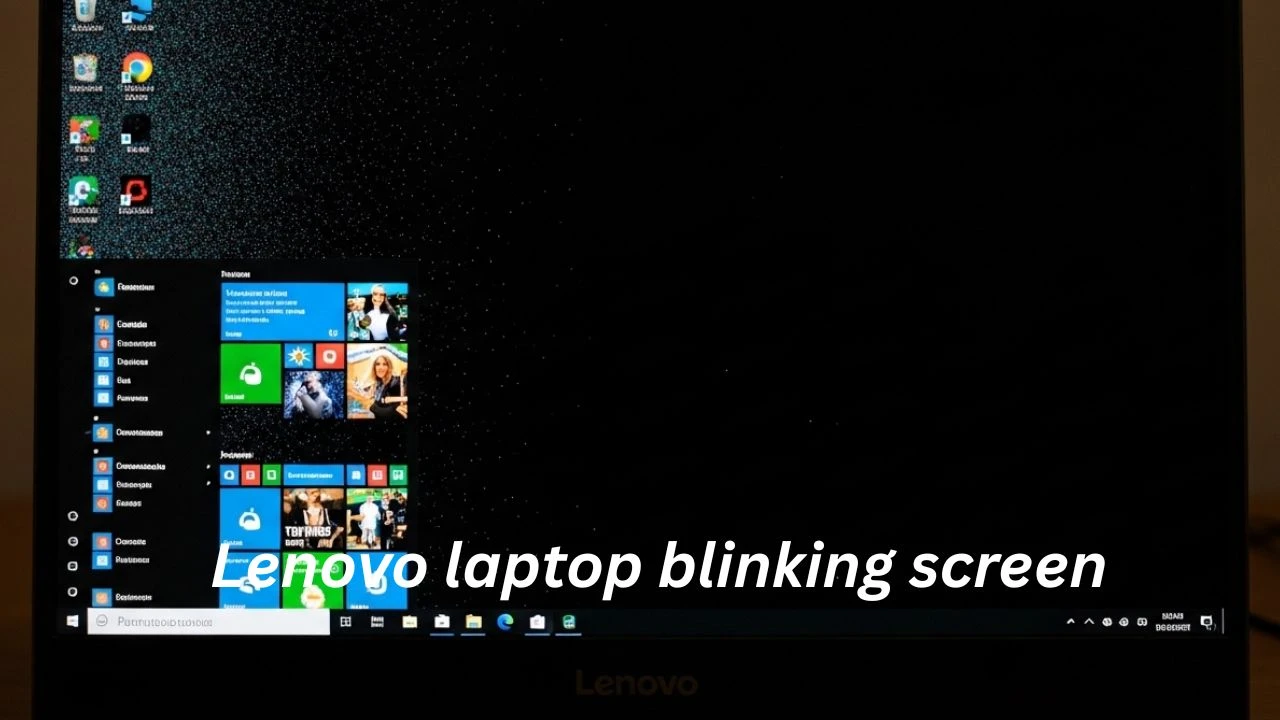
A shaky display on a Lenovo notebook often feels like a nightmare unfolding mid-task. Sometimes it pulses fast, sometimes it cuts out randomly, other times it dances at the edge of vision during work or play. Lenovo Laptop Blinking Screen. Most people freeze, assuming the machine has died for good. Yet reality says otherwise – these glitches tend to have solutions hiding just beneath the surface.
Got a Lenovo laptop with a shaky display? This walkthrough covers how to spot, fix, or manage screen flicker across ThinkPad, IdeaPad, Yoga, and Legion models. Each step breaks down what might be wrong – no guesswork needed. Some fixes are quick; others need time. Depending on your setup, answers could lie in settings, drivers, or hardware shifts.
- You’ll find out what this guide covers once you reach the last page
- What a blinking or flickering screen indicates
- Common software and hardware causes
- Step-by-step diagnostic checklist
- Simple and advanced fixes
- Solutions for ThinkPad IdeaPad Legion Yoga
- When to contact professionals
- Pro tips for prevention and long-term screen health
What Does “Blinking Screen” Mean on a Lenovo Laptop?
A blinking screen refers to a display that flashes, flickers, or intermittently turns dark. It is distinct from:
- A permanently black screen caused by a total display failure
- Dead or stuck pixels
- Physically broken screens (cracks or shattered LCD panels)
Common Types of Screen Blink
| Type | Appearance | Likely Cause |
| Rapid Flickering | Fast flashes back and forth | Corrupt or outdated display driver |
| Partial Blackouts | The screen goes dark temporarily | Refresh rate mismatch or hardware issue |
| Flicker on Wake | Happens when resuming from sleep | Power management or driver problem |
| Flicker in Specific Apps | Only occurs in certain software | Hardware acceleration or app conflict |
Quick Tip: If the blinking occurs before Windows loads, it’s usually a hardware issue. If it only happens inside Windows, it’s likely software-related.
Common Symptoms of Lenovo Screen Blink or Flicker
Screen flickering may show up in various ways:
- Flashing or blinking during normal usage
- Light pulses just after coming out of rest
- Flickering changes when tilting or moving the screen
- Happens just in specific apps – think Chrome, Discord, or games.
- Not every program shows it.
- Some software triggers it by design.
- Only pops up when those particular ones are running.
- Never appears elsewhere, even if similar tools are open
- Still steady on outside screens – suggests something inside is off
Flicker timing plus method matters a lot when pinning down the issue.
Top Causes Behind Lenovo Laptop Blinking Screen
Understanding the root cause is vital before attempting any fix. Causes fall into software-related and hardware-related categories.
Software-Related Causes
Outdated or Corrupt Graphics Drivers
Screen flickering might happen when drivers fail. These links between the GPU and the display need care. Old or broken ones struggle to keep up.
Following a fresh Windows upgrade, graphics drivers from Intel, NVIDIA, or AMD might stop working – causing flickering now and then. Sometimes the screen stutters after changes roll through.
- Windows Update Conflicts
- Flickering appears out of nowhere when fresh updates roll into Windows 10 or 11.
- These changes can twist how the screen behaves, thanks to shifts in display options.
- Driver hiccups often tag along after an upgrade lands.
- A recent system patch may quietly lie behind the shaky visuals.
- Incorrect Refresh Rate
- Most screens update their image a set number of times each second – like 60 or 120 flashes per second.
- When the computer sends frames faster than that, the display stutters.
- Mismatched timing between the device and the monitor leads to visible flicker.
- Hardware Acceleration in Apps
Some apps run smoother by tapping into hardware power, yet shaky graphics cards might trigger screen glitches. Example: a video tool stutters when the GPU does not align properly. Another case: image editors flash oddly on older displays. A music app could hiccup if the system lacks support. Even browsers sometimes blink rapidly with mismatched drivers.
- Google Chrome
- Microsoft Edge
- Discord
- Some high-performance games
- Power and adaptive brightness settings
Sometimes the screen tweaks itself depending on how bright the room is. When that function acts up, it might make the display blink oddly – particularly during power source changes.
Hardware-Related Causes
Loose or Damaged Display Cable
Flickering sometimes gets worse when you open or close the screen. Worn or shifted internal wires like eDP or LVDS are often behind it.
- Laptops carried around a lot tend to show this issue more.
- The hinge motion puts stress on those fragile connections over time.
- Failing Backlight or LCD Panel
- A glow behind makes the display visible.
- Spotty lighting might show up, or the picture could flicker out now and then.
- GPU or Motherboard Problems
Does flickering show up before Windows starts? Could point to trouble inside the graphics chip or main board. Sometimes the screen dances when the machine hasn’t even booted yet – likely not software then.
- Hardware might be acting up, especially if it’s happening deep in startup.
- Loose Door Joint
- Opening or shutting the laptop too much might hurt the wires inside.
- That kind of motion leads to screen glitches over time.
- Wiggling happens each time you move it, stressing fragile parts. Repeated shifting brings subtle wear that shows up as flashes.
- Tiny cable harm builds until flickering starts. Every flip strains connections a little more.
- Over months, small tugs create visible issues
Quick Diagnostic Checklist (Before Fixing)
Before attempting any fixes, run these simple checks:
| Step | What to Do | Interpretation |
| Connect an External Monitor | HDMI/DisplayPort | Flicker disappears → likely display cable/panel problem |
| Boot Before OS Loads | Check the BIOS screen | Flicker persists → hardware fault |
| Safe Mode Test | Press F8 / Shift + Restart | Flicker stops → driver or app issue |
| Note Occurrence | Observe in apps or on battery | Helps isolate the cause |
Step-by-Step Fixes (Software)
These methods don’t require opening the laptop and are safe for most users.
Fix #1 – Update or Reinstall Display Drivers
Most flickering originates from outdated or corrupt graphics drivers.
Steps:
- Hit the Windows key, then pick Device Manager from the menu that shows up.
- Expand Display Adapters
- Choose your graphics card with a click of the right button, and then pick driver update.e
- Choose “Search automatically for drivers.”
Should that fail, remove the current software, and then grab a fresh copy from:
- Intel
- NVIDIA
- AMD
Got a new device? Stick to manufacturer websites when grabbing updates. That way, nasty bugs stay out of your system. Skipping random sites helps dodge glitches later. Trusted spots keep things running smoothly.
Fix #2 – Set Correct Refresh Rate
A shaky screen might follow when the refresh rate lacks support.
Steps:
- Start by opening the settings menu. Move into system options next.
- Head over to the display after that
- Move down the page until you see Advanced Display Settings
- Open the settings for your screen hardware
- There you’ll find a suggested refresh speed – pick that one.
- Most times it’s set to 60Hz by default.
- Go ahead under the Monitor section to make the choice. That setting helps keep things smooth on screen.
Most older displays struggle with fast refresh speeds.
Go for the usual choice that works without issues.
Fix #3 – Disable Hardware Acceleration in Apps
Hardware acceleration can overload your GPU, causing flickering.
- Chrome: Settings → Advanced → System → Turn off “Use hardware acceleration”
- Discord: Settings → Advanced → Disable Hardware Acceleration
- Edge: Settings → System → Use hardware acceleration → Off
Fix #4 – Adjust Power & Display Settings
Windows adaptive brightness and power modes can trigger screen flicker.
Steps:
- Slide into Settings, then tap System. Findthe displayy next door.
- There, flip Adaptive Brightness to off. That switch kills automatic light changes.
- Choose power mode in settings under battery
- Brightness should stay fixed instead of changing on its own
Flickeringhappenssn just when running on battery power? Try picking the High Performance setting instead.
Fix #5 – Use Lenovo Proprietary Tools
Lenovo provides diagnostic and optimization tools like Lenovo Vantage.
Steps:
- Open Lenovo Vantage
- Navigate to Hardware Settings → Display Diagnostics. ics
- Run all suggested updates and diagnostics
- Update BIOS and drivers if pending
Many users overlook Lenovo Vantage, but it often resolves firmware-related display issues.
Advanced Troubleshooting (Hardware)
If software fixes fail, hardware might be the culprit.
Loose Cable Check
- Slowly tilt your screen back and forth
- Observe if the flicker changes with angle
- Flicker changing with movement → likely cable issue
Warning: Only open the chassis if experienced; otherwise, consult a technician.
Backlight / Panel Testing
Flashlight Test:
- Power off the laptop
- Shine a flashlight at an angle on the screen
- If faint images appear → backlight issue
- If the screen barely lights → panel may be failing
GPU / Motherboard Problems
Indicators include:
- Flicker in BIOS or before Windows
- Flicker on external monitors
- Strange artifacts or lines
Professional repair is often required for these issues.
Lenovo Series-Specific Solutions
Some Lenovo laptops have known quirks:
Lenovo Legion Blinking Screen
- High refresh rate mismatch
- Game mode conflicts with the GPU
Fix: Set the refresh rate to a safe value, update GPU drivers from Lenovo Support.
Lenovo IdeaPad Flickering After Sleep
- Many IdeaPads flicker when resuming from sleep
Fix: Update drivers, disable adaptive brightness, and update BIOS via Lenovo Vantage.
Lenovo ThinkPad & Yoga
- Hinges experience more stress → cable wear
Fix: Inspect the hinge for wear, update the BIOS, and run Lenovo diagnostics.
Windows 10 vs Windows 11 – Blink Differences
| OS | Common Causes | Recommended Fix |
| Windows 10 | Driver mismatch, Chrome hardware acceleration | Update drivers, disable hardware acceleration |
| Windows 11 | OS update conflicts, adaptive brightness | Lenovo Vantage diagnostics, check display settings |
Always check for the latest OS updates first.
When to Seek Professional Repair
- Indications that a technician is required:
- Flicker persists after software fixes
- Physical damage (cracks, drops)
- The Screen Goes Dark Outside Windows
- Backlight or panel failure
- GPU/motherboard faults
Fix loose cables or shaky hinges right away – waiting might makethings worse.

Pros & Cons – Software vs Hardware Fixes
| Fix Type | Advantages | Disadvantages |
| Software | Cheap, fast, easy to apply | May not solve hardware problems |
| Hardware | Permanent solution | Expensive, may void warranty |
FAQs
A: Adaptive brightness and power-saving features may trigger flicker in battery mode.
A: Not always. It could be a software glitch; persistent issues suggest hardware faults.
A: Lenovo usually covers hardware defects, but not software misconfigurations.
A: Safe Mode disables third-party apps and drivers, isolating software issues.
A: Yes, BIOS updates can resolve communication issues between display hardware and software.
Conclusion
Screen flickering on a Lenovo notebook might come from mismatched settings, clashing drivers, or deeper physical faults.
Follow this step-by-step process:
Start by checking the BIOS settings. A different approach involves booting into safe mode. Try connecting an external display instead. Each step reveals something new about system behavior
- Update or reinstall drivers
- Adjust refresh rate
- Disable hardware acceleration
- Lenovo Vantage Diagnostics Firmware Updates
- Test physical components carefully
Fixing a problem starts with knowing what went wrong – only then can you tell if it needs your own effort or an expert’s help. When screens get routine attention, like timely updates and gentle lid use, they tend to last longer without trouble.