Introduction
A tiny part on an HP Laptop might seem unimportant at first glance – the power button actually holds major importance. Starting up your machine begins right there, plus it helps control sleep or shutdown modes each time you use it. Problems with this piece can leave you stuck, unable to turn things on, sometimes even risking harm inside the device.
- This big guide walks through every detail you should understand
- Where to locate the HP laptop power button on different models
- How to properly turn on your HP laptop
- Frequent power button problems and solutions
- Advanced repair methods for broken or unresponsive buttons
- Preventive maintenance tips to avoid future issues
- Common questions plus what specialists say.
A fresh understanding will settle in before you finish reading. Handling issues with your HP laptop’s power button becomes clearer when you know what steps actually work. Problems show up less often once small fixes become routine. Confidence builds not from big changes but steady learning. Expensive service visits fade into the background when simple solutions take their place.
Where Is the Power Button on an HP Laptop?
Starting right means knowing where the power button sits. Though small, that detail matters more than it seems. On HP laptops, size and shape decide where they put the switch. Because models differ so much, one design might hide it near the hinge while another places it up front. Pressing the wrong spot happens easily if you’re guessing. Trying to turn things on without checking first often ends in frustration.
Common HP Power Button Locations
| Location | Description |
| Above Keyboard | Traditional placement is common in most HP laptops. |
| Top-Right Keyboard Corner | Compact laptops often integrate the button into the keyboard for space efficiency. |
| Side Edge | Ultra-thin or convertible models may feature the button along the left or right edge. |
| Near Screen Hinge | Positioned here to reduce accidental presses when handling the laptop. |
Lights built into the power key show what an HP laptop is doing. When plugged in, a glow might mean it is gaining charge. Sometimes the shine dims during rest periods. A flicker could point to background tasks running. Seeing light often means juice is getting through.
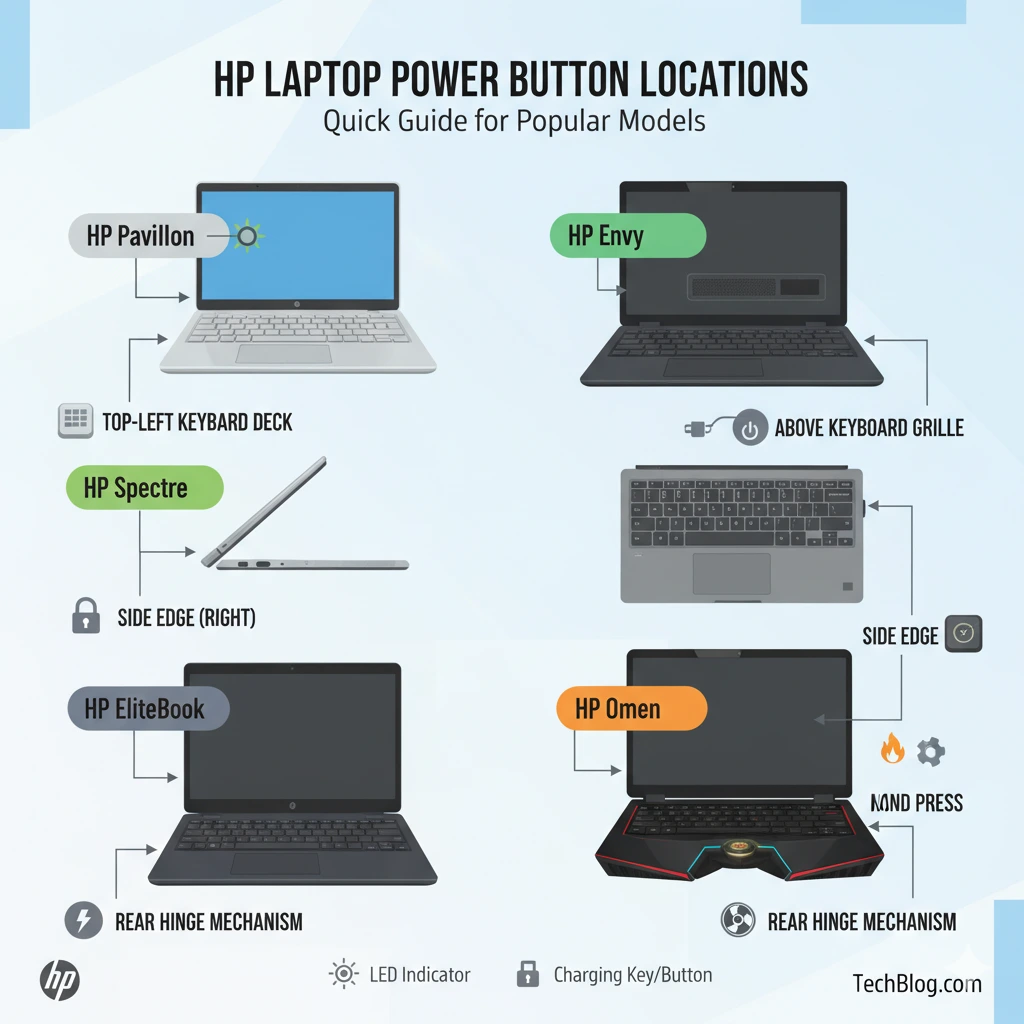
HP Laptop Power Button Location by Model
| HP Series | Power Button Placement |
| HP Pavilion | Top-right above the keyboard |
| HP Envy | Above the keyboard or the side edge |
| HP Spectre | Right side edge, often flush with the laptop frame |
| HP EliteBook | Center above the keyboard |
| HP Omen | Center above keyboard with integrated LED lighting |
Here’s a hint worth keeping in mind: check your HP laptop’s guide to find exactly where the power button sits – some designs tuck it near a fingerprint sensor or light signals. Location can shift depending on whether security features share space with the startup control.
How to Turn On an HP Laptop
Most of the time, starting up an HP laptop works without trouble. Still, itmightnotturnonwhenthe power key fails, or when hidden hardware or firmware glitches interfere.
Step-by-Step Process to Power On Your HP Laptop
Start by finding the power switch that matches your version. Some models tuck it near the base, others place it along the side edge.
- A quick tap is enough – just hit the button one time, then let go right away.
- The screen shows the HP symbol when it begins. That happens after a short pause.
- Most times, the screen lights up right away.
- A few seconds pass before icons appear.
- The machine hums softly as it wakes.
- Everything loads just like it should.
- No hiccups show up during startup.
- Programs stay ready when needed. It simply works each morning.
A laptop that won’t turn on might point to trouble with the power source, charging unit, main circuit board, or internal software. Sometimes one piece acts up; other times, everything seems dead for no clear reason. Power issues often hide behind what looks like a hardware failure. When nothing lights up, think beyond just plugging it in again. Faults can come from deep inside, not always visible.
What If the HP Laptop Power Button Does Not Work?
When the power button on an HP device won’t respond, frustration often follows. Figuring out why it stopped working comes first – this step matters most if you want to avoid making things worse.
Possible Causes
- A dead cell inside the power pack stops anything from turning on. When juice runs out or harm comes to the core, the machine stays dark. Without stored energy working right, beginning up is impossible. Power source trouble means no signal, no light, no response at all.
- Faulty charger? Power cuts out when parts fail. The broken piece inside stops electricity from moving through. Worn wire blocks energy transfer. Damaged tip messes up the connection. Adapter glitch kills steady current.
- Faulty power circuit? That can starve the motherboard of needed electricity.
- Frayed link near the power button? That wire running to the main circuit could be loose. Sometimes it slips free during handling. Connection fails when the contact breaks. Not always visible at first glance. A tiny gap stops everything. Board won’t respond without that tether. Needs realignment, not replacement. Often just a snap back into place.
- Firmware trouble can stop a laptop from booting. A glitch in the BIOS might be why it won’t turn on.
Quick Fixes for HP Laptop Power Button Issues
Perform a Hard Reset
Power stuck inside sometimes leaks out after a full restart. That leak could bring things back to life again.
Steps:
- Once done, unplug the charging cable, then take off the attached devices.
- If you can take the battery out, do so.
- Hold down the power button without letting go, keep it pressed between fifteen and thirty seconds.
- Fuse the battery back into place before attaching the charger. Then wait a moment.
- Start it up by hitting the power key again.
Inspect the Power Button
- A working adapter delivers just the right power. It runs without issues while matching voltage needs exactly.
- Lights near the power port glow once the charger connects.
- The wall outlet is delivering power.
Look for physical signs of malfunction:
- Stuck or unresponsive button
- Loose or wobbly feel
- Visible mechanical damage
Watch for these clues. A need for deep fixes might show up suddenly. Sometimes, swapping the part out becomes unavoidable.
Advanced Fixes (Technician-Level Solutions)
When the issue doesn’t go away, more detailed checks are needed. Only those with experience or official training should try these methods.
Reset the Embedded Controller (EC)
A tiny chip manages how power moves through the system, yet problems in its code can stop the device from turning on.
Steps:
- Start by unplugging every outside gadget – memory sticks, screens, add-ons. Take them all off before going further.
- Start by holding down the power button – keep it pressed for between half a minute and one full minute.
- Start by plugging the device back in – see if it powers up. Then wait a moment before expecting any response on screen.
Check the Power Switch Connector
If the laptop remains unresponsive:
- Carefully open the laptop’s bottom cover.
- Start by finding the wire that links the power button to the main circuit board.
- If the cable is broken, plug it back in or swap it out.
- If needed, swap out the power switch board.
Folks sometimes rush – this part hates haste. Take your time because one slip cracks the board. Move slow, think ahead, every touch matters here.
How to Turn On an HP Laptop Without a Power Button
Failing Hardware? Try another way to start it up – maybe a keyboard shortcut works. Or hold down the reset switch instead. Some systems wake when you plug them in after removing the battery briefly. A stuck port could respond to gentle tapping near the casing seam. Wait thirty seconds between attempts, just in case timing matters.s
Keyboard Power-On
Pressing certain keys on the keyboard can wake up some HP machines – if the setting exists inside the BIOS and someone turned it on beforehand.
Docking Station Power Button
Some work computers turn on when you press the dock’s power key instead of their own.
Short the Power Pins
Fiddling with the motherboard’s power pins might kick-start a laptop. Watch out – this move suits only those who know their way around circuits, because one slip could fry parts for good.
Signs the Power Button Is Broken
- The button does not click or feels stuck
- The laptop starts only after multiple presses
- Random shutdowns or restarts during use
- Physical damage is visible on the button
When to Replace the Power Button
Consider replacement if:
- The button is physically damaged or unresponsive
- The laptop does not respond even after hard resets
- The connector cable is broken or detached
Cost of Replacing an HP Power Button
| Repair Type | Estimated Cost |
| PowerButton board | $10 – $30 |
| Labor repair | $40 – $120 |
| Motherboard repair | $150 – $400 |
Tip: Investing in a professional repair often prevents further hardware complications.
Preventing Power Button Problems
- Avoid applying excessive pressure on the power button
- Keep the laptop clean and free from dust or debris
- Use a surge protector to prevent electrical damage
- Regularly update BIOS and firmware for stability
Real-World Examples of HP Power Button Issues
- HP Pavilion users sometimes report button unresponsiveness after firmware or BIOS updates.
- HP Spectre models occasionally fail to boot after accidental liquid spillage near the hinge.
- Some HP EliteBook users notice shaky inside buttons when moving around a lot.
- Bumps during trips seem to loosen things up over time.
- Rough handling might shift parts that should stay tight.
- After long periods of use, connections can feel less secure.
- Movement adds stress where it matters most.
Tips for HP Laptop Users
Finding your laptop later gets simpler when you write down its type and unique ID ahead of time. A quick note today saves confusion if something breaks tomorrow.
- Now and then, wipe around the power switch so gunk does not collect there.
- Start by skipping homemade fixes that risk frying your board – reach out to experts instead.
- A wrong move might cost more than a call to someone trained.
- A charger made by HP or one officially approved works best.
- Problems with power levels often start when random brands are used instead.
- Voltage hiccups tend to show up more with knockoffs.
- Sticking to what’s tested keeps things running steady.
FAQs
A: Typically above the keyboard, in the top-right corner, or on the side edge for ultra-thin models.
A: Possible causes include a dead battery, faulty charger, motherboard issues, loose connectors, or firmware glitches.
A: Press and hold the power button for 15–30 seconds to perform a hard reset.
Conclusion
A tinypieceonyour HPLaptop, the Power Button actually controls starting up, turning off, and leaving behind delays later. Spotting its place, knowing what happens when pressed, and figuring out fixes if nothing responds – these steps cut down hassle and spending on repairs.
Most times, power troubles come down to small things – a dead battery, broken charger, wobbly wire inside, or software hiccup that just needs shaking off. Try straightforward fixes: hold the restart button long, check the charging block closely, and reset the system brain. These moves usually bring everything back online before a technician gets involved. Even if you manage to fix it yourself, a cracked button or broken inner switch might still need professional help. A new power board could solve the problem before things get worse. Jumping into delicate circuit work without knowing what you are doing often causes more issues than it fixes. Tools matter, but so does knowing how to use them right.