Introduction
The HP Envy series Laptops are really nice. They look great. HP Envy laptop power button. They work very well. Lots of people like them, including students, professionals, designers, and people who like music and videos. The HP Envy power button can stop working. The process to systematically troubleshoot the power button and resolve the malfunction in a step-by-step manner, using 3 levels of difficulty
What you can do to fix the power button failure and use successful mechanisms/system setups for firmware and software solutions (basic to intermediate.The methodology to safely test for defective parts to rule out any defective components in the power button assembly
– The guidelines to assist you in determining when the power button replacement should be attempted before taking your unit to a certified technician.
Where is the HP Envy Power Button Located?
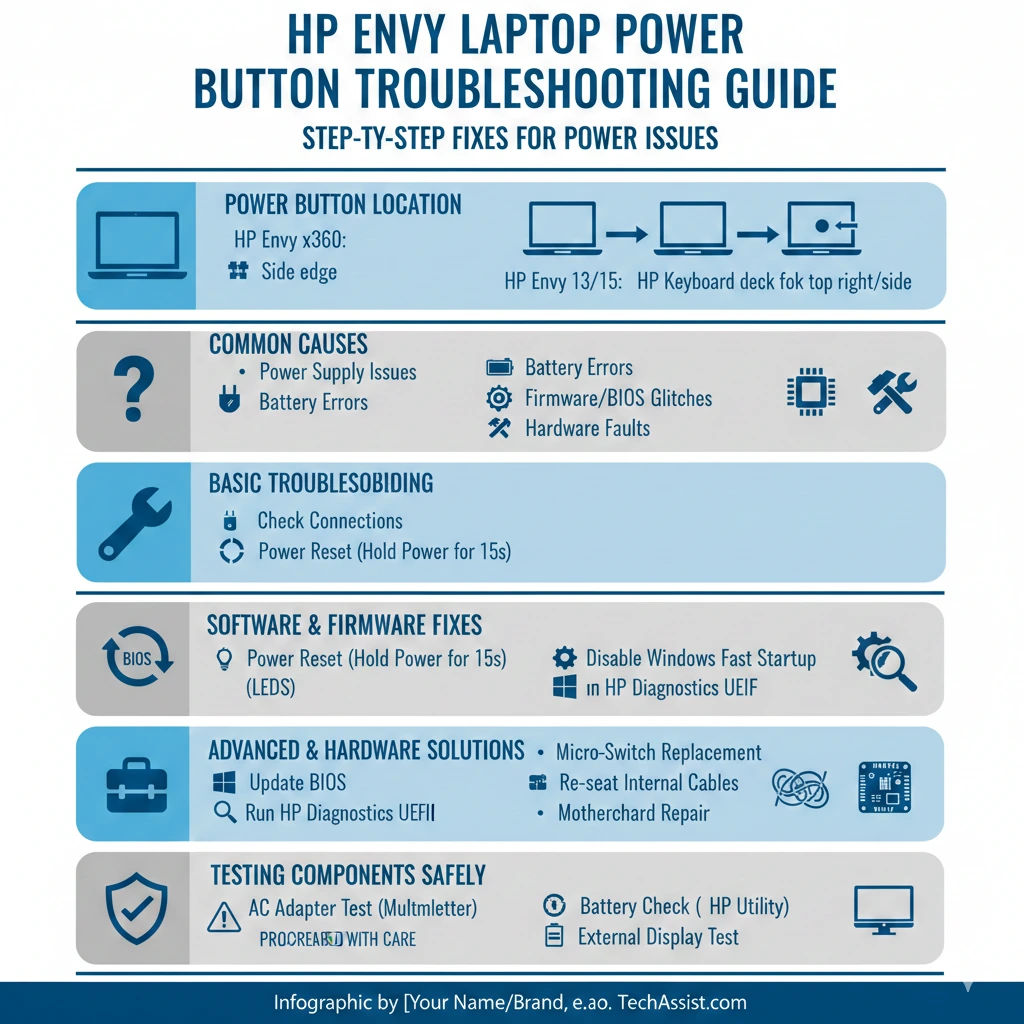
The exact location of the power button depends on your specific HP Envy model:
| Model | Power Button Location |
| HP Envy x360 | Right edge of the device |
| HP Envy 13 / 15 / 17 | Top-right corner above the keyboard |
| Some 2-in-1 variants | Integrated with volume control buttons |
Many buttons look similar to this, and many users do not get them correct; therefore,e it may take a considerable amount of time to diagnose and repair the device after obtaining power.
Why Power Button Issues Happen
To solve problems regarding an unresponsive power button, it is important to determine why that power button responded as it did (or did not respond). Under common conditions, four causes can produce response failures (minor electrical distribution problems through to firmware compatibility issues to physical breakdown of a component).
Power Supply & Charger Problems
So you want your laptop to work right. For that to happen, it needs to get electricity all the time. If the power adapter or the little plug that goes into your laptop, which is called the DC power jack, is not working correctly or is old, your laptop will not turn on when you press the power button. Here are some reasons why the power adapters and the DC jacks are not good enough:
- Frayed, damaged, or low-quality chargers
- Loose or broken DC jack connections
- Bent or worn plug ends
- Unstable wall power or outlets
**Important Reminder:** Use only the original power adapter supplied with the HP product when using it with an HP product. One of the reasons for problems starting your device or having a shorter battery life is that a third-party power adapter may supply unregulated voltage or insufficient current to meet the requirements of your HP computer. Even if a light is lit on the power adapter, this does not guarantee that the converter will supply adequate power to your computer’s internal components, so it may be a good idea to test with another HP power adapter to confirm if it is defective.
Battery & Power Management Errors
The HP Envy can be unresponsive even when the battery indicates that it has a full charge because of conflicts with its internal power management system, which can block the startup process. Some of the most common reasons for these conflicts include:
An old battery cell that is either worn out or damaged
A loose or incorrectly installed battery connection
Power settings for Windows sleep, hibernation, and other power-saving options are interfering with the start-up process
These lockouts of residual power can make the laptop appear completely nonresponsive; however, many of the circuits actually continue to receive some level of power. A complete power reset (instructions below) will usually clear the residual power that is causing the lockout and reboot the internal power logic.
Firmware & BIOS Glitches
Firmware or BIOS corruption can also prevent your HP Envy from powering on. Warning signs include:
- Outdated BIOS versions
- Failed Windows updates are impacting startup routines
- System freezes before POST (Power-On Self-Test)
Firmware bugs may prevent the laptop from recognizing power button presses, leaving users frustrated. Regularly updating BIOS, chipset drivers, and firmware is a preventive measure that ensures proper system recognition of hardware inputs and smooth boot sequences.
Hardware & Button Assembly Faults
Sometimes the issue is purely mechanical:
- The internal micro-switch inside the power button may be worn or soft
- Ribbon cables connecting the button to the motherboard may loosen
- The button may require multiple presses to activate
Symptoms like a “Spongy” button or intermittent powering on almost always indicate a hardware problem. Replacing the micro-switch or re-seating the internal ribbon cable usually restores full functionality.
Basic Troubleshooting Steps
Before delving into advanced solutions, perform these simple diagnostic checks.
Check Power & Connections
Ensure the basics are covered:
- Confirm the AC adapter is fully inserted and the LED is on
- Test a different wall outlet or power strip
- Disconnect and reconnect all peripherals
If the laptop exhibits no lights, fan noise, or other activity, the issue is likely electrical rather than software-related.
Perform a Power Reset
A power reset helps clear residual charge that can block startup:
- Disconnect the AC adapter
- Press and hold the power button for 30 seconds
- Reconnect the charger and try to power on
For 2-in-1 or x360 models, remove external devices like USB drives or displays during the reset. Many “dead” laptops revive after this simple procedure.
Visual Indicator Check
Even if the screen remains black, subtle indicators can reveal the problem source:
- Charging LED blink patterns
- Keyboard backlight or Caps Lock LED response
- Fan vibrations or noises
Documenting these blink codes or unusual patterns is crucial for accurate diagnostics or when consulting a professional technician.
Intermediate Software & Firmware Fixes
If basic checks fail, the issue may reside in software or firmware configurations.
Disable Windows Fast Startup
Windows Fast Startup sometimes keeps circuits partially powered, which may interfere with power button recognition:
- Open Control Panel → Power Options
- Click Choose what the power buttons do
- Turn off Fast Startup
- Restart the laptop
This ensures a complete shutdown and allows the laptop to fully register subsequent button presses.
Update BIOS & Drivers
Firmware and driver updates often resolve startup anomalies:
- Visit HP Support online
- Enter your specific laptop model
- Download and install the latest BIOS and chipset drivers while plugged in
Following the instructions meticulously prevents failed updates and ensures that the system recognizes hardware events accurately.
Use HP Diagnostics UEFI
Most HP laptops include built-in hardware diagnostics:
- Turn off the laptop
- Press the power button and repeatedly tap Esc
- Select F2: System Diagnostics
- Run full hardware tests
These tests verify battery health, memory, motherboard circuits, and other components. Recording results can help professionals isolate issues more quickly.
Advanced Hardware Solutions
Warning: Only attempt these steps if you are confident in laptop hardware repairs. Improper handling can worsen the damage.
Button Micro-Switch Replacement
If the power button is soft or unresponsive:
- Check if the laptop powers on only after firm or repeated presses
- Replace the micro-switch inside the button assembly
- Consider using a donor button from a spare HP Envy laptop
This often restores full responsiveness without needing a motherboard replacement.
Re-seat Internal Connections
Loose internal cables can lead to intermittent power issues:
- Remove the bottom cover
- Disconnect and reconnect:
- Battery cable
- Button board cable
- DC jack cable
Always discharge static electricity before touching components to avoid damage.
Replace or Repair Power Circuit
If other methods fail, the motherboard’s power circuitry may be damaged:
- Requires advanced soldering and electronics skills
- Best handled by authorized HP service centers
- Typically a last resort when the mainboard’s power system fails
Testing Components Safely
Verify which part is faulty before purchasing replacements.
Power Adapter Test
Use a multimeter to check voltage output:
| Adapter Rating | Expected Voltage |
| 45W | ~19.5V |
| 65W | ~19.5V |
| 90W | ~19.5V |
Low or inconsistent readings indicate a defective adapter.
Battery Test
- Remove the battery (if removable)
- Power the laptop via AC only
If it turns on, the battery is likely the issue.
External Display Test
Connect an external monitor:
- If the external display works, the internal screen may be faulty
- This differentiates power system issues from display issues
When to Seek Professional Help
Contact a trained technician if:
- The laptop is unresponsive after all resets
- LED diagnostics show error codes
- Suspected motherboard or internal board damage
- You are uncomfortable opening the device
Authorized HP service centers have the proper tools to safely decode error codes and repair internal circuits.
DIY vs Professional Repair
| DIY Repair | Professional Repair |
| Lower cost | Higher cost |
| Skill-building | Expert diagnostics |
| Immediate action | Safer & guaranteed |
| Must source parts | Parts provided automatically |
Pros of DIY: Cost-effective for minor issues, immediate troubleshooting.
Cons of DIY: Risk of voiding warranty, potential damage to components.
Professional repairs offer safety, precision, and long-term reliability.
FAQs
Why does my HP Envy laptop only respond after multiple presses?
Repeated presses usually indicate a worn micro-switch or loose internal cable.
Can I turn it on without the power button?
Some models allow:
- Keyboard shortcuts
- Wake-on-LAN (if enabled)
- Battery removal and AC-only powering
Is repairing the motherboard worth it?
If repair costs approach replacement price, buying a new laptop may be more cost-effective unless specialized software or sentimental reasons exist.
Conclusion
HP Envy power button problems can be frustrating, but are mostly solvable. Following a step-by-step approach — including power resets, software adjustments, firmware updates, and hardware checks — usually resolves most issues.
Advanced repairs like micro-switch replacement or motherboard soldering should only be attempted by confident Technicians. This 2026 guide provides the most comprehensive roadmap for diagnosing and repairing HP Envy power button issues, ensuring your laptop powers on reliably while minimizing risk.