Introduction
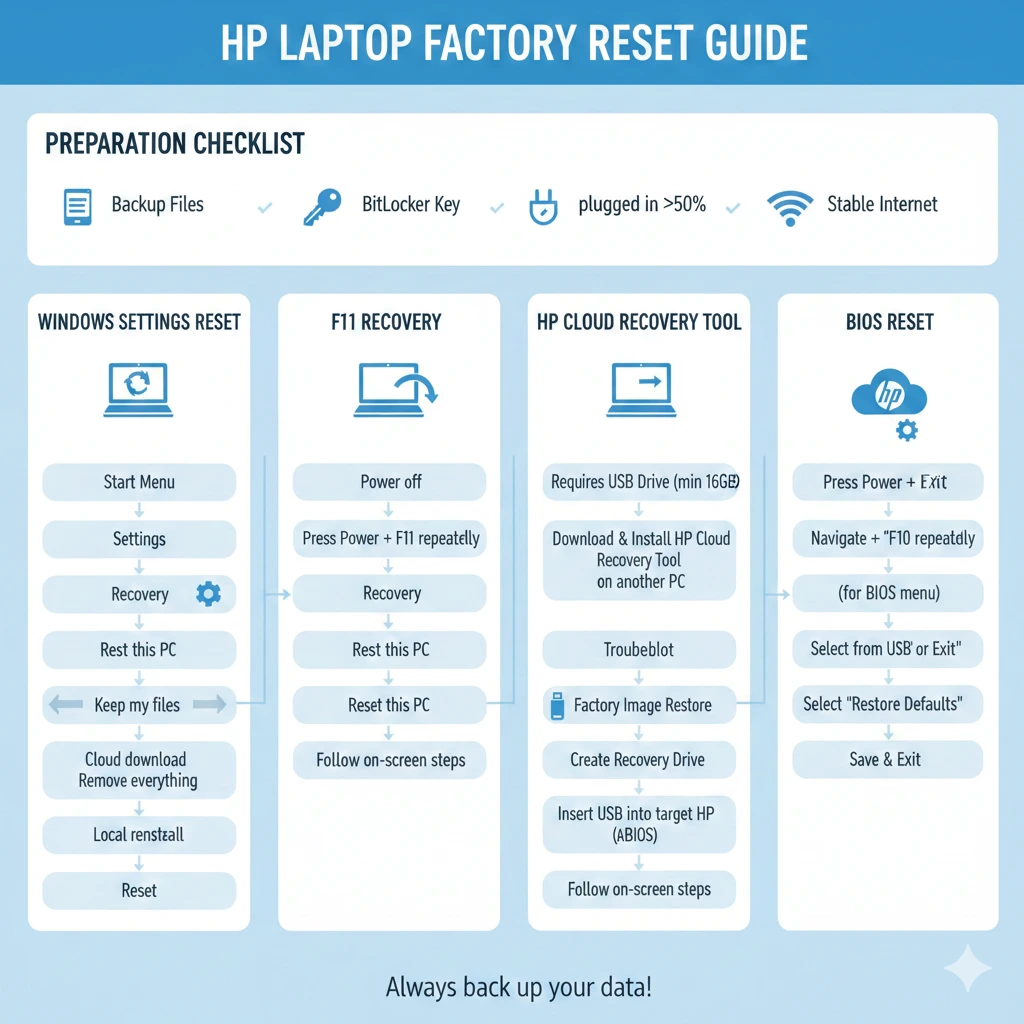
We will demonstrate four different methods, which include Windows Settings reset, F11 recovery, HP Cloud Recovery Tool, and BIOS-based reset. The guide provides essential preparatory steps together with troubleshooting strategies and post-reset optimization tips, which will ensure a successful restoration process.
You will learn the complete process for restoring your HP laptop to factory settings by following the steps in this guide,e which will enable you to execute the process effectively without risking important data loss.
What Does “Factory Reset” Mean on an HP Laptop?
Understanding the different types of resets will help you determine the most suitable approach for your circumstances.
| Reset Type | What It Does | When to Use | Notes |
| Windows Reset | Reinstalls Windows OS; optionally keeps personal files | When Windows boots normally | Does not recover HP-specific software or pre-installed drivers |
| HP System Recovery (F11) | Downloads and installs the factory image from HP servers | When Windows fails to start | Full restoration including HP apps, drivers, and utilities |
| HP Cloud Recovery Tool | Downloads and installs factory image from HP servers | Recovery Partition is missing or corrupted | Requires a second Windows PC and USB drive |
Key Takeaways:
- A genuine factory reset restores all HP applications, drivers, and default system settings.
- Windows Reset is faster but may skip HP-specific programs.
- HP Cloud Recovery is the most reliable solution when local recovery methods fail.
Before You Begin: Essential Preparation
Preparation is necessary to guarantee an effortless, safe, and data loss-free process.
Backup Your Files
Before you proceed, always safeguard your important data. Options include:
Cloud storage: OneDrive and Google Drive are popular services used to back up and later restore information.
External storage:
USB drives or external hard disks give you an offline backup option.
Selective vs full backup:
Decide whether to back up only critical documents or create a complete system copy.
To verify your Windows version: Open Settings and type “System” in the Search field. Click on “System” from the results, and then in About select “Windows Specifications.”
In most cases,s a small amount of preparation can prevent many problems from occurring, such as Accidental errors that can lead to information being lost, or the possibility of choosing the best method for resetting the iPad or iPhone.
Factory Reset via Windows Settings
This method is ideal if your laptop boots normally and you have access to Windows.
Step-by-Step Instructions:
- Click Start → Settings → System → Recovery.
- Under Reset this PC, select Reset PC.
- Choose:
- Keep my files → Removes apps and settings but retains personal documents.
- Remove everything → Full wipe, deleting all data and apps.
- Select Cloud download or Local reinstall.
- Confirm and wait for the reset process to finish.
Tips:
- Cloud Download installs the latest Windows version from Microsoft servers.
- Local reinstall is faster but uses the existing system image.
Pros & Cons
| Pros | Cons |
| Easy, requires no extra devices | Limited recovery of HP pre-installed apps |
| Can retain or remove personal files | Must have a working Windows login |
| Compatible with Windows 10 & 11 | May not repair corrupted system files |
Reset Using F11 Recovery (Without Login)
If your Windows won’t start, F11 recovery is your best option.
Step-by-Step Instructions:
- Turn off your HP laptop completely.
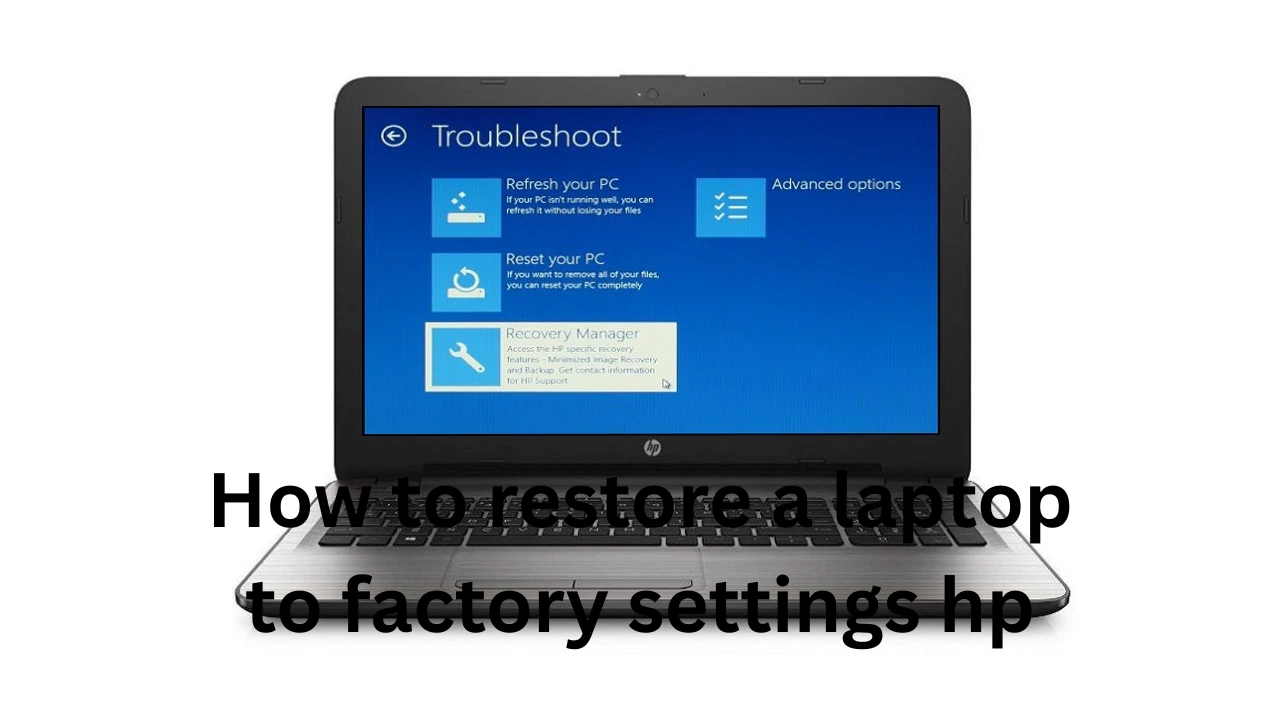
- Power on and repeatedly press F11 until the Recovery Manager appears.
- Choose Troubleshoot → Reset this PC → Remove everything.
- Follow the on-screen instructions until the reset completes.
Tips if F11 Doesn’t Work:
- Press Esc → F11 from the boot menu.
- Ensure the Recovery Partition exists; if not, use the HP Cloud Recovery Tool.
Pros & Cons
| Pros | Cons |
| Only available if a recovery partition exists | Can take longer than the Windows Settings reset |
| Full factory reset, including HP apps | Can take longer than Windows Settings reset |
| Restores HP applications & drivers | Risk of losing personal data if not backed up |
HP Cloud Recovery Tool
This method is perfect if your Recovery Partition is damaged or missing.
Requirements:
- A second Windows PC
- USB flash drive (32 GB or more)
- HP laptop serial number and model
Step-by-Step Instructions:
- Download the HP Cloud Recovery Tool on a working computer.
- Insert the USB drive and create recovery media.
- Boot the HP laptop from the USB drive (press Esc, then F9, then Boot Device).
- Select your model, language, and start the recovery process.
- Wait until the full factory image is restored.
Notes:
- Works even if the Recovery Partition is missing or corrupted.
- Installs the latest version of Windows along with HP drivers and applications.
Pros & Cons
| Pros | Cons |
| Requires a second PC and a stable internet | Installs the latest Windows version |
| Requires a second PC and a stable internet connection | USB must be 32 GB+ and empty |
| Full factory image restoration | Time-consuming |
Alternative & Advanced Options
Reset Through BIOS
Advanced users or laptops that cannot boot Windows may use BIOS-level reset:
- Power on the laptop and press Esc → F10 for BIOS setup.
- Navigate to Restore Defaults / Factory Defaults.
- Choose Minimal Image (keeps some apps) or Full Image (complete wipe).
When to Use:
- Windows is completely unbootable
- Prefer BIOS-level recovery or advanced troubleshooting
Common Problems & Fixes
| Problem | Solution |
| F11 doesn’t open Recovery | Press Esc first, then F11 |
| Use the BitLocker key or admin password | Use BitLocker key or admin password |
| Reset stuck at 1% | Unplug USB devices and retry |
| Reset keeps rolling back | Create USB recovery media and retry |
Real-World Examples:
- A user experienced repeated reset failures due to a corrupted Recovery Partition — resolved by using the HP Cloud Recovery Tool.
- Some HP models require pressing Esc first to access F11 Recovery.
Setup & Optimization
Once the factory reset is complete:
- Run Windows Update to get the latest security patches.
- Install HP Support Assistant for driver updates.
- Reinstall essential applications.
- Restore backup data.
- Customize system settings, desktop, privacy, and power plans.
Quick Reference Checklist:
- Backup complete
- BitLocker recovery key saved
- Windows version confirmed
- Power & internet connected
- Recovery method chosen
- Data erase/keep decisions documented
FAQs
A: Yes — a full factory reset deletes all personal files, apps, and settings.
A: Yes — using F11 recovery or USB recovery media.
A: Press Esc first, or use HP Cloud Recovery Tool via USB.
A: Typically, 30 minutes to 2 hours, depending on system size and method.
A: Yes — the digital license remains tied to your HP laptop.
Conclusion
Thinking about upgrading your HP Laptop or fighting the constant battle with viruses? Well, a factory reset of an HP laptop is your answer. Maybe you want to resell your HP laptop and need to unlock it to restart the sale? There are a coupleof ways to perform a factory reset of an HP laptop, and it is very important to choose the right method in order to get the results you want.
Windows Settings Reset → easiest, keeps files if needed.F11 Recovery → no login required, full restoration including HP software.HP Cloud Recovery Tool → recovery partition missing or damaged.BIOS Reset → advanced option for non-booting laptops.
You always want to make sure that your important data is backed up and that your BitLocker key is secure. But other than that, you have nothing to worry about. If you follow our steps carefully, you’ll find that the factory reset really is safe, very easy to do, and absolutely makes your HP laptop run like new again.