Introduction
When your Laptop Drags its feet, freezes up, or acts out of sorts, learning to reset anHP machinemightjustkeeprepairbillsatbay. How to reset my HP laptop. Start fresh instead of struggling through glitches – that often clears slowdowns quicker than most fixes. Glitches fade when the system wipes clean, shedding junk files like old skin. Errors packed into the OS tend to vanish once everything resets fully. Malware sneaks in quietly, yet a full wipe usually kicks it right out. Performance climbs back up after the clutter disappears. The machine breathes easier once unnecessary weight lifts away.
Most folks think restarting a computer feels risky, complicated, or something only experts can handle. Actually? It isn’t like that at all. Today’s HP laptops come ready with tools inside that guide you through fixes without confusion – perfect if it’s your first try. Stuck on startup, caught in crashes, running old Windows versions, or blocked by a lost login – the way out often already exists within the device itself.
This step-by-step walkthrough covers each key approach using plain terms. Resetting via system preferences comes first, then moving into emergency repair options. Skip the login hurdle with access workarounds that bypass credentials entirely. Try forced restart strategies if standard steps stall out. Dive into firmware-level comebacks using built-in setup utilities. Even locked screens or frozen progress bars have fixes tucked away nearby.
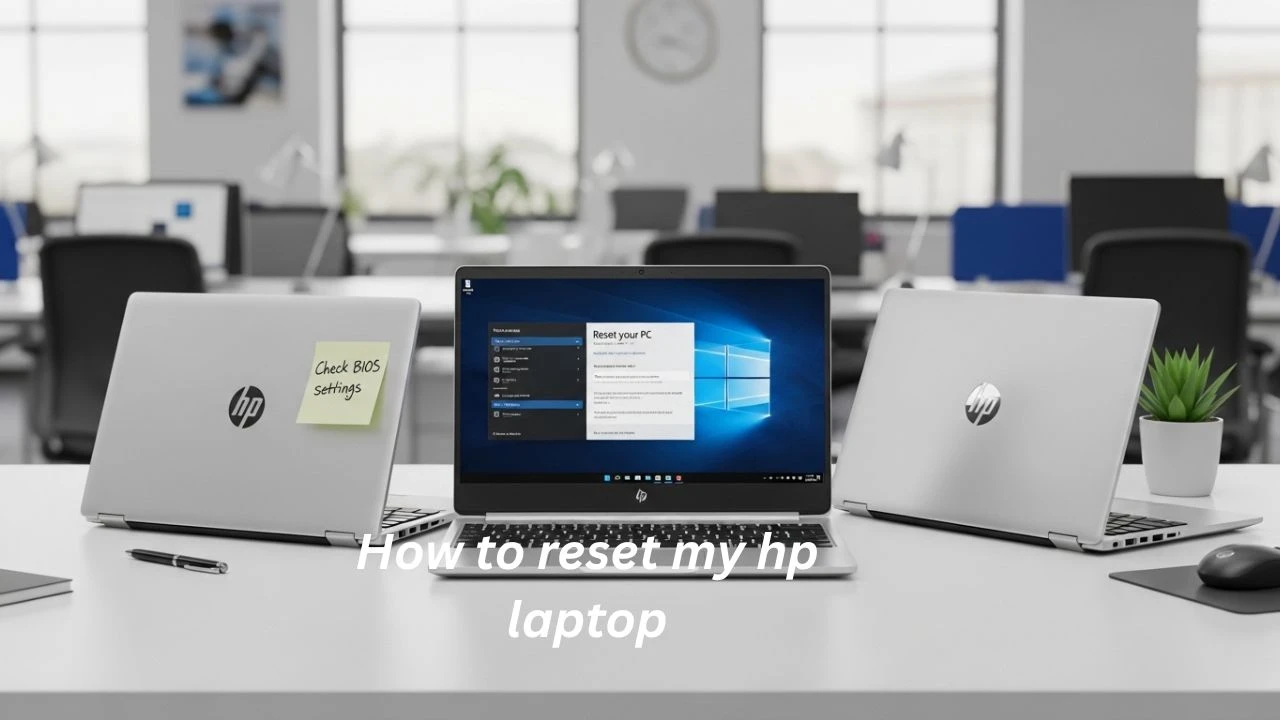
How to Reset My HP Laptop
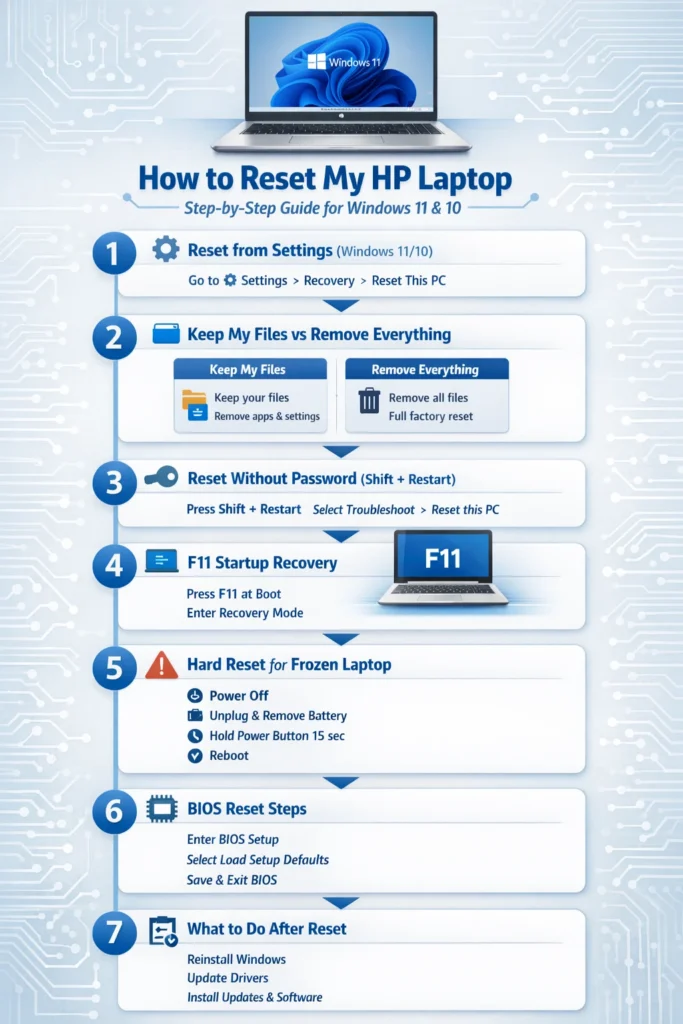
To reset your HP laptop:
- Open Settings
- Go to System > Recovery (Windows 11)
or Update & Security > Recovery (Windows 10) - Select Reset this PC
- Choose Keep my files or Remove everything
- Follow the on-screen instructions
If you are locked out:
- Use Shift + Restart from the sign-in screen
- Or press F11 during startup to open recovery mode
Why You Might Need to Reset an HP Laptop
Resetting a laptop is useful in many everyday situations. Common reasons include:
- The laptop is extremely slow
- Frequent freezing
- Unexpected shutdowns
- Startup failures
- Endless reboot loop
- Malware or virus infection
- Black screen after login
- Forgotten password
- Too many unwanted applications
- Windows became corrupted after the update
- Preparing device for resale
- Persistent software conflicts
- Random blue screen errors
Sometimes, a full reset is faster than manually fixing multiple issues one by one.
Things to Do Before Resetting Your HP Laptop
Before beginning, prepare properly to avoid mistakes or data loss.
Back Up Important Files
Even if you choose Keep my files, creating a backup is smart.
Save items such as:
- Documents
- Pictures
- Videos
- Downloads
- School projects
- Office files
- Music collections
- Browser bookmarks
- Password vault exports
- Work folders
Best backup choices:
- USB flash drive
- External hard disk
- Cloud storage
- Secondary computer
- NAS device
Plug In the Charger
A reset can last from 20 minutes to several hours, depending on hardware speed. Keep the charger connected throughout the process.
Know Your Login Credentials
After reset, Windows may request:
- Microsoft account password
- PIN code
- Wi-Fi password
- Recovery email access
Disconnect External Devices
Remove unnecessary accessories:
- USB drives
- Printers
- Game controllers
- Docking stations
- Memory cards
- Extra monitors
- External keyboards
This reduces compatibility issues.
Understanding Your Reset Options
When you reset an HP laptop, Windows usually offers two core choices.
| Reset Option | What It Does | Best For |
| Keep My Files | Reinstalls Windows, removes apps/settings, keeps personal data | Slow laptop, software glitches |
| Remove Everything | Erases files, apps, settings | Selling laptop, malware, fresh start |
You may also see reinstall methods:
| Reinstall Method | Meaning |
| Cloud Download | Downloads fresh Windows from Microsoft servers |
| Local Reinstall | Uses files already stored on the laptop |
If system files are damaged, Cloud Download is often better.
How to Reset My HP Laptop in Windows 11
If your laptop starts normally and you can sign in, this is the easiest route.
Step-by-Step Instructions
- Click Start
- Open Settings
- Select System
- Click Recovery
- Find Reset this PC
- Click Reset PC
- Choose:
- Keep my files
- Remove everything
- Choose:
- Cloud Download
- Local Reinstall
- Review options
- Click Reset
Your computer will restart and begin the restoration process.
Helpful Tip
If your laptop is slow but your files matter, try Keep my files first.
How to Reset My HP Laptop in Windows 10
Windows 10 uses a slightly different path.
Step-by-Step Instructions
- Click Start
- Open Settings
- Go to Update & Security
- Click Recovery
- Under Reset this PC, choose Get Started
- Select:
- Keep my files
- Remove everything
- Follow prompts
- Click Reset
How to Reset My HP Laptop Without a Password
Forgot your password? You can still reset the device.
Use Shift + Restart from the Login Screen
Steps
- Turn on the laptop
- Stay on the sign-in screen
- Click the Power icon
- Hold the Shift key
- Click Restart
- Release Shift after reboot
- Select Troubleshoot
- Choose Reset this PC
This is one of the simplest no-password solutions.
Use F11 Recovery Key
Many HP laptops include startup recovery access.
Steps
- Turn off the laptop fully
- Press the power button
- Immediately tap F11 repeatedly
- Wait for the recovery menu
- Select Troubleshoot
- Click Reset this PC
How to Reset My HP Laptop From Startup
If Windows refuses to load, startup recovery is often the best method.
When to Use This Method
- Laptop stuck on the HP logo
- Infinite loading circle
- Automatic repair loop
- Blue screen crash
- Windows fails to boot
- The sign-in screen never appears
Steps
- Shut down the laptop
- Power it on
- Press F11 repeatedly
- Open Recovery Environment
- Select Troubleshoot
- Click Reset this PC
- Follow instructions
How to Hard Reset an HP Laptop
A hard reset is different from a factory reset. It clears residual electrical charge and can fix power-related problems.
For Non-Removable Battery Models
- Shut down the laptop
- Unplug charger
- Hold the Power button for 15–20 seconds
- Reconnect charger
- Turn on the laptop
For Removable Battery Models
- Power off the device
- Remove charger
- Remove battery
- Hold the Power button for 15 seconds
- Reinsert battery
- Plug-in charger
- Turn on the laptop
When Hard Reset Helps
- Black screen
- Frozen system
- Keyboard not responding
- Won’t power on correctly
- Sleep mode problems
- Charging irregularities
How to Soft Reset an HP Laptop
A soft reset simply means restarting the operating system.
Steps
- Click Start
- Select Power
- Click Restart
Always try this before advanced repairs.
How to Reset HP Laptop BIOS
BIOS controls low-level hardware settings. If the boot order or configuration is wrong, resetting the BIOS can help.
Steps
- Turn on the laptop
- Press Esc, F10, or BIOS key repeatedly
- Enter BIOS Setup
- Choose Load Setup Defaults
- Save changes
- Exit BIOS
Important Note
BIOS reset does not erase your personal files.
HP Laptop Reset Methods Comparison Table
Method | Deletes Files? | Requires Login? | Best Use Case |
Reset This PC | Optional | Yes | Standard reset |
Shift + Restart | Optional | No | Forgot password |
F11 Recovery | Optional | No | Startup issues |
Hard Reset | No | No | Black screen / freeze |
BIOS Reset | No | No | Hardware settings issue |
How Long Does an HP Laptop Reset Take?
Time depends on storage type, processor speed, and selected method.
| Device Type | Estimated Time |
| SSD Laptop | 20–60 minutes |
| HDD Laptop | 1–3 hours |
| Cloud Download | Longer if the internet is slow |
| Remove Everything | Usually slower |
Be patient. Some screens may appear stuck while work continues in the background.
What to Do If the HP Laptop Reset Is Not Working
Sometimes the reset process fails. Use these fixes.
Reset Failed
Solutions
- Restart the laptop and retry
- Use Cloud Download
- Free up disk space
- Disconnect USB accessories
- Run Startup Repair first
- Update BIOS if needed
Stuck at 1%, 64%, or 99%
Solutions
- Wait 30–60 minutes
- Keep the charger connected
- Check if the drive light is blinking
- Force a restart only after several hours of no change
- Retry from recovery mode
No Recovery Option Available
Use a Windows installation USB.
Basic Process
- Create a USB installer on another PC
- Insert the USB into the HP laptop
- Boot from USB
- Choose Repair or Install Windows
Problem: Endless Restart Loop
Solutions
- Force power off
- Turn on again
- Press F11
- Open Troubleshoot
- Run Startup Repair
- Retry reset
Black Screen After Reset
Solutions
- Perform a hard reset
- Try an external monitor
- Press Win + Ctrl + Shift + B
- Enter Safe Mode
- Reinstall the display driver
- Checthe k RAM seating if the upgrade was done
Keep My Files vs Remove Everything: Which Should You Choose?
Choose Keep My Files If:
- The laptop is slow
- Apps crash randomly
- You need your documents
- You want a quick refresh
- The system has minor corruption
Choose Remove Everything If:
- Selling laptop
- Serious malware infection
- Fresh start desired
- Giving a laptop to another user
- Privacy is a priority
Pros & Cons of Resetting an HP Laptop
Pros
- Fixes many software issues
- Improves speed
- Removes malware
- Clears clutter
- Restores stability
- Helpful before resale
- Reinstalls clean system files
Cons
- Installed apps removed
- Setup takes time
- Risk of data loss without backup
- Drivers may need to be reinstalled
- Hardware faults remain unfixed
- Custom settings disappear
Real-World Example Scenarios
Slow Student Laptop
Too many startup apps and low free storage.
Best option: Keep My Files
Selling Old HP Laptop
Need privacy and a clean handover.
Best option: Remove Everything
Forgot Password
Cannot access Windows.
Best option: Shift + Restart
Laptop Won’t Boot
Stuck on the logo screen.
Best option: F11 Recovery
Black Screen
Power light turns on, butthe display stays dark.
Best option: Hard Reset
What to Do Next
Once the reset is complete, optimise your laptop again.
Install Windows Updates
Go to Settings and install all available updates.
Install HP Drivers
Use:
- HP Support Assistant
- Windows Update
- HP official support page
Reinstall Apps
Examples:
- Chrome
- Microsoft Office
- Zoom
- Adobe Reader
- Antivirus
- Steam
- VLC Media Player
Restore Backed-Up Files
Copy data back from:
- Cloud storage
- External drive
- USB backup
Improve Future Performance
- Disable unnecessary startup apps
- Keep storage space free
- Restart weekly
- Scan for malware monthly
- Update drivers regularly
- Avoid suspicious downloads
Common Mistakes to Avoid
- Not backing up files
- Interrupting the reset too early
- Running on low battery
- Choosing Remove Everything accidentally
- Forgetting account password
- Leaving USB devices connected
- Ignoring updates afterwards
- Shutting the lid during reset
- Using an unstable power source
FAQs
A: Use the sign-in screen. Click the Power icon, hold Shift, and choose Restart. Then select Troubleshoot > Reset this PC. This lets you restore the laptop without logging into your account. It is ideal when you forget your password or Windows won’t allow normal access.
A: No. Windows is reinstalled during the reset process. The operating system is refreshed and returns to a cleaner state. Depending on the option chosen, your personal files may remain or be erased, but Windows itself stays available after completion.
A: On many HP laptops, pressing F11 during startup opens the recovery environment. From there, you can access repair tools, startup recovery, and the Reset this PC feature. Some models may also use Esc or F10 for additional recovery menus.
A: It usually takes between 20 minutes and 3 hours. SSD-based laptops finish faster, while older HDD models take longer. Cloud downloads, damaged drives, or full erase options may increase total time significantly.
A: Yes. Choose Keep My Files during the reset process. Windows reinstalls itself, removes apps and settings, but keeps personal documents, pictures, and saved files. However, creating a backup first is always recommended.
Conclusion
Figuringoutareset foran HP laptop? That skill pays off more than most realise. When things crawl, freeze, won’t unlock, or halt at boot – maybe even before handing it to someone else – a proper wipe brings it back without long waits.
Pick what fits best once you know the problem. Start there
- Speed too slow? Try Keep My Files instead
- Got a laptop to sell? Wipe it clean with Remove Everything
- Oops. Lost your password? Try holding Shift while restarting the device
- Stuck at startup? Try tapping F11 for recovery access instead
- Screen stuck, looking blank or dark? Try a forced restart instead
Start by saving important documents somewhere safe. Plug in the power cable while you work. Give each step plenty of minutes so nothing gets rushed. Follow clear steps, and the machine runs smoother, quieter, and better. The old HP acts brand new when handled right.