Introduction
When a Dell Laptop acts up – running slow, How to reprogram dell laptop freezing, glitching, acting strange after malware hits – it sometimes needs more than just fixes. Reprogramming might be what brings it back to life. A fresh start clears out the junk weighing it down. Instead of troubleshooting every hiccup, resetting the system can restore how it once worked. Glitches fade when the core software gets rebuilt from scratch. That deep reset cuts through clutter others miss. Machines breathe easier without old baggage slowing them.
Later on, junk builds up inside the system – bits of leftover data, broken files, hidden tasks running wild – all piling up without warning. When clutter takes over, freezes show up out of nowhere, crashes hit harder, and actions turn erratic.
Explanation
A fresh start for your laptop often begins by wiping the digital slate clean. Instead of running on cluttered software layers, it rebuilds the core system from reliable foundations. Glitches fade when damaged parts get stripped out. Fresh copies of critical files slide into place automatically. Settings snap back to how they were at first launch, untouched by changes. What remains is stability, shaped by reset routines working behind the scenes.
A lot of people type “how to reprogram a Dell laptop” after running into glitches like:
- Extremely slow performance
- System crashes or freezes
- Boot errors or startup failures
- Virus or malware infections
- Software conflicts and corrupted files
- Preparing a laptop for resale or transfer
Sadly, most web guides cover just a single reset method. When that doesn’t work, people feel stuck without clear next steps.
This complete walkthrough shows each trusted way to reset a Dell laptop. It covers all proven approaches, one after another
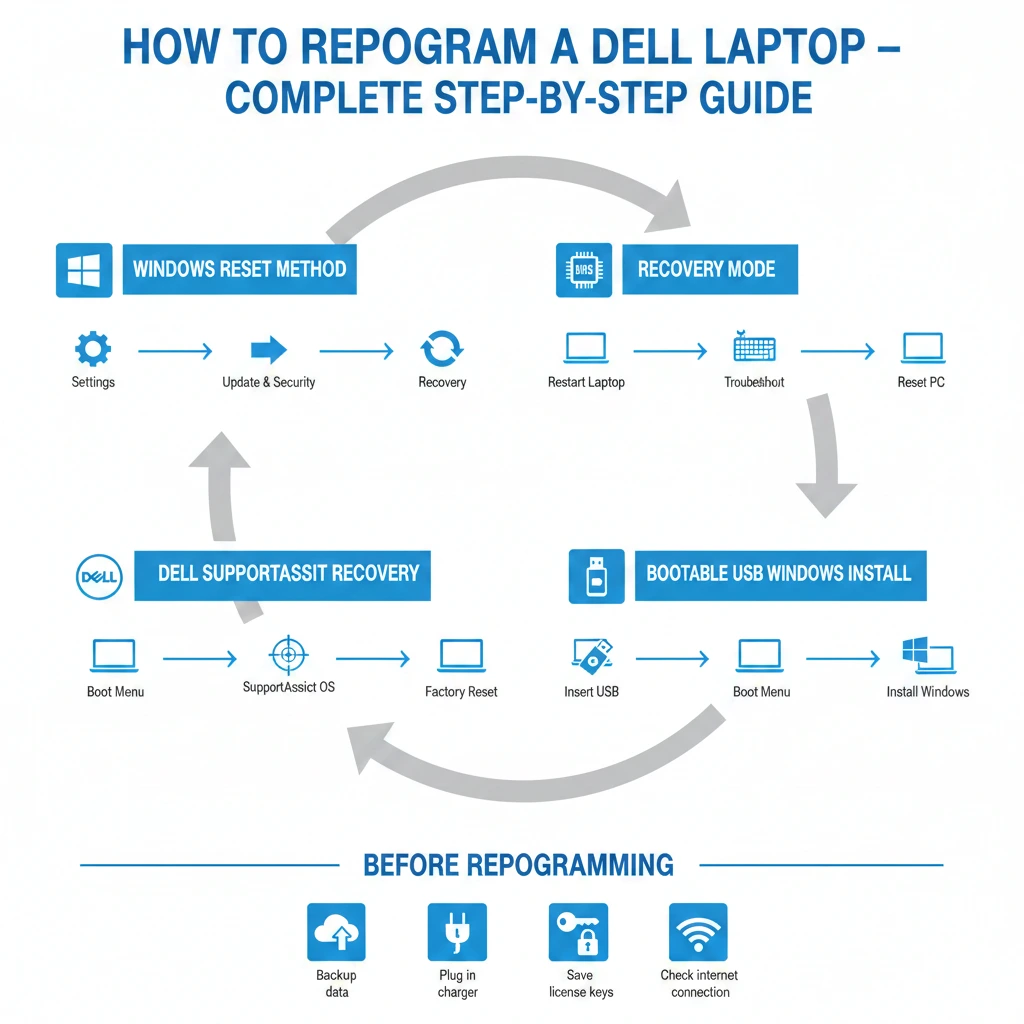
- Factory reset using Windows settings
- Reprogramming using Dell SupportAssist recovery
- Reinstalling Windows using a bootable USB drive
- Resetting BIOS configuration
- Fixing reset errors or boot failures
If your machine works fine, acts up now and then, yet still boots – or just won’t turn on at all – you’ll find ways here to fix your Dell laptop without risk. How things go depends on what’s wrong, but each step keeps safety first while getting performance back on track. Even when nothing shows on screen, some moves often bring it back to life.
What Does “Reprogram a Dell Laptop” Mean?
Folks often think changing the programming means coding firmware or loading special software. Actually, it turns out to be far easier than that.
A fresh start for a laptop often comes by wiping its software slate clean. Resetting the system can clear out clutter that has built up over time. Sometimes it is simply about reloading the core programs anew. A machine breathes easier when stripped back to basics. Stability finds its way once more through this process.
you reprogram a Dell laptop, you are essentially:
- Removing corrupted system files
- Reinstalling the Windows operating system
- Resetting system configurations
- Clearing registry errors and software conflicts
- Restoring the laptop to its original factory environment
A fresh start for your machine is what reprogramming brings – much like its original state right out of the box. Though unseen, the reset touches every core function, quietly aligning things behind the screen. Most times, performance shifts become noticeable only after the process completes. That earlier sluggishness? Often fades without fanfare. What remains feels familiar, yet subtly renewed. Like flipping a hidden switch buried deep in the system’s rhythm.
Common Dell Laptop Reprogramming Methods
Different technical problems require different recovery solutions. Understanding these methods helps users choose the most effective troubleshooting approach.
| Method | What It Does | Difficulty | When to Use |
| Windows Reset | Reinstalls Windows using built-in files | Easy | Minor software issues |
| Factory Reset | Restores laptop to original configuration | Easy | Repairs or resets the system using Dell tools |
| Windows Reinstallation | Installs a fresh operating system | Medium | Corrupted Windows |
| BIOS Reset | Restores hardware configuration settings | Easy | Hardware misconfiguration |
| Dell Recovery Environment | Repairs or resets system using Dell tools | Medium | Boot problems |
Each method plays an important role when learning how to reprogram a Dell laptop properly.
When Should You Reprogram a Dell Laptop?
When issues are small or short-lived, changing the software isn’t needed. Only if the system runs into deep failure or keeps crashing does a full reset make sense.
Below are the most common situations where a full system reset becomes beneficial.
Laptop Running Extremely Slow
As laptops age, they accumulate:
- Temporary system files
- Unnecessary programs
- Broken registry entries
- Background startup applications
- Store copies of information along with records of activity
Over time, these partseatupmemory, tiedowntheprocessor, whilealsofillingstorage – makingeverythingrunslower. Sluggish performance creeps in as each resource gets weighed down bit by bit.
Starting over clears out mess, tidies up core files, also brings back quick performance
Virus or Malware Infection
Few threats dig as far into a computer’s core, tampering with critical pieces that keep everything running. Instead of staying on the surface, they embed where changes cause real damage over time.
Few top–tier security tools manage to wipe out stubborn malware hiding deep inside systems.
Fresh start for your laptop wipes out sneaky viruses while bringing back safety, stability, and speed. Hidden threats vanish when the system resets, leaving everything running clean again. A full rebuild tightens defences, smooths glitches, and renews responsiveness.
Windows System Corruption
Operating system files can become damaged due to:
- Unexpected power failure
- Faulty Windows updates
- Hard drive errors
- Malware infections
- Software conflicts
Starting fresh with Windows fixes those issues, bringing back smooth performance. A clean install clears glitches while improving how steadily the system runs. Getting rid of clutter helps it work properly again – consistency returns when the OS is rebuilt from the ground up
Blue Screen Errors
Crashing a lot with blue screens usually means something’s wrong deep inside the system. Problems hiding in drivers or core programs often show up this way. When reboots happen too often, it points to glitches that won’t fix themselves. Glitches like these rarely go away without digging into what’s underneath.
Mistakes like these often pop up because of reasons such as
- Corrupted drivers
- Memory conflicts
- Damaged system components
Fresh start on the machine wipes out those glitches when you load an untouched OS version.
Laptop Keeps Crashing or Freezing
When a laptop keeps freezing, crashing, or ignoring inputs, broken parts inside Windows might be the cause.
Starting fresh wipes out troublesome apps while bringing back original system files.
Laptop Won’t Boot
Occasionally, the system won’t start up at all.
Symptoms include:
- Black screen during startup
- Infinite boot loop
- Startup repair errors
Bent screens might slow you down, yet software fixes still breathe life into frozen systems. A glitched update won’t always win – hidden utilities rewrite the core, booting things back to normal.
Preparing Laptop for Resale
When selling or giving away a laptop, you must remove:
- Personal documents
- Saved accounts
- Installed programs
- Browsing data
- Login credentials
Starting fresh means the laptop runs without leftover files. Through wiping data completely, security improves greatly. Only when old settings vanish does it truly feel new again.
Things to Do Before Reprogramming Your Dell Laptop
Before starting the reset process, take several precautions to protect your files and prevent unnecessary complications
Backup Important Data
Resetting Windows may delete files depending on the selected option.
Always back up important data, such as:
- Documents
- Photos
- Videos
- Work files
- Downloads
You can store backups using:
- External hard drives
- USB flash drives
- Cloud storage platforms
Creating a backup ensures no valuable information is permanently lost.
Keep the Laptop Plugged In
Reprogramming may take 30 minutes to 2 hours, depending on system speed and reset type.
If the laptop shuts down during the process, the operating system could become corrupted.
Always keep the laptop connected to its power adapter.
Save Software License Keys
Some software programs require activation after reinstalling Windows.
Examples include:
- Microsoft Office
- Adobe Creative Cloud
- Professional editing software
- Specialised productivity tools
Record activation keys before starting the reset.
Check Internet Connection
After reprogramming, Windows may need to download:
- Security updates
- Hardware drivers
- Feature updates
A stable internet connection speeds up this process.
How to Reprogram a Dell Laptop Using Windows Reset
This is the simplest and most user-friendly method if your laptop still starts normally.
Windows includes a built-in reset tool that reinstalls the operating system without requiring external software.
Step-by-Step Instructions
- Open Settings
- Click Update & Security
- Select Recovery
- Locate Reset this PC
- Click Get Started
You will then see two reset options.
Reset Options Explained
| Reset Option | What Happens |
| Keep My Files | Reinstalls Windows but keeps personal files |
| Remove Everything | Deletes all files and installed programs |
If you want a completely clean system, choose Remove Everything.
What Happens During the Reset
After confirmation, Windows will:
- Restart the computer
- Remove installed applications
- Reinstall operating system files
- Reset configuration settings
The entire process typically takes 30–60 minutes.
Reprogram Dell Laptop Using Advanced Startup Recovery
If Windows cannot start normally, you can still reset the system using the Windows Recovery Environment.
This integrated troubleshooting platform allows users to repair, restore, or reinstall Windows.
Steps to Access Recovery Mode
- Turn off the laptop
- Turn it on again
- Press F12 repeatedly
- Select Advanced Startup Options
Then follow these steps:
- Click Troubleshoot
- Select Reset this PC
- Choose your preferred reset option
This method works even when the operating system is partially damaged or unstable.
Reprogram Dell Laptop Using Dell SupportAssist OS Recovery
Many Dell laptops include a powerful built-in recovery tool known as SupportAssist OS Recovery.
This tool helps diagnose hardware issues and restore the system even when Windows fails to load.
How to Access SupportAssist Recovery
- Restart the laptop
- Press F12 during startup
- Select SupportAssist OS Recovery
SupportAssist Features
SupportAssist provides several advanced options:
- Factory reset
- Hardware diagnostics
- System repair
- Data backup
To reprogram the laptop:
- Choose Reset to Factory Settings
- Follow the on-screen instructions
This method restores the system to its original factory configuration.
Reinstall Windows Using a Bootable USB
If Windows is severely damaged, the most effective solution is a clean installation using a bootable USB drive.
This process completely removes the previous operating system and installs a fresh version.
Requirements
You will need:
- USB drive (8GB or larger)
- Windows installation media
- Internet connection
Creating a Bootable USB
- Download the Windows Media Creation Tool
- Insert a USB drive
- Run the tool
- Select Create installation media
- Choose the USB drive
The tool will automatically create a bootable Windows installer.
Installing Windows on a Dell Laptop
- Insert the USB drive
- Restart the laptop
- Press F12
- Select USB Boot Device
- Follow the installation instructions
Windows will install a completely fresh operating system.
This method is ideal for severe system corruption or persistent errors.
Reprogram a Dell Laptop Without a Password
Sometimes users forget their Windows login credentials.
Fortunately, you can still reset the laptop.
Steps
- Restart the laptop
- Press F12 during startup
- Enter Recovery Mode
- Select Reset this PC
- Choose Remove Everything
This process removes the password and installs a fresh operating system.
Reset Dell Laptop BIOS Settings
Sometimes laptop issues originate from an incorrect BIOS configuration.
Resetting the BIOS restores the default hardware settings.
Steps to Reset BIOS
- Restart the laptop
- Press F2 during startup
- Enter the BIOS menu
- Select Load Default Settings
- Save and exit
Problems BIOS Reset Can Fix
A BIOS reset can resolve:
- Boot device errors
- Hardware detection problems
- Startup failures
- Incorrect configuration settings
Comparison of Dell Laptop Reprogramming Methods
| Method | Best For | Difficulty | Data Loss |
| Windows Reset | Minor system problems | Easy | Optional |
| Recovery Mode Reset | Boot issues | Easy | Optional |
| SupportAssist Recovery | System corruption | Medium | Yes |
| Bootable USB Install | Severe OS damage | Medium | Yes |
| BIOS Reset | Hardware configuration problems | Easy | No |
Understanding these options helps users choose the correct method when learning how to reprogram a Dell laptop effectively.
Common Problems During a Dell Laptop Reset
Sometimes the reset process encounters difficulties.
Below are common issues and solutions.
Reset Stuck at a Certain Percentage
The reset process may freeze due to:
- Corrupted Windows files
- Interrupted updates
- Hardware problems
Solution: Restart the laptop and attempt the reset again.
Windows Reset Failed Error
Possible causes include:
- Damaged recovery partition
- Missing system files
You can repair Windows using command tools.
sfc /scannow
dism /online /cleanup-image /restorehealth
These commands repair corrupted system components.
Laptop Won’t Boot After Reset
If the laptop fails to start after resetting, possible causes include:
- Missing bootloader
- Incorrect BIOS settings
- Damaged system files
Solutions include resetting the BIOS or reinstalling Windows using USB installation media.
What to Do After Reprogramming Your Dell Laptop
After resetting the system, complete several steps to restore full functionality.
Install Windows Updates
Updates provide:
- Security patches
- Bug fixes
- Performance improvements
Always install the latest updates.
Install Dell Drivers
Drivers ensure hardware components function properly.
Important drivers include:
- Graphics drivers
- WiFi drivers
- Audio drivers
- Chipset drivers
- Touchpad drivers
Download them from the official Dell support website.
Restore Backup Files
Copy previously backed-up files to the laptop.
Ensure important folders and documents are restored properly.
Install Essential Applications
Install commonly used software such as:
- Web browsers
- Office applications
- Antivirus programs
- Communication tools
Avoid installing unnecessary programs to maintain optimal performance.
Pros and Cons of Reprogramming a Dell Laptop
Pros
- Fixes system crashes and errors
- Removes viruses and malware
- Improves system performance
- Restores stability
- Prepares laptop for resale
Cons
- Deletes installed programs
- Requires reinstalling drivers
- Risk of data loss without backup
- The setup process takes time
Expert Tips for Safe Laptop Reprogramming
Professional technicians recommend following these best practices:
- Always create data backups
- Use official Windows installation media
- Avoid interrupting the reset process
- Install drivers from trusted sources
- Keep BIOS firmware updated
- Maintain regular system backups
These practices ensure long-term laptop reliability and performance.
FAQs
A: In many situations, yes. Reprogramming usually refers to resetting or reinstalling the operating system to restore the laptop to a working state.
A: The process usually takes 30 minutes to 2 hours, depending on the reset method and system speed.
A: If you choose Remove Everything, all files will be deleted. The Keep My Files option preserves personal data.
A: Yes. You can use Windows Reset or Dell SupportAssist recovery without external media.
A: Yes. A fresh Windows installation removes background errors and restores performance.
Final Thoughts
Learning how to reprogram a Dell Laptop is an essential troubleshooting skill for resolving serious operating system problems.
When laptops become slow, infected with malware, unstable, or unable to boot, restoring the operating system is often the most reliable solution.
Dell laptops provide several powerful recovery tools, including:
- Windows Reset
- SupportAssist recovery
- BIOS reset
- Clean Windows installation using USB
Each method addresses different levels of system failure.
By following the detailed instructions in this guide, users can safely restore their system, eliminate software problems, and return the laptop to smooth performance.
To keep your laptop running efficiently for years:
- Install updates regularly
- Maintain system backups
- Avoid installing unnecessary applications
A well-maintained laptop can deliver fast performance, stability, and reliability for many years.