Introduction
Starting fresh on an HP laptop works well when problems won’t go away, infections happen, or it’s time to pass it along. Different paths exist: wiping everything with a master reset, restoring default settings, cutting power hard, or using recovery tools. That variety often leaves people unsure where to begin.
Starting up in Windows might help – or you could try booting from a stick loaded with repair tools. When the device first powers on, some options involve diving into basic setup screens. If normal steps fail, skipping straight to early configuration panels may work. One path involves navigating hidden areas inside the operating system.
If none of those succeed, resorting to advanced flags visible during hardware initialization could clear the issue. Suppose your laptop won’t even start its regular process. In cases like that, resorting to recovery tools on a stick might help. What happens if your laptop won’t turn on at all? What if you’ve forgotten your password or BitLocker recovery key? This guide covers each concern in full detail.
Explanation
Find cleardirections for resetting any kind of HP Laptop, learn how soft, hard, and master resets differ, then look into more detailed approaches like cloud recovery, using a USB drive for recovery, and fixing common issues. Even if your device runs on Windows 10 or Windows 11 or fails to start properly, the information helps you bring your HP laptop back without harm.
This guide covers each concern in full detail. Find clear directions for resetting any kind of HP laptop, learn how soft, hard, and master resets differ, then look into more detailed approaches like cloud recovery, using a USB drive for recovery, and fixing common issues. Even if your device runs on Windows 10 or Windows 11 or fails to start properly, the information helps you bring your HP laptop back without harm.
What is a Master Reset?
- Wiping everything off – that is what happens in a master reset on an HP laptop. Instead of just restarting, it blows away every single file, app, and custom setup you had. When your machine acts up badly, like getting stuck in infinite loops or being infected by hidden threats, this can bring it back from the dead. Even if someone else takes over your device, doing this clears their space too. The result? Exactly like when it came new from the box.
- Key Features of a Master Reset
- Every personal file gets wiped out. Documents vanish too, along with installed apps. Settings inside operating systems disappear completely.
- Starting over with Windows 10 or 11 resets your system to what it was when new.
- When regular fixes fail, this tool steps in to tackle tough problems. It wipes out stubborn threats – the kind standard methods just cannot touch.
Differences from Other Reset Types
- Soft reset: Restarts your device without affecting files or programs.
- Hard reset: Clears temporary memory and refreshes hardware, but retains data and installed applications.
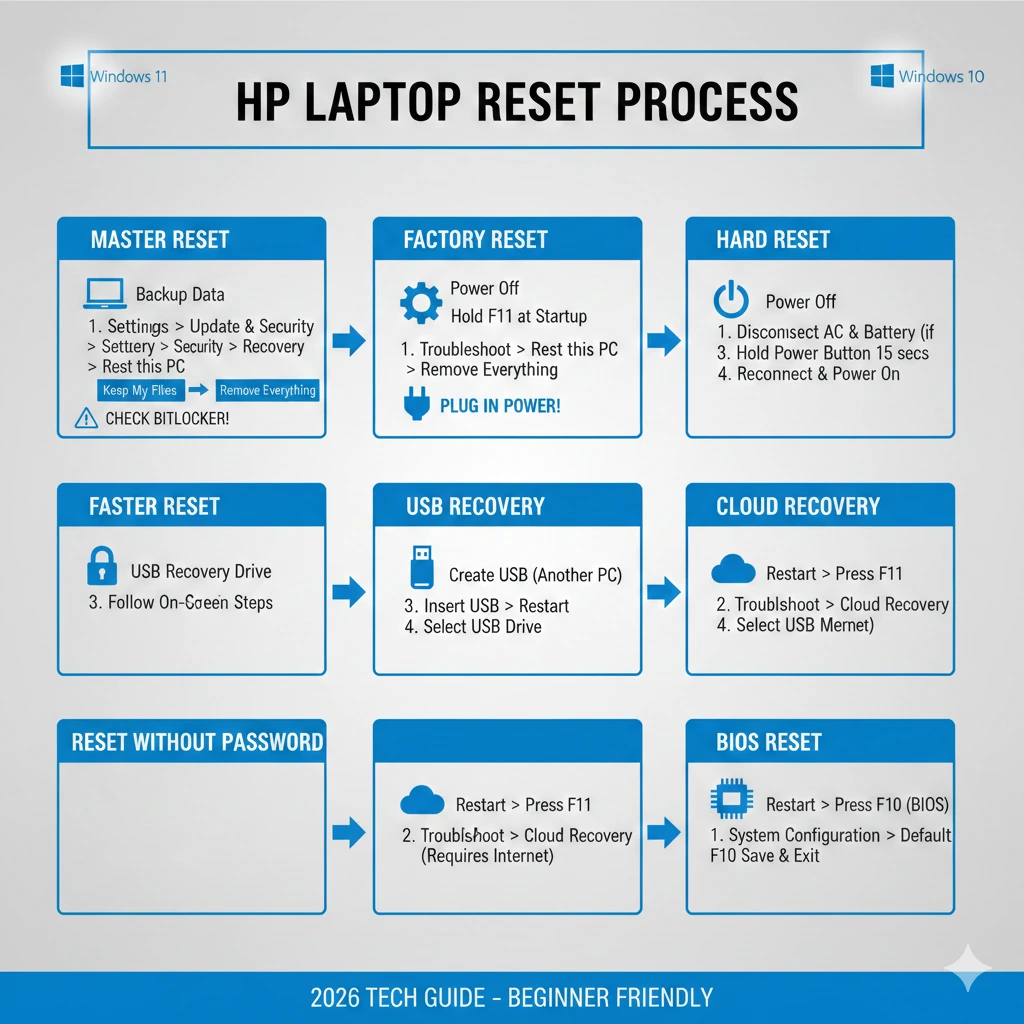
- Master reset: Fully wipes and reinstalls Windows, ensuring a clean slate.
Why Knowing This Matters
Many novice guides gloss over defining a master reset, leaving users unsure which option is appropriate. Understanding these distinctions ensures you select the safest and most effective reset method for your HP laptop, preventing accidental data loss.
Master Reset vs Factory Reset vs Hard Reset
| Reset Type | Function | Data Loss | Recommended Use |
| Master Reset | Full OS reinstall and system wipe | Yes | Severe corruption, malware, or resale |
| Factory Reset | Restores default settings and pre-installed apps | Yes | Persistent software issues |
| Hard Reset | Clears memory and refreshes hardware | No | Device frozen, unresponsive, peripheral issues |
Key Takeaway
Knowing the differences avoids mistakes. Say you try a tough reboot but need a full one – that won’t clear viruses or broken parts. Picking the wrong one at all, especially when less extreme fixes exist, might erase things needlessly.
Before you start any reset, do some safety checks first. These steps help things go more easily. Save your files somewhere safe. Try OneDrive, Google Drive, or even an outside hard drive – pick what works best. Trust it when choosing where your data goes.
Check your login details – Microsoft or HP tag matters, along with the correct password, needs clear attention. Check BitLocker & Recovery Keys: If encryption is on, find where the recovery key is stored.
Master Reset When Windows Boots Normally
If your HP laptop starts and functions normally, follow these steps to perform a master reset safely:
Step-by-Step Instructions (Windows 10/11)
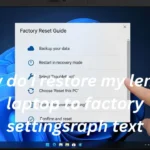
- Open Settings → System → Recovery
- Click Reset this PC
- Choose Remove everything
- Select Cloud download or Local reinstall
- Follow the on-screen prompts until the reset completes
Practical Tips
- Cloud download: Replaces corrupted local files with fresh Windows installation files from Microsoft servers. Ideal for system corruption.
- Local reinstall: Faster and doesn’t require internet, but may retain damaged files from the recovery partition.
| Option | Pros | Cons |
| Cloud Download | Fresh OS, fixes corruption | Requires stable internet, longer duration |
| Local Reinstall | Quick, no internet | Might retain corrupted files |
Pro Tip
If you encounter system errors after a local reinstall, perform a cloud download to ensure a clean system setup.
Reset HP Laptop When Windows Doesn’t Start
If your laptop fails to boot, do not panic. HP laptops provide several recovery options:
Using Windows Recovery (F11 Method)
- Power off the laptop completely.
- Turn on and repeatedly tap F11 until the recovery menu appears.
- Navigate to Troubleshoot → Reset this PC
- Choose Remove everything and follow the on-screen instructions
Common Issues and Fixes
| Problem | Solution |
| F11 not responding | Check BIOS recovery settings or use USB recovery |
| Corrupt recovery partition | Use HP Cloud Recovery Tool |
Note: F11 recovery is model-dependent; newer HP laptops with Windows 11 may redirect you to cloud recovery automatically.
Reset Without Password (Safe Methods)
If you’re locked out of Windows, you can still reset your HP laptop safely:
- Use F11 recovery at boot, bypassing Windows login.
- Create a Recovery USB from another PC and boot your laptop from it.
- Temporarily reset your Microsoft account to remove the local account.
Security Warning: Avoid third-party reset tools. They can compromise your system or steal sensitive data.
Reset via USB or Cloud Recovery
Advanced users or cases with missing/corrupt recovery partitions should use official HP recovery tools:
HP Cloud Recovery Tool
Requirements:
- USB drive ≥ 32GB
- HP laptop serial number
Steps:
- Download and install the HP Cloud Recovery Tool on another PC
- Create a bootable USB with the recovery image
- Boot the HP laptop from USB
- Follow prompts to reset and reinstall Windows
Why use this method:
- Ideal if the recovery partition is missing/damaged
- Ensures a fresh, official Windows installation
Pro Tip: Keep this USB as an emergency recovery tool for future issues.
BIOS & Recovery Manager Reset Methods
For unusual scenarios, such as Windows not loading or corrupt recovery partitions, a BIOS reset can help:
- Press Esc → F10 during boot
- Navigate to the Startup/Recovery tab
- Use BIOS Restore Defaults or Recovery Manager options
When it’s useful:
- Windows fails to boot entirely
- Recovery partition corrupted
- Advanced troubleshooting for hardware/software conflicts
Troubleshooting Reset Problems
| Error | Solution |
| Reset stuck at 1–40% | Switch to Cloud Download or boot from USB |
| Usethe HP Cloud Recovery Tool or USB recovery | Repair system files using Command Prompt |
| Missing recovery options | Enter the correct key from Microsoft/HP account |
| BitLocker recovery key prompt | Enter the correct key from the Microsoft/HP account |
Tips:
- Always back up your BitLocker recovery key.
- Stick to official HP tools for reliability and system integrity.
HP-Specific Reset Tips
- HP Sure Recover: Automatically restores BIOS and Windows; understand how to enable/disable this feature.
- Model Differences: Spectre, ProBook, Pavilion, and EliteBook models may have slight reset variations.
- HP Support Assistant: Checks BIOS, updates drivers, and automates post-reset updates.
Tip: Consult your HP laptop manual for model-specific reset instructions to avoid errors.
FAQ
A: Yes, it fully wipes personal files, apps, and settings.
A: Use F11 recovery or create a USB recovery drive.
A: Yes, a master reset removes most malware infections.
A: Try cloud download, USB repair, or a clean Windows install.
A: Factory reset restores default settings; master reset wipes everything and reinstalls Windows.
Summary & Best Practices
Now and then, save key files just in case a reset happens. That moment might come when you need it most. Determine your reset requirement – soft, hard, factory, or master – before moving forward. Use official HP recovery tools for safety and reliability. Check BitLocker encryption and recovery keys
A reset might fail. In that case, turning to cloud recovery could be a better option. Another option is using a USB setup to restore things. If neither of those works, then contacting a skilled support person could be the next step
Start by backing up data – this protects files and ensures smooth recovery. Resetting your HP laptop becomes simpler when done carefully. Each task builds toward clearing issues without loss. Performance returns closer to original levels after completing steps. The system is then ready to handle future changes or settings resets.