Introduction
Screenshots help learners save class materials, tasks, reading ideas, study details, and test directions. In workplaces, staff take notes by recording tool interfaces – tracking progress, logging errors, illustrating system responses, or viewing live data panels. Players record wins, rankings, and key play situations through their devices. Picture talk lets remote workers quickly point out issues, skipping wordy messages.
If you are searching for how to screenshot on a Dell laptop, you are absolutely not alone.
Millions of users worldwide use Dell laptops every day, yet confusion still exists because:
- Screenshots sometimes do not save
- The Print Screen (PrtScn) key appears broken
- Images go to the wrong folder
- Clipboard screenshots vanish
- Chromebook shortcuts are totally different
- Windows 10 and Windows 11 behave slightly differently
- Fn key layouts vary by model
Most online tutorials explain only one shortcut and stop there. That approach is outdated, incomplete, and frustrating. This 2026-updated, expert-level pillar guide explains every possible way to take a screenshot on a Dell laptop, including:
- Full-screen screenshots
- Active window captures
- Custom selection screenshots
- Clipboard vs auto-saved images
- Dell Chromebook screenshot shortcuts
- Dell 2-in-1 and tablet screenshot methods
- Built-in Windows tools
- Real troubleshooting fixes when screenshots fail
By the end of this guide, you will never again feel confused about how to screenshot on a Dell laptop — regardless of your operating system, keyboard layout, or experience level.
Screenshot Basics on a Dell Laptop
A screenshot is a digital snapshot of whatever appears on your laptop screen at a specific moment.
Instead of describing an issue verbally, screenshots visually display:
- Errors
- Results
- Instructions
- Evidence
- On-screen data
Types of Screenshots You Can Take on Dell Laptops
Dell laptops support four primary screenshot categories, each with different shortcuts and saving behaviors:
- Full-screen screenshots
Captures everything visible on the display - Active window screenshots
Captures only the selected application window - Custom area screenshots
Captures a user-selected portion of the screen - Clipboard vs auto-saved screenshots
Determines whether the image is saved automatically or copied only
Understanding these categories eliminates 90% of screenshot confusion.
Where Are Screenshots Saved on a Dell Laptop?
The save location depends entirely on how the screenshot is taken:
- Auto-saved screenshots → Pictures > Screenshots
- Clipboard screenshots → Must be pasted manually
- Snipping Tool captures → User chooses save location
- Game Bar screenshots → Videos > Captures
- Chromebook screenshots → Downloads folder
Each method is explained in detail below.
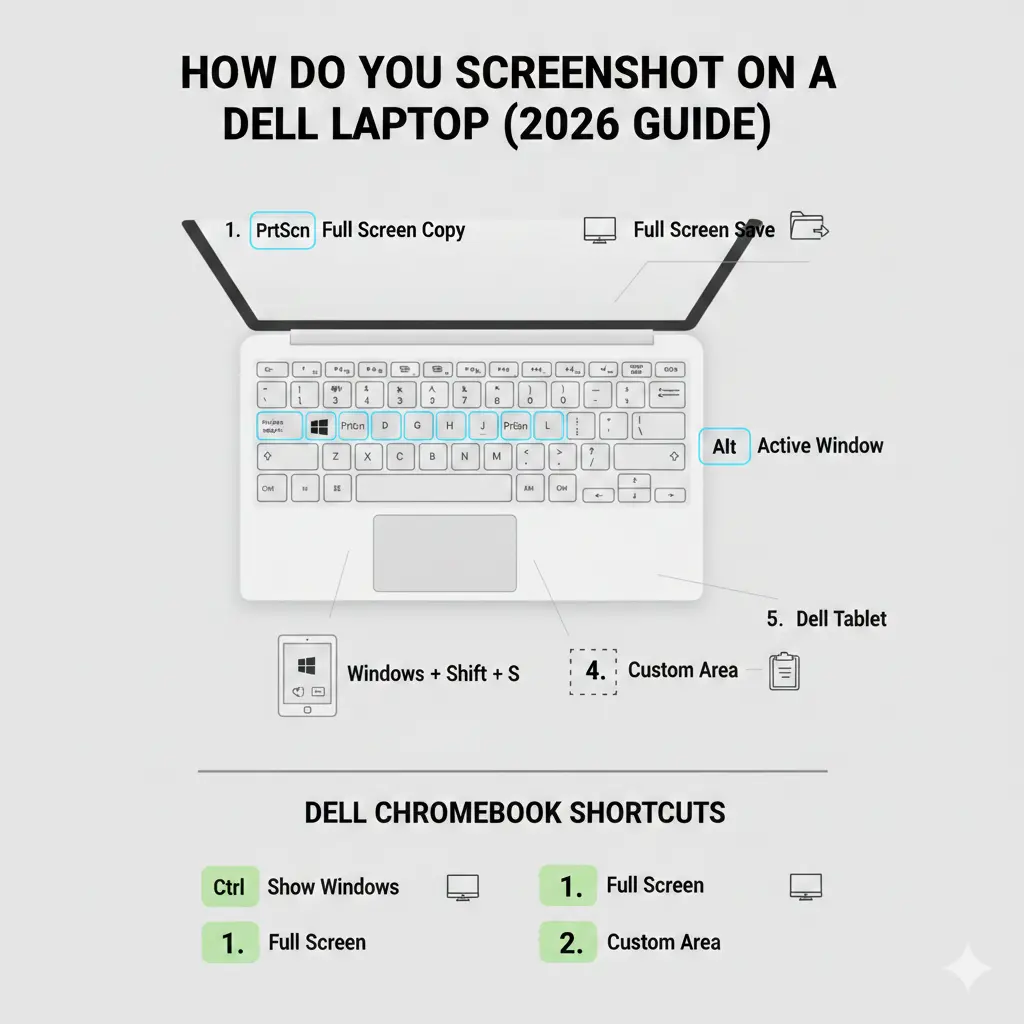
Screenshot Shortcut Cheat Sheet
| Screenshot Action | Keyboard Shortcut |
| Full screen (auto-save) | Windows + PrtScn |
| Copy full screen | PrtScn |
| Active window only | Alt + PrtScn |
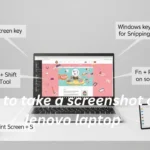
| Custom area | Windows + Shift + S |
| Tablet / 2-in-1 | Windows + Volume Down |
| Chromebook full screen | Ctrl + Show Windows |
Full-Screen Screenshot on a Dell Laptop
Best For
Beginners, documentation, exams, reports, instant captures, and quick sharing.
Shortcut
Windows key + PrtScn
What Happens?
- The entire screen is captured
- Screen briefly dims (visual confirmation)
- Screenshot saves automatically
Where Is It Saved?
Pictures > Screenshots
Works On
- Dell laptops running Windows 10
- Dell laptops running Windows 11
This method is the simplest and most reliable answer to
How do you screenshot on a Dell laptop
Copy Screenshot to Clipboard
Best For
Editing, pasting into Word documents, emails, PowerPoint, Paint, or Photoshop.
Shortcut
PrtScn
What Happens?
- The entire screen is copied to the clipboard
- Nothing is saved automatically
How to Use It Properly
- Press PrtScn
- Open Paint / Word / Email
- Press Ctrl + V
- Save manually
Screenshot Only the Active Window
Best For
Meetings, tutorials, presentations, and clean professional captures.
Shortcut
Alt + PrtScn
What It Captures
- Only the currently active window
- No background clutter
Steps
- Click the window you want
- Press Alt + PrtScn
- Paste using Ctrl + V
- Save manually
This is ideal for focused, distraction-free screenshots.
Custom Screenshot Using Snipping Tool
Best For
Precision work, annotations, tutorials, and advanced users.
Shortcut
Windows + Shift + S
What Opens?
The built-in Snipping Tool / Snip & Sketch overlay.
Capture Modes
- Rectangle Snip
- Freeform Snip
- Window Snip
- Fullscreen Snip
After Capture
- Screenshot copied to clipboard
- Click notification to edit and save
- Supports drawing, highlighting, cropping, and annotations
Screenshot on Dell Tablet & 2-in-1 Devices
Best For
Touchscreen Dell laptops and hybrid devices.
Shortcut
Windows + Volume Down
Behavior
- Works like a smartphone screenshot
- Saves automatically
Save Location
Pictures > Screenshots
Used on:
- Inspiron 2-in-1
- XPS 2-in-1
- Latitude tablet models
How to Screenshot on a Dell Chromebook
Dell Chromebooks do not use Windows and follow ChromeOS shortcuts.
Full-Screen Screenshot
Ctrl + Show Windows
Partial Screenshot
Ctrl + Shift + Show Windows
Save Location
Downloads folder
Chromebook shortcuts are completely different from Windows Dell laptops.
Built-In Screenshot Tools in Windows (Dell Laptops)
Snipping Tool
- Launch from Start Menu
- Set delay timers
- Annotate and save images
- Ideal for tutorials and guides
Xbox Game Bar (Hidden Power Tool)
Shortcut
Windows + G
Features
- Capture games and apps
- Screen recording
- Automatic saving
Save Location
Videos > Captures
Perfect for gamers and content creators
Troubleshooting: When Screenshots Don’t Work on Dell Laptops
Common Problems
- PrtScn key not working
- Screenshots not saving
- Wrong folder confusion
- Fn key issues
- Clipboard conflicts
Fixes That Actually Work
- Press Fn + PrtScn
- Disable Fn Lock
- Use Windows + Shift + S
- Update keyboard drivers
- Check clipboard history
- Restart Windows Explorer
Where Are Screenshots Saved on a Dell Laptop?
| Method Used | Save Location |
| Windows + PrtScn | Pictures > Screenshots |
| PrtScn / Alt + PrtScn | Clipboard only |
| Snipping Tool | User-selected |
| Game Bar | Videos > Captures |
| Chromebook | Downloads |
Pros & Cons of Screenshot Methods on Dell Laptops
Pros
- Built-in tools
- No extra software
- Fast shortcuts
- Works across all Dell models
Cons
- Confusing save locations
- Fn key dependency
- Chromebook shortcuts differ
FAQs
A: Use Windows + Shift + S or the Snipping Tool.
A: You may be using clipboard-only shortcuts. Use Windows + PrtScn.
A: They save in Pictures > Screenshots by default.
A: Windows laptops do. Chromebooks do not.
Conclusion
Working out how to take a screenshot on a Dell laptop? It changes based on what machine you have, which OS runs it, and sometimes even why you’re capturing it. Start by pressing Windows plus PrtScn for snapping the screen.
Advanced users should master the Snipping Tool. Chromebook users must memorize ChromeOS shortcuts. Knowing where screenshots go – and what keys save them – makes capturing images smooth and simple. This guide is written to remain accurate, authoritative, helpful, and ranking-ready through 2026 and beyond.