Introduction
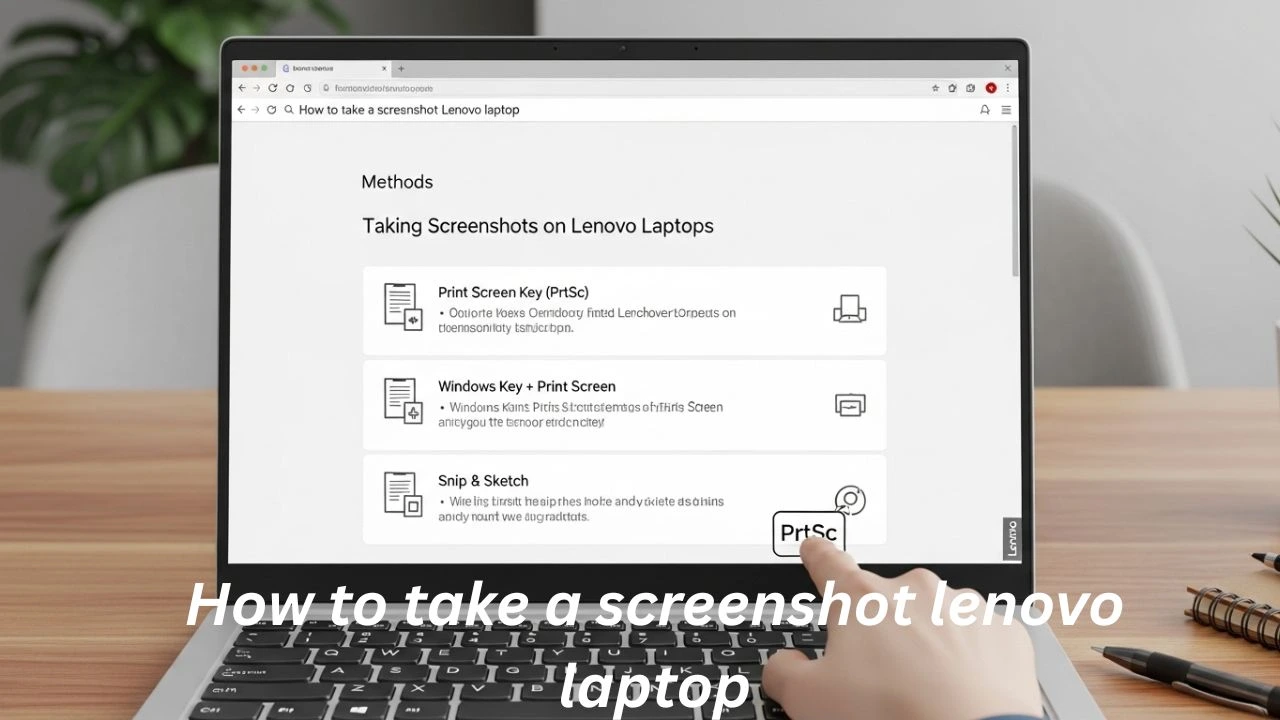
Capturing your laptop screen on a Lenovo Device might seem straightforward, but there are multiple ways to do it — especially when you consider the various Lenovo models, how to take a screenshot lenovo laptop keyboard layouts, and Windows versions. Understanding the full range of screenshot techniques not only saves time but also helps you achieve professional, clean results for work, gaming, tutorials, or sharing technical errors with support teams.
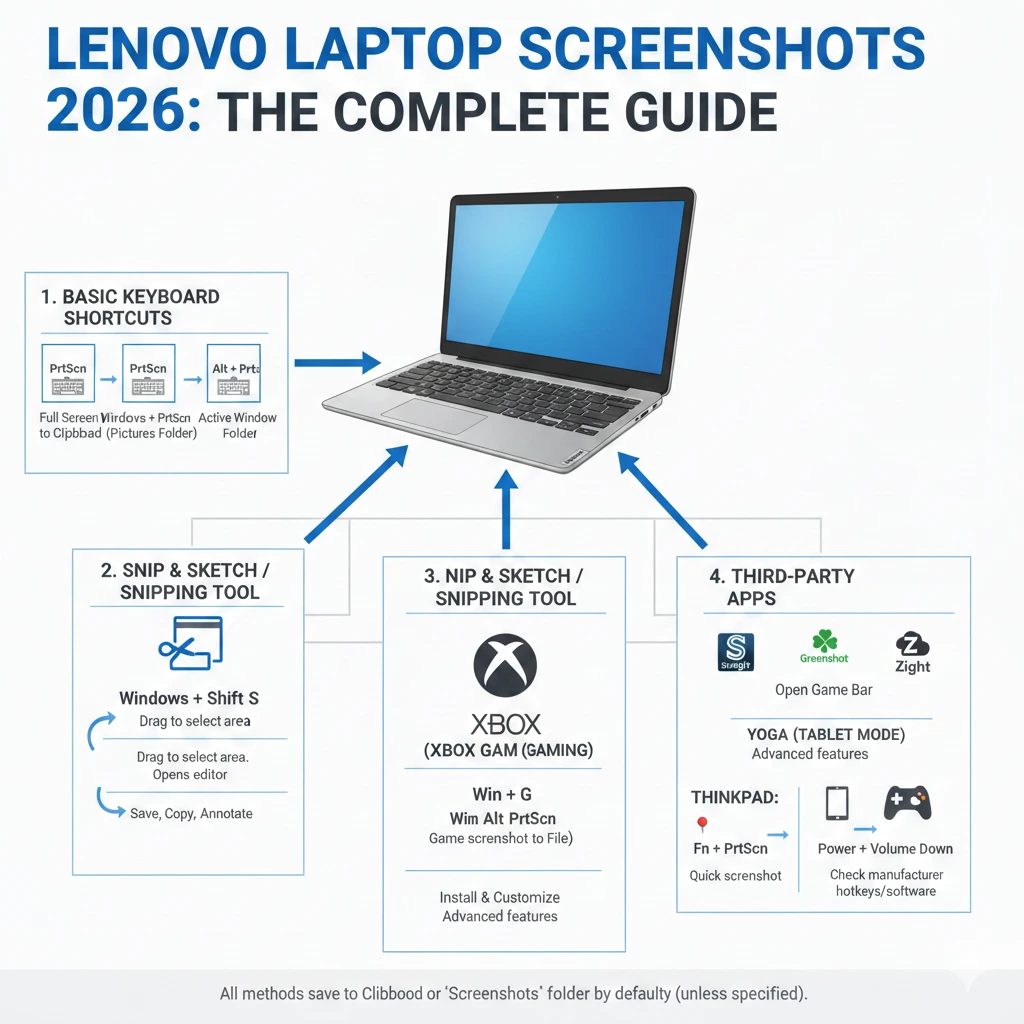
In this comprehensive, step-by-step 2026 guide, we will explore all possible ways to take a screenshot on your Lenovo laptop — from classic keyboard shortcuts to modern tools like Snip & Sketch, Windows Snipping Tool, Xbox Game Bar, and advanced third-party applications. You’ll also discover Lenovo-specific quirks, troubleshooting advice, file locations, and tips for faster workflow. By the end, you’ll have mastered every method for ThinkPad, IdeaPad, Yoga, Legion, and other Lenovo models.
Understanding Screenshots on Lenovo Laptops
A screenshot, also known as a screen capture or screen grab, is a digital photograph of whatever is displayed on your screen at that moment. Screenshots are indispensable in various scenarios, such as:
- Documenting work or research findings
- Capturing gaming highlights and achievements
- Creating tutorials, guides, or presentations
- Sharing errors or technical issues with support teams
Before you start taking screenshots, it’s important to know a few critical points:
- Keyboard Variations: Not all Lenovo laptops feature a dedicated PrtScn (Print Screen) key, especially compact models or ultrabooks.
- Function (Fn) Key Impact: Many Lenovo laptops, particularly ThinkPads, modify shortcut behavior depending on whether the Fn key is pressed.
- Clipboard vs Automatic Save: Screenshots may either be temporarily stored in the clipboard or automatically saved as image files.
- Windows Tools: Windows 10 and 11 include Snip & Sketch and Snipping Tool, which provide more flexibility than traditional shortcuts.
Pro Tip: Familiarity with multiple screenshot methods allows you to choose the fastest and most efficient technique depending on your workflow or the situation.
Basic Screenshot Methods (Built-In Windows Shortcuts)
Windows offers several built-in, reliable keyboard shortcuts that work universally on Lenovo Laptops. These are fast, convenient, and often sufficient for everyday use.
Print Screen (PrtScn)
- Press the PrtScn key
- Copies the entire screen to the clipboard
- Paste the screenshot into applications like Paint, Word, or email clients using Ctrl + V
Pro Tip: If OneDrive is enabled, screenshots may automatically save to OneDrive’s Pictures folder, which helps in managing and sharing captures seamlessly.
Windows + PrtScn – Automatic Save
- Press Windows + PrtScn
- Captures the entire screen and saves the image file automatically to:
This PC > Pictures > Screenshots - The screen briefly flashes to indicate a successful capture
Why Use This: Ideal for bulk screenshots or if you don’t want to manually paste and save each image.
Alt + PrtScn – Active Window Only
- Select the window or app you want to capture
- Press Alt + PrtScn
- Paste using Ctrl + V
Best For: Capturing only the active window, avoiding unnecessary cropping later.
Modern Snipping Tools (Windows 10 & 11)
Microsoft introduced more versatile screenshot tools to give users flexibility beyond keyboard shortcuts. The Snip & Sketch and Snipping Tool apps allow precise selections, annotations, and delayed captures.
Windows + Shift + S – Snip & Sketch
- Press Windows + Shift + S to launch the snipping overlay
- Available snip types:
- Rectangular Snip
- Free-form Snip
- Window Snip
- Full-screen Snip
- Captured images are copied to the clipboard and can be edited in Snip & Sketch
Pro Tip: This method is perfect for capturing custom-shaped screenshots, specific sections, or creating visual guides.
Snipping Tool App
- Open the Start Menu and search for Snipping Tool
- Click New to start a new capture
- Choose the type of snip, capture the area, edit, and Save As
Use Case: Ideal for annotations, delayed screenshots, or selecting precise regions.
Other Helpful Capture Tools
Xbox Game Bar (Windows 10 & 11)
- Press Windows + G to open Xbox Game Bar
- Click the Camera Icon to capture a screenshot
- Files are saved to: Videos > Captures
Ideal For: Gaming screenshots or video recording of gameplay on Lenovo laptops.
Third-Party Utilities
| Tool | Features | Pricing | Use Cases |
| Snagit | Scrolling capture, annotations | $49.95 | Tutorials, documentation |
| Greenshot | Lightweight, region capture | Free | Quick edits, multiple screenshots |
| Zight | Cloud storage, collaboration | Free/Premium | Team sharing, instant uploads |
Expert Tip: Third-party apps allow advanced editing, automatic cloud backup, and custom hotkeys, making them perfect for professional workflows.
Lenovo Model-Specific Tips
Different Lenovo models have specific quirks that affect screenshot behavior. Understanding these can prevent confusion and improve efficiency.
Lenovo ThinkPad
- Some models require Fn + PrtScn
- Ensure the Function key lock is enabled
- Key combinations may vary depending on keyboard layout
Yoga (Convertible)
- In tablet mode, press Volume Down + Power
- Works like an Android-style screenshot
Lenovo Legion & IdeaPad
- Standard PrtScn or Windows + PrtScn usually works
- Check OneKey Recovery if screenshot keys conflict
Where Are Screenshots Saved?
| Method | Default Save Location |
| Windows + PrtScn | Pictures > Screenshots |
| Xbox Game Bar | Videos > Captures |
| Snipping Tool / Snip & Sketch | User-selected location |
| OneDrive Auto-save | OneDrive > Pictures > Screenshots |
Tip: Customize OneDrive settings to automatically save or disable screenshot syncing.
Troubleshooting Screenshot Issues
| Issue | Fix |
| Screenshot key not working | Ensure Fn Lock is enabled; try Fn + PrtScn |
| Screenshots are not saving automatically | Screenshots open Snipping Tool instead of saving |
| Screenshots not saving automatically | Check folder permissions, disable OneDrive conflicts, update graphics drivers |
Quick Tips for Faster Screenshots
- Windows + PrtScn – Fast, auto-save
- Shift + Windows + S – Custom shape capture
- Alt + PrtScn – Active window only
- Use third-party apps for scrolling captures or cloud sharing
- Create custom hotkeys in Snagit or Greenshot for repetitive tasks
Pros & Cons of Screenshot Methods
| Method | Pros | Cons |
| PrtScn | Simple, universal | Requires manual paste/save |
| Windows + PrtScn | Auto-save, quick | Captures full screen only |
| Alt + PrtScn | Active window capture | Must paste manually |
| Snip & Sketch | Flexible, multiple shapes | Clipboard-based by default |
| Snipping Tool | Annotations, delayed capture | Manual save required |
| Xbox Game Bar | Gaming capture, video | Limited to Windows apps |
| Third-party apps | Advanced features, cloud support | Paid versions for full features |
FAQs
A: Use Fn + Windows + Space or Snip & Sketch. Tablet mode users: Volume Down + Power.
A; Default: Pictures > Screenshots or OneDrive > Pictures > Screenshots if auto-save is enabled.
A: Yes. Tools like Snagit or Zight allow scrolling captures.
A: Check Snipping Tool settings and toggle the PrtScn behavior.
Conclusion
Taking screenshots on a Lenovo Laptop can be effortless once you know the right tools and shortcuts. From keyboard combinations to Snip & Sketch, Snipping Tool, Xbox Game Bar, and third-party utilities, each method serves a unique purpose depending on your needs.
Understanding model-specific quirks, troubleshooting common issues, and combining Windows shortcuts with advanced applications ensures you save time, improve productivity, and capture your screen without frustration.
Pro Tip: For maximum flexibility, combine native Windows shortcuts with a lightweight third-party app — perfect for work, gaming, tutorials, or professional documentation.











