Introduction
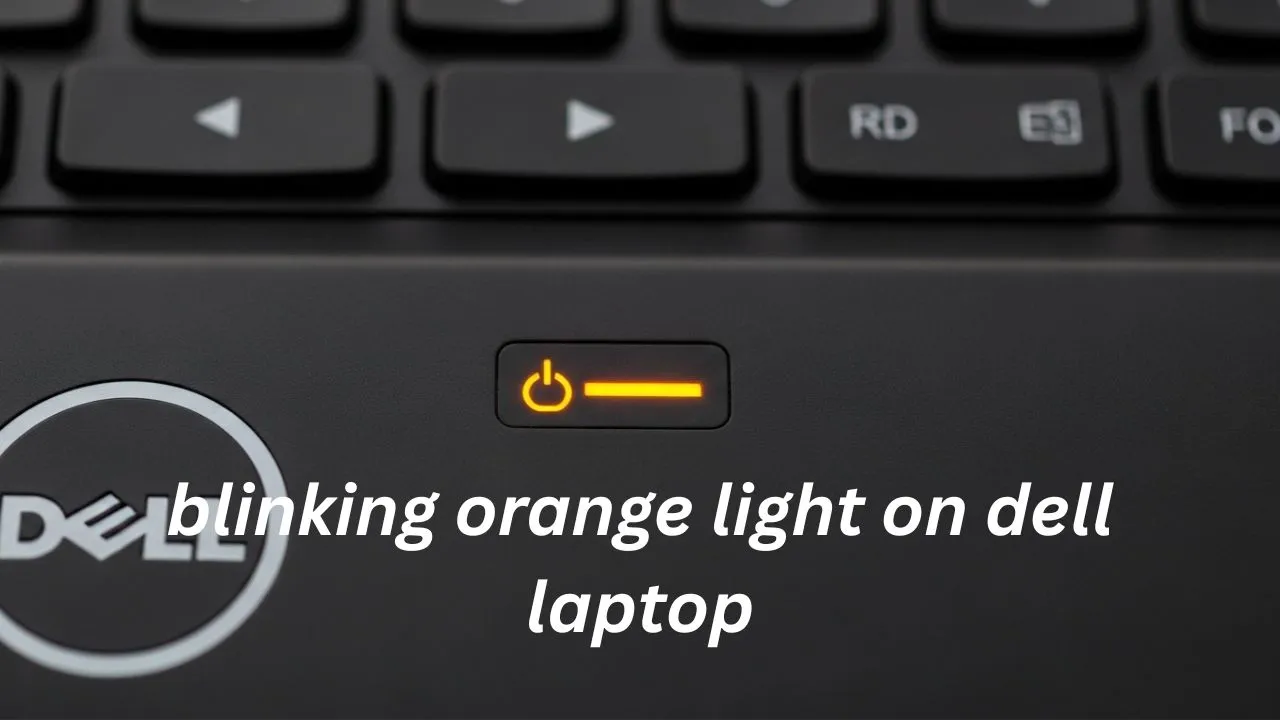
A flickering amber glow on your Dell Notebook might catch you off guard. Usually shows up if power fails, charging stops, or the screen stays dark. Stay calm, though. A blinking orange light on dell laptop. Here’s what that flash pattern really means, along with a clear breakdown of Dell’s signal codes and practical fixes laid out plainly -it works whether you know every port or just plug it in and go.
Every flicker tells a story – this 2026 guide uses plain words to match each flash with its meaning. You’ll see how straightforward explanations make sense of signals without confusion. Some issues you handle on your own, others need an expert’s hand; knowing the difference starts here. Clarity comes through short sentences that skip jargon entirely. What matters most? Recognizing patterns before reaching for tools or calling someone. Each section builds quietly, never rushing ahead.
What This Guide Covers
By reading this guide, you will learn to:
- Understand what a blinking orange light on Dell laptops actually signifies
- Decode Dell diagnostic blink codes and sequences
- Identify common causes behind amber/white blinks
- Follow detailed, step-by-step troubleshooting methods
- Recognize when to handle the problem yourself versus calling a technician
- Prevent future blinking orange light issues through proper care
What Does a Blinking Orange Light Mean on a Dell Laptop?
That flicker of orange? It means something. Dell builds its laptops to signal trouble through amber glows – pointing straight to hardware or firmware hiccups. Light flashes, system talks.
Flash patterns on Dell laptops – like those in the Inspiron, XPS, Latitude, Precision, and G Series – point to distinct errors. A few typical faults shown this way are:
- Battery or charging malfunction
- RAM (memory) errors
- Motherboard or chipset faults
- BIOS or firmware corruption
- CMOS battery failure
- Other hardware malfunctions
What it means changes based on the blinking pattern- sometimes just amber, sometimes only white, alternating between amber and then white – along with how many flashes come in a row.
How Dell Diagnostic Blink Codes Work
A flickering light on your Dell laptop might speak louder than a working display. Instead of showing an image, the machine uses blinking patterns to point at problems hidden inside. Each flash sequence stands in for words it cannot say. These signals help spot what went wrong when the screen stays dark. Though silent, the device still finds a method to respond. Blink by blink, clues emerge where answers were missing.
Blink Patterns Typically Include:
- Amber (orange) blinks
- White blinks
- Repeating sequences
- Groups of blinks separated by short pauses
Understanding the Blink Cycle
A typical Dell diagnostic LED cycle looks like this:
Amber blinks → White blinks → Pause → Repeat
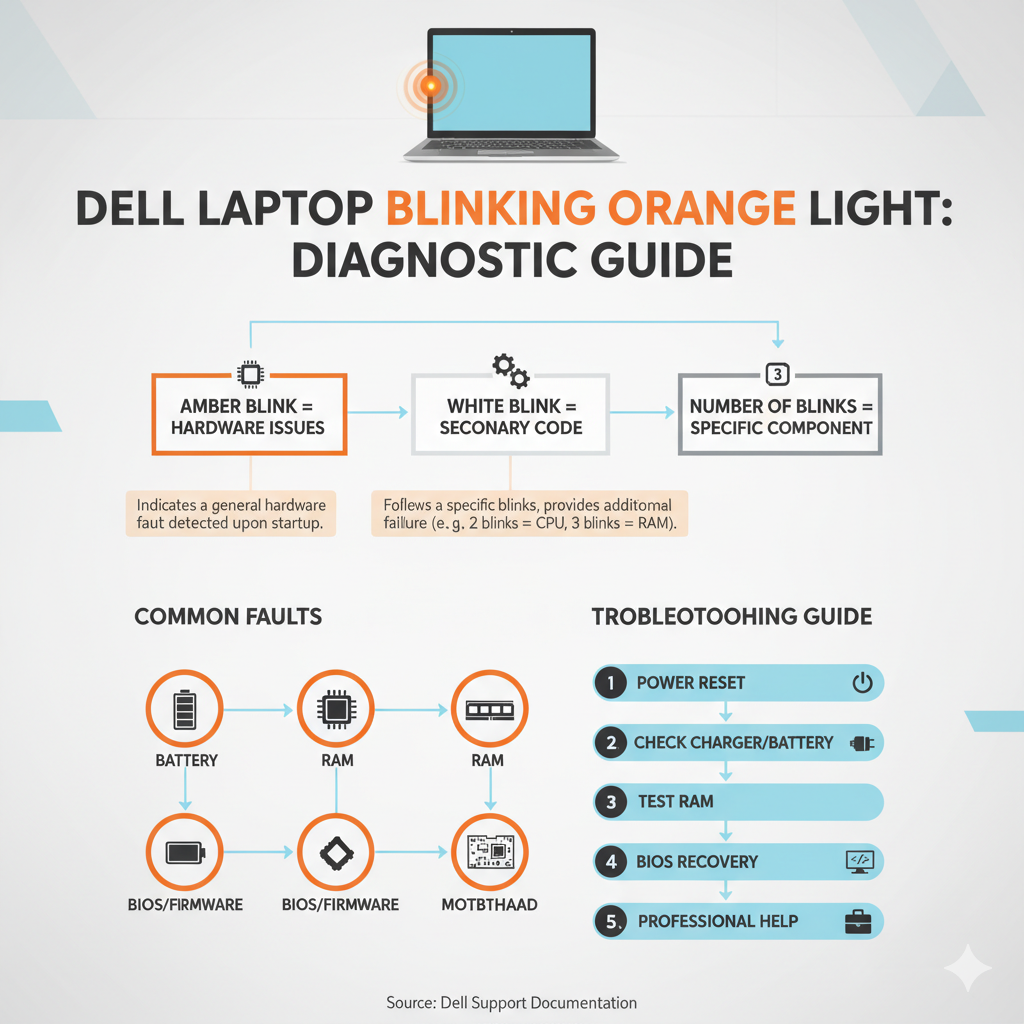
- Amber (orange) blinks indicate a primary hardware issue
- White blinks provide secondary details about the problem
- The number of blinks corresponds to a specific component or subsystem
A single flash of amber, then another, after that three quick whites- this often means trouble with memory. Spotting the pattern makes finding the problem faster.
Dell Diagnostic Blink Code Reference (Most Models)
Below is a detailed table of common Dell blink codes with their meanings:
| Amber Blinks | White Blinks | Likely Fault | Component Affected | Suggested Fix |
| 2 | 1 | CPU Failure | CPU | Contact Dell Support |
| 2 | 2 | BIOS / Firmware Error | Firmware / ROM | BIOS Recovery / Update |
| 2 | 3 | No Memory Detected | RAM | Reseat / Replace RAM |
| 2 | 4 | Memory Failure | RAM | Reseat / Replace RAM |
| 2 | 5 | Invalid Memory | RAM | Replace RAM |
| 2 | 6 | System Board / Chipset Error | Motherboard | Service Required |
| 2 | 7 | Display Failure | Display | Check Display Components |
| 3 | 1 | CMOS Battery Failure | CMOS Battery | Replace CMOS Battery |
| 3 | 2 | Video / PCI Failure | GPU / PCI | Service / Repair |
| 3 | 3 | BIOS Recovery Missing | Firmware | BIOS Recovery |
| 3 | 4 | BIOS Recovery Failed | Firmware | Advanced BIOS Recovery |
| N/A | N/A | Continuous Amber | Battery | Replace Main Battery |
| Alternating | Continuous | Unsupported Charger | Adapter | Use a Dell Certified Adapter |
Asinglepatternguidesthis setup- official signals from Dell shape its design. Different laptops follow it just the same. Light sequences matter most here. Not every model shows the same blink, yet each fits the scheme. What you see matches what they built.
Common Causes of a Blinking Orange Light
Battery or Charging Problem
A power cell issue or trouble recharging often shows up first. Most times, it’s what you’ll run into.
Signs to Watch For:
- The laptop only works when plugged in
- Battery percentage stuck at 0%
- Flickering orange light shows up during charging tries
Why It Happens:
- Battery not communicating with the motherboard properly
- Old or degraded battery
- Poor connection between the battery and the laptop
- Incompatible or low-quality adapter
Fixes:
- Start by taking out the battery, if it can be removed. Put it back in place right after. That step might reset things quietly behind the scenes.
- A real Dell power adapter works best when it matches your laptop’s needs. Wattage must fit exactly – no guessing. Try using only official parts made for your model. This keeps things running smoothly without surprises. Wrong chargers might cause problems you do not want
- Clean battery contacts to ensure a good connection
- Replace the battery if it’s failing
Power Adapter & Connection Problems
Flickering amber light? That happens when Dell laptops don’t recognize the charger. Power won’t flow right unless the system approves the adapter.
Symptoms: The laptop may not charge
- Charging is slow or unstable
Fixes:
- Usinga Dell-approvedchargermattersmost. A proper power source keeps things running smoothly. Sticktowhatthemakerrecommendsforbestresults
- Check the DC power jack for looseness or damage
- Avoid third-party or low-quality chargers
RAM Memory Failure
Flickering amber, then white – RAM issues usually show up like that through blink patterns.
Causes:
- RAM sticks are not seated properly
- Defective RAM modules
- Wrong type of RAM installed
Fixes:
- Switch off the machine. Let it rest completely. Wait until all lights fade. Close the lid afterward. Unplug when finished
- Pull out the memory modules gently. Slide them back in firmly after a pause. Check alignment before pushing down. Give each one a second look once placed
- Test one stick at a time
- Replace faulty RAM modules
BIOS or Firmware Errors
A flicker pattern might show up when the system’s firmware is broken or too old. Sometimes those blinking lights trace back to problems inside the BIOS itself.
Signs: The laptop won’t start
- Now and then, blinks come at strange times
- No display on the screen
Fixes:
- Enter the BIOS and update it to the latest version
- Use official Dell BIOS recovery tools
CMOS Battery Failure
A single flash of white light after three amber glows usually points to an issue with the CMOS battery. When the machine powers down, that tiny power cell keeps the BIOS data alive.
Fix:
- Replace the CMOS battery (usually CR2032)
- Slide it in facing the right way
Other Hardware Issues
Blink sequences may also indicate:
- Motherboard or chipset issues
- Display failures
- GPU or PCI component problems
- CPU faults
Blinks speak for parts inside the machine. A flash code ties to one piece of gear. Every flicker points right at its mate in metal. Signals by light match up with what’s built in.
Step‑by‑Step Troubleshooting Guide
Basic Power Reset
Start by unplugging the device completely – wait a few seconds before plugging it back in. This quick stop-and-start often clears small hiccups inside the machine. Sometimes, just cutting power resets hidden errors that build up over time.
- Turn off the laptop
- Unplug the charger
- Remove the battery (if removable)
- Startbypressingdownonthe power button. Hold it without letting go. Wait anywhere from fifteen to thirty seconds before releasing.
- Reconnect the power and turn on
Check Charger & Battery
- Ensure you are using a Dell-certified adapter
- Check BIOS settings first thing when powering up. See whether the system spots the charger right away. Power on, then head into the BIOS straightaway. Look around inside for any sign of the charging unit. Spot it there? Good. If not, keep digging elsewhere
- Check battery health in BIOS
- Try a different battery, just to check whether the problem stays around. Maybe that changes things entirely
Test RAM & Internal Components
- Turn off the laptop
- Remove RAM sticks carefully
- Test each stick individually
- Reseat SSD/HDD if needed
Start your Dell computer, then tap F12 right away. Wait for the boot menu to show up. Choose the option labeled Preboot System Assessment. Let the test run on its own. Watch the screen for any messages. Results will appear when it finishes
BIOS Update / Recovery
If blink codes indicate BIOS or firmware errors:
- Start by grabbing the newest BIOS version straight from Dell’s help section
- Follow Dell BIOS recovery instructions
- Follow the display prompts exactly so the device does not fail permanently
Professional Help
Contact Dell Support or a certified technician when:
- Blink codes indicate motherboard or CPU faults
- BIOS recovery fails
- Multiple hardware issues appear
- You are uncomfortable opening the laptop
Expert Tips to Prevent Blink Code Problems
- Always use Dell-certified chargers and batteries
- Keep BIOS up to date
- Clean air vents and fans regularly
- Stay clear of very hot or freezing conditions
- Replace aging batteries before they fail
FAQ
A: Even if the laptop boots, the amber blink signals a diagnostic alert — usually a battery, RAM, or other hardware concern.
A: No. It could indicate RAM, motherboard, BIOS, CMOS, or adapter issues, depending on the blink pattern.
A: Yes. Unsupported or faulty adapters often trigger amber or alternating amber/white blinking.
A: It can resolve blink codes related to BIOS/firmware issues, but cannot fix hardware failures.
A: Basic problems like battery, RAM, or adapter faults can be fixed by yourself. Major hardware errors require a professional technician.
Conclusion
A steady flash of orange on Dell laptops means something specific – it’s never just happening without reason. When you watch how those blinks repeat, clues emerge about what part might be struggling – could be power, memory, or even motherboard signals gone quiet.
- Battery or charger
- Memory (RAM)
- BIOS/firmware
- CMOS battery
- Other hardware malfunctions
A clear path unfolds if you walk through each fix one at a time – some problems fade away fast, others show it’s time to bring in someone who knows more.











