
Introduction
Turning on a Dell Laptop might sound simple, yet some folks – newcomers or those with experience alike – sometimes get stuck. Different lines of laptops hide the power button in separate spots, which adds to the mix-up now and then. Getting past hiccups at startup means understanding what comes before pressing that switch. Here’s how things unfold: step-by-step actions sit alongside smart checks and ways to fix glitches when they pop up.
Models like Inspiron, XPS, Latitude, Vostro, or Alienware each behave slightly differently during boot-up. Every detail matters – from where you plug in to recognizing warning signs early on. This walkthrough fits all these versions without skipping odd quirks or typical snags.
What You Need to Know Before Turning On Your Dell Laptop
Got your Dell ready. First things first – check what needs doing before hitting that power button. A few quick moves now prevent most problems later. Start right, avoid headaches down the road.
Verify the Power Source
A fresh charge keeps your Dell laptop ready to go. Without it, nothing happens when you press the button. Try this sequence instead.
- Plug the power cord into your laptop first. Then slide the other end into any working wall socket nearby.
- A tiny light on most Dell chargers shows when power is flowing – look for it near the plug. The charging indicator gives instant feedback through that little glowing signal.
- Look closely at the adapter and cord for any fraying or cracks. If it seems broken, that might be why the laptop won’t start. Power issues often trace back to worn parts.
Start by checking whether the charging light comes on. When it stays dark, plug it into a separate wall socket instead. Another path? Swap in a known working Dell charger. This helps confirm if power delivery works right.
Identify Your Dell Laptop Model
Laptops come in many types from Dell, built for separate needs. Knowing which one you have makes it easier to find controls, connections, and corners where fixes live.
| Series | Common Use | Notes |
| Inspiron | Everyday computing | Budget-friendly, widely used |
| XPS | Premium performance | Sleek design, USB-C and Thunderbolt ports |
| Latitude | Business | Durable, security-focused, long lifecycle |
| Vostro | Small business | Cost-effective business laptop |
| Alienware | Gaming | High-performance, specialized graphics |
Finding your laptop’s exact name means you can get straight to Dell’s help section without guesswork. Updates wait there too, ready when you are.
Remove External Devices
Something plugged in might mess up how the laptop starts. Take off any extra gadgets before turning it on.
- USB drives and external hard drives
- Docking stations or port replicators
- External keyboards or mice
- Additional monitors or display adapters
Out comes the clutter – suddenly the startup runs clear, peripherals no longer tripping each other up. Power lights on smoothly, thanks to fewer parts jostling for attention.
Know Your Operating System
Dell laptops primarily ship with Windows 10, Windows 11, or occasionally Linux/Ubuntu. Regardless of the operating system, the process of powering on is consistent:
- The system initiates the POST (Power-On Self-Test)
- BIOS or UEFI settings load
- The operating system kernel starts, preparing your user environment
Out comes the clutter – suddenly the startup runs clear, peripherals no longer tripping each other up. Power lights on smoothly, thanks to fewer parts jostling for attention.
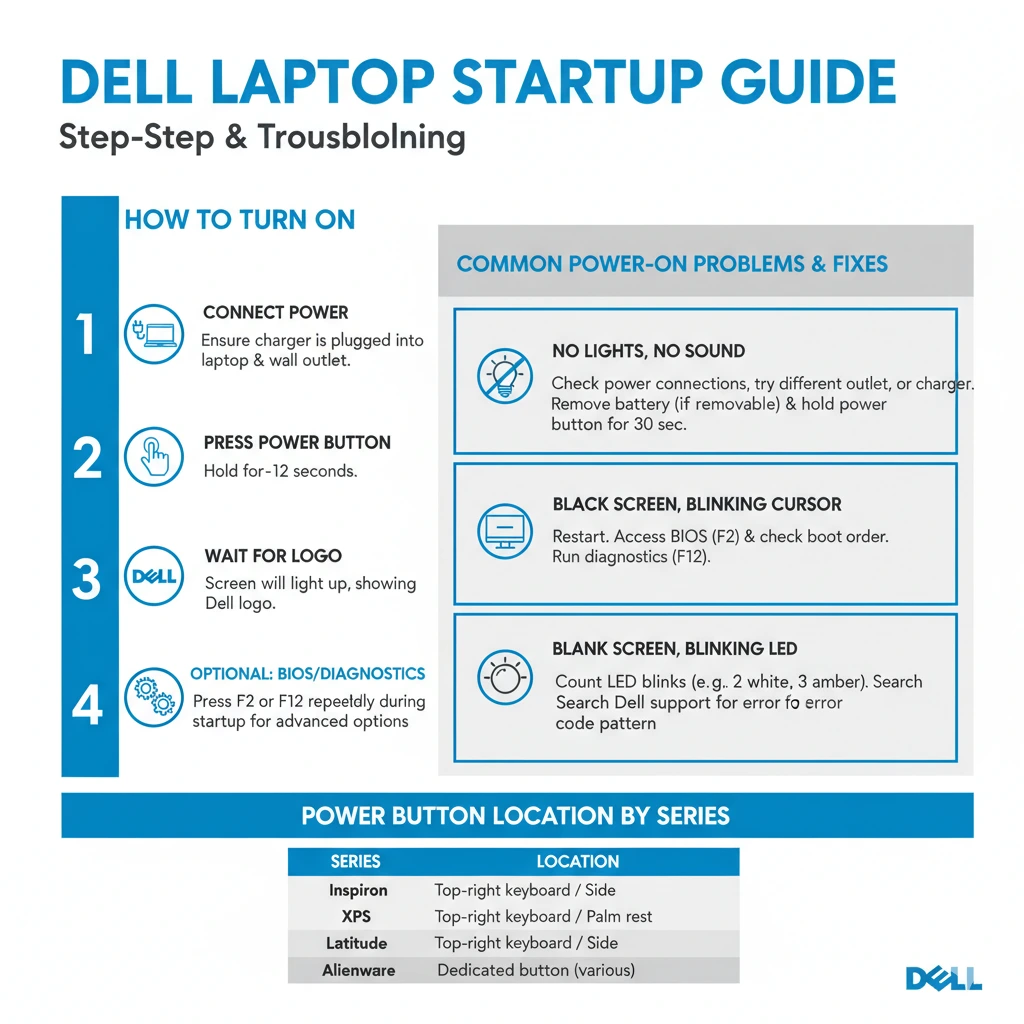
Locating the Power Button on a Dell Laptop
Most devices need their power button to be found first. Where it sits depends on the model line – some put it here, others there. Spotting yours matters for turning things on right.
Common Dell Power Button Locations
| Location | Series | Notes |
| Above keyboard | Inspiron, Vostro | Most visible and convenient |
| Edge of keyboard area | XPS, Latitude | Slightly recessed, may require a firm press |
| Side panel | Thin ultrabooks | Usually on the right or left edge |
| Integrated with a fingerprint sensor | Premium models | Serves dual function (power + biometric) |
A small clue sits by the button – a symbol like a circle with a line through it, ⏻often glowing or carved into the surface. This shape shows up everywhere once you notice it. It means power, no words needed. Watch for it when things won’t start. Found on many devices, it quietly signals control.
Step‑by‑Step Guide: How to Turn On a Dell Laptop
This procedure works across all Dell models:
Connect to Power
- The cord slides into the laptop’s charging slot.
- Plug the opposite side into a socket on the wall.
- A small light at the power block should glow – check that it does, if there’s one.
- A loose fit can cause issues – snap it in till it clicks. Check that it locks into place without gaps showing.
When the lights aren’t showing up, try a different socket on the wall or one of those known working Dell adapters instead.
Press the Power Button
- A single tap works best at first. Holding it too long changes nothing good. Try quick instead of steady. One motion gets things started right away. Wait after that one push.
- Hold down without letting go, just for a moment. A full count matters more than speed.
- Hold on until the Dell symbol shows up.
A quick tap works fine on devices that have built-in fingerprint sensors.
Allow the Operating System to Load
- Once the logo displays, the OS begins loading automatically.
- Wait 20–30 seconds; this allows all system drivers and processes to initialize.
- Avoid pressing extra keys unless entering BIOS or recovery.
Optional – BIOS or Diagnostics
For troubleshooting, access BIOS or Dell Diagnostics:
- F2 — Enter BIOS setup
- F12 — Open Dell Diagnostics for hardware testing
Press these keys immediately after the Dell logo appears. Timing is essential.
Troubleshooting: What to Do If Your Dell Laptop Doesn’t Power On
Finding your laptop won’t turn on can still happen, even when everything seems correct. Try this method step by step.
Laptop Has No Lights and Won’t Start
Perform a Power Reset:
- Step away from the power source first. Disconnect the charger next. Wait before touching any ports.
- Start by taking out the battery, if it can be removed.
- Start by pressing down on the power button – keep it held for about half a minute, maybe up to sixty seconds.
- Reinstall the battery.
- Start by connecting the power cable, then try turning it on.
Leftover electricity fades when you do this, fixing many boot problems. Most frozen startups come back to life after a pause like this.
Adapter Light Is Off
- Check the wall socket’s power supply.
- Inspect the charger and cable for damage.
- Test with another Dell-certified adapter.
Some outside chargers fail to supply the correct voltage, so devices won’t turn on.
Laptop Freezes or Black Screen
Steps to resolve:
- Press and hold the power button for ten full seconds to turn off. This stops everything right away without warning.
- Start by unplugging the power cord. Then take out the battery pack.
- Wait 30 seconds.
- Try connecting again before starting up. Start the process once the link is back.
When problems continue, open diagnostics using F12 to check the hardware closely.
Common Dell Power-On Problems & Solutions
Here are frequent challenges users face:
Laptop Turns On, But Screen Remains Blank
Possible causes:
- Dim or off-screen
- Graphics driver malfunction
- Hardware or display panel issues
Solutions:
- Start by plugging in a second display to see whether the built-in one works properly. Sometimes it’s not the screen but something else. Try that first before thinking about repairs. A working outside monitor means the issue likely sits inside the laptop itself.
- After starting up, swap out the screen drivers or put them back in fresh.
- Start by looking at how bright your screen is set. Maybe the keys near the top of your keyboard need a tap instead.
Lights Blink But No Startup
A single flash might mean memory trouble on a Dell notebook. Sometimes, three quick blinks point to display problems. When the lights flicker twice, it could signal power supply faults. A repeating four-flash pattern often relates to motherboard concerns. Five flashes usually suggest processor errors inside the machine.
- Blinks show a rhythm – notice how many appear, one after another. Watch their flow instead of just tallying up each flicker.
- Check Dell’s troubleshooting guide made for your specific device.
- Memory trouble could show up here. Problems might lie with the motherboard instead. A weak battery sometimes causes similar signs. Each part can act up on its own.
Power Button Is Unresponsive
Potential causes:
- Fragments stuck by the switch. Grime blocking contact points. Particles jamming operation near controls
- Mechanical failure
- Internal hardware defect
Solutions:
- Fingers test the button’s surface first, and wipe it softly when dirty. Dust sometimes sticks there, so a cloth moves slowly across.
- Finding resistance when pressing the button? Reach out to Dell Support right away. A sluggish click might mean it needs attention. Don’t wait until it stops working completely. Something feels off? Get it checked before small issues grow.
Pros & Cons of Dell Power-On Methods
| Method | Advantages | Disadvantages |
| Normal Button Press | Quick, simple, ideal for daily use | Ineffective if the battery is dead |
| Power Reset (Hold 30–60s) | Resolves frozen states, resets residual charge | Some models require battery removal |
| Dell Diagnostics (F12) | Detects hardware problems | Slightly advanced for beginners |
| BIOS Power Settings | Enables wake-on-lid or keyboard power-on | Requires BIOS familiarity |
FAQs
A: Possible causes include a defective charger, a dead battery, interference from peripherals, or internal hardware faults. Perform a power reset and use a verified charger.
A: A short press is sufficient for normal startup. For a power reset, hold 30–60 seconds.
A: Some models allow keyboard power-on via BIOS or lid-open settings. Check your BIOS options.
A: Look for an LED indicator. If it’s off, test with another charger or check the voltage using a multimeter.
A: Blink codes indicate hardware errors such as memory failure or motherboard faults. Count blinks and consult Dell’s diagnostic codes.
Conclusion
Most times, starting a Dell Laptop works without trouble, yet tiny steps matter more than they seem. Plug it into reliable power before doing anything else – it changes how smoothly things go. The power button might be near the keyboard, sometimes above it, depending on the model sitting in front of you now. Watch what happens when the machine wakes: lights, sounds, screen shifts – each part tells a story about whether it is working right.
No matter the model – be it an Inspiron, XPS, Latitude, Vostro, or Alienware – the way to turn it on stays consistent: plug in the power, hit the button, then wait for the OS to appear. When nothing happens at startup, trying a hard reset might help; so could examining the charger, unplugging added gadgets, or launching Dell’s built-in tools.











