Introduction
A Lenovo laptop is built for performance, but even the best machines need a fresh restart to stay stable and responsive. In 2026, with heavier apps, AI tools, background sync services, and continuous Windows updates, restarting your laptop has become more important than ever for maintaining smooth performance.
Whether you’re using a ThinkPad, IdeaPad, Yoga, Legion, or Slim series, a restart can instantly fix slowdowns, frozen screens, update errors, and unresponsive apps. But what happens when the usual restart doesn’t work?
This guide goes beyond the basics. You’ll learn every restart method for Lenovo laptops, including normal restart, force restart, Novo button recovery, BIOS-level reboot, Safe Mode recovery, and advanced troubleshooting for system loops or hardware issues. Everything is explained in simple, practical steps so you can fix your laptop confidently—even in emergencies.
Pro Tips to Prevent Restart Issues
- Keep Windows and drivers updated regularly
- Avoid forcing a shutdown unless necessary
- Use Lenovo Vantage health checks weekly
- Don’t overload startup apps
- Restart at least once per week
These small habits reduce system errors and extend laptop life.
What Does “Restart” Really Do? <a name=”what-does-restart-really-do”
Starting over on a Lenovo laptop means the system first stops every running app and task. After that, the power cuts off before the device turns itself back on. The cycle finishes when everything loads fresh from scratch.
Every time you restart, the machine gets a fresh start. Because of this, old data fades out. Memory becomes clear again. Glitches that pop up now and then tend to disappear. Updates take hold only when things are reset fully.
Why Restarting Helps
| Action | Purpose |
| Clears memory | Frees up RAM, improves system responsiveness, and reduces CPU load |
| Stops temporary glitches | Resolves frozen apps, crashes, or minor software conflicts |
| Applies updates | Ensures Windows or Lenovo updates finalize without errors |
| Refreshes system processes | Improves overall stability, startup speed, and hardware performance |
Here’s something useful. A restart leaves your documents, folders, and preferences untouched. It works like a soft reboot for the system – just smoother under the hood. Your stuff stays put.
When Should You Restart Your Lenovo Laptop?
When things run slowly, a restart can help. Sometimes glitches hide until you power down and then back up. If apps act odd, try turning them off completely. Updates often need a fresh start to settle in properly. Even when everything seems fine, giving it a break might clear hidden clutter. Problems that creep up during long sessions tend to vanish after a reset
| Situation | How Restart Helps |
| Windows updates won’t complete | Forces pending updates to apply successfully |
| Apps freeze or crash | Clears temporary data and resolves software glitches |
| The system shows errors | Refreshes memory and CPU cycles |
| Wi-Fi disconnects frequently | Resets network drivers and restores connectivity |
| Hardware behaves abnormally | The laptop becomes sluggish |
| System shows errors | Clears software conflicts and temporary bugs |
A weekly reboot keeps things running clean by clearing out stuck memory bits. It helps apps stay responsive while easing strain on the machine. Over time, that routine gives your device a better shot at lasting longer.
Standard Restart Methods <a name=”standard-restart-methods“
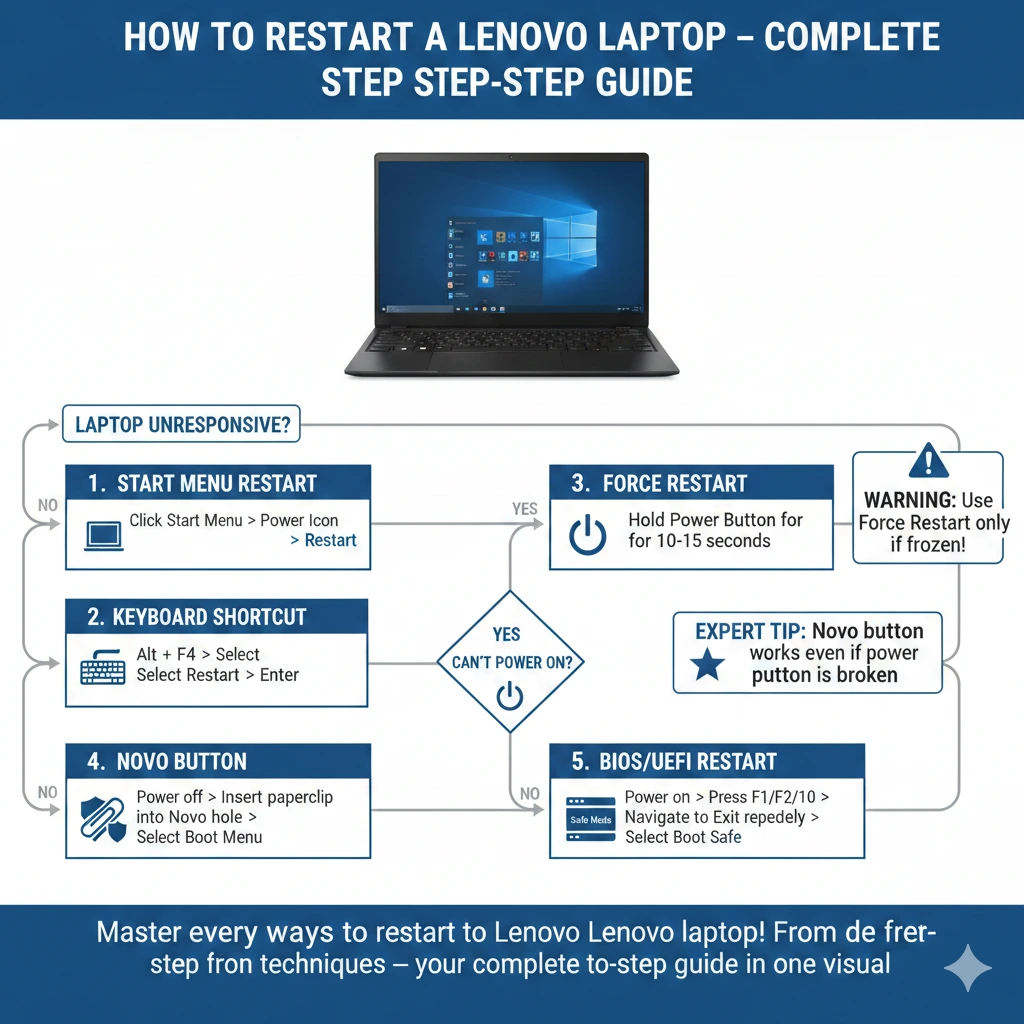
Restart via Start Menu
A fresh start through the Start menu stands as the top choice for reliability. This way shuts down every app smoothly before turning things off completely.
Steps:
- Start by tapping the Windows symbol found at the far left of the screen’s base edge.
- Select Power (
- Click Restart.
Perfect when handling regular upkeep or small glitches. Handles ThinkPad models along with IdeaPad, Yoga, Legion, and Slim Series machines just fine.
Keyboard Shortcut Restart
When the touchpad fails, pressing keys may restore functionality quickly – no click is needed. A frozen mouse? Try typing instead; it could reboot everything before you blink.
Steps:
- Hit those three keys at once – Ctrl, then Alt, then Delete. All together now.
- Press up or down to move the selection toward Power.
- After hitting Enter, choose Restart. The next step appears once the system reboots. Following that prompt brings you back to the beginning again.
Great if you prefer skipping the mouse when rebooting. Restarting feels smoother without extra clicks
Force Restart (When Frozen) <a name=”force-restart-when-frozen”
When nothing works at all, try a forced reboot. That usually fixes it.
Beware. This approach works only when the screen won’t respond at all – anything left unrecorded disappears. Freezing must be total; otherwise, hold back.
Steps:
- Start by pressing down on the Power button – keep holding it tight for about ten to fifteen seconds. Wait just long enough so that the machine shuts itself off entirely.
- Hold on briefly.
- Flick the switch once more to wake it up.
Restarting forcefully isn’t something you do often. Doing it too much puts strain on the physical parts inside the device.
Restart Using Lenovo’s Novo Button <a name=”restart-using-lenovos-novo-button”></a>
A small hole on plenty of Lenovo machines opens up hidden functions. This spot, called the Novo button, kicks in when the usual power option won’t respond. It grants entry to the setup settings without touching the keyboard. Recovery tools show up through it, too. Some models rely on this when nothing else wakes the screen.
What is the Novo Button?
A tiny hole – either round or square – sits close to the charge slot or along the edge of your machine. Poke it, the Novo screen wakes up showing choices: reboot, tweak BIOS settings, pull recovery tools. That menu gives control without touching keys.
Steps:
- Shut down the computer before stepping away.
- Locate the Novo button.
- Start by using a paperclip or a special tool. Push it into the hole without force. The tray should slide out slowly. Be careful not to bend anything. It works best when done smoothly.
- A new screen shows up. This is called the Novo MenRestart when required; otherwise, go for System Recovery or BIOS setup. Sometimes one option works better than the rest.
Built for gadgets refusing to boot up right. Or stuck when the power key fails. Works where normal methods fall short.
Restart from BIOS/UEFI <a name=”restart-from-bios-uefi”
When Windows won’t start, a way out is jumping straight into the BIOS or UEFI to restart. Instead of waiting, try powering up through firmware settings hidden at launch. From there, pick where the system wakes – bypassing Windows entirely if needed.
What is BIOS/UEFI?
Working behind the scenes, this layer manages how your Lenovo laptop interacts with its core components – setting up what loads first, spotting connected devices, and adjusting system code details. Built into the machine, it shapes startup sequences, guides hardware detection, and tunes internal software rules without drawing attention. Not visible during regular use, yet active every time you power on, deciding which parts speak when, making sure everything aligns before the main system wakes.
When to Use:
- The screen stops moving when the Lenovo sign appears.
- One moment it boots up, next thing – black screen hangs. System halts right before icons appear. Freezes there every single time. Not a flicker past login. The machine just stops cold.
- Fiddling with boot sequence? Firmware tweaks, too? Both need hands-on handling. No shortcuts here – someone must step in. Touch it yourself, or wait, won’t fix it. Updates sleep till you act. Machines don’t decide this alone.
Steps:
- Shut down the computer when you are done using it.
- Hold down the button marked Power.
- Hit F2, Del, or F12 fast – keep tapping, varies by device type. One key works per machine.
- BIOS/UEFI menu opens.
- Finding the Restart or Boot menu lets you start over. Rebooting happens once you pick that setting.
Fixing boots that won’t start, updating system software, and fixing issues with storage drives.
Smart Restart & AI Diagnostics in Lenovo Laptops
In 2026, Lenovo devices will increasingly include AI-assisted diagnostics via Lenovo Vantage and Windows 11/12 system tools. These tools can automatically detect startup failures, suggest restart fixes, and even recommend driver updates before a crash occurs.
Modern SSD-based Lenovo laptops also restart faster and recover more efficiently from crashes due to improved firmware optimisation and background system recovery layers.
This means fewer manual fixes—but knowing traditional restart methods is still essential when automation fails.
Restart if the Power Button Is Broken
A malfunctioning power button can prevent normal restarts. Here are alternative solutions:
| Option | How It Works |
| Access restart or recovery Functions even when the power button fails | Access restart or recovery functions even when power button fails |
| External USB Keyboard | Use Ctrl + Alt + Delete to restart via keyboard |
| Power Drain Reset | Unplug charger, remove battery (if removable), hold power ~20 seconds to reset power circuits |
Opening your laptop might cancel the warranty. Go ahead only when you feel sure about it.
Restart Lenovo Laptop in Safe Mode <a name
Starting up in Safe Mode means only the essential parts of Windows load. This way, when problems happen during booting, it is easier to figure out what went wrong. Instead of everything launching at once, just the core elements run, making fixes more straightforward.
Benefits:
- Detect faulty drivers
- Remove problematic apps
- Fix startup loops
Steps:
- Shut it down by pressing the power button three times in a row. Wait each time till the screen goes dark before letting go. Repeat this full sequence once more after the device turns back on. Finish when the cycle completes for the third round.
- When Windows loads into recovery mode, it opens WinRE automatically.
- Begin at Troubleshoot, then move into Advanced Options. From there, pick Startup Settings – restart will follow after that step. The system reboots once you confirm.
- Hit 4 or F4 to get into Safe Mode.
- Start by removing any apps that might be creating problems. Ditch drivers if they’re acting up lately. Get rid of recent updates when things go sideways after installation.
Once the issue is resolved, a regular restart brings back normal Windows operation. Full functionality returns when the system reboots without special modes active.
Troubleshooting Restart Loops & Startup Problems <a name=”troubleshooting-restart-loops-startup-problems
When Windows hits a snag from messed-up files, faulty drivers, or an update gone wrong, it might keep restarting over and over. Sometimes the system just can’t move forward, so it gets stuck in a cycle of rebooting without ever fully starting up
| Step | Action |
| 1 | Boot into Safe Mode and uninstall recent apps or drivers |
| 2 | Perform a Power Drain Reset (battery + charger) |
| 3 | Update drivers using Lenovo Vantage or Windows Update |
| 4 | Roll back recent Windows updates |
| 5 | Use System Restore to revert changes |
| 6 | If needed, perform Windows Reset |
| 7 | Run hardware diagnostics if loops persist |
Real-World Example:
- Problem: Laptop restarts endlessly after a Windows update.
- Start by entering Safe Mode. From there, open Settings. Go to Update and Security next. Choose Recovery from the options shown. Remove the most recent update installed. Finally, reboot the system to exit Safe Mode.
FAQs
A: No. Restarting simply reloads Windows and closes processes. Always save unsaved work to prevent data loss.
A: Ideally, once per week. Frequent restarts help release RAM, improve app performance, and maintain overall stability.
A: Try: Force restart, Novo button, BIOS reboot, Safe Mode, or Power Drain Reset. If these fail, consult Lenovo support or a technician.
A: Most ThinkPad, IdeaPad, and Yoga laptops have it. Some older or entry-level models may not.
A: Yes! Restarting resets network drivers, reconnects hardware components, and resolves many connectivity or peripheral issues.
Conclusion
Restarting a Lenovo laptop may seem simple, but it is one of the most powerful Troubleshooting tools available. From fixing frozen screens and software glitches to resolving update errors and boot issues, a proper restart can restore your system’s performance in minutes.
In 2026, with smarter Windows systems and AI-driven diagnostics, restarts are becoming faster and more efficient—but manual methods like Force Restart, Novo Button, and Safe Mode are still essential when things go wrong.
If your Lenovo laptop slows down, freezes, or behaves unexpectedly, don’t panic. Start with a simple restart and move to advanced methods only if needed. Regular maintenance and weekly restarts will keep your device stable, fast, and reliable for years to come.











