Introduction
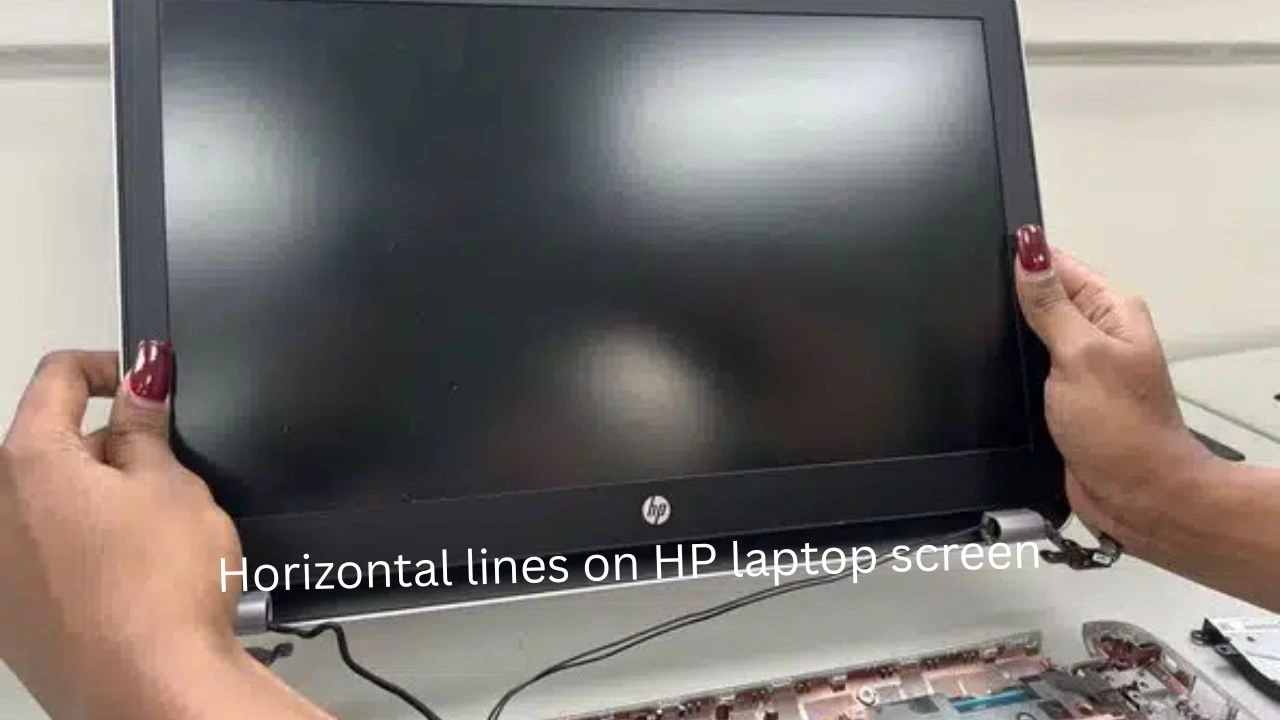
One moment everything looks fine – then streaks slice through the image. Lines might blink, crawl, or freeze mid-screen. Some stretch edge to edge, others pulse like waves. Horizontal lines on the HP laptop screen. Colored bands appear without warning. Thick dark blocks cover parts of the view. A smooth picture turns patchy, broken. These glitches disrupt what you’re doing. The screen seems split by invisible cuts. Flickers flash fast then vanish. What was clear now feels off.
Out of nowhere, these lines might show up. Other times, they stick around constantly, turning tasks like working or streaming into a hassle.
Most folks jump straight to thinking their HP Laptop display is totally wrecked and must get swapped out. Still, that guess often misses the mark.
Most times, flat lines show up because of little glitches or bigger problems inside the machine. Sometimes it’s just a hiccup in the code; other times, parts are actually breaking down. A frozen display might point to something small like a glitchy update, yet it could also mean the screen itself is failing. What looks like a simple fault may hide more serious damage beneath. These steady bars across the view come from many possible sources, some easy to fix, others needing full replacements.
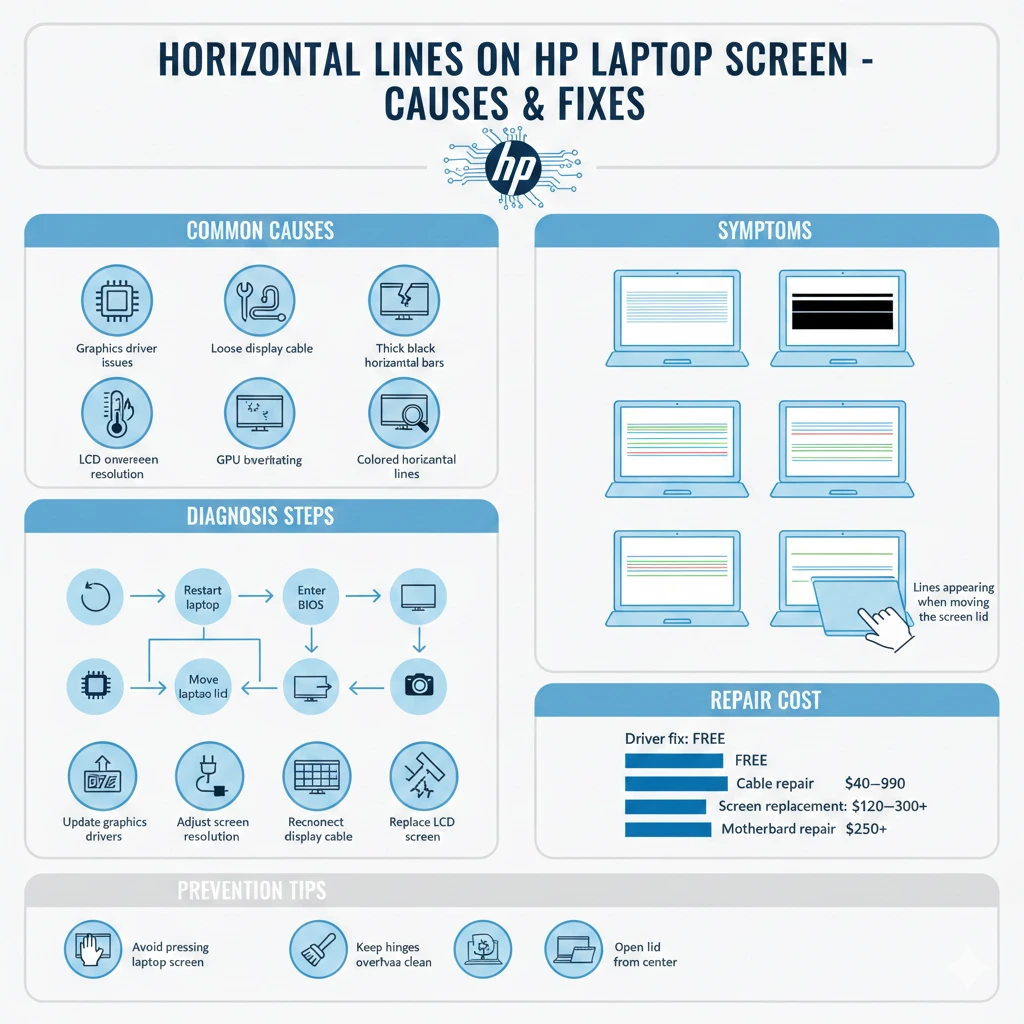
Common causes include:
- Graphics driver conflicts
- Loose internal display cables
- Incorrect display configuration
- GPU overheating
- LCD panel deterioration
- Screen controller malfunction
Pictures might look alike even when the issues behind them aren’t the same.
For example:
- Flickering lines can come from a cable that isn’t snug.
- Bars that stick around could mean the screen is going bad.
- Artifacts might pop up briefly if the graphics driver acts up.
Fixing problems first makes more sense than swapping parts right away – rushing in burns cash, slows progress.
Explanation
Oddly enough, many web tutorials stick to surface fixes without really unpacking how screen systems work or what clues point to the real issue behind display problems.
Get a clear look at the issue with this full troubleshooting walkthrough, then apply fixes that actually work. Solutions come after spotting what’s really going wrong.
When this piece wraps up, here comes what you’ll know:
- Why do horizontal lines appear on HP laptop screens
- How to determine whether the issue is hardware or software
- Step-by-step troubleshooting methods
- When LCD screen replacement becomes necessary
- Typical repair costs for HP laptops
- Expert prevention tips to protect your display
Flickering lines across your display? This walkthrough helps pinpoint what’s wrong – then shows how to fix it properly.
What Do Horizontal Lines on an HP Laptop Screen Mean?
A single row acting up might mean trouble in the screen’s wiring. Sometimes, broken connections show up as flat bars across the view. Trouble inside the panel often reveals itself this way. Lines stretching sideways? That points to pixel circuits failing. Each flicker or gap tells part of the story behind the glass.
A single pixel lives inside each tiny box on your laptop’s display. These boxes line up, row after row, forming a tight network across the surface. One fits beside another until the whole screen fills in. Eachholdscolorandlightinformationlikea smalltileinalarger picture. Together, they build whatever you see when the machine wakes.
Popping up inside every dot on screen are little bits of hue, teaming up to show what you see. These small pieces join forces, crafting letters, motion pictures, or snapshots without fuss.
A single horizontal line shows up on screen when a full row of pixels fails to work properly. Sometimes faulty signals cause this, making that strip stay stuck. The result is visible right away, cutting straight through whatever’s shown. Each pixel along it just freezes instead of changing like the others around it.
Few shapes emerge here, shaped by what started it all. Different causes bring different looks.
Thin Flickering Horizontal Lines
Thin lines that flicker or appear intermittently often indicate temporary system errors or GPU communication issues.
These lines may appear because of:
- Graphics driver instability
- GPU software glitches
- Temporary operating system display bugs
- Background software conflicts
In many cases, these lines disappear after:
- Restarting the laptop
- updating graphics drivers
- adjusting display settings
Because the underlying issue is software-related, the display hardware remains intact.
Thick Black Horizontal Bars
Thick black horizontal bars often indicate physical damage to the LCD panel.
Laptop screens consist of multiple thin layers, including:
- glass layers
- liquid crystal layers
- backlight diffusion layers
- pixel control circuits
If any of these layers become damaged, entire pixel rows may stop working.
Common causes include:
- accidental pressure on the screen
- dropping the laptop
- long-term wear and aging
If thick black bars remain visible at all times, the LCD panel may require complete replacement.
Colored Horizontal Lines (Red, Green, Blue)
Sometimes the lines appear in bright colors, such as:
- red
- green
- blue
- purple
- rainbow patterns
These colored lines are often associated with:
- GPU hardware instability
- internal display cable problems
- malfunctioning display controller chips
They may appear randomly, especially when performing GPU-intensive tasks such as:
- gaming
- video editing
- graphic design
- watching high-resolution videos
Lines That Appear When Moving the Laptop Lid
Flickering lines might vanish suddenly as you tilt the display open wider. Sometimes they shift into new patterns when moving the hinge slowly. The image distortion alters each time the angle shifts slightly. A different view appears if you pause mid-motion while lifting the lid. What looked broken moments ago could smooth out without warning.
Should you spot horizontal lines just as the lid shifts, chances are something’s off with:
- a loose display cable
- a partially damaged LVDS cable
- a worn eDP display cable
Fraying begins where movement meets connection, near the hinge’s edge. Each time the screen swings open, stress builds along the hidden wire. Over months, motion takes its toll on the internal cord. Bending weakens what once stayed strong inside. Eventually, the function falters under constant flex.
This issue shows up more than almost any other on laptops.
How Laptop Displays Work (Important for Diagnosing Screen Problems)
Understanding how a laptop’s screen works usually makes solving problems easier. What happens inside the display matters when something goes wrong. Most issues tie back to basic functions people overlook. Knowing the process changes how you approach repairs. A clear picture of the system guides each step forward.
Fueled by several parts inside, a laptop screen lights up only when they all do their job at once.
When a part stops working, you might see horizontal lines or odd visuals on screen. Sometimes broken pieces show up as strange patterns instead of clean images.
When a part stops working, you might see horizontal lines or odd visuals on screen. Sometimes broken pieces show up as strange patterns instead of clean images.
When a part stops working, you might see horizontal lines or odd visuals on screen. Sometimes broken pieces show up as strange patterns instead of clean images.
LCD / LED Display Panel
Behind the glass lies what shows images. That part lights up when turned on.
Modern HP laptops use LED-backlit LCD panels that contain:
- millions of pixels
- backlight layers
- transparent electrodes
- thin glass substrates
A single dot on screen shifts shade when it gets a message from the computer’s image brain. Different dots follow these messages one after another, lighting up in their own turn.
A single line of dead pixels can make steady horizontal stripes appear across the screen. Sometimes these look like dark bars cutting through the image.
Graphics Processing Unit (GPU)
Generating visuals falls on the GPU. It handles what appears on screen instead of just calculations. Picture creation comes down to its processing power rather than general tasks. What you see stems from this chip working behind the scenes.
From the operating system, it takes visual details, then passes them along to the display. Image signals move through after being sorted on arrival.
When a graphics card fails physically or gets too hot, you might see these results:
- screen artifacts
- distorted graphics
- horizontal or vertical lines
- flickering display
- corrupted textures
Faults in the graphics processor might disrupt display output on built-in screens as well as attached displays when problems become serious.
Display Cable (LVDS / eDP Cable)
A thin wire runs from the main board to the screen inside each laptop. This link carries visuals, so what you see matches your actions. Hidden beneath the casing, it ties two key parts together. Without this connection, the display would stay blank no matter the input. It fits snug between components, often delicate yet vital.
Fiber optics brings speed, yet copper wires handle distance well. Though older, coaxial cables still work in many homes today
- LVDS (Low Voltage Differential Signaling)
- eDP (Embedded DisplayPort)
Fed by the graphics card, this wire moves images toward the screen. It links output hardware to what you see, passing frames through a thin cord. From circuitry inside the PC, visuals travel along its length, arriving at the monitor’s surface.
Every time you lift or lower the screen, a small bend happens where the wire runs through the hinge. That spot gets flexed with each movement of the lid opening or shutting.
After years of usage, the cable may become:
- loose
- frayed
- The moment it occurs, a message might appear onscreen:
When this happens, the screen may display:
- flickering images
- random horizontal lines
- temporary display loss
Display Controller (Timing Controller)
A tiny chip lives inside every LCD screen. This part goes by the name T-CON, short for Timing Controller. It quietly manages when signals arrive. Without it, images would not form properly. The whole display relies on its precise timing.
From corner to corner, the image holds steady because this chip manages when each pixel lights up. Timing stays precise so visuals appear just as they should.
When the timing controller stops working, the display might show issues
- horizontal lines
- vertical lines
- frozen image sections
- partial screen failures
Faulty T-CON boards often mean swapping out the entire display.
Motherboard and Graphics Drivers
Software also plays an important role in display functionality.
Operating systems communicate with hardware through graphics drivers.
When driver files go wrong or clash, problems can appear in how the machine runs
- display glitches
- random screen lines
- flickering artifacts
- incorrect color rendering
Most times, glitches in programs take less effort to resolve compared to broken physical parts.
Most Common Causes of Horizontal Lines on HP Laptop Screen
Many different technical issues can produce horizontal lines on an HP laptop screen. Understanding these causes helps identify the correct repair method.
Loose or Damaged Display Cable
Laptop hinges move every time the device is opened.
Over time, the display cable may gradually wear out due to continuous bending.
Symptoms
- Lines appear when adjusting the laptop lid
- Screen flickers occasionally
- The display temporarily returns to normal after moving the screen
This issue commonly occurs in laptops used frequently for travel or daily commuting.
Failing LCD Panel
Sometimes the LCD panel itself becomes defective.
This may occur due to:
- accidental pressure on the screen
- physical impact or drops
- manufacturing defects
- long-term degradation
Symptoms
- Horizontal lines remain permanently visible
- Dark bars appear across the display
- Lines gradually spread across the screen
When the LCD panel fails, replacement is usually the only solution.
Graphics Driver Problems
Software conflicts can also produce screen artifacts.
After a Windows update or driver installation, graphics drivers may become incompatible.
Symptoms
- Lines appear after installing system updates
- Restarting the laptop temporarily fixes the issue
- The external monitor works normally
Updating or reinstalling the driver often resolves the problem.
GPU Hardware Failure
If the GPU hardware becomes damaged, the issue can become more serious.
Symptoms
- Horizontal lines appear across all displays
- External monitors show the same problem
- System freezes frequently
- Games crash or display distorted graphics
GPU failures often require motherboard repair or replacement.
Incorrect Screen Resolution or Refresh Rate
Improper display configuration may also produce unusual screen behavior.
For example:
- unsupported screen resolution
- Incorrect refresh rate settings
- display scaling conflicts
Resetting display settings usually resolves these problems quickly.
Overheating Components
Excessive heat can damage sensitive laptop components.
Overheating may affect:
- GPU processors
- display controllers
- motherboard circuits
Signs of overheating include:
- random horizontal lines
- screen flickering
- system shutdowns
- reduced performance
Cleaning cooling fans and improving ventilation can help prevent overheating damage.
How to Diagnose Horizontal Lines on an HP Laptop Screen (Step-by-Step)
Correct diagnosis helps determine the exact source of the problem.
Follow this troubleshooting workflow.
| Step | Test | What It Reveals |
| 1 | Restart laptop | Checks temporary software glitches |
| 2 | Enter BIOS | Identifies hardware vs software issue |
| 3 | Determines if the problem is hardware or software | Tests GPU functionality |
| 4 | Move laptop lid | Detects display cable damage |
| 5 | Take screenshot | Move the laptop lid |
Restart the Laptop
Restarting the system can eliminate temporary display bugs caused by operating system processes.
If the lines disappear after rebooting, the issue was likely software-related.
Connect an External Monitor
Connecting an external display is one of the most effective diagnostic tests.
| Result | Diagnosis |
| External monitor works perfectly | Screen or cable problem |
| External monitor also shows lines | GPU problem |
Move the Laptop Lid
Slowly adjust the screen angle.
If the lines appear or disappear while moving the lid:
➡ The display cable is likely damaged.
Take a Screenshot
Press:
Windows + PrtScn
Open the saved screenshot.
| Result | Diagnosis |
| Lines appear in screenshot | GPU or driver issue |
| Screenshot looks normal | Screen hardware problem |
How to Fix Horizontal Lines on an HP Laptop Screen
Below are the most effective troubleshooting solutions.
Restart the Laptop
Restarting can remove temporary graphical glitches.
This is the quickest and easiest troubleshooting step.
Update Graphics Drivers
Outdated drivers often cause display issues.
Steps
- Open Device Manager
- Click Display Adapters
- Right-click your GPU
- Select Update Driver
Restart the system after installing updates.
Adjust Screen Resolution
Incorrect display settings may cause visual distortions.
Steps
- Right-click desktop
- Open Display Settings
- Choose Recommended Resolution
- Apply change
Reconnect Display Cable
If the display cable becomes loose, reconnecting it may restore normal operation.
However, opening a laptop requires technical expertise.
If unsure, consult a professional technician.
Replace the LCD Screen
If the LCD panel is permanently damaged, replacement becomes necessary.
Professional technicians can replace laptop screens within 30 to 60 minutes.
Horizontal Lines vs Vertical Lines (Key Differences)
| Feature | Horizontal Lines | Vertical Lines |
| Pixel Direction | Row failure | Column failure |
| Common Cause | Display cable or panel | GPU or panel |
| Repair Difficulty | Medium | Medium to High |
| Screen Replacement | Sometimes | Often |
Understanding these differences helps identify the root cause faster.
HP Laptop Models Commonly Affected
Screen problems can occur in any laptop brand, but frequently used models may experience wear over time.
Common HP models include:
- HP Pavilion series
- HP Envy laptops
- HP EliteBook business laptops
- HP Omen gaming laptops
These laptops often use thin, flexible display cables, which can wear out after years of hinge movement.
Cost to Fix Horizontal Lines on HP Laptop Screen
Repair costs vary depending on the underlying problem.
| Repair Type | Estimated Cost |
| Driver fix | Free |
| Display cable repair | $40 – $90 |
| LCD screen replacement | $120 – $300 |
| Motherboard repair | $250+ |
In some situations, replacing the screen may be more economical than purchasing a new laptop.
When You Should Replace the Laptop Screen
Consider replacing the screen if:
- Lines appear in BIOS
- Horizontal lines spread across the display
- Black patches appear on the screen
- Display flickers constantly
- External monitor works perfectly
These signs usually indicate permanent LCD panel damage.
How to Prevent Horizontal Lines on Laptop Screens
Proper maintenance can significantly reduce the risk of screen problems.
Avoid Pressing the Screen
Laptop displays are fragile and sensitive to pressure.
Never press the screen or close the lid with objects on the keyboard.
Open the Laptop from the Center
Opening the lid from one corner puts uneven pressure on the hinges.
Always open the screen from the center.
Keep Hinges Clean
Dust buildup around hinges can damage the display cable.
Clean hinge areas regularly.
Prevent Overheating
High temperatures can damage the GPU and display components.
Prevent overheating by:
- cleaning cooling fans
- using laptop stands
- keeping air vents unobstructed
Pros and Cons of Repairing Laptop Screen Lines
Pros
- Restores clear display quality
- Extends laptop lifespan
- Cheaper than purchasing a new laptop
- Improves work productivity
Cons
- Screen replacements may be expensive
- GPU failure requires motherboard repair
- Low-quality replacement screens may reduce display quality
FAQ
A: Horizontal lines usually appear due to LCD panel failure, loose display cables, or graphics driver issues.
A: Yes. If the issue is caused by driver conflicts or software bugs, updating the driver may fix the problem.
A: No. Sometimes the issue is caused by software glitches or incorrect display settings.
A: Yes. Overheating may damage the GPU or display controller, causing graphical artifacts.
A: Screen repair typically costs $120–$300, depending on the laptop model.
A: Basic fixes like updating drivers are easy. Hardware repairs, such as screen replacement, require technical skills.
Final Verdict
Faultyscreenconnectionsoftenleadtohorizontal lines acrossHP laptop displays. Sometimes, damaged graphics hardware shows similar symptoms. A glitch in the display driver might also be responsible. Physical pressure on the screen can trigger these lines, too. In rare cases, motherboard issues create the problem. Each scenario needs careful checking
- a loose display cable
- a failing LCD panel
Fewer glitches pop up these days – driver mismatches might still sneak through now and then. Though rare, hiccups like these haven’t vanished entirely.
Fewer glitches pop up these days – driver mismatches might still sneak through now and then. Though rare, hiccups like these haven’t vanished entirely.
Start with simple troubleshooting methods such as:
- Restarting the laptop
- updating graphics drivers
- connecting an external monitor
When horizontal lines show up even during BIOS startup, it’s likely a physical problem with the device.
Start by working through the checks listed here – this way, you pin down what’s wrong without guesswork. Spotting the real issue early means fixing it won’t drain your wallet. Each step leads closer to a fix that makes sense, both technically and financially.











