Introduction
Is your Lenovo Laptop running painfully slow, crashing randomly, or refusing to boot at all? You’re not alone—and the good news is, How to factory reset lenovo laptop a factory reset can often fix these problems in one clean sweep.
Whether you’re dealing with stubborn system errors, malware infections, or simply preparing your device for resale, resetting your Lenovo laptop is one of the most effective solutions in 2026. Modern Windows recovery tools have made the process safer, faster, and more flexible—even if you don’t remember your password or your system won’t start.
In this complete, beginner-friendly guide, you’ll learn:
- What a factory reset actually does
- Step-by-step methods for all Lenovo models
- How to reset without logging in
- Fixes for common reset problems
- What to do after resetting for the best performance
By the end, you’ll have a clear, risk-aware roadmap to restore your Lenovo laptop to like-new condition—without confusion or guesswork.
What Is a Factory Reset and Why Does It Matter
A factory reset wipes your Lenovo laptop and restores it to its original state—just like when you first powered it on.
This process removes:
- Personal files
- Installed applications
- Custom settings
And reinstalls a fresh version of Windows.
Unlike a simple restart or refresh, a factory reset goes deeper—removing hidden bugs, corrupted system files, and even persistent malware that standard fixes can’t eliminate.
Types of Factory Resets
| Reset Type | Functionality | Ideal Scenario |
| Keep My Files | Removes apps and settings, preserves personal files | Minor software issues, slowdowns |
| Remove Everything | Completely wipes all data and reinstalls Windows | Major problems or before selling |
| Cloud Download | Fetches a fresh Windows copy from Microsoft servers | Slow internet or corrupted local files |
| Major problems or issues before selling | Major problems before selling | No internet access or offline reset |
A smart move? Save key files first – use cloud services or a USB drive when prepping for resets. Files stay safe that way.
SSD Health and Reset Failures
A growing issue in modern laptops is SSD wear-related reset failure. If your reset repeatedly fails or freezes, the problem may not be software—it could be storage hardware.
Signs include:
- Reset is stuck at the same percentage
- Frequent crashes before reset
- Disk errors in diagnostics
Solution:
Run Lenovo diagnostics or replace the SSD before reinstalling Windows.
Preparation Before Resetting
Start by saving anything you want to keep – photos, files, notes – somewhere else first. A sudden wipe can vanish everything without warning. Get the charger plugged in so the device does not die halfway through. Unexpected shutdowns during the process might leave things broken. Double-check that every personal detail has been moved out of reach.
Backup Your Files
Stashed away? That’s where your vital files should be. Think photos, contracts, license keys – stuff you can’t replace. Guard these pieces like they’re the backbone of your digital life. A sudden crash shouldn’t erase years of work. Backups matter most when everything else fails. Hidden but ready works better than lost forever. Keep copies where surprise failures won’t touch them
- Pictures show moments frozen in time. Moving clips capture actions as they unfold. Files hold information people need to keep
- Email files or archives
- Finding a code that unlocks software might be necessary for programs like those made by Adobe or Microsoft Office. These codes act as proof that you are allowed to use what you bought
Plug In the Laptop
A fresh start might last half an hour or stretch close to ninety, shaped by how much your Lenovo holds plus the way you do it. Stay connected to power so nothing cuts the process short.
Turn Off BitLocker If Already On
When BitLocker is on, your files stay locked tight – yet that might block a clean reset. So before anything else, disable it
- Open the taskbar typing box. Type Manage BitLocker there. Press enter when done
- Select Suspend Protection
- Confirm before proceeding
List Installed Applications
Pick a few tools you’d miss if they were gone – write them down somewhere safe. Snap a quick picture of your current setup instead of trying to remember everything afterward.
Factory Reset via Windows Settings
On newer Lenovo machines with Windows 10 or 11, head straight to Settings already inside the system. While it might seem hidden at first, everything you need sits just a few clicks away. Because the tools are baked right into the OS, there’s no need to hunt down extra software. Starting from the Start menu often works fastest. Yet some prefer typing “Settings” directly in the search bar. Either way gets you where you’re going without fuss.
Steps to Follow
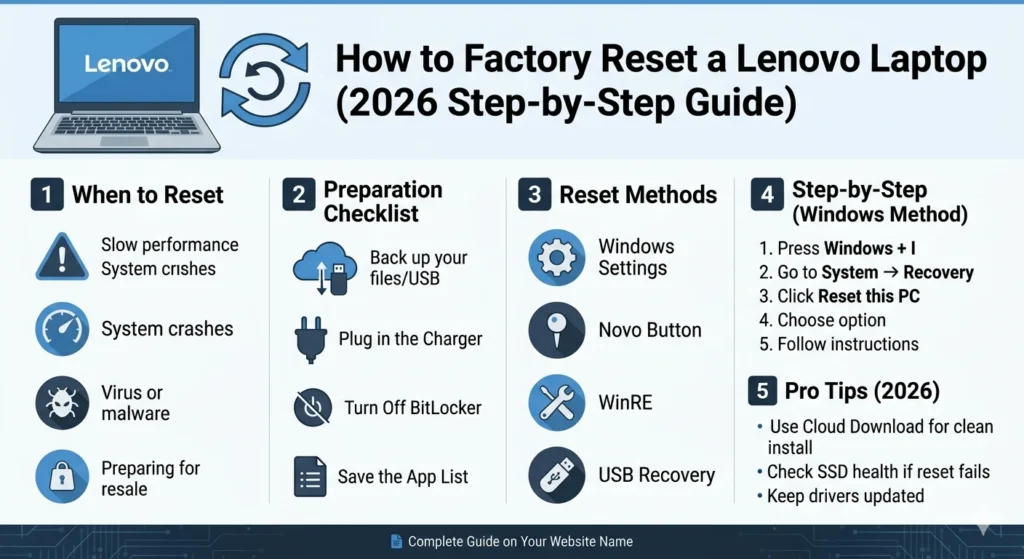
- Press Windows + I to open Settings
- Navigate to System → Recovery
- Under Reset this PC, click Get Started
- Choose either:
- Hang on to my papers – safeguard private records. Hold every document – protect what matters personally. Files stay put – secure individual paperwork. Save these folders – shield personal writings. Let nothing disappear – keep intimate notes intact
- Delete all files, settings, apps – wipe the entire system clean
- Pick how you want to reinstall. Choose your approach before moving forward
- Decide on the reinstall method:
- Cloud download
- Local reinstall
Your choice gets locked in. Wait while the machine reboots again and again
Lenovo OneKey / Novo Button Reset
Many Lenovo laptops include a Novo button, often a tiny pinhole near the power button. This method is effective even if Windows fails to start.
Steps
- Turn off your laptop
- Press the Novo button using a paperclip or small tool
- A boot menu appears
- Select System Recovery or OneKey Recovery
- Restore from backup and follow prompts
Effective When: Windows won’t boot, or the login is inaccessible.
Model-Specific Notes
| Lenovo Model Family | Novo Button Availability |
| ThinkPad | Sometimes no |
| IdeaPad | Yes |
| Yoga | Yes |
| Legion | Yes (slower reset) |
If your Lenovo model lacks a Novo button, use WinRE or USB recovery methods instead.
Reset Using Windows Recovery Environment
When your laptop cannot boot normally, and the Novo Button fails, Windows Recovery Environment (WinRE) offers a robust alternative.
Steps
- Turn on the laptop
- At the login screen, click Power
- Hold Shift and click Restart
- Choose Troubleshoot → Reset this PC → Remove everything
- Confirm and wait for the process to complete
Tip: WinRE is preinstalled and allows a reset without full Windows access.
Reset via USB Recovery Drive
For severe issues, like missing recovery partitions or system corruption, a USB recovery drive is essential.
Requirements
A working Windows PC
USB flash drive (8+ GB)
Windows Media Creation Tool
Steps
- On a working computer, download the Windows USB recovery media from:
- Create a bootable USB drive
- Plug the USB into the Lenovo laptop
- Boot from USB (press F12/F11 on startup)
- Select Troubleshoot → Recover from a drive or Install Windows
- Follow on-screen instructions
Best For:
Corrupted recovery partitions
Laptops failing to boot into Windows entirely
Factory Reset Lenovo Laptop Without Password
Forgot your password? Don’t worry — some reset methods allow you to proceed without login credentials.
| Method | Requires Login? |
| Novo Button / OneKey | No |
| WinRE Reset | No |
| USB Recovery Drive | No |
| Windows Settings Reset | Yes |
Security Note: Resetting without a password will erase all data. Only continue if you are sure
Troubleshooting Factory Reset Issues
Even with careful preparation, resets can encounter hurdles. Here’s how to address them:
Stuck or Looping
- Cause: Corrupt reset files
- Solution: Use USB recovery media to reinstall Windows
No Reset Option in Troubleshoot Menu
- Cause: Missing recovery partition
- Solution: Create a bootable USB drive and reset from it
Hangs at a Percentage
- Cause: Windows installation corruption
- Solution: Use USB installation media
Reset Fails Repeatedly
- Cause: Hardware or SSD malfunction
- Solution: Run Lenovo diagnostics; replace faulty drive if needed
After Reset — What to Do Next
A factory reset is just the first step. To restore your laptop to optimal condition:
Reinstall Drivers — Download from
Install Antivirus — Windows Defender or third-party security software
Run Windows Update — Install all security and system patches
Set Up User Accounts — Recreate accounts and passwords
Create a New Recovery Drive — Saves time in future resets
Pros & Cons of Factory Reset
Pros
- Fixes deep issues
- Removes malware
- Improves performance
- Prepares for resale
Cons
Apps must be reinstalled
Data loss risk
Time-consuming
FAQs
A: No. Choosing Cloud Download reinstalls the latest Windows version, including updates.
A: Yes — select Keep my files in Windows Settings.
A: Use WinRE or USB recovery. Some ThinkPad models lack a Novo button.
A: No. This usually indicates Windows corruption. Use USB recovery to reinstall.
A: Typically 30–60 minutes, depending on storage size and reset method.
A: Yes — USB recovery or OneKey menus work if an external display is connected.
Conclusion
Factory resetting your Lenovo Laptop isn’t just a last resort—it’s often the fastest and most reliable way to restore performance, eliminate stubborn issues, and start fresh.
From simple resets through Windows Settings to advanced recovery using the Novo button, WinRE, or USB drives, you now have multiple proven methods to handle any situation—even when your system won’t boot, or you’ve forgotten your password.
The key to success lies in preparation:
- Back up your important files
- Choose the right reset method
- Follow recovery steps carefully
Once completed, take a few extra minutes to reinstall drivers, update Windows, and secure your system. These small steps ensure your laptop runs smoothly long after the reset.











