
Introduction
A flickering orange glow on your Dell laptop? That uneasy feeling sneaks up on plenty of users.
The little amber light isn’t flickering for no reason. Built by Dell Technologies, it works inside a smart setup meant to show power status and spot hardware issues. Instead of guessing, you get signals about worn-out batteries, problems while charging, broken firmware, glitches in memory, drive troubles, CPU defects, or flaws deep in the motherboard circuits. Though quiet, it speaks through timing and rhythm in its glow.
Most web tips skim the topic, offering shallow suggestions like:
- “Check the charger.”
- “Replace the battery.”
- “Restart the laptop.”
Though helpful at times, these tips overlook the systematic LED troubleshooting method built into key Dell lines, like:
- Dell Inspiron
- Dell XPS
- Dell Latitude
- Dell Vostro
A flash of amber, then white – each pause counted – tells what works while the screen stays dark. These rhythms speak only when power first hits, long before graphics wake u
What Does a Dell Laptop Light Flashing Orange Mean?
A Dell laptop light flashing orange generally falls into three primary diagnostic categories:
- Battery or charging malfunction
- Power delivery or adapter communication problem
- Hardware POST (Power-On Self-Test) failure
Dell laptops use LED status indicators to communicate system condition — even if the screen remains black. This allows troubleshooting when the device refuses to boot.
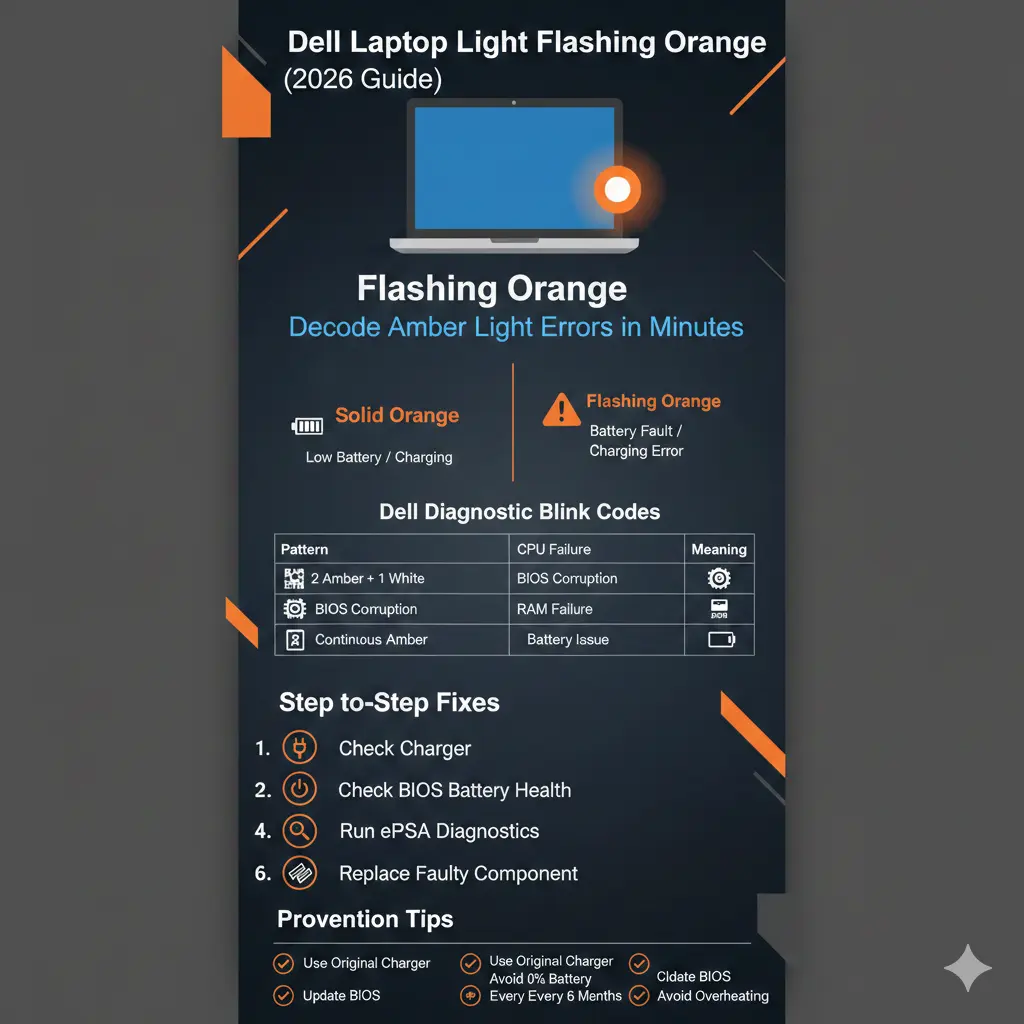
Quick LED Meaning Overview
| LED Status | Typical Interpretation | Severity Level |
| Solid Orange | Low battery or actively charging | Low |
| Flashing Orange | Charging error or battery fault | Medium |
| Amber + White Pattern | Hardware diagnostic code | High |
| No Light | No power or motherboard issue | Critical |
Solid Orange vs Flashing Orange – What’s the Difference?
Understanding this difference eliminates unnecessary panic.
Solid Orange Light
A steady amber glow typically indicates:
- The battery charge level is critically low
- The battery is currently being replenished
- The laptop is in sleep state with low power reserve
In most scenarios, this is not alarming.
If your laptop powers on and charges normally, this is standard behavior.
Flashing Orange Light
A blinking amber LED is more significant.
It may indicate:
- Battery not detected
- Charging failure
- AC adapter authentication issue
- Internal battery communication breakdown
- Hardware POST diagnostic fault
If the blinking occurs in a repeating pattern, it is almost certainly a structured blink code — not a random flicker.
This is where most users become confused. But once decoded, the system becomes logical.
Why Is Your Dell Laptop Blinking Orange? (Root Causes Explained)
Let’s analyze the core causes using a layered diagnostic approach.
Battery Issues & Charging Failures (Most Common Cause)
The most frequent reason for a Dell laptop flashing orange is a deteriorating lithium-ion battery.
Laptop batteries rely on lithium-ion cell chemistry. Over time, internal resistance increases and capacity diminishes.
Why Batteries Degrade
- Excessive charge cycles
- Prolonged heat exposure
- Deep discharge to 0% frequently
- Age (average lifespan: 3–5 years)
- Using incompatible or low-quality chargers
Indicators of Battery Failure
- The laptop functions only when plugged in
- Battery percentage stuck or inaccurate
- “Battery not detected” warning
- Physically swollen battery
- Continuous amber blinking
If your device is more than three years old, battery wear is statistically probable.
Battery replacement is typically affordable and effective.
Common Adapter Problems
- Incorrect wattage (65W vs 90W vs 130W)
- Damaged cable or frayed insulation
- Loose or cracked charging port
- Adapter identification chip failure
Always test with an original Dell-certified adapter before assuming internal damage.
Dell Diagnostic LED Blink Codes (Critical Section)
Modern Dell laptops use amber and white LED sequences during POST.
This is a structured hardware diagnostic communication system.
It is not random blinking.
How to Count Blink Codes
- Watch closely.
- Count amber flashes.
- Count white flashes.
- Wait for a pause.
- Pattern repeats.
Example:
2 Amber → 1 White → pause → repeat
= Processor (CPU) failure
Common Dell Blink Code Meanings
| Amber | White | Meaning | Likely Solution |
| 2 | 1 | CPU failure | Motherboard service |
| 2 | 2 | BIOS corruption | BIOS recovery |
| 2 | 3 | Memory not detected | Reseat RAM |
| 3 | 2 | Memory failure | Replace RAM |
| 3 | 3 | CMOS battery issue | Replace CMOS battery |
| 4 | 2 | Storage failure | Replace SSD/HDD |
| Continuous Amber | None | Battery fault | Replace battery |
Always verify using your specific model’s support documentation.
BIOS & Firmware Problems
The BIOS (Basic Input Output System) controls:
- Battery authentication
- Adapter identification
- Power sequencing
- Thermal regulation
- Hardware initialization
If BIOS firmware becomes corrupted:
- The battery may show an inaccurate status
- Adapter may register as “Unknown.”
- Orange blinking may persist
Updating firmware through the official support portal often resolves false alerts.
BIOS corruption is more common after:
- Interrupted updates
- Power loss during firmware installation
- Voltage instability
Overheating & Thermal Shutdown
Thermal stress significantly impacts power systems.
If your laptop overheats:
- It may shut down abruptly
- LED may blink
- The system may refuse to boot
Causes of Overheating
- Dust accumulation in cooling vents
- Blocked airflow pathways
- Degraded thermal paste
- Intensive workloads (gaming, rendering, editing)
Regular internal cleaning every 6–12 months dramatically reduces thermal strain.
Heat accelerates battery decay and motherboard deterioration.
Motherboard or Power Circuit Failure
Less common but serious.
Symptoms include:
- No display output
- Persistent LED blinking
- Complete unresponsiveness
Motherboard replacement is typically expensive.
If the device age exceeds 5 years, replacement may be more economical.
Step-by-Step Troubleshooting Guide (Structured Workflow)
Do not skip steps.
Follow a logical escalation process.
Inspect Power Adapter & Cable
- Examine for burns or cuts
- Test the alternate wall outlet
- Try the original Dell charger
- Clean charging port gently
If the adapter LED is flickering → replace the adapter.
Perform Hard Reset (Power Drain)
This clears residual static electricity.
Steps:
- Power off the laptop
- Disconnect charger
- Remove battery (if removable)
- Hold power button for 20–30 seconds
- Reconnect battery and charger
- Power on
Minor firmware glitches often resolve here.
Check Battery Health in BIOS
- Restart device
- Press F2
- Navigate to Battery Information
Look for:
- Battery Health = Poor
- Adapter = Unknown
If battery health reads “Poor,” Replacement is recommended.
Run Dell ePSA Diagnostics
- Restart
- Press F12
- Select Diagnostics
The ePSA tool scans:
- RAM
- CPU
- Storage
- Battery
Record any displayed error code.
Reseat RAM & SSD (Advanced Users)
If the blink code indicates a memory error:
- Remove the back panel
- Gently remove the RAM module
- Clean gold contacts (dry cloth only)
- Reinsert firmly
If the issue persists → replace the RAM.
BIOS Recovery
If the blink code indicates BIOS corruption:
- Power off
- Hold Ctrl + Esc
- Connect charger
- BIOS recovery screen appears
- Follow instructions
Replace Faulty Component
| Component | Cost | Recommended Action |
| Battery | Low | Replace |
| RAM | Low | Replace |
| SSD | Moderate | Replace |
| Motherboard | High | Often replace laptop instead |
If the repair cost exceeds 50% of the device value, replacement is often wiser.
Repair vs Replace – Intelligent Financial Decision
Consider:
- Is the device older than 5 years?
- Is the motherboard damaged?
- Does overheating persist?
If yes, upgrading may be smarter.
Battery, RAM, and SSD repairs remain cost-effective.
Pros & Cons of Dell LED Diagnostic System
Advantages
- Precise hardware identification
- Functions without display
- Minimizes guesswork
- Saves technician time
Disadvantages
- Confusing for beginners
- Blink codes vary by model
- Documentation sometimes unclear
Nevertheless, it remains one of the most structured diagnostic LED systems in consumer laptops.
How to Prevent Dell Laptop Flashing Orange Issues
Preventative maintenance significantly extends hardware longevity.
Follow these best practices:
Use a genuine Dell charger
Avoid draining the battery to 0% regularly
Clean vents every 6 months
Update BIOS annually
Avoid extreme heat environments
Monitor battery health quarterly
Ensure airflow during gaming
Small preventative habits add years to the system’s lifespan.
FAQ
A: It usually means the battery is not charging properly due to an adapter issue, battery failure, or BIOS miscommunication.
A: It is a hardware diagnostic blink code. Count flashes carefully to identify the failed component.
A: Yes. If the issue is caused by firmware corruption or adapter misreading, a BIOS update can solve it.
A: This usually indicates battery failure, motherboard problem, or CPU/RAM POST failure.
Conclusion
- Battery degradation
- Adapter mismatch
- Firmware miscommunication
Motherboard failure is comparatively rare.
The correct diagnostic methodology is simple:
Observe → Count → Interpret → Fix systematically
By following this structured troubleshooting workflow, you are applying the same analytical method used by certified technicians.
Most flashing orange issues are preventable through proactive care and informed maintenance.
And that is the true goal — not just restoring function temporarily, but mastering the logic behind your technology.











