Introduction
If your Dell Laptop is flashing an orange light, do not panic or assume the device is permanently damaged. This amber or orange blinking indicator is a built-in hardware diagnostic mechanism created by Dell Technologies to help identify internal system faults. It acts as a visual communication tool between your laptop’s embedded hardware controller and you.
Many users mistakenly believe their laptop has completely stopped functioning when they see this flashing amber signal. Still, that blinking light isn’t just random – it gives clear clues about what’s wrong inside. When something goes off track, it might point to a weak battery, a broken memory chip, a damaged software core, a mismatched charger, or deeper issues on the circuit board.
Explanation
When a modern Dell laptop refuses to start, its lights might still speak. Blinking LEDs – guided by the tiny brain called the Embedded Controller – carry clues. Even if the big chip sleeps and the display shows nothing, these flashes keep going. They run their own show, separate from the main system, giving signals when everything else stays silent.
Start here if things go wrong. You get plain words, not jargon. Each part fits how people actually speak now. Whether you’re just learning or fixing systems every day, it works. Clarity comes first, always. Solutions show up fast when confusion fades.
What You Will Learn in This Guide
By reading this detailed troubleshooting resource, you will learn:
- What Dell laptop flashing orange light means
- Complete Dell LED blink code patterns explained clearly
- Beginner-level to expert-level diagnostic procedures
- Exact repair solutions for battery, RAM, charger, BIOS, CMOS, and motherboard problems
- Model-specific troubleshooting for Inspiron, Latitude, and XPS systems
- Preventive maintenance tips to avoid hardware faults
- Safe at-home repair techniques without damaging components
- How to interpret hardware signals accurately
This guide is ideal for:
- Students
- Beginners
- Professionals
- IT technicians
- Repair specialists
- Laptop owners
What Does a Dell Laptop Flashing an Orange Light Mean?
The flashing orange light on a Dell laptop is a hardware diagnostic warning indicator generated by the internal embedded controller.
It signals that the system has detected a power-related issue or hardware malfunction during initialization or normal operation.
Basic Meaning of Dell Orange Light
| Light Status | Meaning | Severity |
| Solid Amber | Low battery level | Low |
| Blinking Amber | Battery or hardware problem | Medium |
| Amber + White blinking | Hardware diagnostic signal | High |
| Constant Amber | Battery failure detected | High |
| No light | Power delivery or motherboard failure | Critical |
Dell laptops typically use two LED colors:
- Amber (Orange) → Indicates hardware fault, abnormal condition, or energy supply issue
- White → Indicates normal system activity or diagnostic confirmation
The specific blinking sequence helps identify the exact hardware component responsible for the failure.
Why Dell Uses LED Diagnostic Blink Codes
Dell laptops include a specialized microcontroller known as the Embedded Controller (EC). This chip plays a critical role in managing hardware operations and maintaining system stability.
Functions of the Embedded Controller
The EC performs several essential tasks, including:
- Power regulation and distribution
- Battery charging supervision
- Thermal monitoring and temperature regulation
- Hardware initialization during startup
- System safety management
- LED diagnostic signaling
If a hardware malfunction occurs, the Embedded Controller prevents system startup and displays an LED blink sequence.
This diagnostic system functions even when:
- The laptop does not power on
- The display remains black
- The processor fails to initialize
- Memory modules fail
- BIOS firmware becomes corrupted
This makes the Dell laptop’s flashing orange light diagnostic system highly reliable, precise, and effective.
Official Dell LED Blink Code Table
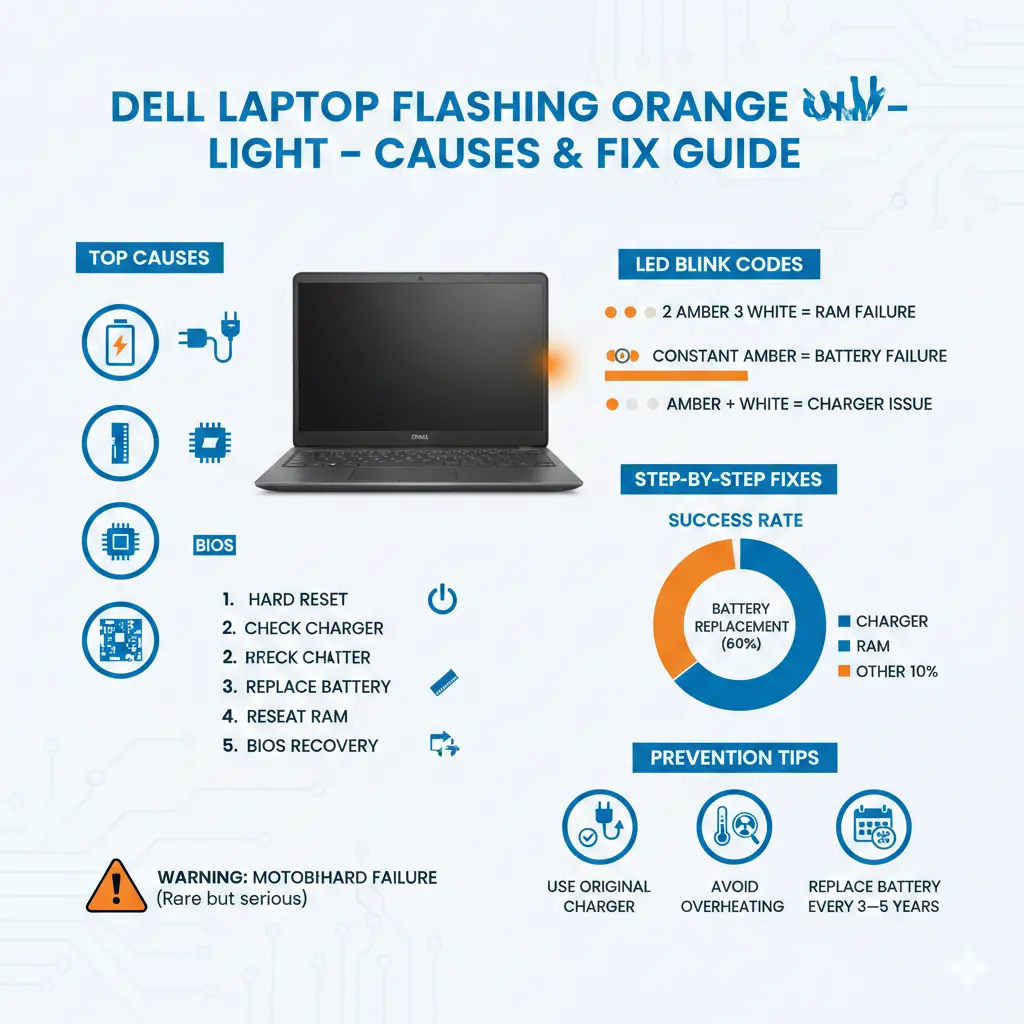
| Amber Blinks | White Blinks | Meaning | Component | Solution |
| 2 | 1 | CPU failure | Processor | Motherboard repair |
| 2 | 2 | BIOS corruption | BIOS firmware | BIOS recovery |
| 2 | 3 | RAM failure | Memory module | Replace or reseat RAM |
| 2 | 4 | Memory detected but failing | RAM | Replace memory |
| 2 | 5 | CMOS battery failure | CMOS battery | Replace CMOS battery |
| 2 | 6 | GPU failure | Graphics processor | Motherboard repair |
| 2 | 7 | CPU cache failure | Processor | Repair motherboard |
| 3 | 1 | CMOS battery dead | CMOS battery | Replace CMOS |
| 3 | 2 | GPU or PCI failure | Graphics | Hardware repair |
| 3 | 3 | BIOS recovery image missing | BIOS | Restore firmware |
| 3 | 4 | BIOS recovery failed | BIOS | Advanced repair |
| Constant Amber | None | Battery failure | Battery | Replace battery |
| Amber + White continuous | None | Unsupported charger | Power adapter | Replace charger |
These LED sequences function as an internal communication protocol that informs users about hardware abnormalities.
Battery Failure (Most Common Cause)
Battery degradation is the most frequent cause of a flashing orange light.
Laptop batteries gradually lose their ability to retain charge due to chemical aging and repeated charge cycles.
Why Batteries Fail
- Excessive charge cycles
- Thermal stress and overheating
- Natural aging over time
- Constant full-charge exposure
- Manufacturing wear
Battery Failure Symptoms
- The laptop works only when plugged in
- Battery percentage stuck at zero
- Sudden system shutdown
- Flashing amber warning light
Solution
Replace the battery with a genuine compatible replacement.
Battery replacement resolves approximately 60% of flashing orange light issues.
Faulty Charger or Power Adapter
Dell laptops include charger authentication technology. If the adapter cannot be identified properly, the system restricts charging and displays a blinking amber warning.
Charger Failure Symptoms
- The laptop does not charge properly
- Charging is intermittent
- The orange blinking indicator appears
Solution
Use the original Dell-approved charger.
Avoid low-quality or incompatible adapters.
RAM Failure
Random Access Memory (RAM) is required for system initialization.
If RAM becomes defective, the laptop cannot boot.
RAM Failure Symptoms
- Blank screen
- No system startup
- Specific blink code patterns
Solution
Reseat or replace RAM module.
This resolves many startup failures.
CMOS Battery Failure
The CMOS battery powers BIOS configuration memory.
Failure results in hardware detection problems.
CMOS Failure Symptoms
- BIOS resets repeatedly
- Incorrect date and time
- Boot failures
Solution
Replace the CMOS battery.
This is inexpensive and effective
Motherboard Failure (Serious Problem)
Motherboard failure affects all system components.
Symptoms
- Laptop completely unresponsive
- Continuous blinking
- No display
Solution
Professional motherboard repair or replacement required.
Step-by-Step Troubleshooting Guide
Follow these troubleshooting procedures carefully.
Steps
- Turn off the laptop
- Disconnect the power adapter
- Remove battery
- Hold the power button for 30 seconds
- Reconnect charger
- Turn on the laptop
Success rate: 30%
Check Charger
Verify charger integrity.
Ensure:
- Charger is original
- Charging indicator is active
- The cable is not damaged
Test the alternative adapter if available.
Check Battery Connection
Loose connections can cause charging failure.
Steps
- Remove battery
- Clean contacts
- Reinstall the battery securely
Check Battery Health in BIOS
Steps
- Power on the laptop
- Press F2
- Enter BIOS settings
- Check battery health status
Battery Health Status Meaning
| Status | Meaning |
| Excellent | Fully functional |
| Fair | Degraded |
| Poor | Weak |
| Failed | Replacement required |
Reseat RAM
Memory modules may become loose.
Steps
- Turn off the laptop
- Remove the back cover
- Remove RAM
- Clean connectors gently
- Reinstall RAM
Reset BIOS
Restore default firmware settings.
Steps
- Enter BIOS
- Select Restore Defaults
- Save settings
Embedded Controller Reset
This resets the hardware controller.
Steps
- Turn off the laptop
- Remove the battery and charger
- Hold the power button for 60 seconds
- Reconnect components
BIOS Recovery
Restores corrupted firmware.
Steps
- Turn off the laptop
- Hold CTRL + ESC
- Connect charger
- Release keys
The recovery process begins automatically.
Dell Inspiron Flashing Orange Light
Common causes:
- Battery degradation
- Adapter failure
- RAM malfunction
Dell Latitude Blinking Orange Light
Common causes:
- CMOS battery failure
- BIOS corruption
Dell XPS Flashing Orange Light
Common causes:
- Battery aging
- Motherboard power circuit defect
Troubleshooting Priority Table
| Priority | Fix | Difficulty | Success Rate |
| 1 | Hard reset | Easy | 30% |
| 2 | Check charger | Easy | 25% |
| 3 | Check battery | Easy | 40% |
| 4 | BIOS reset | Medium | 20% |
| 5 | Reseat RAM | Medium | 25% |
| 6 | EC reset | Medium | 35% |
| 7 | Replace battery | Medium | 60% |
| 8 | Replace CMOS | Advanced | 20% |
| 9 | Replace motherboard | Expert | 10% |
How to Know If Your Dell Laptop Battery Is Dead
Clear signs include:
- The laptop works only when connected to the charger
- Battery percentage stuck at zero
- Constant blinking amber indicator
Immediate replacement recommended.
When Flashing Orange Light Is Dangerous
Danger indicators include:
- System not powering on
- Continuous blinking pattern
- No display output
This often indicates a serious motherboard defect.
Prevention Tips to Avoid a Dell Laptop Flashing an Orange Light
Pros
- Accurate hardware diagnosis
- Faster troubleshooting
- Reduced repair costs
Cons
- Requires technical knowledge
- Some repairs require a technician
FAQ
A: This indicates battery, RAM, BIOS, or motherboard failure.
A: Sometimes. Battery issues are common.
A: Yes. Most cases are fixed by replacing the battery or charger.
Conclusion
If your Dell Laptop is flashing an orange light, it is an advanced diagnostic warning mechanism designed to protect hardware and assist troubleshooting.
Most common causes include:
- Battery failure
- Charger malfunction
- RAM defect
- BIOS corruption
- CMOS battery failure











