Introduction
Screenshots help learners save class materials, tasks, reading ideas, study details, and tests. Screenshots have become one of the fastest ways to communicate in the digital world. Whether you’re saving an error message, capturing lecture notes, sharing work updates, or recording Gameplay moments, a screenshot turns what you see on screen into something you can instantly store, send, or explain.
If you’ve ever wondered how to screenshot on a Dell laptop, you’re not alone. How Do You Screenshot On a Dell Laptop Even in 2026, many users still struggle because screenshot behavior changes depending on Windows versions, keyboard layouts, and device types like 2-in-1 laptops or Chromebooks.
The confusion usually comes from small but important differences—some shortcuts copy images instead of saving them, others use hidden folders, and a few depend on function (Fn) key settings. That’s why a single shortcut rarely works for everyone.
This guide breaks everything down in a simple, updated way so you can confidently take screenshots on any Dell laptop—whether you’re using Windows 10, Windows 11, or ChromeOS. You’ll learn every method, where screenshots are saved, and how to fix common issues when things don’t work as expected.
Screenshot Basics on a Dell Laptop
A screenshot is a digital snapshot of whatever appears on your laptop screen at a specific moment.
Instead of describing an issue verbally, screenshots visually display:
- Errors
- Results
- Instructions
- Evidence
- On-screen data
Types of Screenshots You Can Take on Dell Laptops
Dell laptops support four primary screenshot categories, each with different shortcuts and saving behaviors:
- Full-screen screenshots
Captures everything visible on the display - Active window screenshots
Captures only the selected application window - Custom area screenshots
Captures a user-selected portion of the screen - Clipboard vs auto-saved screenshots
Determines whether the image is saved automatically or copied only
Understanding these categories eliminates 90% of screenshot confusion.
Where Are Screenshots Saved on a Dell Laptop?
The save location depends entirely on how the screenshot is taken:
- Auto-saved screenshots → Pictures > Screenshots
- Clipboard screenshots → Must be pasted manually
- Snipping Tool captures → User chooses save location
- Game Bar screenshots → Videos > Captures
- Chromebook screenshots → Downloads folder
Each method is explained in detail below.
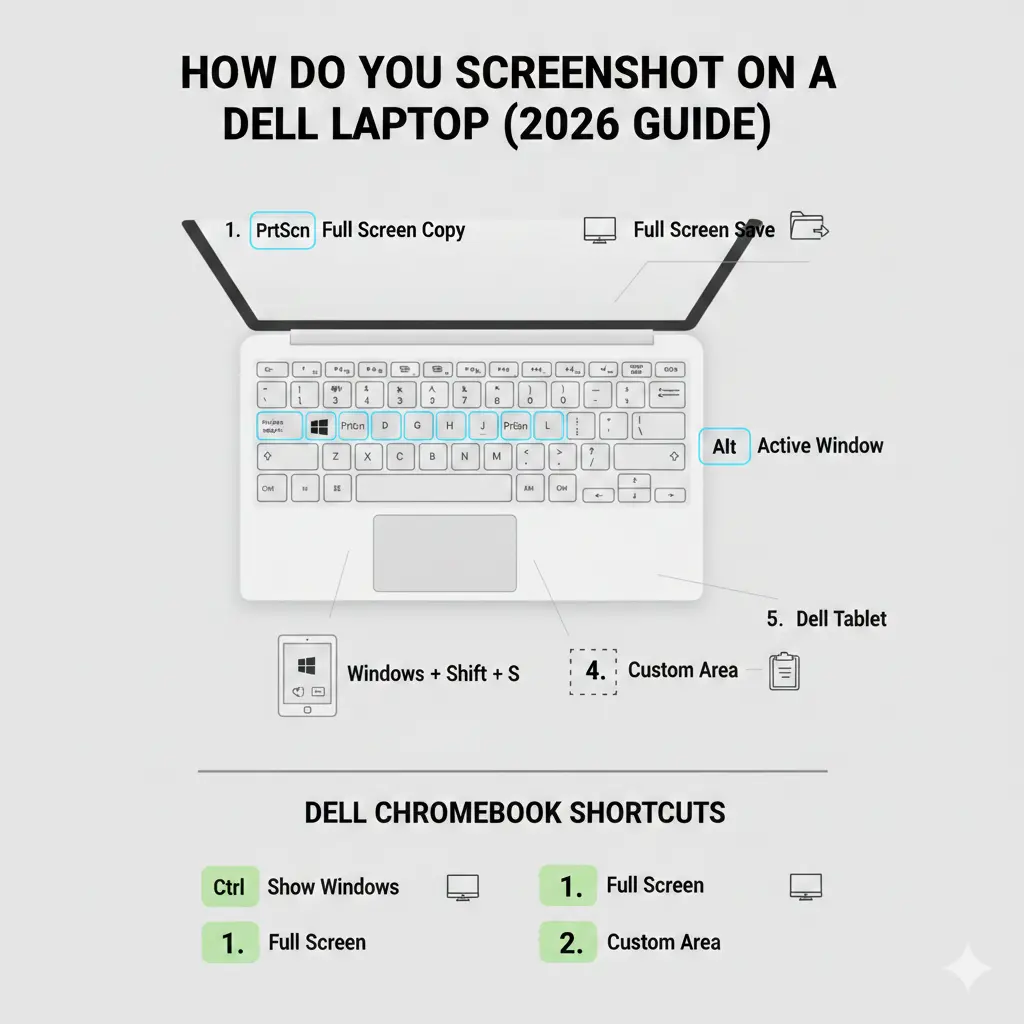
Screenshot Shortcut Cheat Sheet
| Screenshot Action | Keyboard Shortcut |
| Full screen (auto-save) | Windows + PrtScn |
| Copy full screen | PrtScn |
| Active window only | Alt + PrtScn |
| Custom area | Windows + Shift + S |
| Tablet / 2-in-1 | Windows + Volume Down |
| Chromebook full screen | Ctrl + Show Windows |
Full-Screen Screenshot on a Dell Laptop
Best For
Beginners, documentation, exams, reports, instant captures, and quick sharing.
Shortcut
Windows key + PrtScn
What Happens?
- The entire screen is captured
- Screen briefly dims (visual confirmation)
- Screenshot saves automatically
Where Is It Saved?
Pictures > Screenshots
Works On
- Dell laptops running Windows 10
- Dell laptops running Windows 11
This method is the simplest and most reliable answer to
How do you screenshot on a Dell laptop
Copy Screenshot to Clipboard
Best For
Editing, pasting into Word documents, emails, PowerPoint, Paint, or Photoshop.
Shortcut
PrtScn
What Happens?
- The entire screen is copied to the clipboard
- Nothing is saved automatically
How to Use It Properly
- Press PrtScn
- Open Paint / Word / Email
- Press Ctrl + V
- Save manually
Screenshot Only the Active Window
Best For
Meetings, tutorials, presentations, and clean professional captures.
Shortcut
Alt + PrtScn
What It Captures
- Only the currently active window
- No background clutter
Steps
- Click the window you want
- Press Alt + PrtScn
- Paste using Ctrl + V
- Save manually
This is ideal for focused, distraction-free screenshots.
Custom Screenshot Using Snipping Tool
Best For
Precision work, annotations, tutorials, and advanced users.
Shortcut
Windows + Shift + S
What Opens?
The built-in Snipping Tool / Snip & Sketch overlay.
Capture Modes
- Rectangle Snip
- Freeform Snip
- Window Snip
- Fullscreen Snip
After Capture
- Screenshot copied to clipboard
- Click notification to edit and save
- Supports drawing, highlighting, cropping, and annotations
Screenshot on Dell Tablet & 2-in-1 Devices
Best For
Touchscreen Dell laptops and hybrid devices.
Shortcut
Windows + Volume Down
Behavior
- Works like a smartphone screenshot
- Saves automatically
Save Location
Pictures > Screenshots
Used on:
- Inspiron 2-in-1
- XPS 2-in-1
- Latitude tablet models
How to Screenshot on a Dell Chromebook
Dell Chromebooks do not use Windows and follow ChromeOS shortcuts.
Full-Screen Screenshot
Ctrl + Show Windows
Partial Screenshot
Ctrl + Shift + Show Windows
Save Location
Downloads folder
Chromebook shortcuts are completely different from Windows Dell laptops.
Built-In Screenshot Tools in Windows (Dell Laptops)
Snipping Tool
- Launch from Start Menu
- Set delay timers
- Annotate and save images
- Ideal for tutorials and guides
Xbox Game Bar (Hidden Power Tool)
Shortcut
Windows + G
Features
- Capture games and apps
- Screen recording
- Automatic saving
Save Location
Videos > Captures
Perfect for gamers and content creators
When Screenshots Don’t Work on Dell Laptops
Common Problems
- PrtScn key not working
- Screenshots not saving
- Wrong folder confusion
- Fn key issues
- Clipboard conflicts
Fixes That Actually Work
- Press Fn + PrtScn
- Disable Fn Lock
- Use Windows + Shift + S
- Update keyboard drivers
- Check clipboard history
- Restart Windows Explorer
Where Are Screenshots Saved on a Dell Laptop?
| Method Used | Save Location |
| Windows + PrtScn | Pictures > Screenshots |
| PrtScn / Alt + PrtScn | Clipboard only |
| Snipping Tool | User-selected |
| Game Bar | Videos > Captures |
| Chromebook | Downloads |
Pros & Cons of Screenshot Methods on Dell Laptops
Pros
- Built-in tools
- No extra software
- Fast shortcuts
- Works across all Dell models
Cons
- Confusing save locations
- Fn key dependency
- Chromebook shortcuts differ
FAQs
A: Use Windows + Shift + S or the Snipping Tool.
A: You may be using clipboard-only shortcuts. Use Windows + PrtScn.
A: They save in Pictures > Screenshots by default.
A: Windows laptops do. Chromebooks do not.
Conclusion
Taking a screenshot on a Dell Laptop is simple once you understand which method matches your device and goal. Whether you’re using Windows 10, Windows 11, or ChromeOS, there is always a built-in shortcut designed to help you capture your screen quickly.
For most users in 2026, Windows + Shift + S is the most versatile option, while Windows + PrtScn remains the fastest for instant full-screen saves. Chromebook users, on the other hand, must rely on ChromeOS-specific shortcuts.
Once you understand where screenshots are saved and how each method behaves, capturing and sharing your screen becomes effortless and reliable.











